# How to Read Barcodes with Imbalanced Colour
As we all know, any color is composed of red, blue and green (RGB). If the image is a colour image, Dynamsoft Barcode Reader (DBR) will convert it to grayscale first for further processing.
```math
Gray = Red*RedChannelWeight + Green*GreenChannelWeight + Blue*BlueChannelWeight
```
The default weights in DBR are suitable for most cases. However, some color images may produce poor grayscale images based on the default weights. For example, the image below is a color image with imbalanced colour.
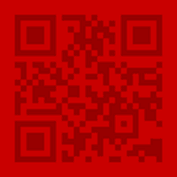
Figure 1 – Sample barcode colour image
The image below shows the grayscale image converted by DBR using the default channel weights setting.

Figure 2 – Sample barcode gray image using default mode
The image below shows the grayscale image converted by DBR using only red channel.

Figure 3 – Sample barcode gray image using only red channel
As we can see, the gray image converted using only red channel is much better than the default one. Now we will demonstrate how to configure the parameter `ColourConversionModes` to adjust the colour channel weights used for converting a colour image to a grayscale image.
## Particular Parameter Required
DBR provides a parameter [`ColourConversionModes`](/capture-vision/docs/core/parameters/reference/image-parameter/colour-conversion-modes.html) that allows you to control the conversion of a color image to grayscale.
## Example
Below is an example illustrating how to configure the parameter `ColourConversionModes` to use only red channel.
* Update parameter `ColourConversionModes` in your JSON template
```json
{
"CaptureVisionTemplates": [
{
"Name": "CV_0",
"ImageROIProcessingNameArray": ["TA_0" ]
}
],
"TargetROIDefOptions" : [
{
"Name": "TA_0",
"TaskSettingNameArray": [ "BR_0" ]
}
],
"BarcodeReaderTaskSettingOptions": [
{
"Name" : "BR_0",
"SectionArray": [
{
"Section": "ST_REGION_PREDETECTION",
"ImageParameterName": "IP_0"
},
{
"Section": "ST_BARCODE_LOCALIZATION",
"ImageParameterName": "IP_0"
},
{
"Section": "ST_BARCODE_DECODING",
"ImageParameterName": "IP_0"
}
]
}
],
"ImageParameterOptions": [
{
"Name": "IP_0",
"ApplicableStages":[
{
"Stage": "SST_CONVERT_TO_GRAYSCALE",
"ColourConversionModes": [
{
"Mode": "CICM_GENERAL",
"RedChannelWeight": 1000,
"GreenChannelWeight": 0,
"BlueChannelWeight": 0
}
]
}
]
}
]
}
```
* Apply the above settings following the article [Use Templates for Configuring Parameters](https://www.dynamsoft.com/barcode-reader/docs/core/programming/features/use-runtimesettings-or-templates.md#json-template).