---
layout: default-layout
title: Customize the UI of BarcodeScanner - Dynamsoft Barcode Reader Android
description: Learn how to customize the BarcodeScanner UI on Android.
keywords: BarcodeScanner, scanner, Android, scan region, torch button, close button, scan laser
needAutoGenerateSidebar: true
needGenerateH3Content: true
noTitleIndex: true
---
# Configure the UI Elements
| Available Buttons |
| ----------------- |
| Torch button |
| Camera toggle button |
| Close button (BarcodeScanner API only) |
BarcodeScanner provides a set of UI elements that you can easily customize.
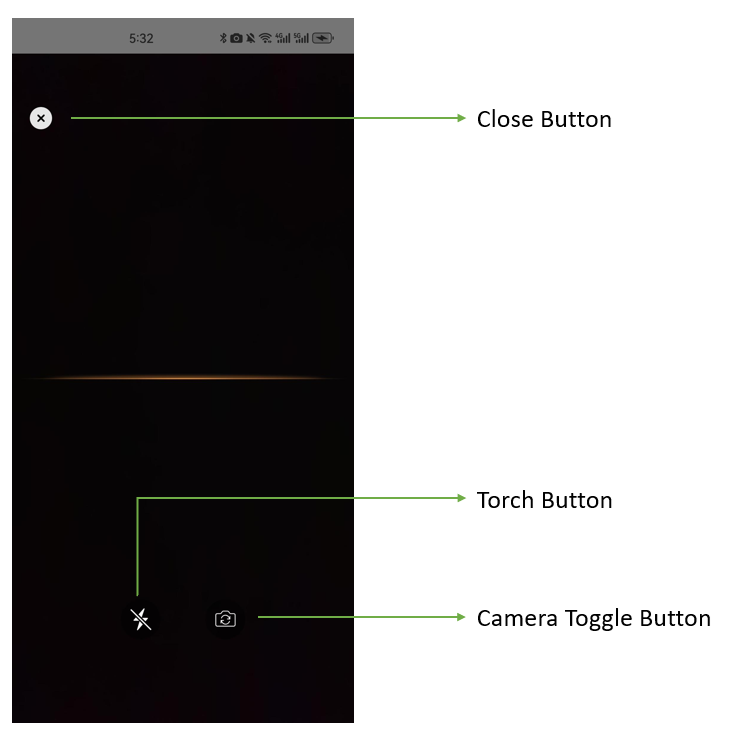
buttons
- Torch button: A clickable button that turns the torch on or off.
- Camera toggle button: A clickable button that switches the front/back-facing camera.
- Close button: Stops barcode scanning and returns to the previous activity.
>- Java
>- Kotlin
>
>1.
```java
CameraView cameraView = findViewById(R.id.camera_view);
cameraView.setTorchButtonVisible(true);
cameraView.setCameraToggleButtonVisible(true);
```
2.
```kotlin
val cameraView = findViewById(R.id.camera_view)
cameraView.torchButtonVisible = true
cameraView.cameraToggleButtonVisible = true
```
**Related APIs**
- [`CameraView`]({{ site.dce_android }}auxiliary-api/dcecameraview.html)
- [setTorchButtonVisible]({{ site.dce_android }}auxiliary-api/dcecameraview.html#settorchbuttonvisible)
- [setCameraToggleButtonVisible]({{ site.dce_android }}auxiliary-api/dcecameraview.html#setcameratogglebuttonvisible)