---
layout: default-layout
title: Initialize Customized Templates - Dynamsoft Barcode Reader Android User Guide
description: Learn how to initialize customized templates in the Dynamsoft Barcode Reader Android SDK.
keywords: customized templates, Android, java, kotlin
noTitleIndex: true
needGenerateH3Content: true
needAutoGenerateSidebar: true
---
# How to Initialize Customized Templates
Using a template file is one of the quickest ways to improve BarcodeScanner performance. A template file is a JSON file (or JSON string) that contains a set of algorithm parameter settings. [Contact us](https://www.dynamsoft.com/company/customer-service/#contact) to get a customized template for your scanner.
## Preparation
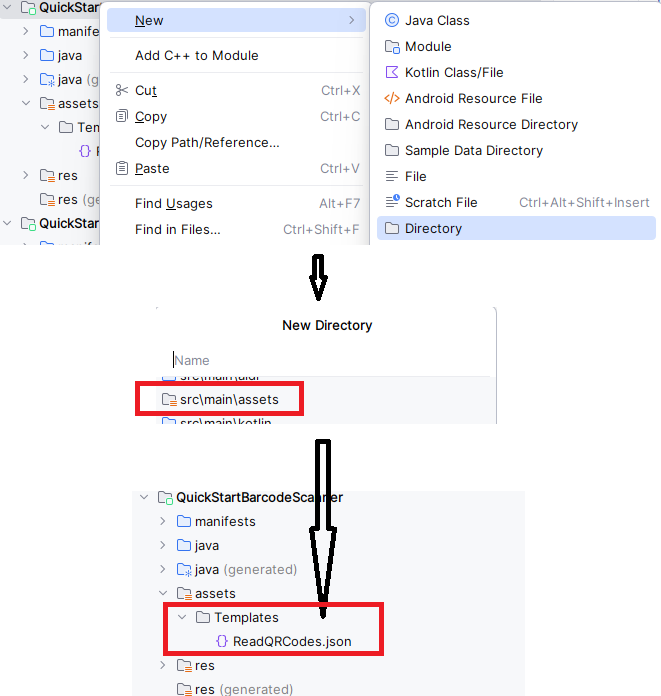
Add a **Templates** folder under your project's assets directory at **src\main\assets\Templates**. Put your JSON file in the **Templates** folder. Here, we use **ReadQRCode.json** as an example.
init settings
>- Java
>- Kotlin
>
>1.
```java
CaptureVisionRouter mRouter = new CaptureVisionRouter();
try {
mRouter.initSettingsFromFile("ReadQRCodes.json");
} catch (CaptureVisionRouterException e) {
throw new RuntimeException(e);
}
```
2.
```kotlin
val mRouter: CaptureVisionRouter? = CaptureVisionRouter()
mRouter?.initSettingsFromFile("ReadQRCodes.json")
```
**Related API(s)**
- [`initSettingsFromFile`]({{ site.dcvb_android_api }}capture-vision-router/settings.html#initsettingsfromfile)