# MAUI User Guide for Barcode Reader Integration
## Table of Contents
- [MAUI User Guide for Barcode Reader Integration](#maui-user-guide-for-barcode-reader-integration)
- [Table of Contents](#table-of-contents)
- [System Requirements](#system-requirements)
- [.Net](#net)
- [Android](#android)
- [iOS](#ios)
- [Installation](#installation)
- [VS Code](#vs-code)
- [Visual Studio for Windows](#visual-studio-for-windows)
- [Build Your Barcode Scanner App](#build-your-barcode-scanner-app)
- [Set up Development Environment](#set-up-development-environment)
- [Initialize the Project](#initialize-the-project)
- [Visual Studio](#visual-studio)
- [VS Code for iOS](#vs-code-for-ios)
- [Include the Library](#include-the-library)
- [Add Your Code for Barcode Scanning](#add-your-code-for-barcode-scanning)
- [Configure the Camera Permission](#configure-the-camera-permission)
- [Run the Project](#run-the-project)
- [Licensing](#licensing)
## System Requirements
### .Net
- .NET 10.0.
### Android
- Supported OS: **Android 5.0** (API Level 21) or higher.
- Supported ABI: **armeabi-v7a**, **arm64-v8a**, **x86** and **x86_64**.
- Development Environment: Visual Studio 2022 or VS Code with the [.NET MAUI extension](https://marketplace.visualstudio.com/items?itemName=ms-dotnettools.dotnet-maui) recommended.
- JDK: 1.8+
### iOS
- Supported OS: **iOS 13.0** or higher.
- Supported ABI: **arm64** and **x86_64**.
- Development Environment: VS Code with the [.NET MAUI extension](https://marketplace.visualstudio.com/items?itemName=ms-dotnettools.dotnet-maui) and latest Xcode version recommended.
## Installation
### VS Code
After [creating the project](#vs-code-for-ios), open a terminal in the project directory and run:
```bash
dotnet add package Dynamsoft.BarcodeReaderBundle.Maui --version 11.4.3000
```
### Visual Studio for Windows
You need to add the library via the project file and complete additional steps for the installation.
1. Add the library in the project file:
```xml
...
...
```
2. Open the **Package Manager Console** and run the following commands:
```bash
dotnet build
```
>
> - Windows system has a limitation of 260 characters in the path. If you don't use console to install the package, you will receive an error "Could not find a part of the path 'C:\Users\admin\.nuget\packages\dynamsoft.imageprocessing.ios\2.4.300\lib\net7.0-ios16.1\Dynamsoft.ImageProcessing.iOS.resources\DynamsoftImageProcessing.xcframework\ios-arm64\dSYMs\DynamsoftImageProcessing.framework.dSYM\Contents\Resources\DWARF\DynamsoftImageProcessing'"
> - The library only supports Android and iOS platforms. Be sure that you remove the other platforms like Windows, maccatalyst, etc.
## Build Your Barcode Scanner App
Now you will learn how to create a simple barcode scanner using Dynamsoft Barcode Reader MAUI SDK.
### Set up Development Environment
If you are a beginner with MAUI, please follow the guide on the .Net MAUI official website to set up the development environment.
### Initialize the Project
#### Visual Studio
1. Open the Visual Studio and select **Create a new project**.
2. Select **.Net MAUI App** and click **Next**.
3. Name the project **ScanBarcodes**. Select a location for the project and click **Next**.
4. Select **.Net 10.0** and click **Create**.
#### VS Code for iOS
1. Open a terminal and run the following command to create a new .NET MAUI project:
```bash
dotnet new maui -n ScanBarcodes
cd ScanBarcodes
```
2. Open the project in VS Code:
```bash
code .
```
### Include the Library
View the [installation section](#installation) on how to add the library.
### Add Your Code for Barcode Scanning
1. Replace the **MainPage.xaml.cs** with the following code:
```csharp
using Dynamsoft.BarcodeReaderBundle.Maui;
namespace ScanBarcodes;
public partial class MainPage : ContentPage
{
public MainPage()
{
InitializeComponent();
}
private async void OnScanBarcode(object sender, EventArgs e)
{
// Initialize the license.
// The license string here is a trial license. Note that network connection is required for this license to work.
// You can request an extension via the following link: https://www.dynamsoft.com/customer/license/trialLicense?product=dbr&utm_source=samples&package=mobile
var config = new BarcodeScannerConfig("DLS2eyJvcmdhbml6YXRpb25JRCI6IjIwMDAwMSJ9");
var result = await BarcodeScanner.Start(config);
var message = result.ResultStatus switch
{
EnumResultStatus.Finished => string.Join("\n",
result.Barcodes!.Select(item => item.FormatString + "\n" + item.Text)),
EnumResultStatus.Canceled => "Scanning canceled",
EnumResultStatus.Exception => result.ErrorString,
_ => throw new ArgumentOutOfRangeException()
};
label.Text = message;
}
}
```
2. Replace the **MainPage.xaml** with the following code:
```xml
```
### Configure the Camera Permission
Open the **Info.plist** file under the **Platforms/iOS/** folder (Open with XML Text Editor). Add the following lines inside the `` element to request camera permission on iOS platform:
```xml
NSCameraUsageDescriptionThe sample needs to access your camera.
```
### Run the Project
**Visual Studio**: Select your target device in the toolbar and click **Run**.
**VS Code**: Use the **.NET MAUI** extension's device picker in the status bar to select a target device, then press **F5** to build and deploy. Alternatively, run from the terminal:
```bash
# Android
dotnet build -t:Run -f net10.0-android
# iOS (requires a connected device or simulator on macOS)
dotnet build -t:Run -f net10.0-ios
```
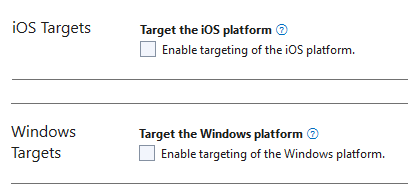
> The library only supports the **Android** and **iOS** platforms. If you encounter build errors caused by other target frameworks, remove the unsupported platforms:
>
> - **Visual Studio**: Manually exclude the iOS and Windows targets from the build configuration toolbar.
> - **VS Code / CLI**: Open the `.csproj` file and remove the platforms you do not need from the `` element, for example:
>
> ```xml
>
> net10.0-android;net10.0-ios;net10.0-maccatalyst;net10.0-windows10.0.19041.0
>
>
> net10.0-android
> ```
## Licensing
- A one-day trial license is available by default for every new device to try Dynamsoft Barcode Reader SDK.
- You can request a 30-day trial license via the [Request a Trial License](https://www.dynamsoft.com/customer/license/trialLicense?product=dbr&package=mobile&utm_source=docs){:target="_blank"} link.
- [Contact us](https://www.dynamsoft.com/company/contact){:target="_blank"} to purchase a full license.