# Customizing the MRZ Scanner
When developing with `MRZScannerActivity`, you can add configurations via the `MRZScannerConfig` class. This page will guide you on how to configure the settings.
## MRZScannerConfig Overview
The [**`MRZScannerConfig`**](/mrz-scanner/docs/mobile/programming/android/api-reference/mrz-scanner-config.html) class is capable of configuring almost all customization options applicable to MRZ scanning use cases with the MRZ Scanner. The MRZ Scanner passes an `MRZScannerConfig` object to the constructor when creating an MRZ Scanner instance. `MRZScannerConfig` contains the following properties:
1. **`setLicense` / `getLicense`** - the license key is the only property whose ***value must be specified when instantiating the MRZ Scanner instance***. If the license is undefined, invalid, or expired, the MRZ Scanner cannot proceed with scanning, and instead displays a pop-up error message instructing the user to contact the app administrator to resolve this license issue.
2. **`setDocumentType` / `getDocumentType`** - specifies the type of document that the MRZ Scanner will recognize. This property accepts values defined in the EnumDocumentType such as `EnumDocumentType.DT_ALL`, `EnumDocumentType.DT_ID`, or `EnumDocumentType.DT_PASSPORT`. It helps the scanner to optimize its processing based on the expected document type. To learn more about the different document types that are supported, please refer to the [Supported Document Types](https://www.dynamsoft.com/mrz-scanner/docs/mobile/programming/android/user-guide/supported-document-types.md) page.
3. **`setTemplateFile` / `getTemplateFile`** - a template file is a JSON file or JSON string that contains a series of algorithm parameter settings (called Capture Vision templates) that is usually used for very specific and customized scanning and parsing scenarios. The `templateFile` points to the location of the JSON file. The MRZ Scanner comes with a default template file, but you may choose to use a custom template to target specialized use cases. We recommend contacting the [Dynamsoft Technical Support Team](https://www.dynamsoft.com/company/contact/) for assistance with template customization.
4. **`setBeepEnabled` / `isBeepEnabled`** (default value `false`) - a boolean that determines whether a beep sound is triggered upon a successful MRZ scan. When enabled, the scanner will play a sound to provide audible feedback.
5. **`setVibrateEnabled` / `isVibrateEnabled`** (default value `false`) - controls whether the device vibrates upon a successful MRZ scan. When enabled, the scanner will vibrate to provide haptic feedback if the device supports it.
6. **`setCloseButtonVisible` / `isCloseButtonVisible`** (default value `true`) - controls the visibility of the close button. When visible, users can tap this button to exit the scanning interface.
7. **`setTorchButtonVisible` / `isTorchButtonVisible`** (default value `true`) - determines whether the torch (flashlight) toggle button is visible. When visible, users can switch the device flashlight on or off during scanning.
8. **`setCameraToggleButtonVisible` / `isCameraToggleButtonVisible`** (default value `true`) - specifies whether the camera toggle button is displayed. When visible, users can switch between the front and rear cameras.
9. **`setBeepButtonVisible` / `isBeepButtonVisible`** (default value `true`) - controls whether the beep toggle button is visible in the scanning UI. When visible, users can tap this button to enable or disable the beep sound directly from the scanner interface.
10. **`setVibrateButtonVisible` / `isVibrateButtonVisible`** (default value `true`) - controls whether the vibrate toggle button is visible in the scanning UI. When visible, users can tap this button to enable or disable vibration feedback directly from the scanner interface.
11. **`setFormatSelectorVisible` / `isFormatSelectorVisible`** (default value `true`) - controls whether the document format selector is displayed at the bottom of the scanning UI. The format selector allows users to switch between scanning ID cards, passports, or both.
12. **`setGuideFrameVisible` / `isGuideFrameVisible`** (default value `true`) - serves as a toggle to show or hide the guide frame overlay during scanning. The guide frame assists users in properly aligning the document for optimal MRZ detection.
13. **`setReturnDocumentImage` / `isReturnDocumentImage`** (default value `true`) - controls whether a cropped document image is included in the scan result. When enabled, the result's `getDocumentImage()` method will return the document image for each scanned side.
14. **`setReturnOriginalImage` / `isReturnOriginalImage`** (default value `false`) - controls whether the original full-frame camera image is included in the scan result. When enabled, the result's `getOriginalImage()` method will return the unprocessed camera frame for each scanned side.
15. **`setReturnPortraitImage` / `isReturnPortraitImage`** (default value `true`) - controls whether the detected portrait image is included in the scan result. When enabled, the result's `getPortraitImage()` method will return the portrait extracted from the document.
Next, we go over the different ways that these properties can be used to customize the scanner with a few examples.
## Setting the MRZ Document Type
### Using the API
Specifies the type of document to scan, such as ID cards or passports. It also improves the processing speed and the accuracy.
>- Java
>- Kotlin
>
>1.
```java
MRZScannerConfig config = new MRZScannerConfig();
config.setDocumentType(EnumDocumentType.DT_PASSPORT);
```
2.
```kotlin
val config = MRZScannerConfig().apply {
setDocumentType(EnumDocumentType.DT_PASSPORT)
}
```
### Using a customized template file
A template file is a JSON file that includes a series of algorithm parameter settings. It is always used to customize the performance for different usage scenarios. [Contact us](https://www.dynamsoft.com/company/customer-service/#contact) to get a customized template for your scanner.
1. Add a **Templates** folder to the assets folder of your project at **src\main\assets\Templates**. Put your JSON file in the **Templates** folder.
2. Specify the template file via setTemplateFile
>- Java
>- Kotlin
>
>1.
```java
MRZScannerConfig config = new MRZScannerConfig();
config.setTemplateFile("CustomizedTemplate.json");
```
2.
```kotlin
val config = MRZScannerConfig().apply {
setTemplateFile("CustomizedTemplate.json")
}
```
> [!NOTE] You can also use a JSON string as the template file.
**Related APIs**
- [`setDocumentType`](/mrz-scanner/docs/mobile/programming/android/api-reference/mrz-scanner-config.html#setdocumenttype)
- [`setTemplateFile`](/mrz-scanner/docs/mobile/programming/android/api-reference/mrz-scanner-config.html#settemplatefile)
## Configure the UI Elements
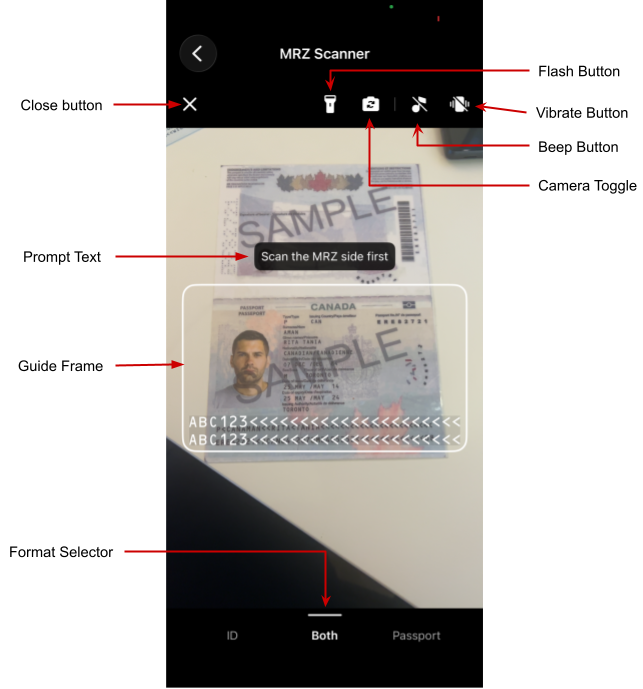
MRZ Scanner UI
The MRZ Scanner UI includes the following configurable elements:
- **Close button**: Dismisses the scanner and returns the user to the previous screen.
- **Torch button**: Turns the device flashlight on or off to improve scanning in low-light conditions.
- **Camera toggle button**: Switches between the front and rear cameras for flexible document placement.
- **Beep button**: Lets users enable or disable the audible beep that plays on a successful scan.
- **Vibrate button**: Lets users enable or disable haptic vibration feedback on a successful scan.
- **Guide frame**: A viewfinder overlay that guides users in positioning the document within the camera frame.
- **Prompt text**: A status label that updates dynamically to guide users through each step of the scanning process.
- **Format selector**: A bottom control bar for selecting the target document type — ID card, passport, or both.
All UI elements are visible by default. Use the following configuration to hide any elements that are not needed for your use case:
>- Java
>- Kotlin
>
>1.
```java
MRZScannerConfig config = new MRZScannerConfig();
config.setCloseButtonVisible(false);
config.setTorchButtonVisible(false);
config.setCameraToggleButtonVisible(false);
config.setBeepButtonVisible(false);
config.setVibrateButtonVisible(false);
config.setFormatSelectorVisible(false);
config.setGuideFrameVisible(false);
```
1.
```kotlin
val config = MRZScannerConfig().apply {
setCloseButtonVisible(false)
setTorchButtonVisible(false)
setCameraToggleButtonVisible(false)
setBeepButtonVisible(false)
setVibrateButtonVisible(false)
setFormatSelectorVisible(false)
setGuideFrameVisible(false)
}
```
**Related APIs**
- [`setCloseButtonVisible`](/mrz-scanner/docs/mobile/programming/android/api-reference/mrz-scanner-config.html#setclosebuttonvisible)
- [`setTorchButtonVisible`](/mrz-scanner/docs/mobile/programming/android/api-reference/mrz-scanner-config.html#settorchbuttonvisible)
- [`setCameraToggleButtonVisible`](/mrz-scanner/docs/mobile/programming/android/api-reference/mrz-scanner-config.html#setcameratogglebuttonvisible)
- [`setBeepButtonVisible`](/mrz-scanner/docs/mobile/programming/android/api-reference/mrz-scanner-config.html#setbeepbuttonvisible)
- [`setVibrateButtonVisible`](/mrz-scanner/docs/mobile/programming/android/api-reference/mrz-scanner-config.html#setvibrateButtonvisible)
- [`setFormatSelectorVisible`](/mrz-scanner/docs/mobile/programming/android/api-reference/mrz-scanner-config.html#setformatselectorvisible)
- [`setGuideFrameVisible`](/mrz-scanner/docs/mobile/programming/android/api-reference/mrz-scanner-config.html#setguideframevisible)
## Enabling Haptic and Audio Feedback
The MRZ Scanner can play a beep sound or vibrate the device upon a successful scan. Both are disabled by default.
> [!NOTE] The `setBeepEnabled` and `setVibrateEnabled` settings control the feedback *behavior*. To hide the buttons that allow users to toggle these behaviors from the scanning UI, use `setBeepButtonVisible` and `setVibrateButtonVisible`.
>- Java
>- Kotlin
>
>1.
```java
MRZScannerConfig config = new MRZScannerConfig();
config.setBeepEnabled(true);
config.setVibrateEnabled(true);
```
2.
```kotlin
val config = MRZScannerConfig().apply {
setBeepEnabled(true)
setVibrateEnabled(true)
}
```
**Related APIs**
- [`setBeepEnabled`](/mrz-scanner/docs/mobile/programming/android/api-reference/mrz-scanner-config.html#setbeepenabled)
- [`setVibrateEnabled`](/mrz-scanner/docs/mobile/programming/android/api-reference/mrz-scanner-config.html#setvibrateenabled)
## Configure Scan Result Images
By default, the scan result includes a cropped document image and a portrait image. You can control which images are returned to reduce memory usage or processing overhead for your use case.
>- Java
>- Kotlin
>
>1.
```java
MRZScannerConfig config = new MRZScannerConfig();
config.setReturnDocumentImage(true); // Cropped document image (default: true).
config.setReturnPortraitImage(true); // Portrait image (default: true).
config.setReturnOriginalImage(false); // Original full-frame image (default: false).
```
2.
```kotlin
val config = MRZScannerConfig().apply {
setReturnDocumentImage(true) // Cropped document image (default: true).
setReturnPortraitImage(true) // Portrait image (default: true).
setReturnOriginalImage(false) // Original full-frame image (default: false).
}
```
Once configured, use the following methods on `MRZScanResult` to access the images:
- `getDocumentImage(EnumDocumentSide)` - returns the cropped document image for the specified side.
- `getOriginalImage(EnumDocumentSide)` - returns the original full-frame image for the specified side.
- `getPortraitImage()` - returns the detected portrait image.
> [!NOTE] If you need to pass an `MRZScanResult` containing images to another activity via `Intent`, call `result.retainAllImageInstances()` before `startActivity()`. This prevents the native image instances from being recycled before the receiving activity can access them.
**Related APIs**
- [`setReturnDocumentImage`](/mrz-scanner/docs/mobile/programming/android/api-reference/mrz-scanner-config.html#setreturndocumentimage)
- [`setReturnPortraitImage`](/mrz-scanner/docs/mobile/programming/android/api-reference/mrz-scanner-config.html#setreturnportraitimage)
- [`setReturnOriginalImage`](/mrz-scanner/docs/mobile/programming/android/api-reference/mrz-scanner-config.html#setreturnoriginalimage)
- [`getDocumentImage`](/mrz-scanner/docs/mobile/programming/android/api-reference/mrz-scan-result.html#getdocumentimage)
- [`getOriginalImage`](/mrz-scanner/docs/mobile/programming/android/api-reference/mrz-scan-result.html#getoriginalimage)
- [`getPortraitImage`](/mrz-scanner/docs/mobile/programming/android/api-reference/mrz-scan-result.html#getportraitimage)
## Further Customization
If you have other customization requirements on the `MRZScanner` component, you can modify it with the [open source code on GitHub](https://github.com/Dynamsoft/mrz-scanner-mobile/).