Your scanned pages will appear here.
Ready to connect. Your documents are processed locally and are not uploaded.

Scan from your desktop scanner or import images and PDF files. Preview, rotate and save documents on your device.
Ready to connect. Your documents are processed locally and are not uploaded.
It scans paper from a physical scanner inside a web page: TWAIN or WIA on Windows, ICA on macOS, SANE on Linux, through the locally installed Dynamic Web TWAIN service. Choose resolution, colour mode, document feeder and duplex, preview and reorder pages, then export one PDF or one multi-page TIFF — or the current page as PNG. Documents stay on the computer.
Most people meet this demo on a machine with no scanner attached, conclude that it is broken and leave. It is not broken; acquisition needs three things that a plain browser tab does not have. What makes the demo testable anyway is the virtual scanner: prebuilt installers for Windows, macOS and Linux are linked in the setup panel, and each package bundles eleven sample images.
| Job | Pages returned |
|---|---|
| Flatbed scan | One page per job, cycling through the eleven bundled images — so a second scan gives you a different picture, which is what makes page reordering and deletion testable. |
| ADF job | The whole set in a single pass, delivered as one multi-page document — the case where export settings actually matter. |
The virtual device is a device, not a mock: it still needs the local Web TWAIN service running, because that service is what hands bytes to the page. Installing it is therefore a real test of the deployment step your users will face, not a shortcut around it.
Choose a PDF in Or import document files. The page passes the original file to
Dynamic Web TWAIN's own PDF addon with CM_RENDERALL; its rasterizer turns every page into
a 200-DPI image, including annotations, and places those images in the same buffer as scanned pages.
You can then rotate, delete, zoom and export them without a separate conversion tool. This is native
Dynamic Web TWAIN processing, not a third-party PDF renderer, and the document is not uploaded.
Import produces raster page images, not an editable PDF object model. Text selection, form editing and annotation editing are outside this scanner demo. If you need those capabilities, use the PDF & image annotation studio.
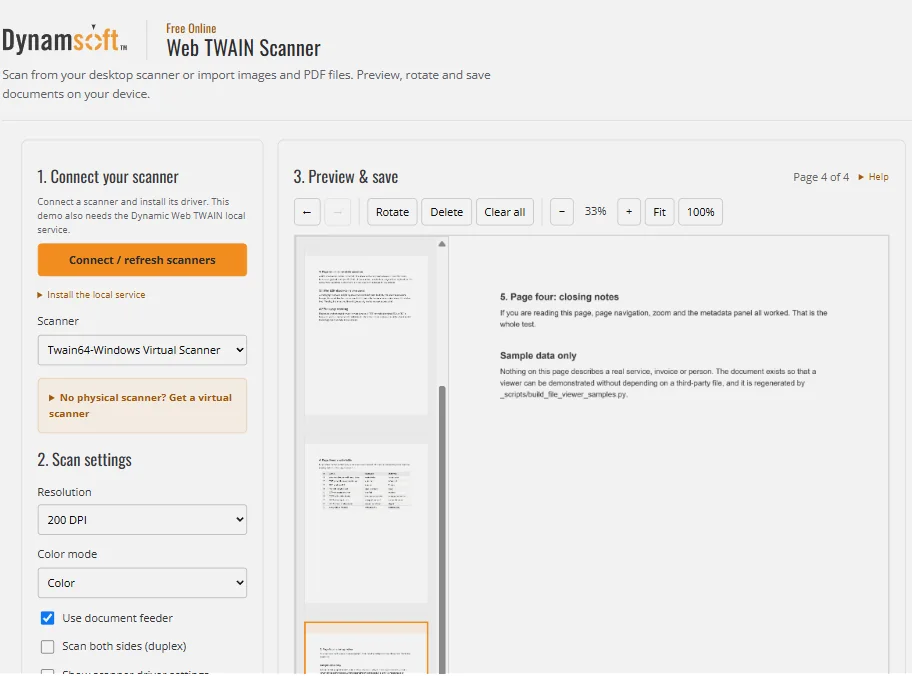
If you have no PDF at hand, use the bundled synthetic sample-report.pdf. Importing it in Chrome on 26 October 2026, with the local DWT service connected and no scanner attached, produced four raster pages and left the normal preview and export controls enabled:
{
  "status": "Imported 1 file(s), 4 page(s), including 1 PDF(s).",
  "currentPage": "Page 4 of 4",
  "exportFormats": ["PDF — all pages", "TIFF — all pages", "PNG — current page"]
}
The import succeeds only at the level this scanner needs. A text PDF becomes page images, so after import you cannot select a sentence, fill a form field or edit an existing annotation. Those are deliberate limits of rasterization, not a rendering error, and the preview can still rotate, reorder, delete and export the pages. If the task depends on PDF text or form objects, this is the wrong pipeline; use a PDF viewer or annotation tool that preserves them.
Once a page is in the buffer, the OCR row turns its pixels into text without uploading anything. Recognize page runs Dynamic Web TWAIN's OCR Connector on the current page and prints the recognised lines under the toolbar; Searchable PDF exports every page with an invisible text layer, so the file can be searched and copied from later.
What the pickers contain comes from the machine, not from this page.
GetInstalledOCRInfo() asks the local service which OCR engines it can drive — the operating
system's built-in OCR plus any ONNX Runtime engine an administrator deployed — and the language list
follows the selected engine, so a machine with extra language packs offers more than the defaults.
OCR Connector runs on Windows and macOS only. On Linux the pickers stay disabled and the row says so; scanning, preview and export keep working, because none of them depend on OCR. If you need text from pages captured on Linux, the SANE scanning guide covers the server-side OCR options, and the OCR-to-PDF tutorial walks through the engine-aware API call by call.
| Capability | This tool |
|---|---|
| Scanner interfaces | TWAIN and WIA (Windows), ICA (macOS), SANE (Linux), via the local service. |
| Acquisition options | Resolution, colour mode, document feeder, duplex, and the driver's own dialog where the driver offers one. |
| Page handling | Thumbnail strip kept in sync with the viewer, rotate, delete, zoom in/out, fit to window and actual size. |
| Export | PDF (all pages), TIFF (all pages), PNG (current page). |
| OCR | Windows and macOS only. Engine and language lists come from GetInstalledOCRInfo();
the current page can be recognised and all pages exported as a searchable PDF. Linux is not
supported yet. |
| Image import | Yes — importing, rotating and exporting images needs the local service but no scanner hardware. |
| PDF import | Yes — Dynamic Web TWAIN's own PDF addon rasterizes text and vector pages at 200 DPI, including annotations. The resulting pages are images, not editable text or form objects. |
| Camera and permissions | No camera is used and no camera permission is requested. Acquisition comes from a scanner driver or imported files. |
| Large files | There is no upload quota because documents are not uploaded. Large multi-page jobs are bounded by browser memory and the local DWT service, and every page is kept at the imported or scanned resolution. |
| Phones and tablets | Not usable for acquisition. The page needs a desktop browser with the local service installed; mobile operating systems do not run it. |
| Upload endpoint | None configured. Documents are not sent to a server by this page. |
| Privacy and network | Page images stay on the computer. The page does contact Dynamsoft's licensing service and load demo analytics over the network. |
The hosted page carries a licence bound to dynamsoft.com, so there is no key to enter.
You still need the local service and a scanner driver — those are your machine, not the demo.
"Free" describes the hosted demo. A self-hosted production integration needs its own Web TWAIN licence, and its users need the service deployed to their machines.