


How to Configure a Windows Virtual TWAIN Scanner to Load Custom Images
When building a TWAIN-compatible application and there is no physical scanner available, you can use a virtual scanner application for development and testing. TWAIN working group has released a TWAIN DS sample on GitHub. In this article, I will detail how to set up the development environment, as well as how to substitute the default TWAIN logo with custom images.
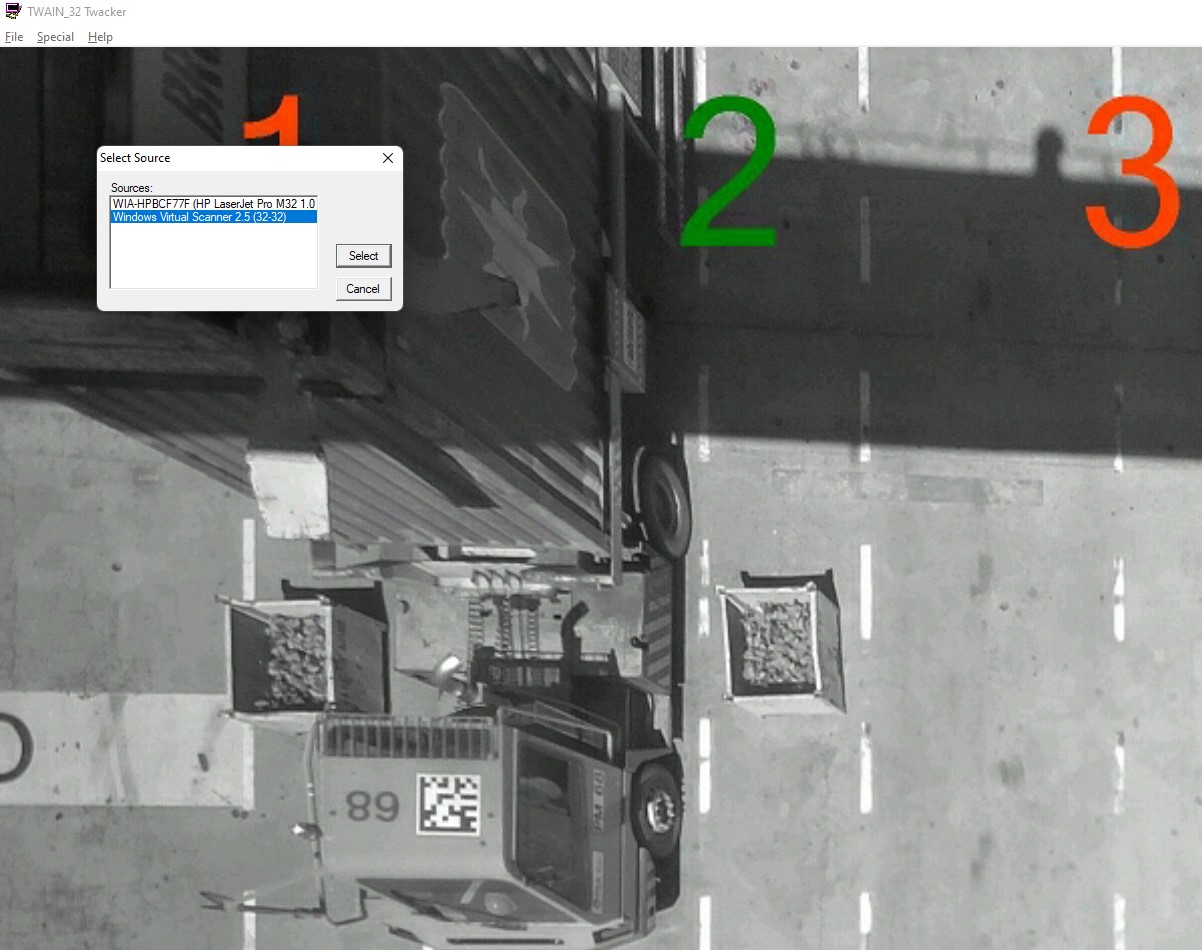
What you’ll build: A modified Windows TWAIN data source (.ds file) that cycles through a folder of custom JPEG/PNG images instead of the default TWAIN logo, enabling repeatable hardware-free scanner testing using Visual Studio and C++.
Key Takeaways
- Since v1.0.1, a prebuilt installer (
VirtualScannerSetup-1.0.5.exe) ships the virtual scanner together with 11 sample images — no Visual Studio or Qt needed to start scanning. - The TWAIN DS sample from the TWAIN working group can be compiled into a
.dsdynamic library and registered as a virtual scanner on Windows. The fork ships a one-clickbuild_and_install.cmdthat builds the data source, deploys it toC:\Windows\twain_64\sample2\and copies the 11 sample images. - Custom images are fed by
CScanner_FreeImage::initCustomDataSet(), which runs on every acquire event: it reads a JSON-configured image folder (or the bundledimagesfolder), sorts it in natural order (2.pngbefore10.png) and hands out the next picture per scan. - A
source.json/info.jsontwo-file scheme handles index persistence across.dsreloads; folders that are read-only (likeC:\Windows\twain_64\sample2\images) fall back to a per-user%LOCALAPPDATA%\VirtualScanner\info.json. - This approach is ideal for automated CI/CD testing of TWAIN-dependent document scanning workflows without physical hardware.
Common Developer Questions
How do I configure a Windows virtual TWAIN scanner to load custom images instead of the default logo?
Modify the TWAIN DS sample so its image-loading path reads from a configurable folder rather than always falling back to the built-in TWAIN logo. In this guide, CScanner_FreeImage::initCustomDataSet() is the hook that swaps in JPEG or PNG files from your own test set.
How do I build and register the TWAIN DS sample as a virtual scanner on Windows?
Clone the TWAIN sample project, configure the required Qt toolchain in Visual Studio, and build the project as a .ds data source into the TWAIN installation path. Once built, tools like twacker or Dynamic Web TWAIN can enumerate it like a normal scanner source.
How do I cycle through multiple test images in the TWAIN virtual scanner automatically?
Persist the current image index in a JSON file on disk and update that index each time the acquire path runs. That disk-backed counter is necessary because the .ds file is reloaded on each acquire event, which resets any in-memory state.
This article is Part 1 in a 3-Part Series.
Quick Start: Install the Prebuilt Virtual Scanner (v1.0.5)
Building the sample yourself is only necessary if you want to customize the code. Since v1.0.5, the release page ships ready-to-use Windows packages:
VirtualScannerSetup-1.0.5.exe— run the installer (it asks for administrator rights) and the Virtual Scanner data source appears in twacker and Dynamic Web TWAIN.VirtualScanner-1.0.5-win64-portable.zip— unpack it intoC:\Windows\twain_64\sample2and runconfigure-samples.cmd.
Both packages install 11 sample images next to the data source (C:\Windows\twain_64\sample2\images), so every flatbed scan returns a different picture and a document-feeder (ADF) scan returns all 11 pictures as one multi-page document — no configuration file needed. The scan position is remembered between scans in %LOCALAPPDATA%\VirtualScanner\info.json because the C:\Windows folder is not writable for normal users.
To scan your own images, replace the files in C:\Windows\twain_64\sample2\images (administrator rights required) or point a source.json file next to the data source at your own folder — the same mechanism Step 2 below explains in depth.
The rest of this article shows how the data source works under the hood and how to build a customized version from source.
How the TWAIN Document Acquisition Process Works
Before getting started, let’s take a glimpse of the workflow of the document acquisition process.
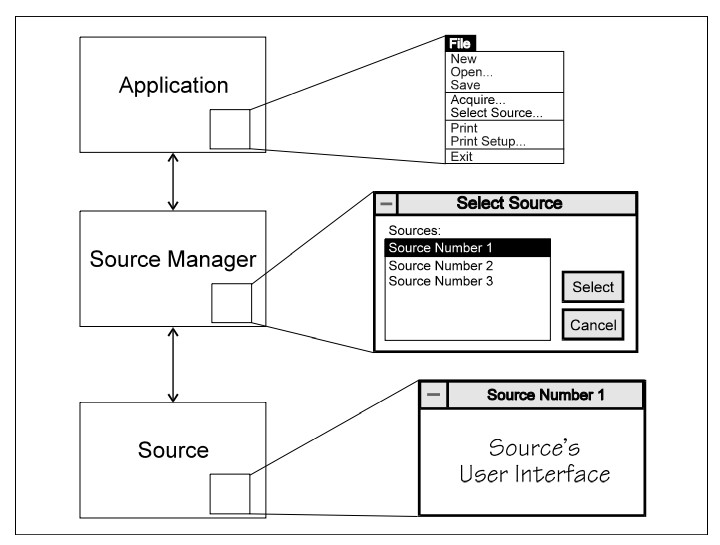
We are going to do something in the source layer.
Prerequisites
- Visual Studio 2017 or above with the Desktop development with C++ workload (only needed when building from source)
- Qt 5.12.11 msvc2017 (64-bit builds: msvc2017_64) — or pass
-AutoInstallQttobuild_and_install.cmdand let it download Qt for you - Get a 30-day free trial license for Dynamic Web TWAIN to test scanning from the browser.
- Test tools:
Step 1: Build and Deploy the TWAIN DS Sample
The modified sample lives in the yushulx/virtual-scanner fork (windows/TWAIN-Samples), so clone that repository instead of the upstream twain/twain-samples:
git clone https://github.com/yushulx/virtual-scanner.git
One-Command Build and Install
windows\build_and_install.cmd wraps the whole manual flow in a single command (right-click it or run it from a console):
- it detects the installed Visual Studio toolset and Windows SDK automatically,
- locates Qt 5.12.11 (or downloads it with
-AutoInstallQt, ~1 GB, viaaqtinstall), - compiles the data source and deploys it to
C:\Windows\twain_64\sample2\, and - copies the 11 sample pictures into
C:\Windows\twain_64\sample2\images\.
It asks for administrator rights (a UAC prompt) because the data source has to live under C:\Windows. The most useful options:
| Option | Meaning |
|---|---|
-Platform x64 |
64-bit data source (default); Win32 or All for 32-bit / both |
-QTDir <dir> |
Qt kit folder (the one containing bin\windeployqt.exe) |
-AutoInstallQt |
download Qt 5.12.11 when it is missing |
-StageDir <dir> |
assemble a package without touching C:\Windows (no admin needed) |
-Uninstall |
remove C:\Windows\twain_64\sample2 (and twain_32\sample2) |
The default build produces TWAINDS_Sample64.ds in C:\Windows\twain_64\sample2\. Building the upstream sample for 32-bit produces the TWAINDS_Sample32.ds under C:\Windows\twain_32\sample2\ mentioned in older guides — same code, different bitness.
Building in Visual Studio by Hand
If you prefer the IDE:
-
Install Qt and set the
QTDIRenvironment variable to the kit: msvc2017 (x86) or msvc2017_64 (x64).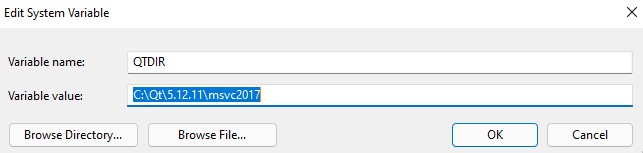
- If you have installed multiple Qt kits, such as MinGW, ARM64, MSVC, you have to move MSVC ahead of others in
PATHto avoid deploying incompatible DLL files withwindeployqt.exe. - Start Visual Studio as administrator because the project copies its output to
C:\Windows\twain_64\sample2\. OpenTWAIN-Samples\Twain_DS_sample01\visual_studio\TWAINDS_VS2017.slnand build it to generate the.dsfile, which is a dynamic library.
Debug the TWAIN DS Sample
- Run twacker (32-bit/64-bit) application.
-
In Visual Studio, set a breakpoint in
DS_Entry()and then go toDebug > Attach to Processto find the twacker process.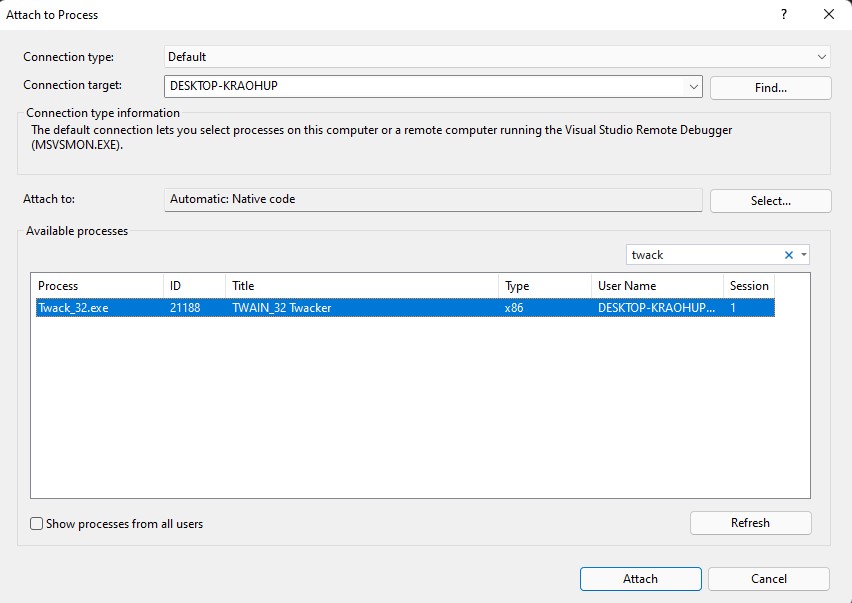
-
Click the
Attachbutton and then select the virtual scanner to trigger debugging.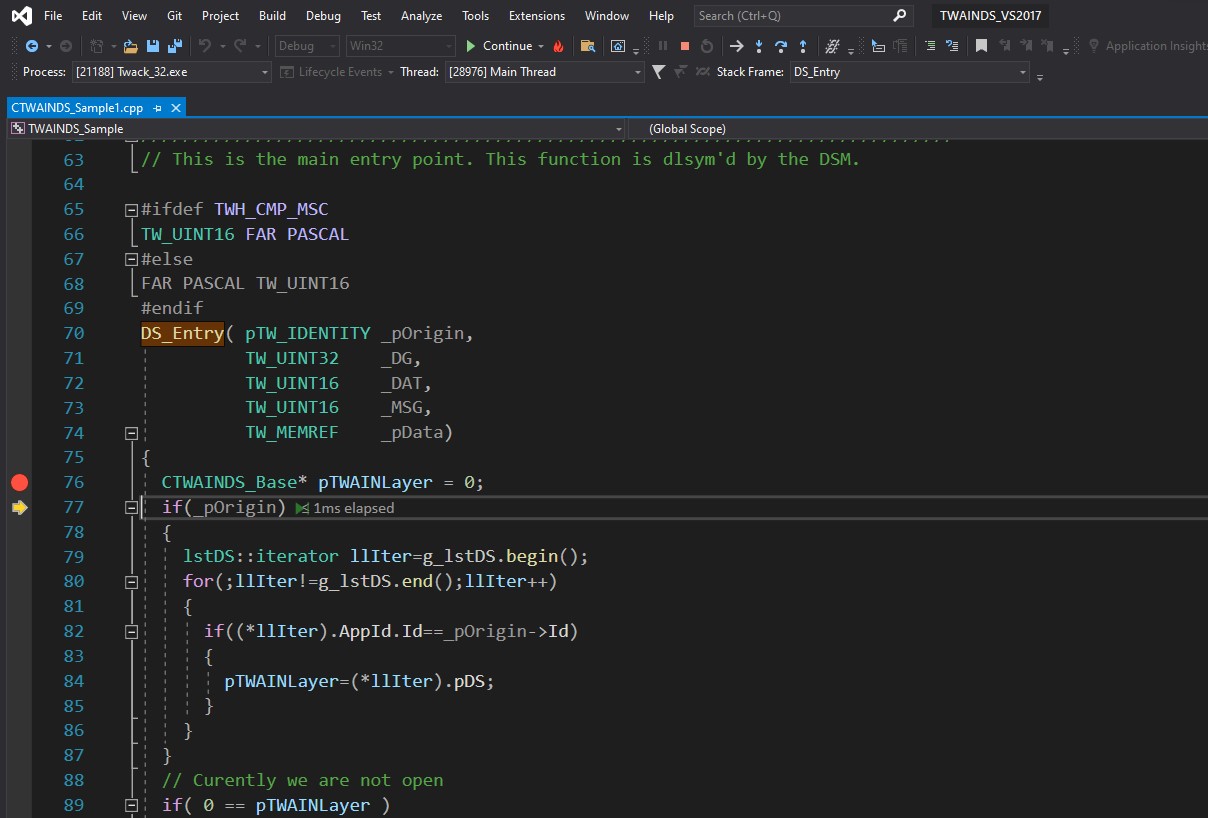
For quick diagnostics without a debugger, set the environment variable TWAIN_SHOWCONSOLEMESSAGES=1 before scanning: the data source then prints which image folder was picked, how many images were found, and where the cycle position is.
Step 2: Configure the Virtual Scanner to Load Custom Images
Instead of always serving the default TWAIN logo, the TWAIN DS sample source can load any JPEG or PNG from a folder.
The DS_Entry() function is the entry point of the TWAIN data source. We can set a breakpoint in this function to see the stack calls.
After debugging the code, the right place for the image-set logic turned out to be CScanner_FreeImage::initCustomDataSet() — the constructor only sets the TWAIN_logo.png fallback. initCustomDataSet() is called every time the data source is opened, which matters because the .ds file (TWAINDS_Sample64.ds for the 64-bit build) is reloaded into memory on each acquire event, resetting all variables. Re-reading the folder and persisting the position at that moment is what makes every scan return a different image.
Note: C:\Windows\twain_64\sample2\ is not writable without administrator privileges. The image folder and the scan position are therefore resolved like this:
- the
folderentry of asource.jsonfile next to the data source wins (kept for backward compatibility); otherwise theimagesfolder that ships with the installer is used; - if the image folder contains an
info.jsonfile, it stores the current image index and the max page count for ADF; - if it does not (the read-only sample folder under
C:\Windows), the position is remembered per user in%LOCALAPPDATA%\VirtualScanner\info.json.
For example:
source.json
{
    "folder": "C:/Users/admin/Pictures/barcode"
}
info.json
{
    "index": 0,
    "maxcount": 10
}
The code is as follows:
#include "json.hpp"
using json = nlohmann::json;

#include <filesystem>
#include <fstream>
namespace fs = std::experimental::filesystem;

// Runs on every acquire event, before pages are handed out.
void CScanner_FreeImage::initCustomDataSet()
{
    images.clear();
    m_nJobPageIndex = 0;

    // 1. The image folder: source.json wins, otherwise <data source>\images
    char szTWAIN_DS_DIR[PATH_MAX];
    GetModuleFileName(g_hinstance, szTWAIN_DS_DIR, PATH_MAX);
    // ... strip filename from path ...

    std::string imageFolder;

    char sourceConfig[PATH_MAX];
    SSNPRINTF(sourceConfig, sizeof(sourceConfig), PATH_MAX, "%s%csource.json", szTWAIN_DS_DIR, PATH_SEPERATOR);

    if (FILE_EXISTS(sourceConfig))
    {
        json source = readJsonFile(sourceConfig);

        if (source.is_object() && source["folder"].is_string())
            imageFolder = source["folder"].get<std::string>();
    }

    if (!directoryExists(imageFolder))
    {
        // Fall back to the images folder that ships with the installer:
        //   C:\Windows\twain_64\sample2\images
        char defaultFolder[PATH_MAX];
        SSNPRINTF(defaultFolder, sizeof(defaultFolder), PATH_MAX, "%s%cimages", szTWAIN_DS_DIR, PATH_SEPERATOR);

        if (directoryExists(defaultFolder))
            imageFolder = defaultFolder;
    }

    if (!directoryExists(imageFolder))
        return; // no image set at all: keep TWAIN_logo.png

    // 2. Collect the .png/.jpg files of that folder and sort them in
    //    natural order ("2.png" before "10.png")
    WIN32_FIND_DATAA data;
    HANDLE handle = FindFirstFileA((imageFolder + "\\*").c_str(), &data);

    do
    {
        if (isImageFile(data.cFileName, data.dwFileAttributes))
            images.push_back(imageFolder + PATH_SEPERATOR + data.cFileName);
    }
    while (0 != FindNextFileA(handle, &data));

    FindClose(handle);

    std::sort(images.begin(), images.end(), naturalCompare);

    // 3. Where to continue: <image folder>\info.json, or a per-user file
    //    (%LOCALAPPDATA%\VirtualScanner\info.json) when the folder cannot
    //    be written to
    const std::string folderState = imageFolder + PATH_SEPERATOR + "info.json";
    std::string       statePath   = folderState;

    if (!FILE_EXISTS(statePath.c_str()))
        statePath = userStateFile();

    json state = readJsonFile(statePath);

    int index    = state["index"].is_number_integer() ? state["index"].get<int>() : 0;
    int maxCount = state["maxcount"].is_number_integer() ? state["maxcount"].get<int>() : (int)images.size();

    m_nStartIndex = index;
    m_nDocCount = m_nMaxDocCount = (short)maxCount; // pages of one ADF job

    // 4. The first page of this scan job
    SSNPRINTF(m_szSourceImagePath, sizeof(m_szSourceImagePath), PATH_MAX, images[index].c_str());

    // 5. The next scan job continues at the following image
    state["index"]    = (index + 1) % (int)images.size();
    state["maxcount"] = maxCount;

    std::ofstream stream(statePath.c_str());
    stream << state << std::endl;
}
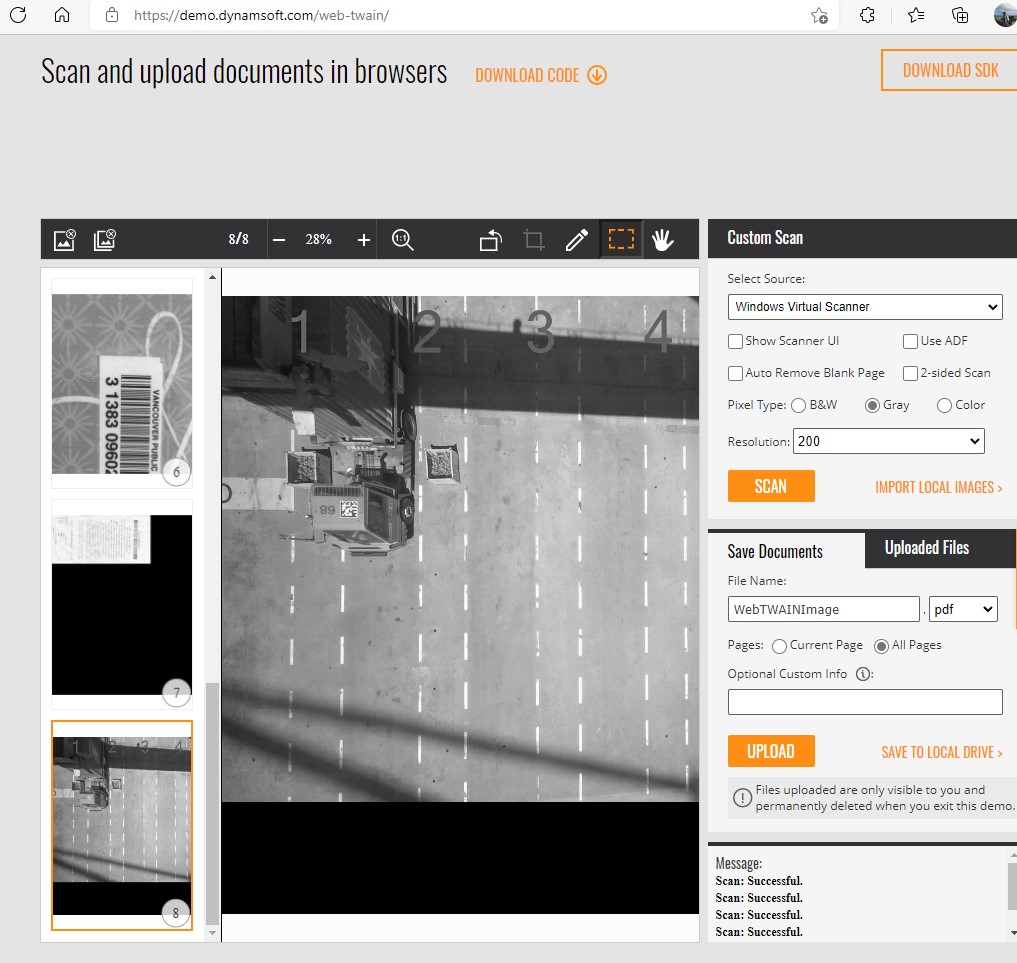
json.hpp from nlohmann/json is bundled in the fork’s src folder, so no extra download is needed. A flatbed scan hands out one image per job; an ADF scan returns maxcount pages starting at index, so checking Use document feeder in the Dynamic Web TWAIN online demo gives you the whole folder as one multi-page document.
Rebuild the project (or rerun build_and_install.cmd) and test it with the Dynamic Web TWAIN online demo.
Before
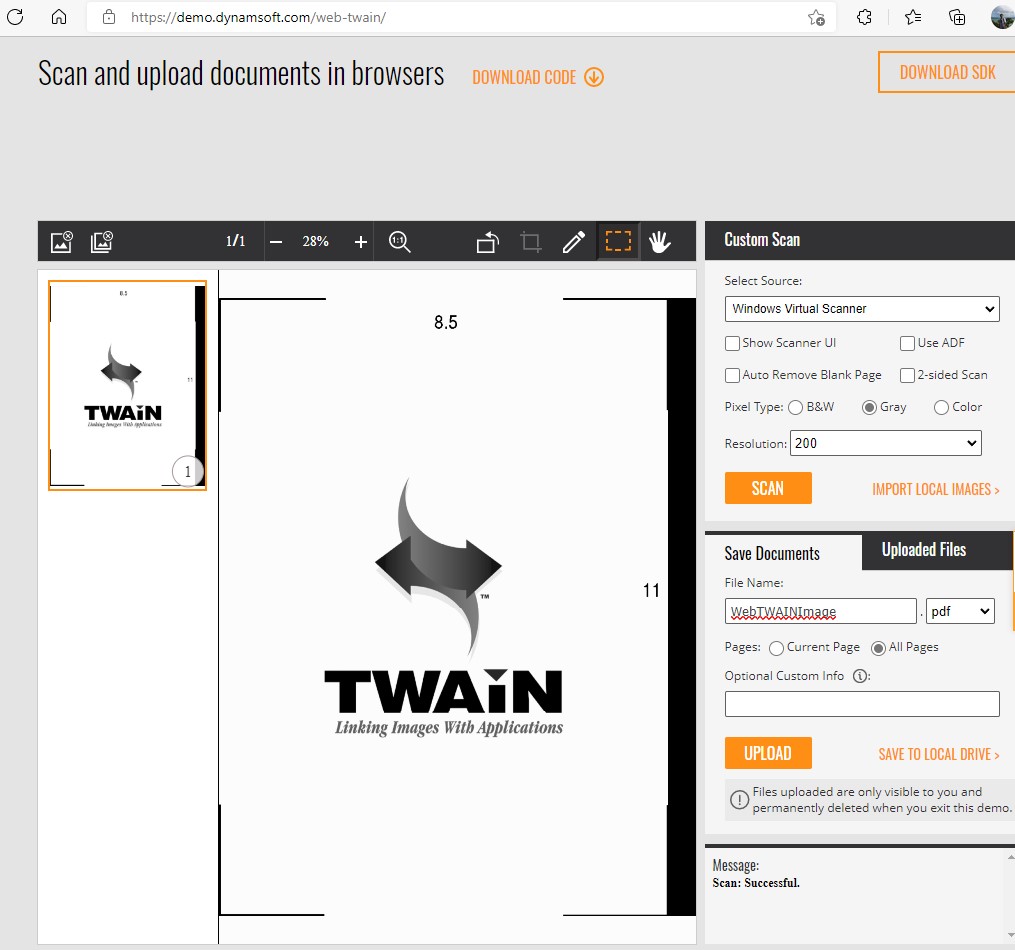
After
Common Issues & Edge Cases
windeployqt.exedeploys wrong Qt DLLs: When multiple Qt kits (MinGW, ARM64, MSVC) are installed, ensure the MSVC kit appears first inPATH. Mismatched DLLs cause silent load failures when the.dsis invoked by the TWAIN manager. (build_and_install.cmddetects the toolset itself, so this only bites manual Visual Studio builds.)- Access denied writing
info.jsontosample2\: Folders underC:\Windows\twain_64\sample2\require administrator write access. When the image folder is read-only, the data source automatically falls back to a per-user state file (%LOCALAPPDATA%\VirtualScanner\info.json); writable custom folders keep theirinfo.jsonin place. - Image index not advancing between acquires: Each acquire event reloads the
.dsfile (TWAINDS_Sample64.dsfor the 64-bit build), resetting all in-memory state. The index must be persisted to disk —info.jsonin the image folder, or the per-user fallback — so it survives between acquire calls.