


How to Configure Custom Images for a Linux Virtual Scanner Using SANE
A virtual scanner is a software-based solution that mimics the functionality of a physical document scanner. It allows developers and testers to simulate scanning operations without requiring actual hardware, making it an essential tool for testing and development. In this tutorial, we’ll explore how to create a virtual scanner device for Linux using the SANE (Scanner Access Now Easy) framework. By the end of this guide, you’ll have a fully functional virtual scanner capable of loading custom images, which can be used to test applications like the Dynamic Web TWAIN online demo.
What you’ll build: A custom SANE backend shared library for Linux that simulates a physical document scanner, loading a user-supplied PNM image so you can test apps like Dynamic Web TWAIN without any real hardware.
Key Takeaways
- A custom SANE backend lets you feed arbitrary PNM images into any SANE-compatible scanning application on Linux — no physical hardware required.
- The backend is a shared C library (
libsane-<name>.so.1) that exportssane_<name>_*functions matching the SANE API contract. - Raw PNM RGB byte order must be swapped (R↔B) before returning image data to the SANE frontend, or colors will appear distorted.
- This approach works with Dynamic Web TWAIN and other SANE/TWAIN-compatible front-ends, making it suitable for automated testing pipelines.
Common Developer Questions
How do I create a virtual scanner on Linux for testing document scanning applications without hardware?
Build a small custom SANE backend as a shared library and have it advertise a mock scanner device through the standard sane_<backend>_* entry points. Once SANE can enumerate that backend, any SANE-compatible app can treat it like a real scanner even though the image data is coming from disk.
How do I load a custom image into a SANE virtual scanner backend instead of capturing from a real device?
Convert the source image to PNM format, open that file inside the backend’s read path, and return its bytes through the normal SANE scan callbacks. In this sample, the virtual device simply reads a user-supplied PNM file and streams it back to the frontend as if it had been scanned by hardware.
Why does my custom SANE backend produce images with incorrect or inverted colors?
The raw byte order in PNM image data can differ from what the frontend expects, so the backend may need to swap color channels before returning the buffer. The guide specifically calls out swapping the red and blue bytes to avoid distorted colors in the final scanned image.
This article is Part 2 in a 3-Part Series.
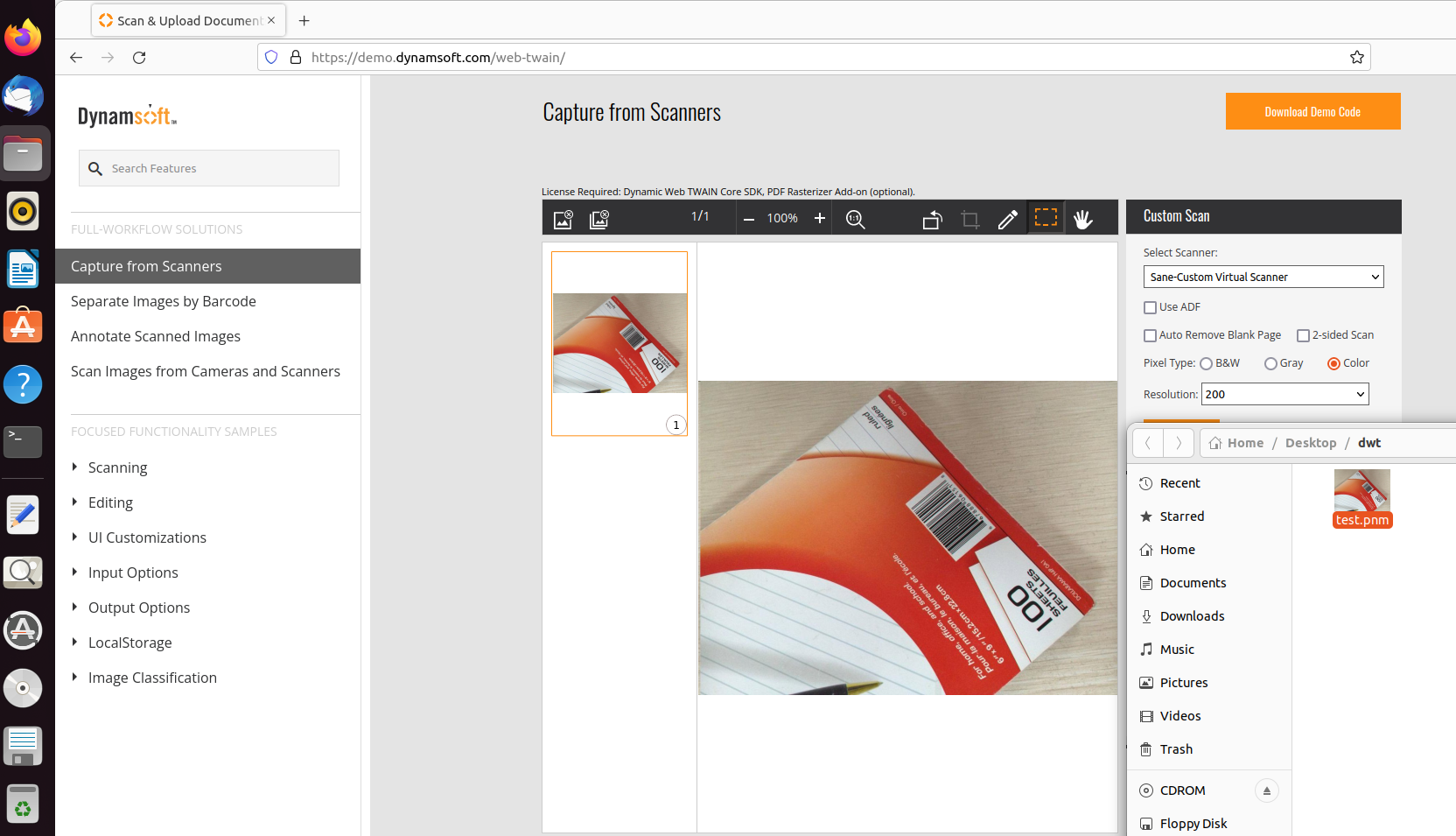
See the Linux Virtual Scanner in Action
Prerequisites
Before getting started, install the necessary packages by running the following command:
sudo apt install build-essential autoconf libtool libsane-dev sane sane-utils imagemagick libmagickcore-dev
Quick Start: Install the Prebuilt Package (v1.0.5)
If you just want a working virtual scanner, skip the manual build entirely: download sane-custom-scanner_1.0.5_amd64.deb from the release page and install it:
sudo apt install ./sane-custom-scanner_1.0.5_amd64.deb
scanimage -L
device `custom_scanner:virtual' is a Custom Virtual Scanner Test
The package installs the backend, its configuration, the dll.d drop-in that enables it, and 11 sample images in /usr/share/custom_scanner/images. A flatbed scan returns a different picture each time, and a document-feeder scan returns the whole set as one multi-page document. Since v1.0.2 the backend also implements the standard SANE mode option, so selecting B&W, Gray or Color in the scanning app converts the scanned page accordingly, and RGB frames are handed out in plain RGB order so colors render correctly. The picture folder, scan mode and other settings live in /etc/sane.d/custom_scanner.conf (user overrides in ~/.config/custom_scanner.conf).
Note that the repository backend has evolved since this tutorial was written: it now cycles through a whole folder of images and reads an optional configuration file. The rest of this article builds the minimal single-image version from scratch, which is still the clearest way to understand how a SANE backend actually works.
Use the Built-in SANE Test Backend
The SANE framework includes a prebuilt backend designed for testing purposes. To use it, follow these steps:
-
Uncomment the line
#testin the/etc/sane.d/dll.conffile and save the changes.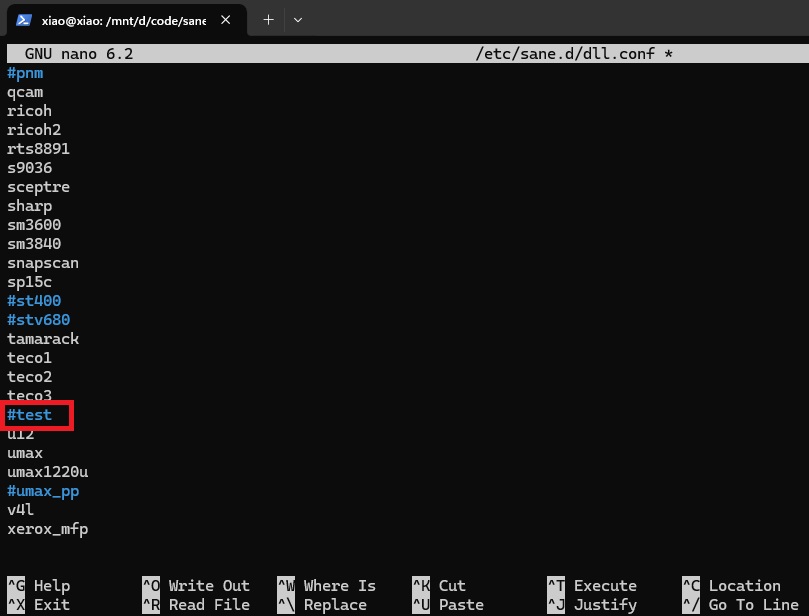
-
Run the following command to list all available scanners:
$ scanimage -L device `test:0' is a Noname frontend-tester virtual device device `test:1' is a Noname frontend-tester virtual device -
Use the following command to simulate a scan and generate a black image:
$ scanimage -d test > test.pnm
To explore additional capabilities of the virtual scanner, you can view all available options by running:
scanimage -d test --help
For example, you can change the test picture to a color image with the following command:
$ scanimage -d test --test-picture Color --mode Color > color.pnm
The test picture supports the following patterns:
- Solid black: Fills the entire scan area with black.
- Solid white: Fills the entire scan area with white.
- Color pattern: Generates various color test patterns based on the selected mode.
- Grid: Draws a black-and-white grid with squares measuring 10 mm in width and height.
Feed Custom Images into the SANE Test Backend
To feed a custom image into the virtual scanner, you have two options:
- Modify the test.c file and rebuild the SANE backend.
- Create a simple custom backend from scratch.
In this tutorial, we’ll focus on the second approach: building a custom backend.
Convert Your Source Image to PNM Format
PNM is frequently used as the default output format by many SANE frontends (such as scanimage). If you have a JPEG image, you can convert it to PNM using ImageMagick:
convert test.jpg test.pnm
Steps to Build a Custom SANE Backend for Linux
The minimal Linux virtual scanner built in this section supports two key features: simulating a document scanner and feeding one custom image. No additional settings are supported in this implementation — the shipped package adds multi-image cycling and a configuration file, described after Step 3.
Step 1: Create a New Backend in C
Create a new C file named custom_scanner.c. This file will contain functions that are invoked by SANE frontends. The function names must adhere to the SANE naming convention: sane_<backend_name>_<function_name>. In this case, the backend name is custom_scanner.
SANE_Status sane_custom_scanner_init(SANE_Int *version_code, SANE_Auth_Callback authorize)
SANE_Status sane_custom_scanner_get_devices(const SANE_Device ***devices, SANE_Bool local_only)
SANE_Status sane_custom_scanner_open(SANE_String_Const name, SANE_Handle *handle)
void sane_custom_scanner_close(SANE_Handle handle)
SANE_Status sane_custom_scanner_control_option(SANE_Handle handle, SANE_Int option, SANE_Action action, void *value, SANE_Int *info)
const SANE_Option_Descriptor *sane_custom_scanner_get_option_descriptor(SANE_Handle handle, SANE_Int option)
SANE_Status sane_custom_scanner_get_parameters(SANE_Handle handle, SANE_Parameters *params)
SANE_Status sane_custom_scanner_start(SANE_Handle handle)
SANE_Status sane_custom_scanner_read(SANE_Handle handle, SANE_Byte *data, SANE_Int max_length, SANE_Int *length)
void sane_custom_scanner_cancel(SANE_Handle handle)
void sane_custom_scanner_exit()
Create a Mock Device to Represent the Virtual Scanner
We can define a static mock device to represent the virtual scanner. This device information will be returned when the frontend requests available devices.
static SANE_Device mock_device = {
    .name = "my-scanner",
    .vendor = "Custom",
    .model = "Virtual Scanner",
    .type = "Test"};

SANE_Status sane_custom_scanner_get_devices(const SANE_Device ***devices, SANE_Bool local_only)
{
    static const SANE_Device *devs[] = {&mock_device, NULL};
    *devices = devs;
    return SANE_STATUS_GOOD;
}

SANE_Status sane_custom_scanner_open(SANE_String_Const name, SANE_Handle *handle)
{
    *handle = (SANE_Handle)&mock_device;
    return SANE_STATUS_GOOD;
}
Initialize SANE Option Descriptors
The virtual scanner supports only one option: the number of options. The frontend can query the number of options and retrieve the corresponding option descriptor.
#define OPTION_NUM 0

static const SANE_Option_Descriptor options[] = {
    {.name = SANE_TITLE_NUM_OPTIONS,
     .title = "Number of options",
     .type = SANE_TYPE_INT,
     .size = sizeof(SANE_Int),
     .cap = SANE_CAP_SOFT_DETECT,
     .constraint_type = SANE_CONSTRAINT_NONE}};

SANE_Status sane_custom_scanner_control_option(SANE_Handle handle, SANE_Int option, SANE_Action action, void *value, SANE_Int *info)
{
    if (option == 0 && action == SANE_ACTION_GET_VALUE)
    {
        *(SANE_Int *)value = OPTION_NUM;
        return SANE_STATUS_GOOD;
    }
    return SANE_STATUS_UNSUPPORTED;
}

const SANE_Option_Descriptor *sane_custom_scanner_get_option_descriptor(SANE_Handle handle, SANE_Int option)
{
    if (option == 0)
        return &options[0];
    return NULL;
}
Read and Return Custom Image Data to the Frontend
The virtual scanner reads a custom image file and returns the image data to the frontend:
#define CUSTOM_IMAGE_PATH "/home/xiao/Desktop/dwt/test.pnm"

SANE_Status sane_custom_scanner_get_parameters(SANE_Handle handle, SANE_Parameters *params)
{
    if (params)
    {
        FILE *fp = fopen(CUSTOM_IMAGE_PATH, "rb");
        if (fp)
        {
            char magic[3];
            int width, height, maxval;

            fscanf(fp, "%2s", magic);

            char ch;
            while ((ch = fgetc(fp)) == '#')
            {
                while (fgetc(fp) != '\n')
                    ;
            }
            ungetc(ch, fp);

            fscanf(fp, "%d %d %d", &width, &height, &maxval);
            fclose(fp);

            params->pixels_per_line = width;
            params->lines = height;

            if (strcmp(magic, "P6") == 0)
            {
                params->format = SANE_FRAME_RGB;
                params->depth = 8;
                params->bytes_per_line = width * 3;
            }
            else
            {
                params->format = SANE_FRAME_GRAY;
                params->depth = 8;
                params->bytes_per_line = width;
            }
        }
    }
    else
    {
        params->format = SANE_FRAME_RED;
        params->depth = 1;
        return SANE_STATUS_EOF;
    }
    return SANE_STATUS_GOOD;
}

SANE_Status sane_custom_scanner_start(SANE_Handle handle)
{
    static int start_count = 0;

    if (start_count == 1)
        return SANE_STATUS_EOF;

    start_count++;
    return SANE_STATUS_GOOD;
}

SANE_Status sane_custom_scanner_read(SANE_Handle handle, SANE_Byte *data, SANE_Int max_length, SANE_Int *length)
{
    static FILE *fp = NULL;
    static long pixel_data_offset = 0;
    static long total_pixels_bytes = 0;
    static int width = 0, height = 0;
    static int bytes_per_line = 0;
    static int header_sent = 0;
    static long total_read = 0;

    if (!fp)
    {

        fp = fopen(CUSTOM_IMAGE_PATH, "rb");
        if (!fp)
            return SANE_STATUS_IO_ERROR;

        char magic[3];
        int width, height, max_val;
        fscanf(fp, "%2s", magic);
        fscanf(fp, "%d %d", &width, &height);
        fscanf(fp, "%d", &max_val);
        fgetc(fp);
        pixel_data_offset = ftell(fp);

        fseek(fp, 0, SEEK_END);
        total_read = ftell(fp);
        rewind(fp);

        size_t actual_read = fread(data, 1, pixel_data_offset, fp);

        total_read -= actual_read;

        *length = actual_read;

        return SANE_STATUS_GOOD;
    }

    if (total_read <= 0)
    {
        *length = 0;
        fclose(fp);
        fp = NULL;
        return SANE_STATUS_EOF;
    }

    size_t rgb_block_size = (max_length / 3) * 3;
    size_t read_size = fmin(rgb_block_size, total_read);
    size_t actual_read = fread(data, 1, read_size, fp);
    total_read -= actual_read;

    *length = actual_read;

    // Swap R, G, B channels
    for (int i = 0; i < *length; i += 3)
    {
        SANE_Byte temp = data[i + 1];
        data[i + 1] = data[i + 2];
        data[i + 2] = data[i];
        data[i] = temp;
    }

    return SANE_STATUS_GOOD;
}
Explanation
- The image file path is defined as
CUSTOM_IMAGE_PATH. - The
sane_custom_scanner_get_parametersfunction retrieves image parameters such as width, height, and format. - The
sane_custom_scanner_startfunction starts the scanning process and should be triggered only once. - The
sane_custom_scanner_readfunction reads the image data and returns it to the frontend.
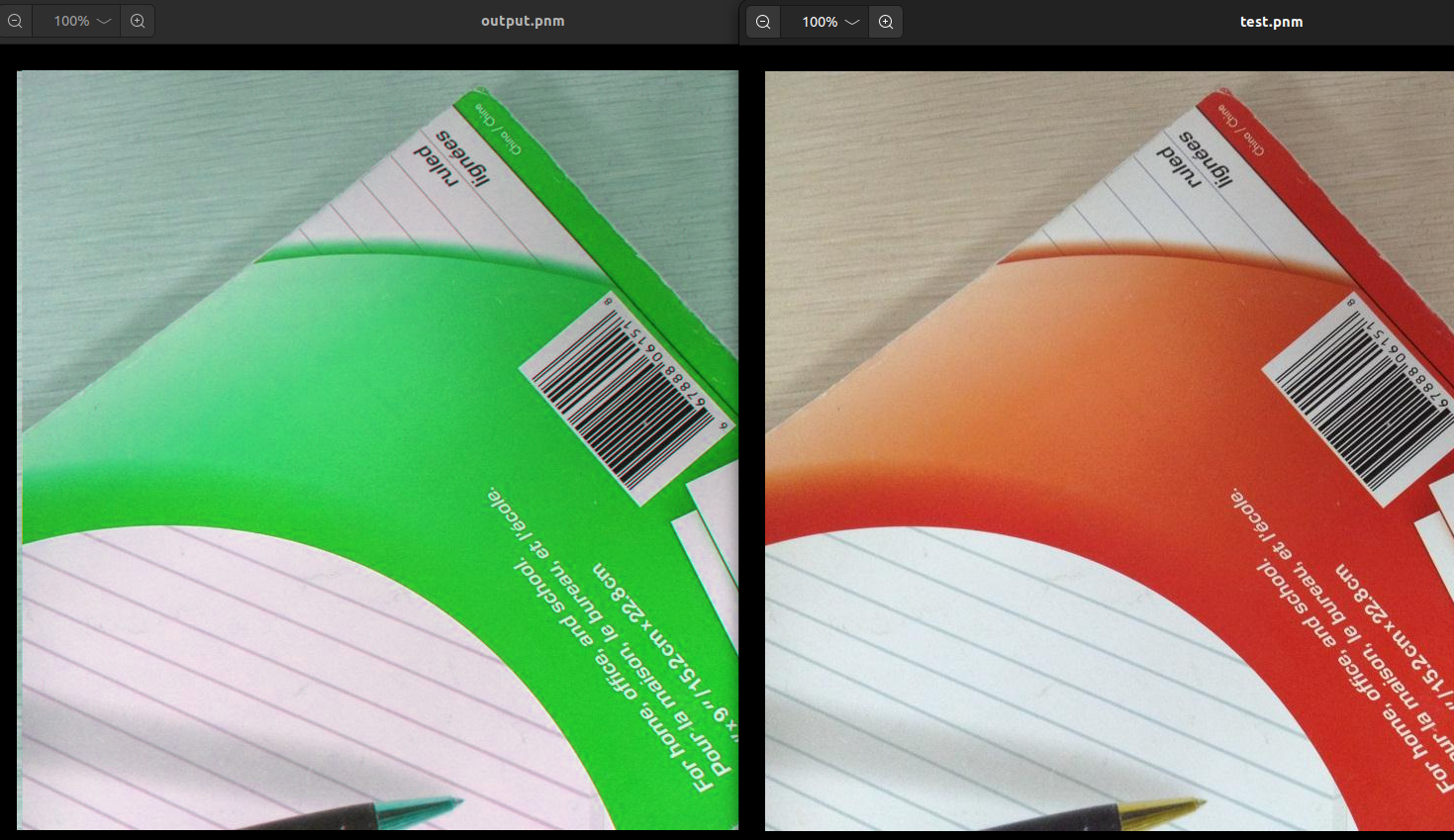
Note: The R, G, and B channels need to be swapped to display the image correctly. By default, the image may appear with incorrect colors.
Step 2: Build and Install the Backend
All SANE backends are located in /usr/lib/x86_64-linux-gnu/sane/. Use gcc to build the shared library and copy it to the appropriate directory:
gcc -shared -fPIC -o libsane-custom_scanner.so.1 custom_scanner.c -lsane -I/usr/include/sane
sudo cp libsane-custom_scanner.so.1 /usr/lib/x86_64-linux-gnu/sane/
Next, update the SANE configuration file /etc/sane.d/dll.conf to include the custom scanner backend:
echo "custom_scanner" | sudo tee -a /etc/sane.d/dll.conf
Step 3: Test the Virtual Scanner
List the scanners first — the SANE dll layer prefixes the device name reported by the backend with the backend name, and the mock device above reports my-scanner, so the full device name is custom_scanner:my-scanner:
$ scanimage -L
device `custom_scanner:my-scanner' is a Custom Virtual Scanner Test
Test the virtual scanner using the scanimage command:
scanimage -d custom_scanner:my-scanner > output.pnm
To troubleshoot issues, enable debug output by running:
SANE_DEBUG_DLL=255 scanimage -d custom_scanner:my-scanner > output.pnm
Finally, test the virtual scanner with the Dynamic Web TWAIN online demo, which supports document scanning and image processing.

From the Minimal Backend to the Shipped Virtual Scanner
The backend built above returns one fixed PNM file — enough to understand the SANE contract, but not what the repository ships today. The backend in linux/ (and in the .deb package from the Quick Start) has grown a full feature set on top of the same idea:
- A folder of images instead of a single file. It reads all
.pnm/.ppm/.pgmfiles of the configured folder, sorted in natural order (2.pnmbefore10.pnm). A flatbed scan hands out one picture per job and persists the position (default state file:~/.local/state/custom_scanner/index), so the next scan returns the next picture; a document-feeder job returns every picture of the set as one multi-page document. - Scan modes:
auto(default — flatbed cycles, ADF returns all pictures),cycle,adfandsingle. - Configuration files:
/etc/sane.d/custom_scanner.confsystem-wide or~/.config/custom_scanner.confper user, with options such asdirectory(picture folder),image(a single picture),mode,maxcount,indexanddevice_name. For a one-off run, pointing the backend at another folder works without touching any file:CUSTOM_SCANNER_IMAGE_DIR=~/Pictures/documents scanimage -d custom_scanner:virtual > out.pnm. - Color mode and channel order: the backend exposes the standard SANE
modeoption, so frontends pick the pixel type like with any real scanner —Color(8-bit RGB),Gray(8-bit, BT.601 luminance) andBinary/Lineart(1-bit, threshold at 128). The Dynamic Web TWAIN demo’s Pixel Type setting (B&W / Gray / Color) reaches the backend through this option. RGB frames hand out plain RGB by default (channel_order = rgb); the R/B swap explained in Step 1 survives only as the legacychannel_order = gbropt-in for old frontends. - Debug logging:
CUSTOM_SCANNER_DEBUG=1 scanimage -Lprints what the backend is doing.
Everything installs with one command (./scripts/install.sh, which also generates the 11-image sample set when ImageMagick is available), packages as a .deb with make deb, and passes a hardware-free self test with make test.
Common Issues & Edge Cases
- Wrong image colors (cyan/magenta tint): The raw PNM format stores pixel bytes in a different channel order than SANE expects. The
sane_custom_scanner_readfunction must swap the first and third bytes of every RGB triplet before returning data to the frontend. See the channel-swap loop in Step 1 above. scanimage: no SANE devices found: Verify the backend library exists in/usr/lib/x86_64-linux-gnu/sane/and that the backend name appears in/etc/sane.d/dll.conf. Runls /usr/lib/x86_64-linux-gnu/sane/ | grep custom_scannerandgrep custom_scanner /etc/sane.d/dll.confto confirm both conditions.- Scanning hangs or returns
SANE_STATUS_EOFon a second scan:sane_custom_scanner_startuses astatic intcounter. Once it reaches1, all subsequent calls returnSANE_STATUS_EOFwithout resetting. Restart the frontend application between test scans, or refactor the counter into the handle struct for proper reset behavior.