


How to Scan, OCR, and Export Documents to Searchable PDF in JavaScript with Dynamic Web TWAIN
Organizations of all sizes face a common challenge: efficiently managing the vast documents that power their operations. Manual data entry is a persistent bottleneck—time-consuming, error-prone, and costly—that hurts productivity and increases expenses. Optical Character Recognition (OCR) technology solves this by converting scanned documents into fully searchable, editable text for modern digital workflows.
Dynamsoft’s Dynamic Web TWAIN has long been a leader in web-based document scanning. With its new OCRKit addon, developers can now seamlessly integrate powerful OCR capabilities into their web applications, revolutionizing document management workflows across industries.
This tutorial will guide you through building a document management application using Dynamic Web TWAIN’s OCR API, showcasing its key features and benefits.
What you’ll build: A browser-based JavaScript application that scans physical documents (or loads images), runs OCR via Dynamic Web TWAIN’s OCRKit addon, and exports the results as a searchable or plain-text PDF.
Key Takeaways
- Dynamic Web TWAIN’s OCRKit addon provides a JavaScript
Recognize()API that returns structured text blocks, lines, and words — no server-side OCR service needed. DetectPageOrientation()automatically detects and corrects skewed scans before recognition, directly improving OCR accuracy.OCRKit.SaveToPath()exports scanned documents as searchable PDFs (with embedded text layer) or plain-text PDFs in a single API call.- This stack runs entirely in a Windows web browser, making it suitable for healthcare, finance, legal, and government document digitization workflows.
Common Developer Questions
How do I add OCR to a document scanning web app using JavaScript?
The sample initializes Dynamic Web TWAIN, verifies OCRKit in OnWebTwainReady, and runs Addon.OCRKit.Recognize on images in the buffer. It supports scanning or loading files first, then processes one page or all pages and prints structured OCR output in the app.
How do I export a scanned document as a searchable PDF with a text layer in JavaScript?
The export flow calls Addon.OCRKit.SaveToPath with selected image indices and chooses PDF_WITH_EXTRA_TEXTLAYER for searchable output. The same function can also output PDF_PLAIN_TEXT, so users can switch formats from the UI before saving.
How do I detect and correct image orientation before running OCR on scanned documents?
The workflow runs Addon.OCRKit.DetectPageOrientation on each page before recognition. If the returned angle is nonzero, it rotates the image with Rotate(index, -angle, true) so OCR runs on corrected text orientation.
Demo Video: Document OCR and PDF Saving
Prerequisites
- Get a 30-day free trial license
-
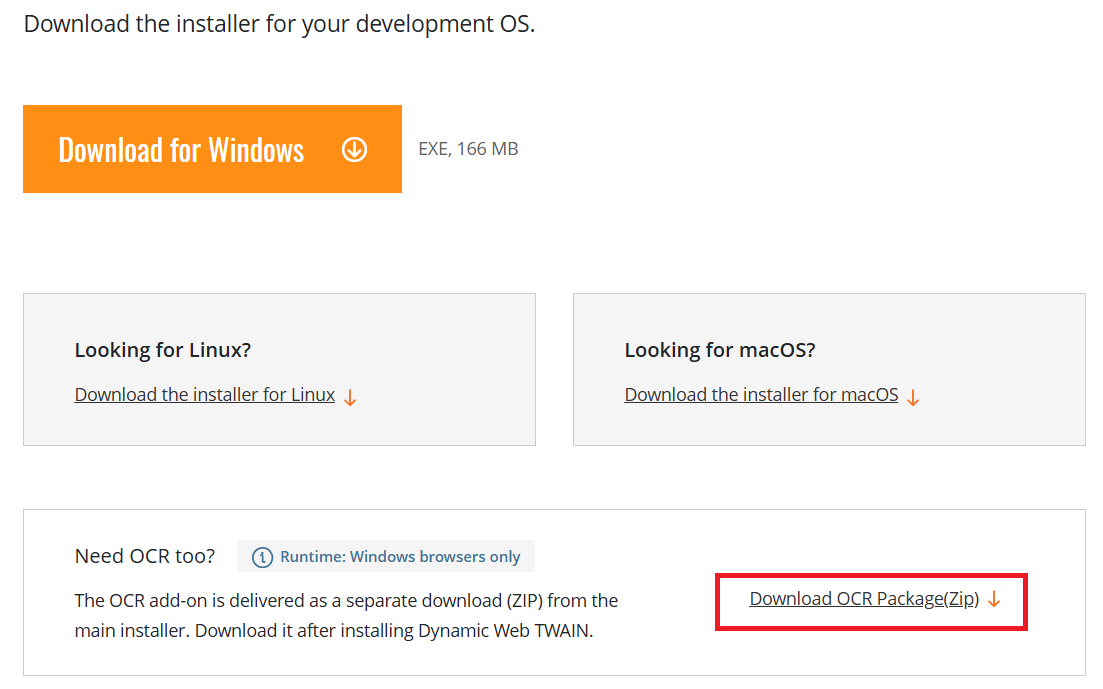
Dynamic Web TWAIN SDK and DynamicWebTWAINOCRResources.zip (Windows Only)
Step 1: Set Up Dynamic Web TWAIN and the OCRKit Addon
- Install Dynamic Web TWAIN SDK.
- Extract
DynamicWebTWAINOCRResources.zip. -
Unzip
DynamicWebTWAINOCRPack.zipand runInstall.cmdas administrator to copy the necessary modle files to the correct locations.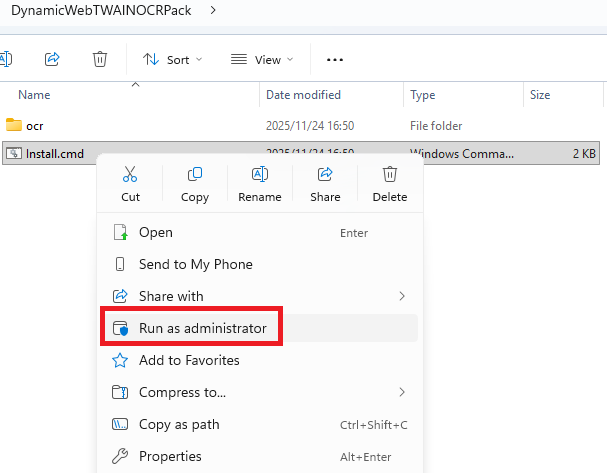
- Copy the
Resourcesfolder from the Dynamic Web TWAIN installation directory to your project directory. - Copy the
dynamsoft.webtwain.addon.ocrkit.jsfile fromDynamicWebTWAINOCRResourcesto theResources\addonfolder in your project.
Step 2: Understand the Project Structure
The application follows a simple, maintainable structure:
├── index.html          # Main HTML structure
├── css/
│   └── style.css       # Modern CSS with variables
├── js/
│   └── app.js          # Core application logic
├── Resources/          # Dynamic Web TWAIN SDK files
The heart of the application is js/app.js, which integrates Dynamic Web TWAIN’s OCR API into the workflow.
Step 3: Integrate the Dynamic Web TWAIN OCR API
Let’s dive into the key parts of the code that demonstrate Dynamic Web TWAIN’s OCR capabilities.
Initialize the OCRKit Addon
First, ensure the OCR addon is properly loaded. The application checks this in the OnWebTwainReady event:
Dynamsoft.DWT.RegisterEvent("OnWebTwainReady", function () {
    DWTObject = Dynamsoft.DWT.GetWebTwain("dwtcontrolContainer");

    checkOCRInstalled();
});
Recognize Text from Scanned Images
The core OCR functionality is implemented in the recognizeOnePage function, which demonstrates the API’s simplicity:
async function recognizeOnePage(index) {
    let language = document.getElementById("language").value;
    let result = await DWTObject.Addon.OCRKit.Recognize(index, { settings: { language: language } });
    await saveOCRResult(result.imageID, result);
    printPrettyResult(result);
}
Key API Features Highlighted:
- Multiple Language Support: Recognize text in English, French, Spanish, German, Italian, and Portuguese
- Structured Results: Returns organized text data with blocks, lines, and words
Step 4: Implement the Full OCR-to-PDF Workflow
Let’s walk through a complete document processing workflow:
Step 4.1: Scanning or Loading Images
The application provides two ways to get images into the buffer: scanning documents from a connected scanner or loading images from your local machine.
// Scan from connected device
async function acquireImage() {
    if (DWTObject) {
        DWTObject.SelectSourceAsync()
            .then(function () {
                return DWTObject.AcquireImageAsync({
                    IfCloseSourceAfterAcquire: true,
                });
            })
            .catch(function (exp) {
                alert(exp.message);
            });
    }
}

// Load from local files
function loadImage() {
    DWTObject.IfShowFileDialog = true;
    DWTObject.LoadImageEx(
        "",
        Dynamsoft.DWT.EnumDWT_ImageType.IT_ALL,
        function () {
            console.log("Image loaded successfully");
        },
        function (errorCode, errorString) {
            console.error(errorString);
        }
    );
}
Step 4.2: Correcting Image Orientation
OCR is sensitive to character orientation. To ensure accurate results, call the DetectPageOrientation() method to detect and correct the document orientation before recognition:
async function correctOrientationForOne(index) {
    let result = await DWTObject.Addon.OCRKit.DetectPageOrientation(index);
    if (result.angle != 0) {
        DWTObject.Rotate(index, -result.angle, true);
    }
}
Step 4.3: Performing OCR Recognition
When you click “Recognize Text”, the application calls:
async function recognize() {
    if (document.getElementById("processingTarget").value === "all") {
        let count = DWTObject.HowManyImagesInBuffer;
        for (let i = 0; i < count; i++) {
            await recognizeOnePage(i);
        }
    } else {
        await recognizeOnePage(DWTObject.CurrentImageIndexInBuffer);
    }
}
Step 4.4: Exporting to PDF
The application can export documents to PDF with or without a text layer:
async function saveAsPDF() {
    try {
        let format = document.getElementById('outputFormat').value;
        if (format === "extralayer") {
            let indicesOfAll = DWTObject.SelectAllImages();
            await DWTObject.Addon.OCRKit.SaveToPath(
                indicesOfAll,
                Dynamsoft.DWT.EnumDWT_OCRKitOutputFormat.PDF_WITH_EXTRA_TEXTLAYER,
                "document"
            );
        } else {
            await DWTObject.Addon.OCRKit.SaveToPath(
                DWTObject.SelectAllImages(),
                Dynamsoft.DWT.EnumDWT_OCRKitOutputFormat.PDF_PLAIN_TEXT,
                "document"
            );
        }
    } catch (error) {
        alert(error.message);
    }
}
Step 5: Manage Images and OCR Results
The application provides intuitive tools for image management:
- Remove Selected Image: Deletes the current image and its OCR results
- Remove All Images: Clears all images and OCR data
async function removeSelectedImage() {
    let currentImageId = DWTObject.IndexToImageID(DWTObject.CurrentImageIndexInBuffer);
    DWTObject.RemoveImage(DWTObject.CurrentImageIndexInBuffer);
    await deleteOCRResult(currentImageId); // Remove from IndexedDB
    // Update UI...
}
Run the Application Locally
-
Set the license key in
Resources/dynamsoft.webtwain.config.js:Dynamsoft.DWT.ProductKey = "LICENSE-KEY"; -
Start a web server in the project directory:
# Using Python 3 python -m http.server 8000 # Using Node.js with http-server npx http-server -p 8000 -
Open your web browser and navigate to
http://localhost:8000.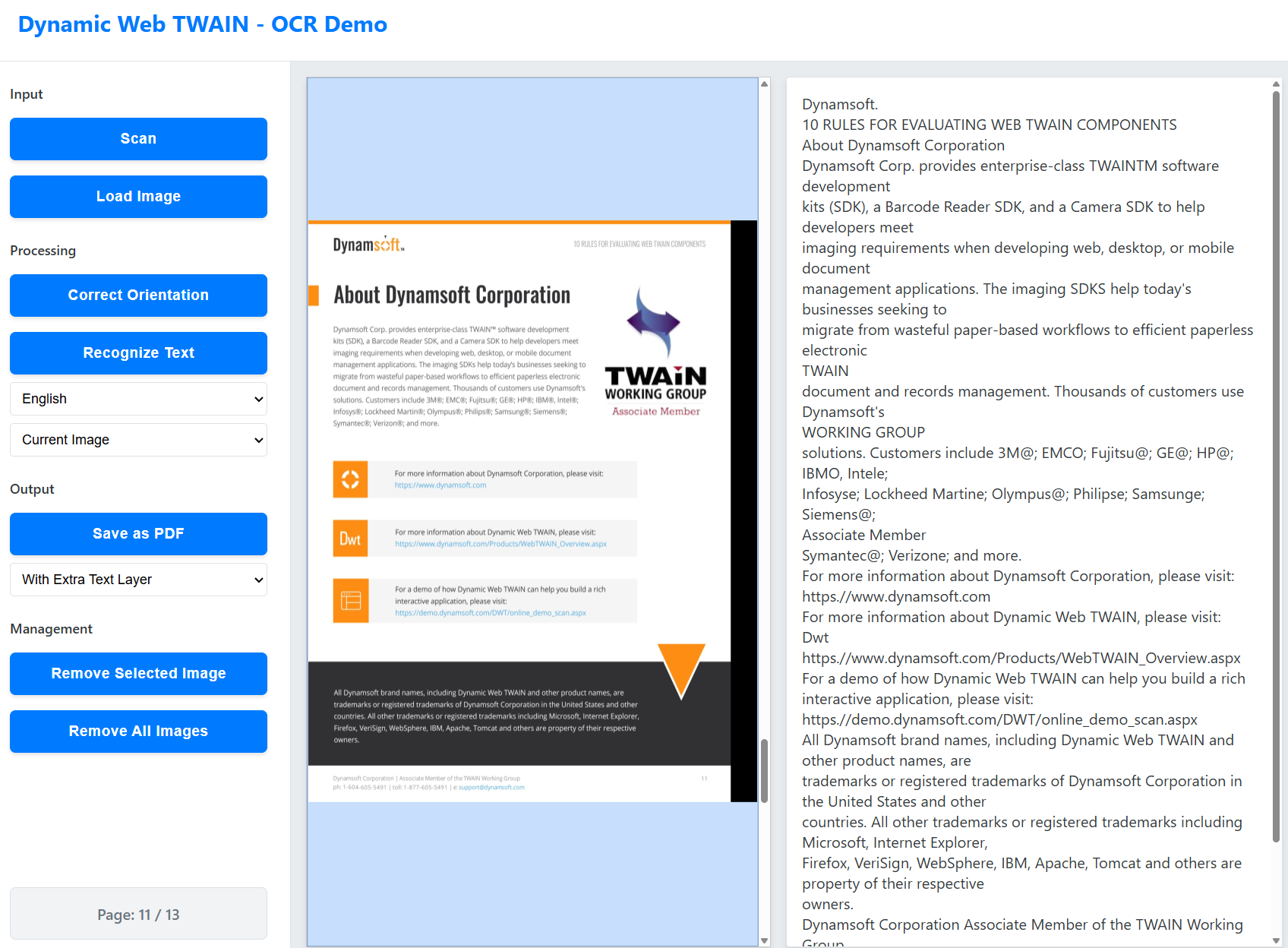
Key Benefits of Dynamic Web TWAIN’s OCR API for Document Workflows
Now that you’ve seen the API in action, let’s explore how it benefits document management industries:
1. Enhanced Efficiency
- Automates data extraction from scanned documents
- Reduces manual data entry by up to 90%
- Accelerates document processing workflows
2. Improved Accuracy
- Advanced OCR algorithms with high recognition accuracy
- Structured output format for reliable data extraction
- Multiple language support for global operations
3. Accessibility & Searchability
- Makes scanned documents text-searchable
- Enables screen readers for visually impaired users
- Facilitates text-based document analysis
4. Cost Savings
- Eliminates the need for expensive dedicated OCR software
- Reduces storage costs by enabling text compression
- Minimizes human error and associated correction costs
5. Compliance & Security
- Local processing ensures data privacy
- Audit trails for document processing
- Supports regulatory requirements for document management
6. Flexible Integration
- Seamless integration with web applications
- Works with existing scanning hardware
- Supports various output formats (PDF, text)
Real-World Use Cases for Document Scanning and OCR
Dynamic Web TWAIN’s OCR API is transforming workflows across industries:
- Healthcare: Automating patient record digitization and data extraction
- Finance: Processing invoices, receipts, and financial documents
- Legal: Digitizing contracts and case files for text search
- Education: Converting physical documents into accessible digital formats
- Government: Streamlining form processing and citizen services
Common Issues & Edge Cases
DWTObject.Addon.OCRKitisundefinedafter setup:Install.cmdfrom the OCRPack must be run as administrator. Running it without elevation silently skips copying the model files, leaving the addon unregistered. Re-run as admin and verify the.ocrmodel files appear under the expected system directory.- Garbled or missing text in OCR output: OCR accuracy degrades sharply below 150 DPI. Ensure the scanner resolution is set to at least 200 DPI in
AcquireImageAsyncsettings. For loaded images, check the source file resolution before callingRecognize(). - Scanning fails silently in Firefox or Safari: Dynamic Web TWAIN requires its local service daemon to be installed on the user’s machine. If the installation prompt is blocked by the browser’s popup policy, scanning will fail without a visible error. Advise users to allow popups for the domain, or display a custom installation guidance message by handling the
OnWebTwainNotFoundevent.