


How to Build a .NET MAUI Barcode and QR Code Scanner in C#
A .NET MAUI barcode scanner needs two things: a way to decode a still image, and a way to decode the frames coming off the camera. Both are the same call in the Dynamsoft MAUI SDK — CaptureVisionRouter.Capture() for a file, and CaptureVisionRouter.StartCapturing() fed by a CameraEnhancer for the live stream. One NuGet package, Dynamsoft.BarcodeReaderBundle.Maui, provides both on Android and iOS from a single C# codebase.
This tutorial builds the scanner from scratch in Visual Studio Code. The recognition path is kept separate from the UI: the router decodes, a GraphicsView draws, and neither knows about the other.
What you’ll build: A cross-platform .NET MAUI app (Android / iOS) with two flows — pick an image from the gallery and decode it, or open the camera and scan barcodes and QR codes in real time — with the decoded text and bounding box drawn over the preview.
Key Takeaways
Dynamsoft.BarcodeReaderBundle.Maui11.6.2000 targets .NET 10 only (net10.0-android36.0/net10.0-ios26.0); it ships no .NET 8 / .NET 9 assets and pulls inMicrosoft.Maui.Controls10.0.20.- Image decoding is one synchronous call:
router.Capture(filePath, EnumPresetTemplate.PT_READ_BARCODES)returns aCapturedResultwhoseDecodedBarcodesResult.Itemsholds the barcodes. - Camera scanning wires three objects together —
CameraView(preview),CameraEnhancer(camera session),CaptureVisionRouter(processing) — and delivers results throughICapturedResultReceiver. - The camera and router hold native resources.
Close()stops the preview, butDispose()releases the session; the sample disposes both and unregisters its lifecycle messenger when the page is torn down. - Overlay rendering is a separate
IDrawable.GraphicsView.DrawStringis unreliable on iOS, so treat the overlay as platform-sensitive UI, not part of the recognition logic.
Common Developer Questions
How do I integrate a barcode scanner into a .NET MAUI app on Android and iOS?
Install Dynamsoft.BarcodeReaderBundle.Maui, register the CameraView handler, declare the camera permission, initialize the license, and wire CaptureVisionRouter to a CameraEnhancer. The same shared C# pages then run on both platforms; only the manifest/plist permissions and the lifecycle hooks differ.
How do I decode a QR code from an image file in C#?
Pick the file with FilePicker, then call router.Capture(filePath, EnumPresetTemplate.PT_READ_BARCODES) and read result.DecodedBarcodesResult.Items. Each item exposes Text and a four-point Location. No camera is involved, so this is the fastest way to confirm the SDK and license work before touching the camera.
Which package do I use — the MAUI bundle or the desktop bundle?
Dynamsoft.BarcodeReaderBundle.Maui (or Dynamsoft.CaptureVisionBundle.Maui) is for Android and iOS. Dynamsoft.DotNet.BarcodeReader.Bundle is for Windows desktop and has a different API surface. They are not interchangeable; if you need Windows too, see the cross-platform Windows + Android + iOS scanner which gates the two packages behind #if directives.
Why is my camera preview black after the app returns from the background?
The camera session was not reopened. On Android the sample listens for OnResume/OnStop; on iOS for WillEnterForeground/DidEnterBackground. Both close the enhancer when the app leaves the foreground and reopen it on return. Without those hooks the preview stays black.
Why does canvas.DrawString not render text on iOS?
GraphicsView text rendering is unreliable on iOS even when the bounding boxes draw correctly. Keep the overlay in its own IDrawable so you can swap the text strategy (for example a positioned Label) without touching the recognition code.
The Minimal Barcode Path
The whole recognition path, with no UI. Initialize the license once at startup (Step 4), then:
Decode an image file:
using Dynamsoft.CaptureVisionRouter.Maui;
using Dynamsoft.BarcodeReader.Maui;

var router = new CaptureVisionRouter();
CapturedResult result = router.Capture(filePath, EnumPresetTemplate.PT_READ_BARCODES);

foreach (var item in result.DecodedBarcodesResult.Items)
{
    Console.WriteLine(item.Text);   // e.g. https://www.dynamsoft.com
}
Scan the camera:
// CameraPage implements ICapturedResultReceiver and ICompletionListener
var enhancer = new CameraEnhancer();
var router = new CaptureVisionRouter();

enhancer.SetCameraView(CameraPreview);   // CameraPreview is a CameraView in the layout
router.SetInput(enhancer);
router.AddResultReceiver(this);

enhancer.Open();
router.StartCapturing(EnumPresetTemplate.PT_READ_BARCODES, this);

// Results arrive on a worker thread:
public void OnDecodedBarcodesReceived(DecodedBarcodesResult result)
{
    foreach (var item in result.Items)
        Console.WriteLine(item.Text);
}
That is the entire SDK surface for both flows. Everything below — the picker, the navigation, the GraphicsView overlay, the lifecycle hooks — is MAUI plumbing around these calls.
Tested Environment
| Component | Version / target |
|---|---|
| .NET SDK | 10.0.x (maui-android / maui-ios workloads) |
| Microsoft.Maui.Controls | 10.0.20 |
| Dynamsoft.BarcodeReaderBundle.Maui | 11.6.2000 |
| Android target | net10.0-android36.0 (API 36), min API 21 |
| iOS target | net10.0-ios26.0, min iOS 12.2 |
| CommunityToolkit.Maui / Mvvm | 9.0.1 / 8.2.2 |
The BarcodeQrScanner sample is compiled by the repository’s GitHub Actions CI on every push. In CI run 42983960767 both mobile targets built green:
- Android —
dotnet build -c Release -f net10.0-android36.0on awindows-latestrunner (job log). - iOS —
dotnet build -c Release -f net10.0-ios26.0 -p:RuntimeIdentifier=iossimulator-arm64onmacos-15with Xcode 26.0.1 (job log).
These are CI build validations, not physical-device runs. Exercise the camera preview, permission prompts, and overlay on a real device or emulator before shipping.
This article is Part 2 in a 5-Part Series.
- Part 1 - Build a .NET MAUI Windows Desktop Barcode Scanner with Live Camera Feed
- Part 2 - How to Build a .NET MAUI Barcode and QR Code Scanner in C#
- Part 3 - How to Build a .NET MAUI Document Scanner App with Capture, Normalize, and Share
- Part 4 - Build a Passport MRZ Scanner for Android and iOS in C# with .NET MAUI
- Part 5 - .NET MAUI Barcode Scanner for Windows, Android, and iOS
Prerequisites
- .NET 10 SDK
- Visual Studio Code with the .NET MAUI extension and C# Dev Kit
- Android SDK (for Android) and Xcode (for iOS, on macOS)
For setup details, see the Microsoft installation guide.
Get a 30-day free trial license at dynamsoft.com/customer/license/trialLicense
Visual Studio for Mac is retired (support ended August 31, 2024). Use Visual Studio Code with the .NET MAUI extension, or Visual Studio 2022 on Windows.
Step 1: Create a New .NET MAUI Project
In Visual Studio Code:
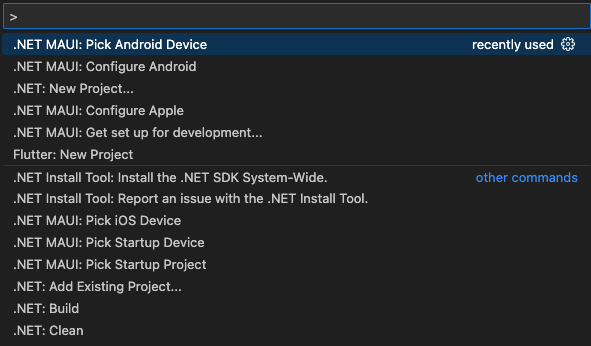
- Open the command palette (
Ctrl+Shift+P/Cmd+Shift+P). - Run > .NET: New Project, choose .NET MAUI App, and name the project (this tutorial uses
BarcodeQrScanner). - Pick a device with > .NET MAUI: Pick Android Device or > .NET MAUI: Pick iOS Device, then press
F5to build and run.
Confirm the project targets .NET 10 in the .csproj:
<TargetFrameworks>net10.0-android36.0;net10.0-ios26.0</TargetFrameworks>
Step 2: Install the NuGet Packages and Register the Camera Handler
dotnet add package Dynamsoft.BarcodeReaderBundle.Maui
dotnet add package CommunityToolkit.Mvvm
dotnet add package CommunityToolkit.Maui
Dynamsoft.BarcodeReaderBundle.Maui— the barcode SDK and theCameraView/CameraEnhancercontrols.CommunityToolkit.Mvvm—WeakReferenceMessenger, used to forward Android/iOS lifecycle events to the camera page.CommunityToolkit.Maui— suppliesUseMauiCommunityToolkit().
In MauiProgram.cs, register the CameraView handler and forward lifecycle events. The #elif IOS block is what keeps the iOS preview alive across background/foreground transitions:
using Microsoft.Extensions.Logging;
using Dynamsoft.CameraEnhancer.Maui;
using Dynamsoft.CameraEnhancer.Maui.Handlers;
using CommunityToolkit.Maui;
using Microsoft.Maui.LifecycleEvents;
using CommunityToolkit.Mvvm.Messaging;

namespace BarcodeQrScanner;

public static class MauiProgram
{
    public static MauiApp CreateMauiApp()
    {
        var builder = MauiApp.CreateBuilder();
        builder
            .UseMauiApp<App>().UseMauiCommunityToolkit()
            .ConfigureFonts(fonts =>
            {
                fonts.AddFont("OpenSans-Regular.ttf", "OpenSansRegular");
                fonts.AddFont("OpenSans-Semibold.ttf", "OpenSansSemibold");
            })
            .ConfigureLifecycleEvents(events =>
            {
#if ANDROID
                events.AddAndroid(android => android
                    .OnResume((activity) => NotifyPage("Resume"))
                    .OnStop((activity) => NotifyPage("Stop")));
#elif IOS
                events.AddiOS(ios => ios
                    .WillEnterForeground((app) => NotifyPage("Resume"))
                    .DidEnterBackground((app) => NotifyPage("Stop")));
#endif
            })
            .ConfigureMauiHandlers(handlers =>
            {
                handlers.AddHandler(typeof(CameraView), typeof(CameraViewHandler));
            });

#if DEBUG
        builder.Logging.AddDebug();
#endif
        return builder.Build();
    }

    private static void NotifyPage(string eventName)
    {
        WeakReferenceMessenger.Default.Send(new LifecycleEventMessage(eventName));
    }
}
LifecycleEventMessage is a one-property record:
namespace BarcodeQrScanner;

public class LifecycleEventMessage
{
    public string EventName { get; }
    public LifecycleEventMessage(string eventName) => EventName = eventName;
}
Step 3: Declare Camera and Storage Permissions
Android — Platforms/Android/AndroidManifest.xml. Declare CAMERA explicitly (the AndroidX Camera libraries also merge it in transitively, but an explicit declaration makes the requirement obvious):
<uses-permission android:name="android.permission.CAMERA" />
<uses-permission android:name="android.permission.READ_EXTERNAL_STORAGE" />
<uses-permission android:name="android.permission.WRITE_EXTERNAL_STORAGE" />
iOS — Platforms/iOS/Info.plist:
<key>NSPhotoLibraryUsageDescription</key>
<string>App needs access to the photo library to pick images.</string>
<key>NSCameraUsageDescription</key>
<string>This app is using the camera</string>
<key>NSMicrophoneUsageDescription</key>
<string>This app needs access to microphone for taking videos.</string>
iOS crashes on first camera access if NSCameraUsageDescription is missing; Android silently denies the runtime request if CAMERA is absent from the merged manifest.
Step 4: Initialize the License
Activate the SDK once, in MainPage.xaml.cs, before any router is created. A router built before the license verifies fails in ways that look like decode errors.
using Dynamsoft.License.Maui;
using System.Diagnostics;

public partial class MainPage : ContentPage, ILicenseVerificationListener
{
    public MainPage()
    {
        InitializeComponent();
        LicenseManager.InitLicense("LICENSE-KEY", this);
    }

    public void OnLicenseVerified(bool isSuccess, string message)
    {
        if (!isSuccess)
            Debug.WriteLine(message);
    }
}
Step 5: Add the Main Page Navigation
Two buttons: one picks an image and opens PicturePage, the other requests camera permission and opens CameraPage.
MainPage.xaml
<ContentPage xmlns="http://schemas.microsoft.com/dotnet/2021/maui"
             xmlns:x="http://schemas.microsoft.com/winfx/2009/xaml"
             x:Class="BarcodeQrScanner.MainPage">
    <ScrollView>
        <StackLayout>
            <Button Text="Image File" HorizontalOptions="Center" Clicked="OnTakePhotoButtonClicked" />
            <Button Text="Video Stream" HorizontalOptions="Center" Clicked="OnTakeVideoButtonClicked" />
        </StackLayout>
    </ScrollView>
</ContentPage>
MainPage.xaml.cs (event handlers)
async void OnTakePhotoButtonClicked(object sender, EventArgs e)
{
    var result = await FilePicker.Default.PickAsync(new PickOptions
    {
        FileTypes = FilePickerFileType.Images,
        PickerTitle = "Please select an image"
    });
    if (result != null)
        await Navigation.PushAsync(new PicturePage(result));
}

async void OnTakeVideoButtonClicked(object sender, EventArgs e)
{
    var status = await Permissions.CheckStatusAsync<Permissions.Camera>();
    if (status != PermissionStatus.Granted)
        status = await Permissions.RequestAsync<Permissions.Camera>();

    if (status == PermissionStatus.Granted)
        await Navigation.PushAsync(new CameraPage());
    else
        await DisplayAlert("Permission needed", "Camera permission is required to scan.", "Ok");
}
Step 6: Decode Barcodes from an Image File
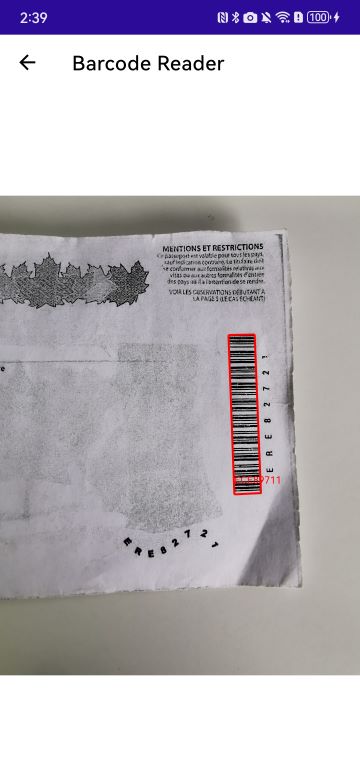
This page is recognition only: pick a file, capture, hand the results to the overlay. PicturePage.xaml stacks an Image and a GraphicsView:
<ContentPage xmlns="http://schemas.microsoft.com/dotnet/2021/maui"
             xmlns:x="http://schemas.microsoft.com/winfx/2009/xaml"
             x:Class="BarcodeQrScanner.PicturePage"
             Title="Barcode Reader">
    <Grid>
        <Image x:Name="PickedImage" Aspect="AspectFit" SizeChanged="OnImageSizeChanged"/>
        <GraphicsView x:Name="OverlayGraphicsView" />
    </Grid>
</ContentPage>
The code-behind reads the image dimensions (needed to scale the overlay), displays the image, and decodes it:
using Dynamsoft.CaptureVisionRouter.Maui;
using Dynamsoft.BarcodeReader.Maui;
using Microsoft.Maui.Graphics.Platform;

public partial class PicturePage : ContentPage
{
    private CaptureVisionRouter? router;

    public PicturePage(FileResult result)
    {
        InitializeComponent();
        LoadImageWithOverlay(result);
    }

    async private void LoadImageWithOverlay(FileResult result)
    {
        var filePath = result.FullPath;
        var stream = await result.OpenReadAsync();

        var image = PlatformImage.FromStream(stream);
        float originalWidth = image.Width;
        float originalHeight = image.Height;

        // Reset the stream so the Image control can read it from the start.
        stream.Position = 0;
        PickedImage.Source = ImageSource.FromStream(() => stream);

        // Decode. This is the same call shown in the minimal path.
        router = new CaptureVisionRouter();
        CapturedResult capturedResult = router.Capture(filePath, EnumPresetTemplate.PT_READ_BARCODES);
        DecodedBarcodesResult? barcodeResults = capturedResult?.DecodedBarcodesResult;

        OverlayGraphicsView.Drawable =
            new ImageWithOverlayDrawable(barcodeResults, originalWidth, originalHeight, isFile: true);
        OverlayGraphicsView.Invalidate();
    }

    private void OnImageSizeChanged(object sender, EventArgs e)
    {
        OverlayGraphicsView.WidthRequest = PickedImage.Width;
        OverlayGraphicsView.HeightRequest = PickedImage.Height;
    }

    protected override void OnHandlerChanged()
    {
        base.OnHandlerChanged();
        if (this.Handler == null)
        {
            (router as IDisposable)?.Dispose();
            router = null;
        }
    }
}
Step 7: Scan Barcodes from the Camera Stream
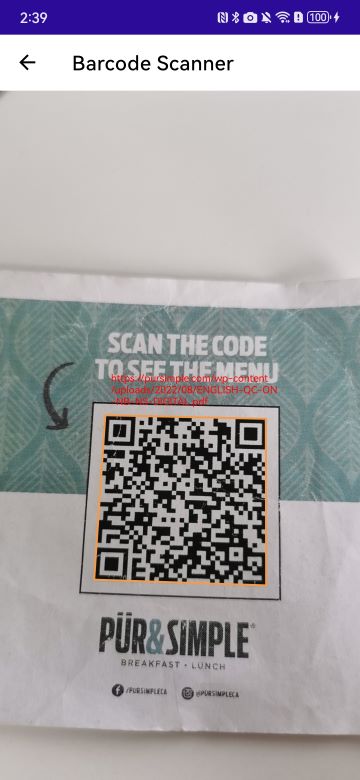
CameraPage.xaml hosts the CameraView preview and a GraphicsView overlay. Note the control namespace lives in the Dynamsoft.CaptureVisionBundle.Maui assembly:
<ContentPage xmlns="http://schemas.microsoft.com/dotnet/2021/maui"
             xmlns:x="http://schemas.microsoft.com/winfx/2009/xaml"
             xmlns:controls="clr-namespace:Dynamsoft.CameraEnhancer.Maui;assembly=Dynamsoft.CaptureVisionBundle.Maui"
             x:Class="BarcodeQrScanner.CameraPage"
             Title="Barcode Scanner">
    <Grid Margin="0">
        <controls:CameraView x:Name="CameraPreview" SizeChanged="OnImageSizeChanged"/>
        <GraphicsView x:Name="OverlayGraphicsView"/>
    </Grid>
</ContentPage>
The code-behind builds the camera pipeline, reacts to lifecycle events, and releases everything when the page is torn down:
using Dynamsoft.Core.Maui;
using Dynamsoft.CaptureVisionRouter.Maui;
using Dynamsoft.BarcodeReader.Maui;
using Dynamsoft.CameraEnhancer.Maui;
using System.Diagnostics;
using CommunityToolkit.Mvvm.Messaging;

public partial class CameraPage : ContentPage, ICapturedResultReceiver, ICompletionListener
{
    private CameraEnhancer? enhancer;
    private CaptureVisionRouter router;
    private float previewWidth, previewHeight;

    public CameraPage()
    {
        InitializeComponent();
        enhancer = new CameraEnhancer();
        router = new CaptureVisionRouter();
        router.SetInput(enhancer);
        router.AddResultReceiver(this);

        WeakReferenceMessenger.Default.Register<LifecycleEventMessage>(this, (r, message) =>
        {
            if (message.EventName == "Resume")
            {
                if (this.Handler != null && enhancer != null)
                    enhancer.Open();
            }
            else if (message.EventName == "Stop")
            {
                enhancer?.Close();
            }
        });
    }

    protected override void OnHandlerChanged()
    {
        base.OnHandlerChanged();
        if (this.Handler != null && enhancer != null)
        {
            enhancer.SetCameraView(CameraPreview);
            enhancer.Open();
        }
        else if (this.Handler == null)
        {
            // Page popped: release native resources, not just the preview.
            WeakReferenceMessenger.Default.Unregister<LifecycleEventMessage>(this);
            router?.StopCapturing();
            enhancer?.Close();
            enhancer?.Dispose();
            (router as IDisposable)?.Dispose();
            enhancer = null;
        }
    }

    protected override async void OnAppearing()
    {
        base.OnAppearing();
        await Permissions.RequestAsync<Permissions.Camera>();
        router?.StartCapturing(EnumPresetTemplate.PT_READ_BARCODES, this);
    }

    protected override void OnDisappearing()
    {
        base.OnDisappearing();
        enhancer?.Close();
        router?.StopCapturing();
    }

    public void OnDecodedBarcodesReceived(DecodedBarcodesResult result)
    {
        // The overlay scales against the frame size, read once from the router.
        if (previewWidth == 0 && previewHeight == 0)
        {
            var manager = router.GetIntermediateResultManager();
            ImageData data = manager.GetOriginalImage(result.OriginalImageHashId);
            previewWidth = data.Width;
            previewHeight = data.Height;
        }

        MainThread.BeginInvokeOnMainThread(() =>
        {
            OverlayGraphicsView.Drawable =
                new ImageWithOverlayDrawable(result, previewWidth, previewHeight, isFile: false);
            OverlayGraphicsView.Invalidate();
        });
    }

    public void OnCapturedResultReceived(CapturedResult result) { }
    public void OnSuccess() { }
    public void OnFailure(int errorCode, string errorMessage) => Debug.WriteLine(errorMessage);

    private void OnImageSizeChanged(object sender, EventArgs e)
    {
        OverlayGraphicsView.WidthRequest = CameraPreview.Width;
        OverlayGraphicsView.HeightRequest = CameraPreview.Height;
    }
}
Step 8: Render the Overlay (UI, Not Recognition)
The overlay is a plain IDrawable that knows nothing about the camera or the router — it receives decoded items and the source dimensions, and scales the four-point Location into the view. Keeping it separate means you can restyle or replace it (for example to work around the iOS text issue) without touching recognition.
using Dynamsoft.BarcodeReader.Maui;

public class ImageWithOverlayDrawable : IDrawable
{
    private readonly DecodedBarcodesResult? _barcodeResults;
    private readonly float _originalWidth, _originalHeight;
    private readonly bool _isFile;

    public ImageWithOverlayDrawable(DecodedBarcodesResult? barcodeResults,
        float originalWidth, float originalHeight, bool isFile = false)
    {
        _barcodeResults = barcodeResults;
        _originalWidth = originalWidth;
        _originalHeight = originalHeight;
        _isFile = isFile;
    }

    public void Draw(ICanvas canvas, RectF dirtyRect)
    {
        float scale = Math.Min(dirtyRect.Width / _originalWidth, dirtyRect.Height / _originalHeight);

        canvas.StrokeColor = Colors.Red;
        canvas.StrokeSize = 2;
        canvas.FontColor = Colors.Red;

        if (_barcodeResults == null) return;

        foreach (var item in _barcodeResults.Items)
        {
            var points = item.Location.Points;

            if (_isFile)   // draw the bounding box for still images
            {
                for (int i = 0; i < 4; i++)
                {
                    var a = points[i];
                    var b = points[(i + 1) % 4];
                    canvas.DrawLine((float)a.X * scale, (float)a.Y * scale,
                                    (float)b.X * scale, (float)b.Y * scale);
                }
            }

            canvas.DrawString(item.Text, (float)points[0].X * scale,
                              (float)points[0].Y * scale - 10, HorizontalAlignment.Left);
        }
    }
}
The isFile flag is the only branch: still images get a bounding box plus text; the live preview gets text only. The scale factor maps frame/image coordinates into the GraphicsView; because the preview is aspect-filled, treat the live overlay as approximate rather than pixel-exact.
Lifecycle Cleanup
The camera and the router own native resources, so the sample releases them at each transition:
| Trigger | Action |
|---|---|
OnDisappearing (navigate away) |
enhancer.Close() + router.StopCapturing() — stops the preview and processing. |
App background (OnStop / DidEnterBackground) |
enhancer.Close() — releases the camera so other apps can use it. |
App foreground (OnResume / WillEnterForeground) |
enhancer.Open() — reopens the preview. |
| Handler detached (page popped) | Unregister the messenger, StopCapturing(), Close(), then Dispose() both the enhancer and the router. |
Close() alone stops the preview but leaves the native session allocated; because each navigation creates a new CameraPage, skipping Dispose() would leak a camera session per visit. The WeakReferenceMessenger registration is removed on teardown so a popped page stops receiving lifecycle events.
Common Issues and Edge Cases
iOS text rendering. canvas.DrawString may not render on iOS while the boxes draw fine. Because the overlay is isolated in ImageWithOverlayDrawable, swap the text for a positioned Label without changing the recognition code. The Windows + Android + iOS scanner uses SkiaSharp on iOS for this reason.
Black preview on the Android emulator. Some emulator images have no camera passthrough. Use a physical device, or set the emulator’s back camera to Virtual Scene (which contains a scannable QR code).
No result from Capture(). Verify the license initialized successfully first, then check image resolution — blurry or heavily compressed images may not decode. Cropping the barcode region before scanning often helps.
NU1102 restoring on Linux CI. Microsoft.NETCore.App.Runtime.Mono.linux-x64 is not published to nuget.org; build the Android target on a Windows runner (or macOS), where the workload ships the host runtime packs.
Source Code
Complete sample project on GitHub — the BarcodeQrScanner example, alongside MRZ, document and Windows-desktop scanners in the same repository.