


Build a JavaScript Web Document Viewer, Editor, and Image Converter Step by Step
A Web Document Viewer is a software tool enabling users to view and edit various document types, including PDF, JPEG, PNG, and TIFF, directly within a web browser. Recently, Dynamsoft released a JavaScript Document Viewer SDK, designed to expedite the development of web-based document management applications. In this article, we will explore the SDK’s APIs and demonstrate how to develop a web document viewer, editor, and converter step by step.
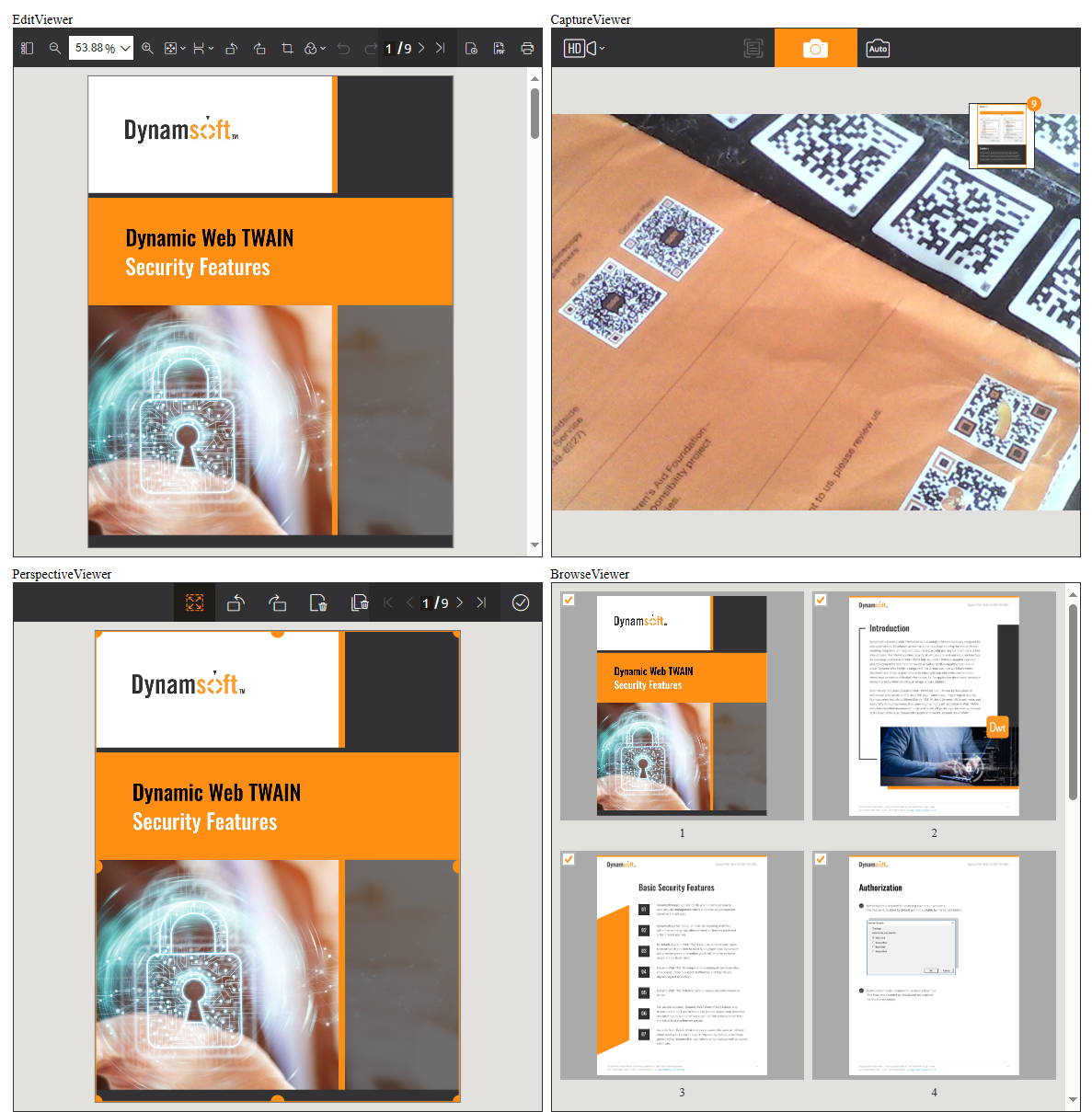
What you’ll build: A fully functional browser-based document viewer and editor that can load PDF, PNG, JPEG, and TIFF files, apply image filters (crop, rotate, flip, perspective correction), and export to multiple formats — all using the Dynamsoft Document Viewer JavaScript SDK.
Key Takeaways
- Dynamsoft Document Viewer SDK provides ready-made UI components (Edit Viewer, Capture Viewer, Perspective Viewer, Browse Viewer) to build a web document viewer in minutes.
- The
IDocumentinterface handles page-level data operations — load, update, delete — and converts documents between PDF, PNG, JPEG, and TIFF formats viasaveToPdf,saveToPng,saveToJpeg, andsaveToTiff. - The SDK runs entirely in the browser using WebAssembly, requiring no server-side processing for viewing, editing, or format conversion.
- Image filters such as grayscale, black-and-white, and shadow removal can be applied through the
setProcessingHandlerAPI before rendering.
Common Developer Questions
How do I build a JavaScript document viewer that supports PDF, PNG, JPEG, and TIFF in the browser?
Initialize the Document Viewer SDK, create a document through documentManager, load files as blobs with loadSource, and open that document in the appropriate viewer component. Because the SDK already understands PDF and common image formats, the same browser app can handle all of them through one document model.
How do I convert document images between PDF, PNG, JPEG, and TIFF formats using JavaScript?
Use the IDocument export methods such as saveToPdf, saveToPng, saveToJpeg, and saveToTiff after loading or editing the pages. Those APIs let the same in-memory document be saved into whichever output format the workflow needs.
How do I add crop, rotate, and perspective correction to a web document editor?
Use the SDK’s built-in viewer tools and image-processing handlers so users can crop pages, rotate them, flip them, and adjust perspective directly inside the browser UI. That keeps editing inside the viewer instead of requiring a separate image editor implementation.
Online Demo
https://yushulx.me/web-twain-document-scan-management/examples/document_viewer/
Prerequisites
-
SDK Package: You can download the SDK package from Dynamsoft Download Center. This SDK package includes the following files:
  ├── engine
  |   ├── ddv-crypto.wasm
  |   ├── ddv-imagecore.wasm
  |   ├── ddv-imageio.wasm
  |   ├── ddv-imageio.worker.js
  |   ├── ddv-imageproc.wasm
  |   ├── ddv-imageproc-simd.wasm
  |   ├── ddv-pdfreader.wasm
  |   ├── dls.license.dialog.html
  ├── ddv.css
  ├── ddv.es.js
  ├── ddv.js
  |── index.d.ts
Alternatively, you have the option to incorporate the SDK hosted on jsDelivr or UNPKG CDN into your web application. The CDN URLs are as follows:
jsDelivr
  <script src="https://cdn.jsdelivr.net/npm/dynamsoft-document-viewer@1.1.0/dist/ddv.js"></script>
  <link rel="stylesheet" href="https://cdn.jsdelivr.net/npm/dynamsoft-document-viewer@1.1.0/dist/ddv.css">
UNPKG
<script src="https://unpkg.com/dynamsoft-document-viewer@1.1.0/dist/ddv.js"></script> <link rel="stylesheet" href="https://unpkg.com/dynamsoft-document-viewer@1.1.0/dist/ddv.css"> -
SDK License: Get a 30-day free trial license for Dynamsoft Document Viewer.
Step 1: Initialize the Dynamsoft Document Viewer SDK with a License Key
To initialize the SDK, add the following JavaScript code to your web page, replacing LICENSE-KEY with your actual license key.
try {
    Dynamsoft.DDV.Core.license = license;
    Dynamsoft.DDV.Core.engineResourcePath = "https://cdn.jsdelivr.net/npm/dynamsoft-document-viewer@1.1.0/dist/engine";
    await Dynamsoft.DDV.Core.init();
    Dynamsoft.DDV.setProcessingHandler("imageFilter", new Dynamsoft.DDV.ImageFilter());
    docManager = Dynamsoft.DDV.documentManager;


} catch (error) {
    console.error(error);
}
- The
engineResourcePathspecifies the path to theengine, which could be a local path or a CDN URL. Theinitmethod initializes the SDK engine and returns a promise. - Use the
setProcessingHandlermethod to configure the image filter. TheImageFilterclass is used to process image data before rendering it on the canvas. You can apply filters to the image, such as grayscale, black and white, shadow removal, and more.
Step 2: Manage Document Data with the IDocument Interface
The diagram below illustrates the relationship among DocumentManager, Document, and Page.
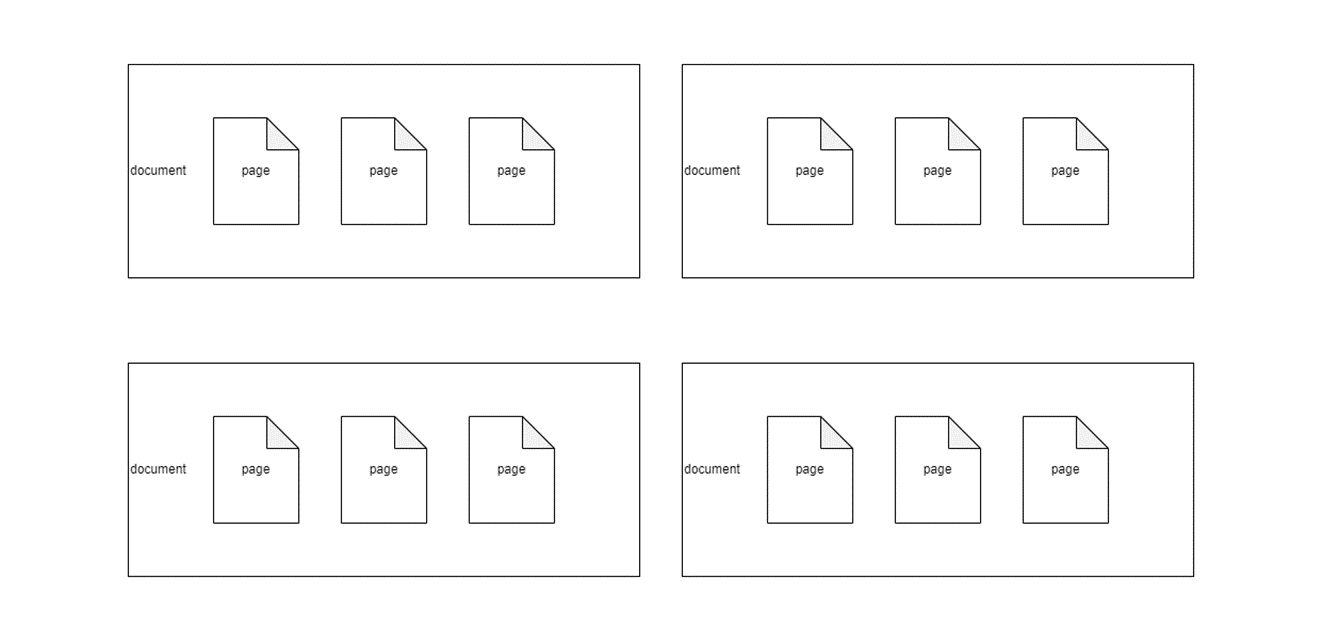
The IDocument interface is utilized for managing document data. Create a document instance by invoking the createDocument method on the documentManager object.
let doc = docManager.createDocument();
A new document contains a unique ID generated automatically. You can get the ID through the uid property.
let currentUid = doc.uid;
Use the loadSource method in the IDocument interface to load a document source. It accepts a Blob object as the parameter. The following code snippet shows how to create a document and add a file to it.
<input type="file" id="fileInput" accept="application/pdf,image/png,image/jpeg,image/tiff">

<script>
document.getElementById('fileInput').addEventListener('change', function (event) {
    if (!docManager) return;
    const file = event.target.files[0];
    if (!file) {
        console.log("No file selected.");
        return;
    }

    const reader = new FileReader();
    reader.onload = function (e) {
        const blob = new Blob([e.target.result], { type: file.type });

        async function createDoc() {
            let doc = null;
            if (!currentUid) {
                doc = docManager.createDocument();
                currentUid = doc.uid;
                openDocument(currentUid);
            }
            else {
                doc = docManager.getDocument(currentUid);
            }
            let pages = await doc.loadSource(blob);
        }
        createDoc();
    };

    reader.onerror = function (err) {
        console.error("Error reading file", err);
    };

    reader.readAsArrayBuffer(file);
});
</script>
When you get a new blob, you have the option to either add it to a new document using createDocument(), or to an existing document with getDocument(currentUid). The loadSource() method, when invoked, loads a blob and returns an array of page IDs. For instance, if the blob is a JPEG file, this method returns a single page ID. For a 10-page PDF file, it returns 10 page IDs.
The document interface offers various methods for manipulating pages, such as:
getPageData(pageUid: string): Promise<PageData>updatePage(pageUid: string, data: Blob): Promise<boolean>setPageCustomData(pageUid: string, data: any): Promise<boolean>getPageCustomData(pageUid: string): Promise<any>deletePages(indices: number[]): boolean
Step 3: Convert Documents Between PDF, PNG, JPEG, and TIFF
The built-in methods saveToPdf, saveToJpeg, saveToTiff, and saveToPng of the IDocument interface can be utilized to convert a document to a specific format.
function saveBlob(blob, fileName) {
    const url = URL.createObjectURL(blob);
    const a = document.createElement('a');
    a.href = url;
    a.download = fileName;
    document.body.appendChild(a);
    a.click();
    document.body.removeChild(a);
    URL.revokeObjectURL(url);
}

document.getElementById('saveButton').addEventListener('click', async () => {
    if (!docManager && !currentUid) return;

    let format = document.getElementById('format').value;
    let filename = document.getElementById('filename').value;

    if (!filename) {
        filename = "test";
    }

    let result = null;
    let doc = docManager.getDocument(currentUid);
    switch (format) {
        case "pdf":
            const pdfSettings = {
                author: "Dynamsoft",
                compression: "pdf/jpeg",
                pageType: "page/a4",
                creator: "DDV",
                creationDate: "D:20230101085959",
                keyWords: "samplepdf",
                modifiedDate: "D:20230101090101",
                producer: "Dynamsoft Document Viewer",
                subject: "SamplePdf",
                title: "SamplePdf",
                version: "1.5",
                quality: 90,
            }
            result = await doc.saveToPdf(pdfSettings);
            saveBlob(result, filename + "." + format);
            break;
        case "png":
            {
                let count = doc.pages.length;

                for (let i = 0; i < count; i++) {
                    result = await doc.saveToPng(i);
                    saveBlob(result, filename + i + "." + format);
                }
            }

            break;
        case "jpeg":
            {
                const settings = {
                    quality: 80,
                };

                let count = doc.pages.length;

                for (let i = 0; i < count; i++) {
                    result = await doc.saveToJpeg(i, settings);
                    saveBlob(result, filename + i + "." + format);
                }
            }

            break;
        case "tiff":
            const customTag1 = {
                id: 700,
                content: "Created By Dynamsoft",
                contentIsBase64: false,
            }

            const tiffSettings = {
                customTag: [customTag1],
                compression: "tiff/auto",
            }
            result = await doc.saveToTiff(tiffSettings);
            saveBlob(result, filename + "." + format);
            break;
    }
});

Step 4: Edit Document Images with Built-in Viewer Components
The Dynamsoft Document Viewer SDK stands out not only for its data operation APIs but also for its provides UI components and image editing tools, such as crop, rotate, flip, among others, enabling developers to swiftly build a document viewer. The primary UI components include:
Crop, Rotate, and Flip with Edit Viewer
Edit Viewer is a UI component enabling users to view and edit document images. This component offers a suite of image editing tools including crop, rotate, flip, among others. The following code snippet shows how to create an edit viewer and add it to the web page.
<div id="edit-viewer"></div>

<script>
let editContainer = document.getElementById("edit-viewer");
let editViewer = new Dynamsoft.DDV.EditViewer({
        container: editContainer,
    });
</script>
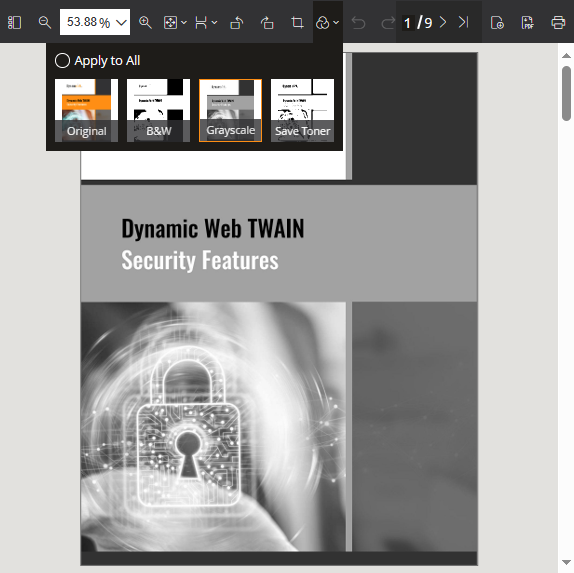
Besides the editing tools, the Edit Viewer also features buttons for file import, file export, and printing.
Capture Document Images from a Camera
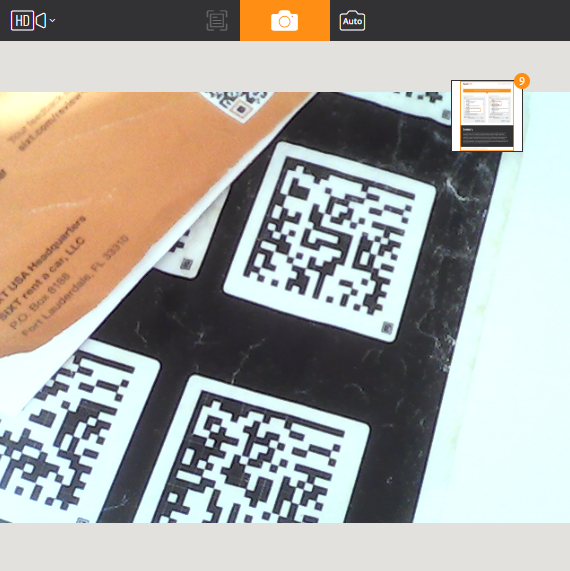
Capture Viewer is a UI component designed for capturing images directly from a camera.
<div id="capture-viewer"></div>

<script>
let captureContainer = document.getElementById("capture-viewer");
let captureViewer = new Dynamsoft.DDV.CaptureViewer({
        container: captureContainer
    });
const cameras = await captureViewer.getAllCameras();
if (cameras.length) {
    await captureViewer.selectCamera(cameras[0]);
}
captureViewer.play({
    resolution: [1920, 1080],
}).catch(err => {
    alert(err.message)
});
</script>
Apply Perspective Correction to Document Images
Perspective Viewer is a UI component enabling perspective correction on document images.
<div id="perspective-viewer"></div>

<script>
let perspectiveContainer = document.getElementById("perspective-viewer");
perspectiveViewer = new Dynamsoft.DDV.PerspectiveViewer({
    container: perspectiveContainer
});
</script>
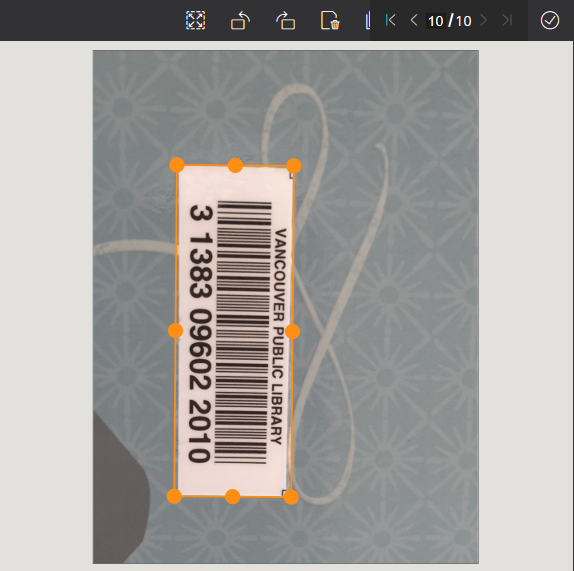
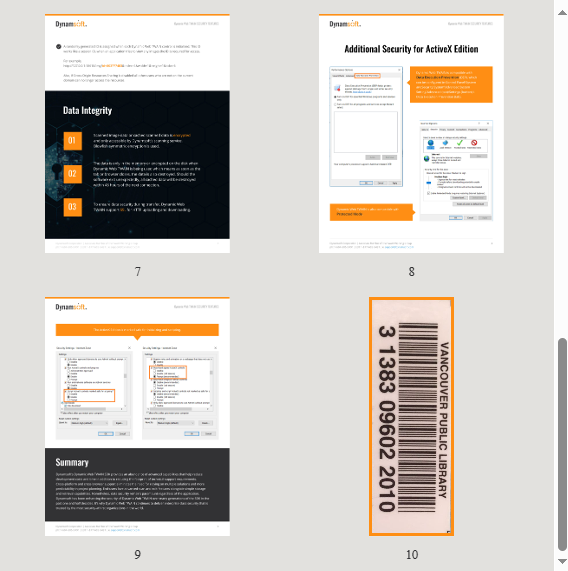
Browse and Select Document Pages
Browse Viewer is a UI component facilitating the browsing and selection of document images.
<div id="browse-viewer"></div>

<script>
let browseContainer = document.getElementById("browse-viewer");
browseViewer = new Dynamsoft.DDV.BrowseViewer({
    container: browseContainer
});
browseViewer.multiselectMode = true;
</script>
Common Issues and Edge Cases
- WASM files fail to load: Ensure
engineResourcePathpoints to the correct location of theenginefolder. If hosting locally, confirm all.wasmand.jsworker files are served with the correct MIME types (application/wasmfor.wasmfiles). - Large PDF files cause slow loading: The
loadSourcemethod processes all pages sequentially. For PDFs with 50+ pages, consider loading pages in batches or showing a progress indicator to avoid blocking the UI thread. - Camera not detected in Capture Viewer: The
getAllCameras()call requires a secure context (HTTPS or localhost). If running on plain HTTP, the browser will deny camera access silently.