


How to Scan Documents from TWAIN, WIA, and eSCL Scanners in a Flutter App
Dynamic Web TWAIN Service provides compatibility with all major document scanner protocols, including TWAIN, WIA, eSCL, SANE and ICA, across Windows, Linux and macOS platforms. Initially part of Dynamic Web TWAIN, it will soon offer its core scanning functionalities through a REST API in an upcoming release. This article guides you through creating a Flutter plugin to interact with Dynamic Web TWAIN Service’s REST API. Additionally, you’ll learn how to build a cross-platform document digitization app compatible with Windows, Linux, macOS, Android, iOS and web.
What you’ll build: A cross-platform Flutter app that discovers TWAIN, WIA, and eSCL scanners on the network and acquires document images via Dynamic Web TWAIN Service’s REST API.
Key Takeaways
- Dynamic Web TWAIN Service exposes a REST API on
http://<host>:18622that lets any HTTP client — including Flutter/Dart — list scanners, create scan jobs, and retrieve scanned images as byte streams. - A single Flutter plugin (
flutter_twain_scanner) wraps the REST API calls and works on Windows, Linux, macOS, Android, iOS, and web without platform-specific native code. - The service supports TWAIN, WIA, eSCL, SANE, and ICA protocols, so one API surface covers virtually every desktop document scanner.
- Changing the service’s bind address from
127.0.0.1to a LAN IP enables mobile and remote-device scanning over the same local network.
Common Developer Questions
How do I scan documents from a TWAIN scanner in a Flutter desktop app?
Wrap the Dynamic Web TWAIN Service REST endpoints in a Dart plugin, then call that plugin from the Flutter UI to enumerate devices, create jobs, and fetch scanned image bytes. The desktop app stays in Flutter while the service handles the actual TWAIN communication.
Can Flutter access TWAIN or WIA scanners on Windows, Linux, and macOS without native plugins?
Yes. This article avoids platform-specific scanner bindings by using HTTP calls to Dynamic Web TWAIN Service, so the Flutter package works across desktop platforms with shared Dart code.
How do I connect a Flutter mobile app to a network document scanner using a REST API?
Expose the service on a LAN IP instead of 127.0.0.1, then point the Flutter app at that host address when calling the REST API. Once the service is reachable on the network, mobile and remote devices can drive the same scanner through the plugin.
This article is Part 2 in a 8-Part Series.
- Part 1 - How to Build a Document Scanning REST API in Node.js
- Part 2 - How to Scan Documents from TWAIN, WIA, and eSCL Scanners in a Flutter App
- Part 3 - How to Scan Documents in Java Using TWAIN, WIA, eSCL, and SANE via REST API
- Part 4 - Build a Cross-Platform Python Document Scanner with TWAIN, WIA, and SANE
- Part 5 - How to Build a Cross-Platform .NET C# Document Scanner with TWAIN, WIA, SANE, and eSCL Support
- Part 6 - How to Scan Documents from a Web Page Using the Dynamic Web TWAIN REST API
- Part 7 - Build a SwiftUI Remote Document Scanner for macOS and iOS Using the Dynamic Web TWAIN REST API
- Part 8 - Build a Web Document Scanner with JavaScript: File, Camera, and TWAIN Scanner Support
Install the Flutter TWAIN Scanner Package
https://pub.dev/packages/flutter_twain_scanner
Prerequisites
- Install Dynamic Web TWAIN Service on your host machine that has one or more document scanners connected to it.
- Get a 30-day free trial license for Dynamic Web TWAIN Service.
Set Up Dynamic Web TWAIN Service for Remote Access
-
After installing Dynamic Web TWAIN Service, navigate to http://127.0.0.1:18625/ in your browser. By default, the REST API’s host address is set to
http://127.0.0.1:18622, which restricts access to the local machine only.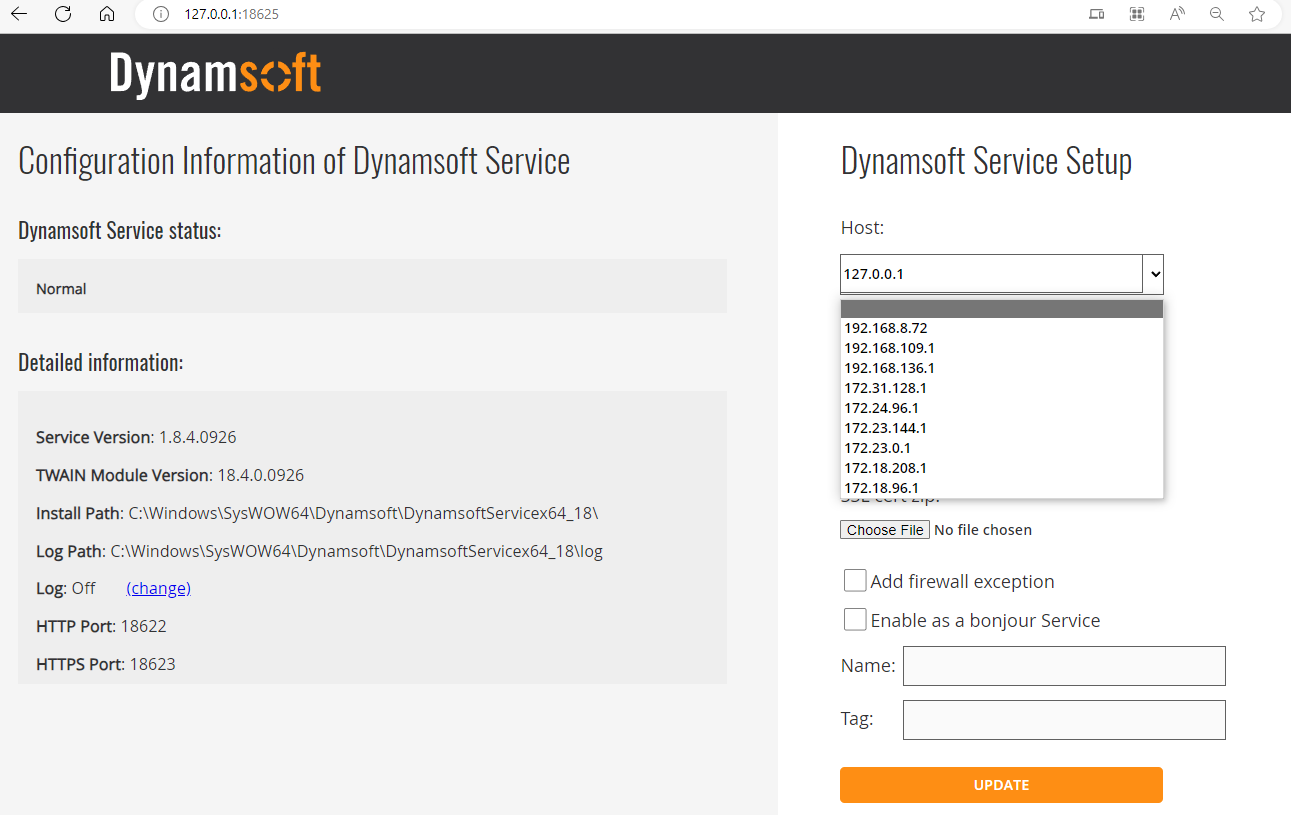
-
Replace
127.0.0.1with your LAN IP address, such ashttp://192.168.8.72:18622to enable remote access from other devices and platforms within the same Local Area Network (LAN). To update the IP address, you’ll need to select the checkboxes and name the service.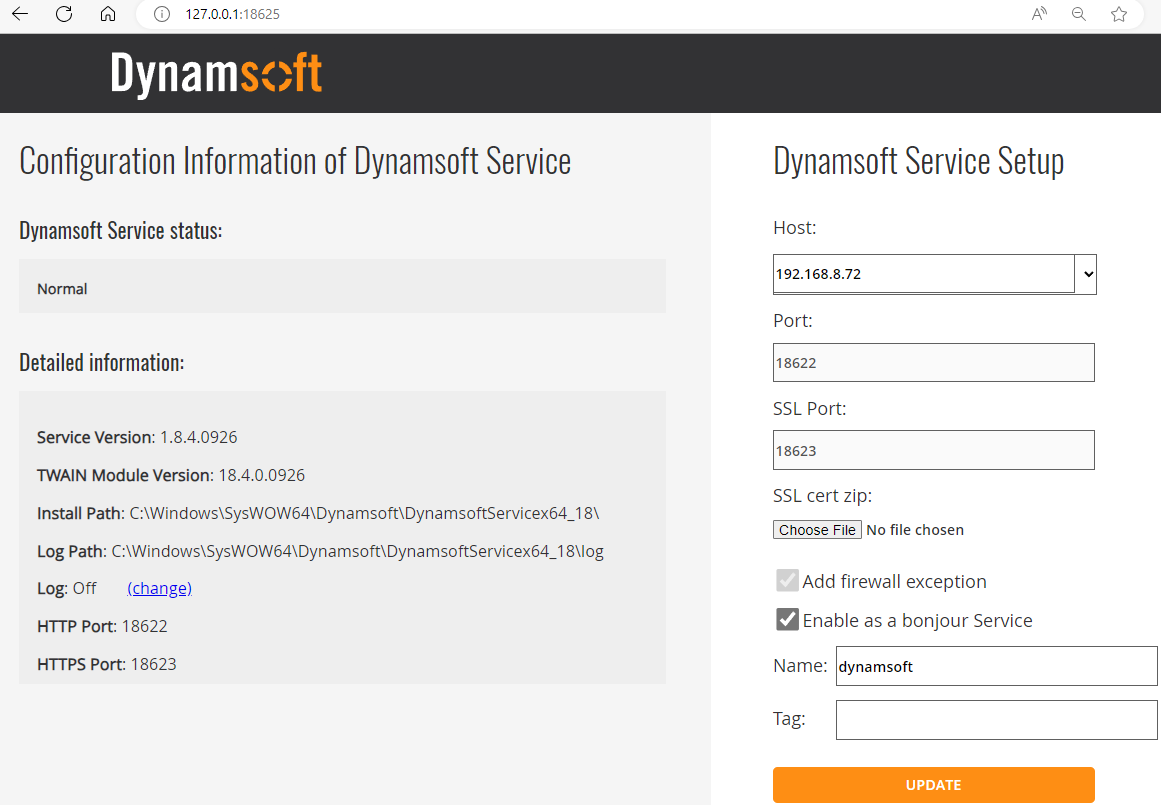
Explore the Dynamic Web TWAIN Service REST API
Create a Flutter Plugin for the Dynamic Web TWAIN Service REST API
-
Create a new Flutter plugin project.
flutter create -t plugin --platforms=android,ios,linux,macos,windows,web flutter_twain_scanner -
Install dependent Flutter packages:
httpandpath.flutter pub add http path -
Create a
lib/dynamsoft_service.dartfile, which contains the core functionalities for interacting with Dynamic Web TWAIN Service’s REST API.// ignore_for_file: empty_catches import 'dart:convert'; import 'dart:io'; import 'package:flutter/foundation.dart'; import 'package:http/http.dart' as http; import 'package:path/path.dart'; class ScannerType { static const int TWAINSCANNER = 0x10; static const int WIASCANNER = 0x20; static const int TWAINX64SCANNER = 0x40; static const int ICASCANNER = 0x80; static const int SANESCANNER = 0x100; static const int ESCLSCANNER = 0x200; static const int WIFIDIRECTSCANNER = 0x400; static const int WIATWAINSCANNER = 0x800; } class DynamsoftService { Future<List<dynamic>> getDevices(String host, [int? scannerType]) async { String url = '$host/api/device/scanners'; if (scannerType != null) { url += '?type=$scannerType'; } try { final response = await http.get(Uri.parse(url)); if (response.statusCode == 200) { return json.decode(response.body); } } catch (error) {} return []; } Future<Map<String, dynamic>> createJob( String host, Map<String, dynamic> parameters) async { final url = '$host/api/device/scanners/jobs'; try { final response = await http.post( Uri.parse(url), headers: { 'Content-Type': 'application/json', 'Content-Length': json.encode(parameters).length.toString() }, body: json.encode(parameters), ); if (response.statusCode == 201) { return json.decode(response.body); } } catch (error) {} return {}; } Future<Map<String, dynamic>> deleteJob(String host, String jobId) async { final url = '$host/api/device/scanners/jobs/$jobId'; try { final response = await http.delete(Uri.parse(url)); return json.decode(response.body); } catch (error) { return {}; } } Future<List<String>> getImageFiles( String host, String jobId, String directory) async { final List<String> images = []; final url = '$host/api/device/scanners/jobs/$jobId/next-page'; while (true) { try { final response = await http.get(Uri.parse(url)); if (response.statusCode == 200) { final timestamp = DateTime.now().millisecondsSinceEpoch; final imagePath = join(directory, 'image_$timestamp.jpg'); final file = File(imagePath); await file.writeAsBytes(response.bodyBytes); images.add(imagePath); } else if (response.statusCode == 410) { break; } } catch (error) { break; } } return images; } Future<List<Uint8List>> getImageStreams(String host, String jobId) async { final List<Uint8List> streams = []; final url = '$host/api/device/scanners/jobs/$jobId/next-page'; while (true) { try { final response = await http.get(Uri.parse(url)); if (response.statusCode == 200) { streams.add(response.bodyBytes); } else { break; } } catch (error) { break; } } return streams; } }Future<List<dynamic>> getDevices(String host, [int? scannerType]): Get the list of TWAIN, WIA, and eSCL compatible scanners.Future<void> deleteJob(String host, String jobId): Deletes a scan job based on the provided job ID.Future<List<String>> getImageFiles(String host, String jobId, String directory): Saves images from a scan job to a directory.Future<List<Uint8List>> getImageStreams(String host, String jobId): Retrieves image streams from a scan job.Future<String> createJob(String host, Map<String, dynamic> parameters): Creates a new scan job using provided parameters.
Build a Flutter App to Digitize Documents from Scanners
-
Create a new Flutter app project.
flutter create app -
Install the package
flutter_twain_scanner:flutter pub add flutter_twain_scanner -
In
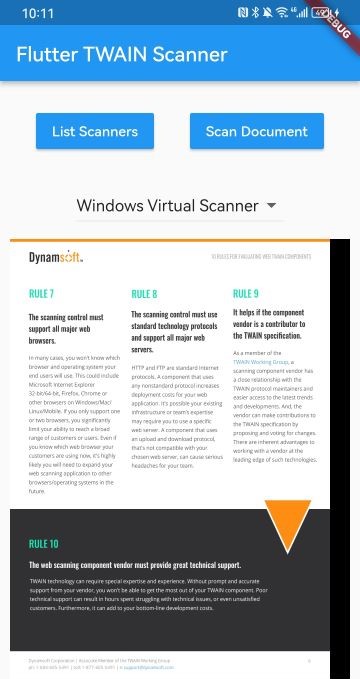
lib/main.dart, import the package and set the host address to match the IP address of the machine where Dynamic Web TWAIN Service is running.import 'package:flutter_twain_scanner/dynamsoft_service.dart'; final DynamsoftService dynamsoftService = DynamsoftService(); String host = 'http://192.168.8.72:18622'; -
Create a button to list all available scanners, allowing for type-based filtering. For instance, using
ScannerType.TWAINSCANNER | ScannerType.TWAINX64SCANNERwill display scanners that support both 32-bit and 64-bit TWAIN protocols.MaterialButton( textColor: Colors.white, color: Colors.blue, onPressed: () async { try { final scanners = await dynamsoftService.getDevices(host, ScannerType.TWAINSCANNER | ScannerType.TWAINX64SCANNER); for (var i = 0; i < scanners.length; i++) { devices.add(scanners[i]); scannerNames.add(scanners[i]['name']); } } catch (error) { print('An error occurred: $error'); } if (devices.isNotEmpty) { setState(() { _selectedScanner = devices[0]['name']; }); } }, child: const Text('List Scanners')), -
Create a button to initiate the document scanning process. Remember to replace
LICENSE-KEYwith your own Dynamic Web TWAIN Service license key.MaterialButton( textColor: Colors.white, color: Colors.blue, onPressed: () async { if (_selectedScanner != null) { int index = scannerNames.indexOf(_selectedScanner!); await _scanDocument(index); } }, child: const Text('Scan Document')), Future<void> _scanDocument(int index) async { final Map<String, dynamic> parameters = { 'license': 'LICENSE-KEY', 'device': devices[index]['device'], }; parameters['config'] = { 'IfShowUI': false, 'PixelType': 2, 'Resolution': 200, 'IfFeederEnabled': false, 'IfDuplexEnabled': false, }; try { final String jobId = await dynamsoftService.createJob(host, parameters); if (jobId != '') { List<Uint8List> paths = await dynamsoftService.getImageStreams(host, jobId); await dynamsoftService.deleteJob(host, jobId); if (paths.isNotEmpty) { setState(() { imagePaths.insertAll(0, paths); }); } } } catch (error) { print('An error occurred: $error'); } } -
Display the acquired document images in a
ListView:Expanded( child: imagePaths.isEmpty ? Image.asset('images/default.png') : ListView.builder( itemCount: imagePaths.length, itemBuilder: (context, index) { return Padding( padding: const EdgeInsets.all(10.0), child: Image.memory( imagePaths[index], fit: BoxFit.contain, ), ); }, )) -
Run the app:
 flutter run # for Android and iOS
 # flutter run -d chrome # for web
 # flutter run -d windows # for Windows
Desktop
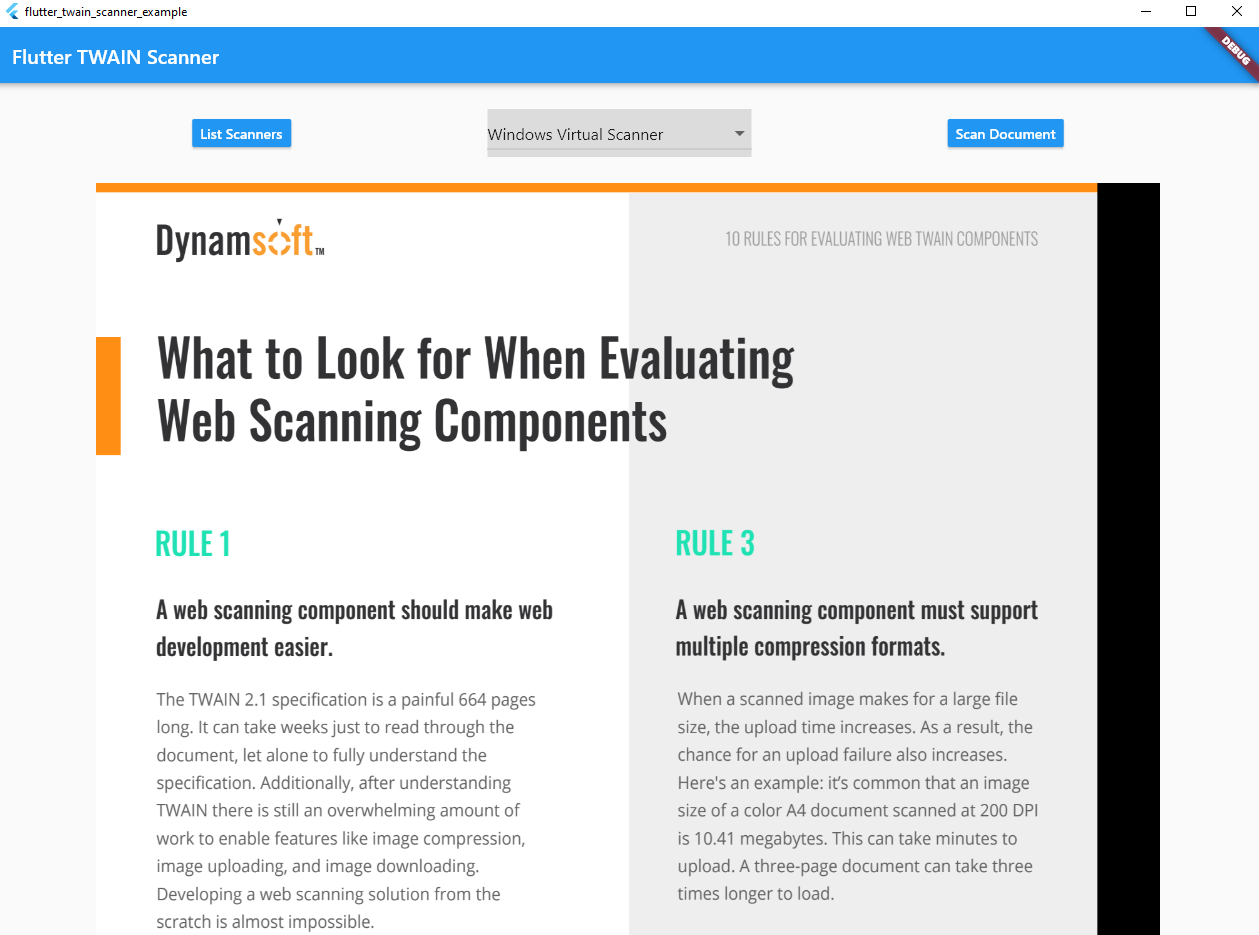
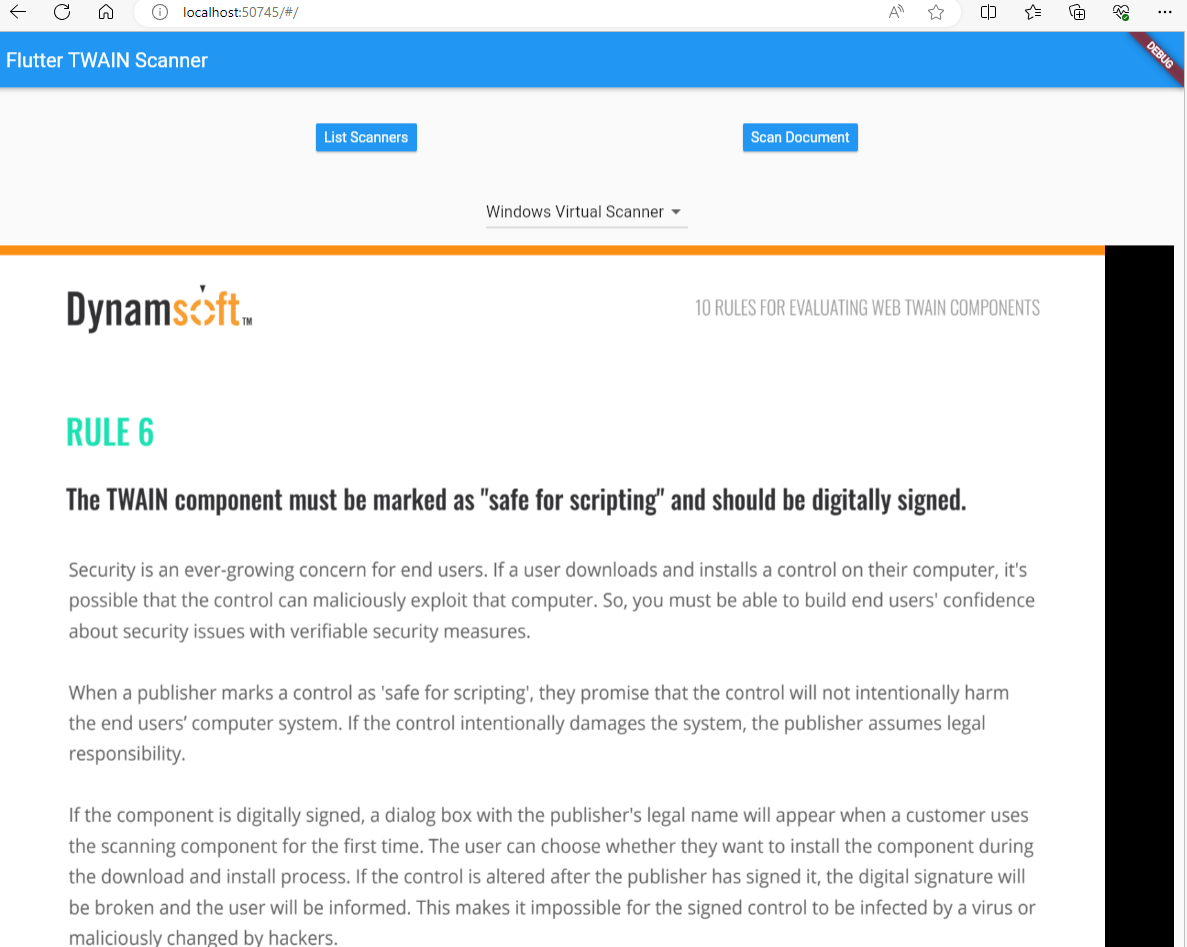
Web
Mobile
Common Issues and Edge Cases
- Service not reachable from mobile devices: If your Flutter app on Android or iOS cannot connect to Dynamic Web TWAIN Service, verify that the service’s bind address is set to your machine’s LAN IP (not
127.0.0.1) and that your firewall allows inbound connections on port18622. - Scanner not listed after calling
getDevices: Some scanners require a specific protocol flag. Try broadening the scanner type filter (e.g.,ScannerType.TWAINSCANNER | ScannerType.ESCLSCANNER | ScannerType.WIASCANNER) or omit the type parameter entirely to list all connected devices. - Empty image list from
getImageStreams: This typically means the scan job finished before the first page was retrieved. Ensure the scanner is loaded with paper (orIfFeederEnabledisfalsefor flatbed scans) and that you callgetImageStreamsimmediately aftercreateJobreturns.