


Build a Cross-Platform Python Document Scanner with TWAIN, WIA, and SANE
Dynamic Web TWAIN Service streamlines document scanner programming for developers by providing a unified REST API that works with TWAIN, WIA, eSCL, SANE and ICA drivers. We have previously released a Node.js package and a Flutter plugin to interact with Dynamic Web TWAIN Service’s REST API. In this article, we will extend this convenience to Python development.
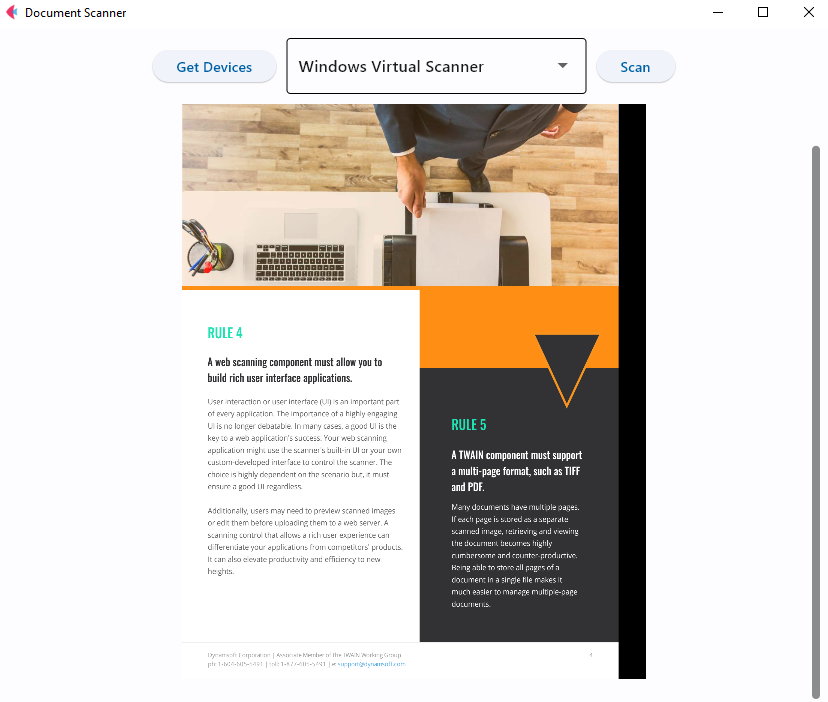
What you’ll build: A cross-platform Python desktop app (using Flet) that discovers connected document scanners via TWAIN, WIA, or SANE and acquires scanned images through a unified REST API.
Key Takeaways
- Dynamic Web TWAIN Service exposes a single REST API that abstracts TWAIN (Windows), WIA (Windows), SANE (Linux), ICA (macOS), and eSCL scanners behind one unified interface.
- The
twain-wia-sane-scannerPython package wraps this REST API into six methods —getDevices,createJob,deleteJob,getImageFile,getImageFiles, andgetImageStreams— covering the full scan workflow. - The same Python code runs on Windows, macOS, and Linux without driver-specific changes — only the locally installed Dynamic Web TWAIN Service handles the driver layer.
- Flet (built on Flutter) lets you create a desktop GUI for document scanning in pure Python with no frontend experience required.
Common Developer Questions
How do I scan documents from a TWAIN or SANE scanner in Python?
Install twain-wia-sane-scanner, point it at the Dynamic Web TWAIN Service host, and call methods such as getDevices(), createJob(), and getImageStreams() from Python. The package wraps the full scan lifecycle without requiring direct driver integration.
Is there a cross-platform Python library for document scanning on Windows, macOS, and Linux?
Yes. The twain-wia-sane-scanner package uses Dynamic Web TWAIN Service as the hardware bridge, so the same Python code can work across Windows, macOS, and Linux while the service handles OS-specific scanner protocols.
How do I build a desktop document scanner GUI app in Python without frontend code?
Use Flet for the desktop UI and keep the scanner logic in Python. That combination gives you buttons, image views, and layout controls without writing separate HTML, CSS, or JavaScript for the scanner interface.
This article is Part 4 in a 8-Part Series.
- Part 1 - How to Build a Document Scanning REST API in Node.js
- Part 2 - How to Scan Documents from TWAIN, WIA, and eSCL Scanners in a Flutter App
- Part 3 - How to Scan Documents in Java Using TWAIN, WIA, eSCL, and SANE via REST API
- Part 4 - Build a Cross-Platform Python Document Scanner with TWAIN, WIA, and SANE
- Part 5 - How to Build a Cross-Platform .NET C# Document Scanner with TWAIN, WIA, SANE, and eSCL Support
- Part 6 - How to Scan Documents from a Web Page Using the Dynamic Web TWAIN REST API
- Part 7 - Build a SwiftUI Remote Document Scanner for macOS and iOS Using the Dynamic Web TWAIN REST API
- Part 8 - Build a Web Document Scanner with JavaScript: File, Camera, and TWAIN Scanner Support
Install the Python Package
https://pypi.org/project/twain-wia-sane-scanner/
pip install twain-wia-sane-scanner
Prerequisites
- Install Dynamic Web TWAIN Service.
- Get a 30-day free trial license for Dynamic Web TWAIN.
Explore the REST API Reference
Build a Python Package for Document Image Acquisition
A Python package primarily consists of two files: __init__.py and setup.py.
__init__.py
We create a dynamsoftservice folder and add a __init__.py file to it.
The __init__.py file contains two classes: ScannerType and ScannerController.
-
ScannerTypeis an enumeration of scanner types.class ScannerType: TWAINSCANNER = 0x10 WIASCANNER = 0x20 TWAINX64SCANNER = 0x40 ICASCANNER = 0x80 SANESCANNER = 0x100 ESCLSCANNER = 0x200 WIFIDIRECTSCANNER = 0x400 WIATWAINSCANNER = 0x800 -
ScannerControlleris a class that provides methods for interacting with Dynamic Web TWAIN Service.class ScannerController: def getDevices(self, host: str, scannerType: int = None) -> List[Any]: return [] def createJob(self, host: str, parameters: Dict[str, Any]) -> str: return "" def deleteJob(self, host: str, jobId: str) -> None: pass def getImageFile(self, host, job_id, directory): return '' def getImageFiles(self, host: str, jobId: str, directory: str) -> List[str]: return [] def getImageStreams(self, host: str, jobId: str) -> List[bytes]: return []
The getDevices() method returns a list of scanners.
def getDevices(self, host: str, scannerType: int = None) -> List[Any]:
    devices = []
    url = f"{host}/api/device/scanners"
    if scannerType is not None:
        url += f"?type={scannerType}"

    try:
        response = requests.get(url)
        if response.status_code == 200 and response.text:
            devices = json.loads(response.text)
            return devices
    except Exception as error:
        pass
    return []
The createJob() method starts a scan job.
def createJob(self, host: str, parameters: Dict[str, Any]) -> str:
    url = f"{host}/api/device/scanners/jobs"
    try:
        response = requests.post(url, json=parameters, headers={
                                    'Content-Type': 'application/text'})
        jobId = response.text
        if response.status_code == 201:
            return jobId
    except Exception as error:
        pass
    return ""
The deleteJob() method deletes a scan job.
def deleteJob(self, host: str, jobId: str) -> None:
    if not jobId:
        return
    url = f"{host}/api/device/scanners/jobs/{jobId}"
    try:
        response = requests.delete(url)
        if response.status_code == 200:
            pass
    except Exception as error:
        pass
The getImageFile() method fetches a document image from Dynamic Web TWAIN Service to a specified directory.
def getImageFile(self, host, job_id, directory):
    url = f"{host}/api/device/scanners/jobs/{job_id}/next-page"
    try:
        response = requests.get(url, stream=True)
        if response.status_code == 200:
            timestamp = str(int(time.time() * 1000))
            filename = f"image_{timestamp}.jpg"
            image_path = os.path.join(directory, filename)
            with open(image_path, 'wb') as f:
                f.write(response.content)
            return filename
    except Exception as e:
        print("No more images.")
        return ''
    return ''
The getImageFiles() method consecutively fetch all document images until the job is finished.
def getImageFiles(self, host: str, jobId: str, directory: str) -> List[str]:
    images = []
    while True:
        filename = self.getImageFile(host, jobId, directory)
        if filename == '':
            break
        else:
            images.append(filename)
    return images
The getImageStreams() method returns a list of document image streams.
def getImageStreams(self, host: str, jobId: str) -> List[bytes]:
    streams = []
    url = f"{host}/api/device/scanners/jobs/{job_id}/next-page"
    while True:
        try:
            response = requests.get(url)
            if response.status_code == 200:
                streams.append(response.content)
            elif response.status_code == 410:
                break
        except Exception as error:
            break
    return streams
setup.py
The setup.py file is used to build the Python package. It defines the package name, version, description, author, install_requires and so on.
from setuptools.command import build_ext
from setuptools import setup
import os
import io
from setuptools.command.install import install
import shutil

long_description = io.open("README.md", encoding="utf-8").read()

setup(name='twain-wia-sane-scanner',
      version='1.0.0',
      description='A Python package for digitizing documents from TWAIN, WIA, SANE, ICA and eSCL compatible scanners.',
      long_description=long_description,
      long_description_content_type="text/markdown",
      author='yushulx',
      url='https://github.com/yushulx/twain-wia-sane-scanner',
      license='MIT',
      packages=['dynamsoftservice'],
      classifiers=[
           "Development Status :: 5 - Production/Stable",
           "Environment :: Console",
           "Intended Audience :: Developers",
          "Intended Audience :: Education",
          "Intended Audience :: Information Technology",
          "Intended Audience :: Science/Research",
          "License :: OSI Approved :: MIT License",
          "Operating System :: Microsoft :: Windows",
          "Operating System :: MacOS",
          "Operating System :: POSIX :: Linux",
          "Programming Language :: Python",
          "Programming Language :: Python :: 3",
          "Programming Language :: Python :: 3 :: Only",
          "Programming Language :: Python :: 3.6",
          "Programming Language :: Python :: 3.7",
          "Programming Language :: Python :: 3.8",
          "Programming Language :: Python :: 3.9",
          "Programming Language :: Python :: 3.10",
          "Topic :: Scientific/Engineering",
          "Topic :: Software Development",
      ],
      install_requires=['requests'])
To generate the wheel file, run the following command:
python setup.py bdist_wheel
Create a Cross-Platform Desktop Scanner App with Flet
Flet, powered by Flutter, is a framework that enables developers to easily build web, mobile, and desktop apps in Python. No frontend experience is required.
python install flet
We can scaffold a new flet project as follows:
flet create myapp
cd myapp
In the main.py file, add some UI controls:
def main(page: ft.Page):
    page.title = "Document Scanner"

    buttonDevice = ft.ElevatedButton(
        text="Get Devices", on_click=get_device)

    dd = ft.Dropdown(on_change=dropdown_changed,)
    buttonScan = ft.ElevatedButton(text="Scan", on_click=scan_document)
    row = ft.Row(spacing=10, controls=[
                 buttonDevice, dd, buttonScan], alignment=ft.MainAxisAlignment.CENTER,)

    lv = ft.ListView(expand=1, spacing=10, padding=20, auto_scroll=True)

    page.add(
        row, lv
    )
-
The button
buttonDeviceis used to get all available scanners.def get_device(e): devices.clear() dd.options = [] scanners = scannerController.getDevices( host, ScannerType.TWAINSCANNER | ScannerType.TWAINX64SCANNER) for i, scanner in enumerate(scanners): devices.append(scanner) dd.options.append(ft.dropdown.Option(scanner['name'])) dd.value = scanner['name'] page.update() -
The dropdown
ddis used to select a scanner.def dropdown_changed(e): page.update() -
The button
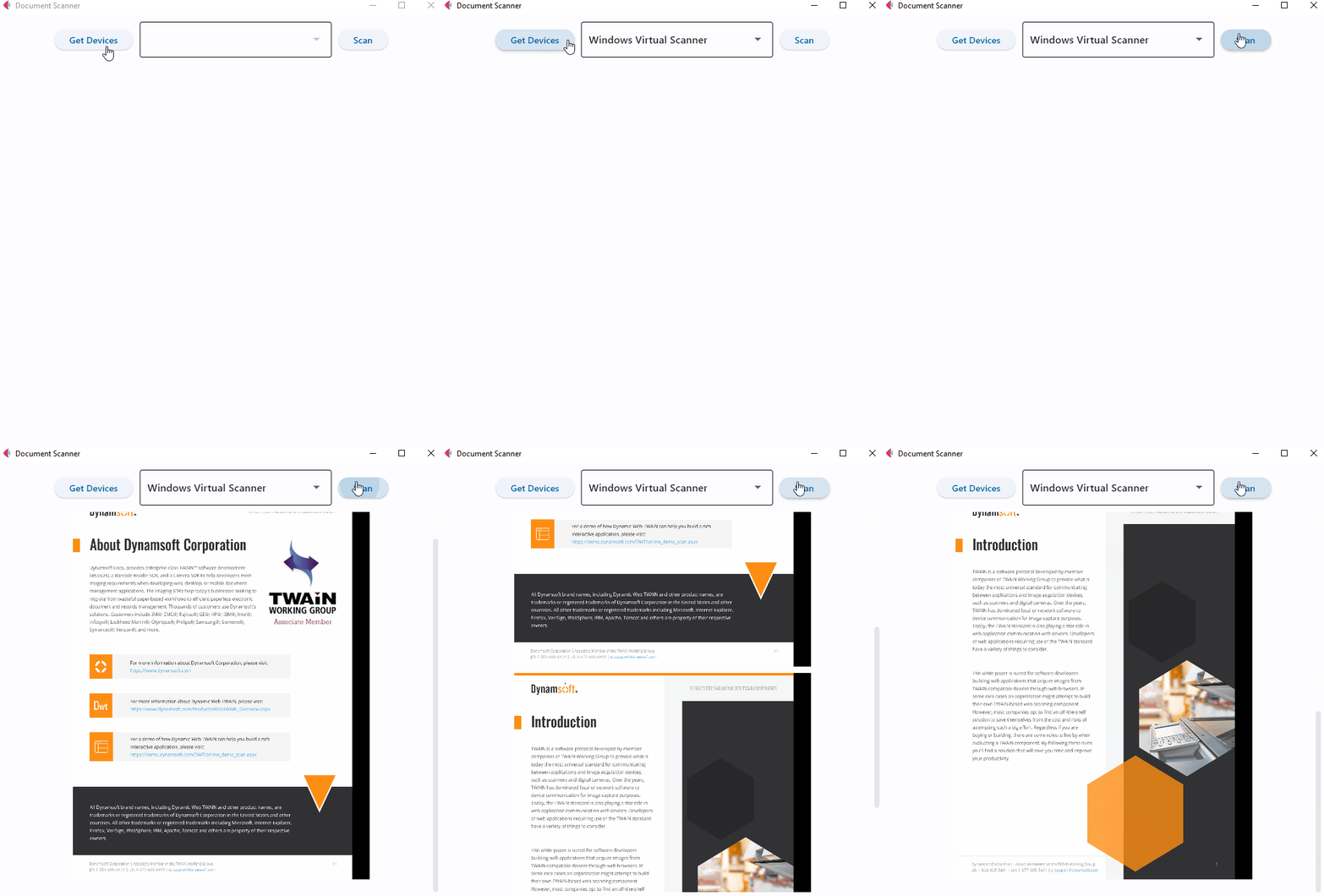
buttonScanis used to trigger the document scan. You need to replace the license key with your own. The source of anImagecontrol can be either a file path or a base64-encoded string. In this case, we use the latter.def scan_document(e): if len(devices) == 0: return device = devices[0]["device"] for scanner in devices: if scanner['name'] == dd.value: device = scanner['device'] break parameters = { "license": license_key, "device": device, } parameters["config"] = { "IfShowUI": False, "PixelType": 2, "Resolution": 200, "IfFeederEnabled": False, "IfDuplexEnabled": False, } job_id = scannerController.createJob(host, parameters) if job_id != "": images = scannerController.getImageStreams(host, job_id) for i, image in enumerate(images): base64_encoded = base64.b64encode(image) display = ft.Image(src_base64=base64_encoded.decode('utf-8'), width=600, height=600, fit=ft.ImageFit.CONTAIN,) lv.controls.append(display) scannerController.deleteJob(host, job_id) page.update() -
The listview
lvis used to append and display document images.
Run the app:
flet run
Common Issues and Edge Cases
- Dynamic Web TWAIN Service not running: If
getDevices()returns an empty list, verify the Dynamsoft Service is installed and running. On Linux, check withsystemctl status DynamsoftService. On Windows, look for the service in the system tray. - Scanner not detected on Linux: SANE-compatible scanners require the correct SANE backend driver to be installed. Run
scanimage -Lin a terminal to confirm SANE can see the device before calling the REST API. - Timeout or empty images on duplex/feeder scans: When
IfFeederEnabledisTrue, the scanner pulls pages from the automatic document feeder. If no pages are loaded, the job may hang or return no images. Always check that pages are in the feeder before starting a duplex scan job.