




Setup Resources
This page is the guide of how to setup resources for Dynamsoft Capture Vision iOS Edition.
-
Create a DynamsoftResources folder in the finder. Under the DynamsoftResources folder create a new folder and name it based on the type of your resource file.
For example, if you want to setup a template file
ReadVIN.json, you have to create a new folder named Templates. If you want to setup a model fileVINCharRecognition.dataand a template fileReadVIN.jsonat the same time, you have to create two new folders, Models and Templates.Folder Name Description TemplatesJSON files that define how to read barcode, scan mrz, etc. ModelsMainly are deep learning models that improves the barcode or text line read rate. ConfusableCharsResource files for text line recognition. Help distinguish easily confused characters. “0”, “O”. It helps improving the character recognition accuracy. DictionariesThe resource files used to assist in result validation. The recognition result can be corrected if it matches a word in the dictionary. OverlappingCharsThe resource files used to validate or correct recognition results by overlaying standard characters with the recognized characters. ParserResourcesThe resource files that defines the content parsing rules. -
Put your resource file under the folder you just created.
-
Rename the DynamsoftResources folder’s extension name to .bundle and drag the DynamsoftResources.bundle into your project on Xcode. Select Create groups for the Added folders option.
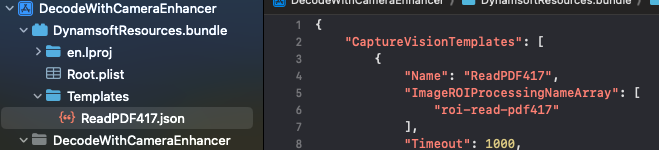
DynamsoftResources.bundle Example
-
For the template files, here is an additional step. You have to use
initSettingsFromFileto load your template file. Template file name should be specified as thefilePathin theinitSettingsFromFilemethod. For the other resource files, you don’t need this step.- Objective-C
- Swift
-
[self.cvr initSettingsFromFile:@"ReadPDF417.json" error:nil]; -
try! cvr.initSettingsFromFile("ReadPDF417.json")
 Yes
Yes No
No