




MAUI User Guide for Document Scanner Integration
Table of Contents
- MAUI User Guide for Document Scanner Integration
- Table of Contents
- System Requirements
- Installation
- Build Your Document Scanner App
- Licensing
System Requirements
.Net
- .NET 10.0.
Android
- Supported OS: Android 5.0 (API Level 21) or higher.
- Supported ABI: armeabi-v7a, arm64-v8a, x86 and x86_64.
- Development Environment: Visual Studio 2022 recommended.
- JDK: 1.8+
iOS
- Supported OS: iOS 13.0 or higher.
- Supported ABI: arm64 and x86_64.
- Development Environment: Visual Studio 2022 for Mac and Xcode 14.3+ recommended.
Installation
Visual Studio for Mac
In the NuGet Package Manager>Manage Packages for Solution of your project, search for Dynamsoft.CaptureVisionBundle.Maui. Select it and click install.
Visual Studio for Windows
You need to add the library via the project file and complete additional steps for the installation.
-
Add the library in the project file:
<Project Sdk="Microsoft.NET.Sdk"> ... <ItemGroup> ... <PackageReference Include="Dynamsoft.CaptureVisionBundle.Maui" Version="3.4.1200" /> </ItemGroup> </Project> -
Open the Package Manager Console and run the following commands:
dotnet build
Note:
- Windows system have a limitation of 260 characters in the path. If you don’t use console to install the package, you will receive error “Could not find a part of the path ‘C:\Users\admin.nuget\packages\dynamsoft.imageprocessing.ios\2.2.300\lib\net7.0-ios16.1\Dynamsoft.ImageProcessing.iOS.resources\DynamsoftImageProcessing.xcframework\ios-arm64\dSYMs\DynamsoftImageProcessing.framework.dSYM\Contents\Resources\DWARF\DynamsoftImageProcessing’”
- The library only support Android & iOS platform. Be sure that you remove the other platforms like Windows, maccatalyst, etc.
Build Your Document Scanner App
Now you will learn how to create a simple document scanner app using Dynamsoft Capture Vision MAUI SDK.
Note:
- You can get the similar source code of the simple document scanner app from the following link
Set up Development Environment
If you are a beginner with MAUI, please follow the guide on the .Net MAUI official website to set up the development environment.
Initialize the Project
Visual Studio
- Open the Visual Studio and select Create a new project.
- Select .Net MAUI App and click Next.
- Name the project ScanDocument. Select a location for the project and click Next.
- Select .Net 10.0 and click Create.
Visual Studio for Mac
- Open Visual Studio and select New.
- Select Multiplatform > App > .Net MAUI App > C# and click Continue.
- Select .Net 10.0 and click Continue.
- Name the project ScanDocument and select a location, click Create.
Include the Library
Add NuGet package Dynamsoft.CaptureVisionBundle.Maui to your project. You can view the installation section on how to add the library.
Initialize MauiProgram.cs
In MauiProgram.cs, add a custom handler for the CameraView control. Specifically, it maps the CameraView type to the CameraViewHandler type.
using Microsoft.Extensions.Logging;
using Dynamsoft.CameraEnhancer.Maui;
using Dynamsoft.CameraEnhancer.Maui.Handlers;

namespace ScanDocument;

public static class MauiProgram
{
	public static MauiApp CreateMauiApp()
	{
		var builder = MauiApp.CreateBuilder();
		builder
			.UseMauiApp<App>()
			.ConfigureFonts(fonts =>
			{
				fonts.AddFont("OpenSans-Regular.ttf", "OpenSansRegular");
				fonts.AddFont("OpenSans-Semibold.ttf", "OpenSansSemibold");
			})
			.ConfigureMauiHandlers(handlers =>
            {
                handlers.AddHandler<CameraView, CameraViewHandler>();
                handlers.AddHandler(typeof(ImageEditorView), typeof(ImageEditorViewHandler));
            });

#if DEBUG
		builder.Logging.AddDebug();
#endif

		return builder.Build();
	}
}
Add a CameraPage for Capturing the Document
-
Create a new ContentPage(XAML) and name it CameraPage.
-
Add the following code to the CameraPage.xaml:
<?xml version="1.0" encoding="utf-8" ?> <ContentPage xmlns="http://schemas.microsoft.com/dotnet/2021/maui" xmlns:x="http://schemas.microsoft.com/winfx/2009/xaml" xmlns:dynamsoft="clr-namespace:Dynamsoft.CameraEnhancer.Maui;assembly=Dynamsoft.CaptureVisionBundle.Maui" x:Class="ScanDocument.CameraPage" Title="CameraPage"> <Grid> <dynamsoft:CameraView x:Name="camera" HorizontalOptions="Fill" VerticalOptions="Fill" /> <Button x:Name="CaptureBtn" Text="Capture" Clicked="OnCaptureBtnClicked" HorizontalOptions="Center" VerticalOptions="End" Margin="0,0,0,20" /> </Grid> </ContentPage> -
Add the following code to the CameraPage.xaml.cs:
using Dynamsoft.Core.Maui;
using Dynamsoft.CameraEnhancer.Maui;
using Dynamsoft.CaptureVisionRouter.Maui;
using Dynamsoft.License.Maui;
using Dynamsoft.DocumentNormalizer.Maui;

namespace ScanDocument;

public partial class CameraPage : ContentPage, ICapturedResultReceiver, ICompletionListener, ILicenseVerificationListener
{
	CameraEnhancer enhancer;
    CaptureVisionRouter router;
    bool isClicked;
	public CameraPage()
	{
		InitializeComponent();
		// Initialize the license.
        // The license string here is a trial license. Note that network connection is required for this license to work.
        // You can request an extension via the following link: https://www.dynamsoft.com/customer/license/trialLicense?product=ddn&utm_source=samples&package=mobile
        LicenseManager.InitLicense("DLS2eyJvcmdhbml6YXRpb25JRCI6IjIwMDAwMSJ9", this);
		enhancer = new CameraEnhancer();
        router = new CaptureVisionRouter();
        router.SetInput(enhancer);
        router.AddResultReceiver(this);
	}

	protected override void OnHandlerChanged()
    {
        base.OnHandlerChanged();
        if (this.Handler != null)
        {
            enhancer.SetCameraView(camera);
        }
    }

    protected override async void OnAppearing()
    {
        base.OnAppearing();
        await Permissions.RequestAsync<Permissions.Camera>();
        enhancer?.Open();
        router?.StartCapturing(EnumPresetTemplate.PT_DETECT_DOCUMENT_BOUNDARIES, this);
    }

    protected override void OnDisappearing()
    {
        base.OnDisappearing();
        enhancer?.Close();
        router?.StopCapturing();
    }

    public void OnProcessedDocumentResultReceived(ProcessedDocumentResult result)
    {
        if (isClicked)
        {
            isClicked = false;
            if (result?.DetectedQuadResultItems?.Length > 0)
            {
                var data = router.GetIntermediateResultManager().GetOriginalImage(result.OriginalImageHashId);
                if (data != null)
                {
                    MainThread.BeginInvokeOnMainThread(async () =>
                    {
                        await Navigation.PushAsync(new EditorPage(data, result.DetectedQuadResultItems));
                    });
                }
            }
        }
    }

    void OnCaptureBtnClicked(System.Object sender, System.EventArgs e)
    {
        isClicked = true;
    }

	public void OnLicenseVerified(bool isSuccess, string message)
    {
        if (!isSuccess)
        {
			Console.WriteLine("License initialization failed: " + message);
        }
    }

    public void OnFailure(int errorCode, string errorMessage)
    {
        MainThread.BeginInvokeOnMainThread(() =>
        {
            DisplayAlert("Error", errorMessage, "OK");
        });
    }
}
Add a EditorPage for Detected Boundary Editing
-
Create a new ContentPage(XAML) and name it EditorPage.
-
Add the following code to the EditorPage.xaml:
<?xml version="1.0" encoding="utf-8" ?> <ContentPage xmlns="http://schemas.microsoft.com/dotnet/2021/maui" xmlns:x="http://schemas.microsoft.com/winfx/2009/xaml" xmlns:dynamsoft="clr-namespace:Dynamsoft.CameraEnhancer.Maui;assembly=Dynamsoft.CaptureVisionBundle.Maui" x:Class="ScanDocument.EditorPage" Title="EditorPage"> <Grid> <dynamsoft:ImageEditorView x:Name="editorView" HorizontalOptions="Fill" VerticalOptions="Fill" /> <Button x:Name="NormalizeBtn" Text="Normalize" Clicked="OnNormalizeBtnClicked" HorizontalOptions="Center" VerticalOptions="End" Margin="0,0,0,20"/> </Grid> </ContentPage> -
Add the following code to the EditorPage.xaml.cs:
using Dynamsoft.Core.Maui;
using Dynamsoft.DocumentNormalizer.Maui;
using Dynamsoft.CameraEnhancer.Maui;

namespace ScanDocument;

public partial class EditorPage : ContentPage
{
    ImageData data;
    DetectedQuadResultItem[] items;

    public EditorPage(ImageData data, DetectedQuadResultItem[] items)
	{
		InitializeComponent();
        this.data = data;
        this.items = items;
	}

    protected override void OnHandlerChanged()
    {
        SetUp();
    }

    void SetUp()
    {
        editorView.OriginalImage = data;
        var layer = editorView.GetDrawingLayer(EnumDrawingLayerId.DLI_DDN);
        IList<DrawingItem> drawingItems = new List<DrawingItem>();
        foreach (DetectedQuadResultItem item in this.items)
        {
            drawingItems.Add(new QuadDrawingItem(item.Location));
        }
        layer.DrawingItems = drawingItems;
    }

    void OnNormalizeBtnClicked(System.Object sender, System.EventArgs e)
    {
        var item = editorView.GetSelectedDrawingItem();
        if (item == null)
        {
            item = editorView.GetDrawingLayer(EnumDrawingLayerId.DLI_DDN).DrawingItems[0];
        }
        if (item?.MediaType == EnumDrawingItemMediaType.DIMT_QUADRILATERAL)
        {
            MainThread.BeginInvokeOnMainThread(async () =>
            {
                await Navigation.PushAsync(new ImagePage(data, ((QuadDrawingItem)item).Quad));
            });
        }
    }
}
Add a ImagePage for Displaying the Processed Document
-
Create a new ContentPage(XAML) and name it ImagePage.
-
Add the following code to the ImagePage.xaml:
<?xml version="1.0" encoding="utf-8" ?> <ContentPage xmlns="http://schemas.microsoft.com/dotnet/2021/maui" xmlns:x="http://schemas.microsoft.com/winfx/2009/xaml" x:Class="ScanDocument.ImagePage" Title="ImagePage"> <Grid RowDefinitions="Auto, *, Auto" ColumnDefinitions="*,*,*"> <Button Text="gray" Grid.Row="0" Grid.Column="0" Margin="10,20" Clicked="OnButtonClicked"/> <Button Text="color" Grid.Row="0" Grid.Column="1" Margin="10,20" Clicked="OnButtonClicked"/> <Button Text="binary" Grid.Row="0" Grid.Column="2" Margin="10,20" Clicked="OnButtonClicked"/> <Image x:Name="image" Grid.Row="1" Grid.ColumnSpan="3" Margin="20,0,20,20"/> </Grid> </ContentPage> -
Add the following code to the ImagePage.xaml.cs:
using Dynamsoft.Core.Maui;
using Dynamsoft.CameraEnhancer.Maui;
using Dynamsoft.CaptureVisionRouter.Maui;
using Dynamsoft.DocumentNormalizer.Maui;

namespace ScanDocument;

public partial class ImagePage : ContentPage
{
	ImageData data;
    Quadrilateral quadrilateral;
	CaptureVisionRouter cvr;

	public ImagePage(ImageData data, Quadrilateral quadrilateral)
	{
		InitializeComponent();
		this.data = data;
        this.quadrilateral = quadrilateral;
		this.cvr = new CaptureVisionRouter();
	}

    protected override void OnHandlerChanged()
    {
        base.OnHandlerChanged();
		normalize(EnumImageColourMode.ICM_Colour);
    }

    private void OnButtonClicked(object sender, EventArgs e)
    {
        Button button = sender as Button;
        if (button != null)
        {
            if (button.Text == "gray")
            {
                normalize(EnumImageColourMode.ICM_GRAYSCALE);
            }
            else if (button.Text == "color")
            {
                normalize(EnumImageColourMode.ICM_Colour);
            }
            else if (button.Text == "binary")
            {
                normalize(EnumImageColourMode.ICM_BINARY);
            }
        }
    }

    private void normalize(EnumImageColourMode type)
	{
		var name = EnumPresetTemplate.PT_NORMALIZE_DOCUMENT;
		var settings = cvr.GetSimplifiedSettings(name);
		settings.DocumentSettings.ColourMode = type;
        settings.Roi = quadrilateral;
        settings.RoiMeasuredInPercentage = false;
		cvr.UpdateSettings(name, settings);
		var result = cvr.Capture(data, name);
		if (result?.Items?.Length > 0)
		{
			foreach (var item in result.Items)
			{
				if (item.Type == EnumCapturedResultItemType.EnhancedImage)
				{
					EnhancedImageResultItem enhancedImage = (EnhancedImageResultItem)item;
					image.Source = enhancedImage.ImageData?.ToImageSource();
                    return;
				}
			}
        }
	}
}
Configure the Camera Permission
Open the Info.plist file under the Platforms/iOS/ folder (Open with XML Text Editor). Add the following lines to request camera permission on iOS platform:
<key>NSCameraUsageDescription</key>
<string>The sample needs to access your camera.</string>
Run the Project
Select your device and run the project.
You can get the similar source code of the ScanDocument app from the following link:
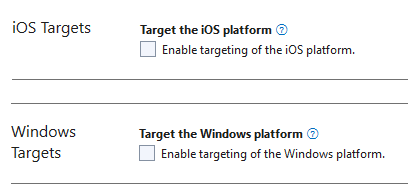
Note: If you are running Android only on Visual Studio Windows, please manually exclude iOS and Windows platforms. Otherwise, the Visual Studio will report type or namespace not found errors.
Licensing
- A one-day trial license is available by default for every new device to try Dynamsoft Capture Vision SDK.
- You can request a 30-day trial license via the Request a Trial License link.
- Contact us to purchase a full license.
 Yes
Yes No
No