




What are the general troubleshooting steps if I fail to scan barcodes via the camera?
You may sometimes experience issues when trying to scan some barcodes using your device via the camera. There are various factors that could play into this, such as camera resolution, lighting condition(s), damage level of the barcode, or improper scanning settings.
Generally, with some setting changes via our APIs, Dynamsoft Barcode Reader JavaScript SDK is able to adapt to your unique usage scenario and deliver great performance.
Step 1 - try different scan settings with our standard online demo
-
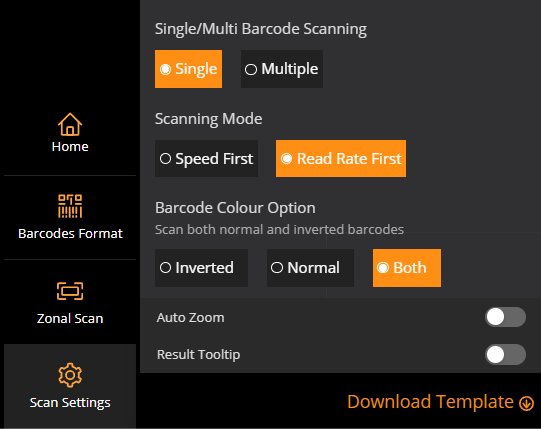
The first thing is to try the JavaScript online demo. If the barcode is not being picked up under normal settings, let’s try out some different settings in the demo. By default, the demo runs on the Best Speed mode, which you can see under the “Scan Settings” on the left-hand side. To potentially improve the performance, we recommend trying out the other available mode in the demo: Read rate first. This will prioritize read rate over speed, while Speed first will prioritize speed over accuracy or read rate.
-
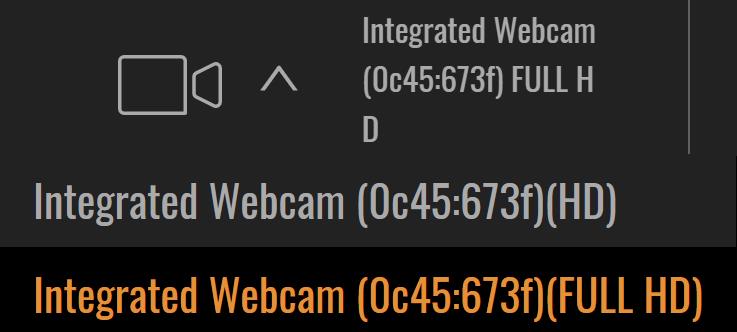
Enable Full HD resolution in the demo
Step 2 - capture image frames and send to Dynamsoft for analysis
-
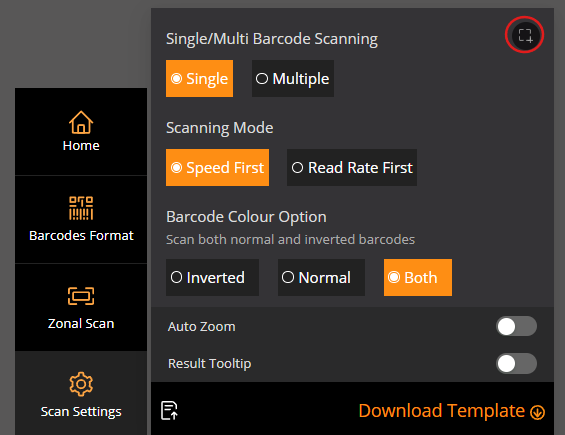
Go to JavaScript online demo debug mode -> Click “START SCAN” with any desired option -> Click the “Scan Settings” button. -> Place the barcode inside the scan region -> Click the “Capture” button on the top right corner -> A zip file that contains 8 frames will be downloaded.
-
Share the video frames set with Dynamsoft Support team. Our support team will investigate the video frames and get back to you with a solution as soon as possible.
 Yes
Yes No
No