




Three Scanning Modes
The app provides three core scanning modes, each tailored for different workflows:
-
Field of View (FOV) Scan Mode (Default)
Results are drawn on the final captured photo. The app highlights all successfully decoded barcodes directly on that image – perfect for post-scan verification.
-
Snap & Scan Mode
An improved version where a reference photo is taken beforehand. During the scanning process, only barcodes that exist within the pre-captured image are highlighted. Any codes appearing outside the original frame are ignored – ideal for fixed‑area inventory tracking.
-
Panorama Scan Mode
A more advanced mode which stitches multiple photos into a single composite image. Best for codes extending beyond a single camera frame.
We’ve introduced the usage of the FOV Mode in introduction. Let’s learn how to use the two extra modes.
The Snap & Scan and Panorama modes require login.
Snap & Scan
When using the Snap & Scan mode, you need to capture a photo of all the barcodes first and there should be some barcodes recognized in this photo.
Then, it works just like the FOV mode, except barcodes outside the photo taken will not be highlighted and the current field of view will be highlighted in the photo taken.
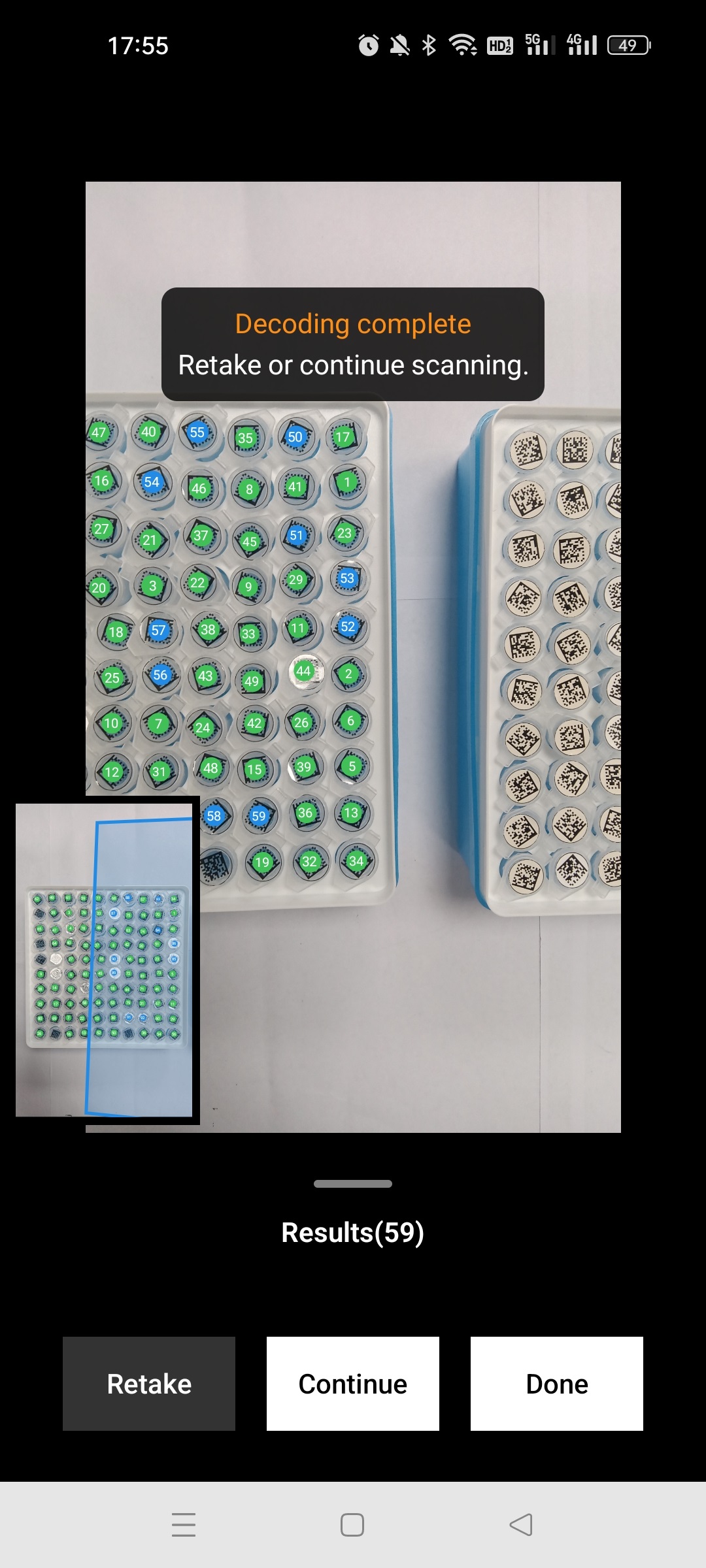
Demo video:
Panorama
When using the Panorama mode, you can take photos continuously to stitch images so that you can get a whole image of all the barcodes, which the default field of view cannot contain.
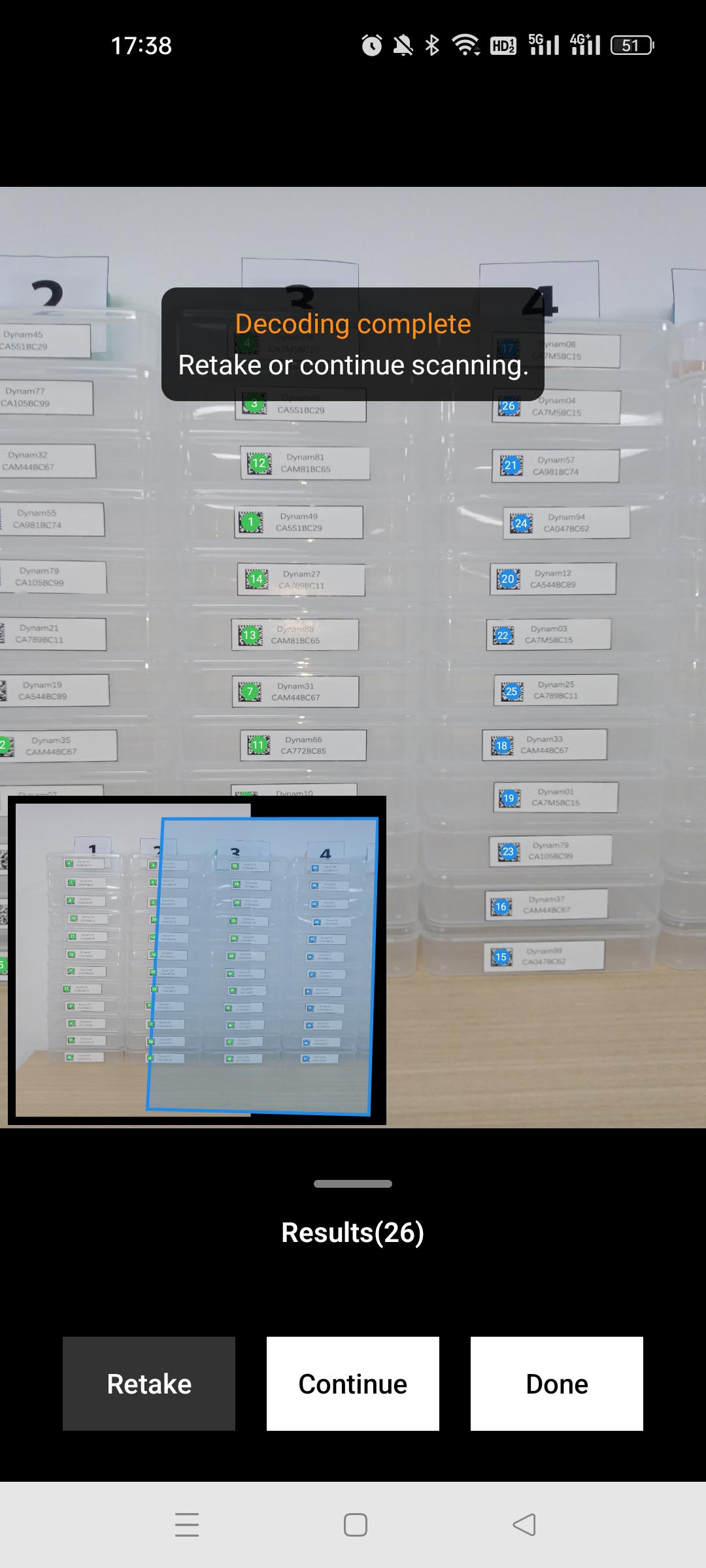
There are some requirements for the Panorama mode:
- The barcodes have to be close to each other.
- There should be some duplicate recognition results of each photo. Otherwise, it cannot stitch the photos accurately.
Demo video:
Read on to learn about more customization options: Customization.
 Yes
Yes No
No