


How to Build a Browser Document Annotation Studio with PDF, Image, and Scanner Capture in TypeScript
Teams that work with contracts, invoices, forms, and evidence need more than a passive viewer. They need a browser app that can assemble pages from PDFs, image files, and scanners, annotate the result, remove pages, and export a finished document, all without uploading sensitive files to a server.
This tutorial builds that app with Dynamsoft Document Viewer (DDV) v4, Dynamic Web TWAIN (DWT), Vite, and TypeScript.
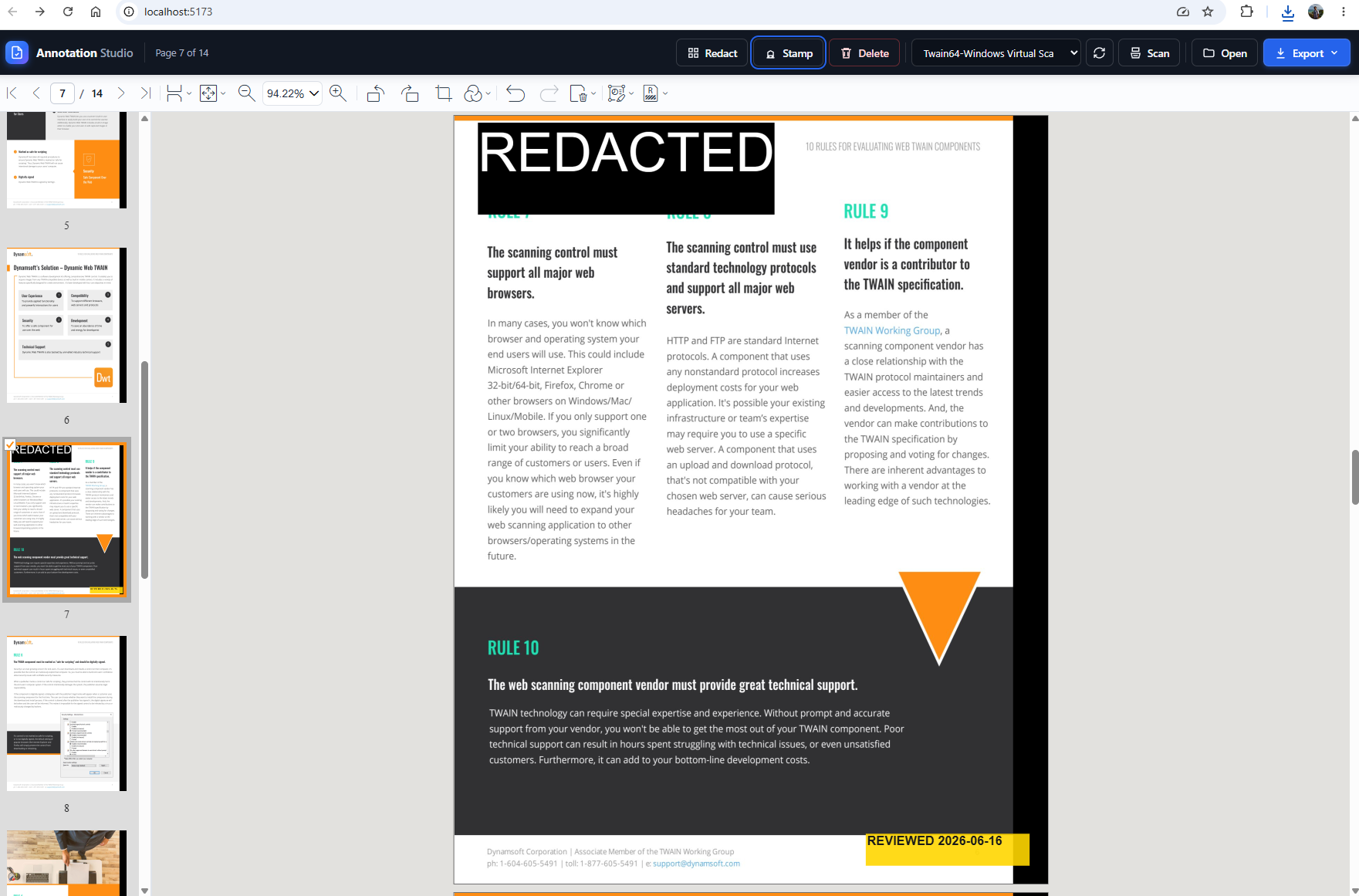
What you’ll build: a client-side document annotation studio that opens PDFs and images, appends additional files instead of replacing the current document, captures pages from a scanner through Dynamic Web TWAIN, creates movable redaction marks and stamps, deletes unwanted pages, and exports to PDF, PNG, JPEG, or TIFF.
Demo: Assemble, Annotate, Redact, and PDF Export in the Browser
The video below shows the complete workflow in action: opening a PDF, appending images and scanned pages, adding a movable redaction mark and an approval stamp, deleting an unwanted page, and exporting the finished document as an editable PDF.
Online Demo
Try the Online PDF & Image Annotation Studio — the complete workflow from this tutorial runs client-side in your browser: open and append PDFs and images, capture pages from a camera or scanner, annotate and redact, then export to editable or flattened PDF, PNG, JPEG, or multi-page TIFF. No install and no upload — the document never leaves your device.
Key Takeaways
- DDV’s
EditViewerprovides the in-canvas document toolbar with page navigation, zoom, rotate, crop, filters, annotation tools, and redaction tools. IDocument.loadSource(source, index)is the core API for document assembly. Passing the current page count asindexappends new PDFs/images/scans to the active document.- Redaction should usually be a two-step workflow: create a redaction mark, let the user move/resize it, then apply permanent redaction from the redaction toolbar.
- Dynamic Web TWAIN provides hardware scanner access in the browser through a local service. The app uses
GetDevicesAsync(),SelectDeviceAsync(),AcquireImageAsync(), andConvertToBlob().
Common Developer Questions
How do I append multiple image files into one PDF in a browser app?
Load the first file into the current document, then call IDocument.loadSource(source, index) with the current page count so each additional image or PDF is appended instead of replacing the document. Once all pages are assembled, export the combined result back to PDF from the same browser session.
How do I add web scanner capture to a DDV annotation workflow?
Use Dynamic Web TWAIN as the browser-side scanner bridge, acquire the pages through its local service, convert the scanned output to blobs, and append those blobs into the active DDV document. That keeps scanner capture inside the same annotation workflow as PDF and image imports.
How do I keep redaction marks movable before permanently applying them?
Create a redaction annotation first and let the user drag or resize it in the edit viewer before committing the permanent redaction action. This two-step approach preserves flexibility during review and only burns the change in when the user confirms it.
How do I delete pages from a client-side DDV document?
Use the document viewer’s page deletion APIs or toolbar actions to remove unwanted pages from the current in-memory document before export. Because the whole workflow is client-side, the updated page order and page count are reflected immediately in the assembled document.
How do I export editable, flattened, or image-based annotated PDFs?
DDV can export the current document in different modes depending on whether you want editable annotations, flattened output, or image-based formats. The final step is simply choosing the desired export path after the combined document has been reviewed and annotated.
Prerequisites
- Node.js 18+
dynamsoft-document-viewer@^4.0.0- A Dynamsoft Document Viewer license key for production
Get a 30-day free trial license - Optional scanner capture:
- Dynamic Web TWAIN license key
- Dynamic Web TWAIN Service installed/running on the client machine
- A supported TWAIN/WIA/ICA/SANE/eSCL scanner
Optionally create .env.local to pre-fill the license input:
VITE_DDVR_LICENSE="your-document-viewer-license"
VITE_DWT_LICENSE="your-dynamic-web-twain-license"
Step 1: Scaffold the Vite + TypeScript Project
The project has one npm runtime dependency because DWT is loaded lazily from CDN in scanner.ts:
{
  "scripts": {
    "dev": "vite",
    "build": "tsc && vite build",
    "preview": "vite preview"
  },
  "dependencies": {
    "dynamsoft-document-viewer": "^4.0.0"
  },
  "devDependencies": {
    "typescript": "^5.6.0",
    "vite": "^6.0.0"
  }
}
Run:
npm install
npm run dev
Then open http://localhost:5173/.
Step 2: License Screen, DDV Init, and the EditViewer
When the app opens, a license screen appears first. The user can paste their own DDV license key or click “Use Default License” to proceed with a built-in trial key. A link to the Dynamsoft trial license page is provided for those who need one. Once a license is chosen, the app hides the license screen and initializes the DDV engine.
import { DDV } from "dynamsoft-document-viewer";

const DEFAULT_LICENSE =
  "DLS2eyJ..."; // built-in trial key

const ENV_LICENSE: string | undefined =
  import.meta.env.VITE_DDVR_LICENSE;

const ENGINE_RESOURCE_PATH =
  "https://cdn.jsdelivr.net/npm/dynamsoft-document-viewer@4.0.0/dist/engine";

async function initDDV(license: string): Promise<void> {
  DDV.Core.license = license;
  DDV.Core.engineResourcePath = ENGINE_RESOURCE_PATH;
  await DDV.Core.init();
  DDV.setProcessingHandler("imageFilter", new DDV.ImageFilter());
}
The waitForLicense() function returns a Promise<string> that resolves when the user clicks Activate or Use Default License. The bootstrap sequence awaits it before showing the WASM loading overlay.
The EditViewer is configured with a built-in DDV toolbar and a left thumbnail rail:
const options: EditViewerConstructorOptions = {
  container,
  uiConfig: buildUiConfig(),
  thumbnailConfig: {
    visibility: "visible",
    position: "left",
    size: "204px",
    columns: 1,
    multiselectMode: false,
  },
};

const viewer = new EditViewer(options);
The app keeps file, scan, quick action, and export controls in its own header, while DDV owns the in-canvas editing toolbar. The text-search switch is omitted because it is not part of the required workflow.
Step 3: Append PDFs and Images Instead of Replacing the Document
The key change from a simple viewer is that opening another image should append pages to the active document. DDV supports this through doc.loadSource(source, index).
import { DDV, PdfSource, Source } from "dynamsoft-document-viewer";

async function loadIntoViewer(
  handle: EditViewerHandle,
  fileData: Blob,
  password?: string,
  fileName?: string
): Promise<void> {
  const { docManager, viewer } = handle;
  const existing = viewer.currentDocument;
  const doc = existing ?? docManager.createDocument();
  const insertAt = doc.pages.length;

  const isPdf =
    fileData.type === "application/pdf" ||
    fileData.type === "application/x-pdf" ||
    (fileData.type === "" && /\.(pdf)$/i.test(fileName ?? ""));

  if (isPdf) {
    // PDF: use PdfSource with convertMode, password, and renderOptions
    // for annotation round-trip support.
    const pdfSource: PdfSource = {
      fileData,
      convertMode: DDV.EnumConvertMode.CM_AUTO,
      password: password ?? "",
      renderOptions: {
        renderAnnotations: DDV.EnumAnnotationRenderMode.LOAD_ANNOTATIONS,
      },
    };
    await doc.loadSource(pdfSource, insertAt);
  } else {
    // Image (PNG/JPEG/TIFF/BMP): use plain Source — no convertMode needed.
    const imgSource: Source = { fileData };
    await doc.loadSource(imgSource, insertAt);
  }

  if (!existing) viewer.openDocument(doc.uid);
  viewer.goToPage(insertAt);
  document.dispatchEvent(new CustomEvent("app:document-opened"));
}
PDFs use a PdfSource with convertMode, password, and renderOptions for annotation round-trip support. Images use a plain Source object. Some browsers assign an empty Blob.type for certain PDFs, so the filename extension is checked as a fallback.
With this logic, selecting multiple image files creates a multi-page DDV document. Selecting more files later adds more pages to that same document.
Step 4: Delete the Current Page
Unwanted pages are removed with deletePages():
export function deleteCurrentPage(handle: EditViewerHandle): void {
  const doc = handle.getCurrentDoc();
  if (!doc) {
    showToast("Open a document first.", "error");
    return;
  }

  const index = handle.viewer.getCurrentPageIndex();
  if (index < 0) return;

  const ok = doc.deletePages([index]);
  if (!ok) {
    showToast("Could not delete the current page.", "error");
    return;
  }

  if (doc.pages.length === 0) {
    const uid = doc.uid;
    handle.viewer.closeDocument();
    try {
      handle.docManager.deleteDocuments([uid]);
    } catch {
      /* already deleted */
    }
    document.dispatchEvent(new CustomEvent("app:document-closed"));
    showToast("Removed the last page.", "success");
    return;
  }

  handle.viewer.goToPage(Math.min(index, doc.pages.length - 1));
  document.dispatchEvent(new CustomEvent("app:page-changed"));
  showToast("Page deleted.", "success");
}
When the last page is deleted, the document is closed and cleaned up via deleteDocuments() (wrapped in try/catch because DDV may have already disposed it). The header disables document-dependent actions through the app:document-closed event.
Step 5: Add Scanner Capture with Dynamic Web TWAIN
Browsers do not expose a standard scanner API, so scanner capture uses Dynamic Web TWAIN and its local service. The app loads DWT lazily only when the user refreshes scanners or starts scanning.
const DWT_VERSION = "19.4.1";
const DWT_CDN = `https://cdn.jsdelivr.net/npm/dwt@${DWT_VERSION}/dist`;
const DWT_SERVICE_INSTALLER_PATH = `https://unpkg.com/dwt@${DWT_VERSION}/dist/dist`;
const DWT_SCRIPT = `${DWT_CDN}/dynamsoft.webtwain.min.js`;
const DWT_LICENSE = import.meta.env.VITE_DWT_LICENSE ?? "";
The service installer path is important. The installers are under dist/dist. If you set:
Dynamsoft.DWT.ServiceInstallerLocation =
  "https://cdn.jsdelivr.net/npm/dwt@latest/dist";
DWT may try to download a wrong URL such as:
https://cdn.jsdelivr.net/npm/dwt@latest/dist/DynamicWebTWAINServiceSetup.msi
Use https://unpkg.com/dwt@19.4.1/dist/dist or self-host the SDK’s service installers.
The scanner bridge creates a headless WebTwain object:
async function getDwtObject(): Promise<any> {
  await ensureDwtLoaded();

  const dwt = window.Dynamsoft?.DWT;
  dwt.ResourcesPath = DWT_CDN;
  dwt.ServiceInstallerLocation = DWT_SERVICE_INSTALLER_PATH;
  dwt.ProductKey = DWT_LICENSE;
  dwt.UseLocalService = true;

  return new Promise((resolve, reject) => {
    dwt.CreateDWTObjectEx(
      { WebTwainId: "scanBridge" },
      (object: any) => resolve(object),
      (error: any) => reject(error)
    );
  });
}
Listing and scanning use the modern async DWT APIs:
export async function listScanners(refresh = false): Promise<ScannerOption[]> {
  const dwt = await getDwtObject();
  devices = await dwt.GetDevicesAsync(undefined, refresh);
  return devices.map((device, index) => ({
    index,
    name: scannerName(device, index),
  }));
}

export async function scanFromDevice(deviceIndex: number): Promise<ScanResult | null> {
  const dwt = await getDwtObject();
  if (!devices.length) devices = await dwt.GetDevicesAsync(undefined, true);

  const device = devices[deviceIndex];
  if (!device) {
    showToast("Select a scanner first.", "error");
    return null;
  }

  const before = imageCount(dwt);
  setBusy(true, `Scanning from ${scannerName(device, deviceIndex)}\u2026`);

  try {
    await dwt.SelectDeviceAsync(device);
    await dwt.AcquireImageAsync({
      IfShowUI: false,
      IfCloseSourceAfterAcquire: true,
      IfFeederEnabled: true,
      IfDuplexEnabled: false,
      PixelType: window.Dynamsoft?.DWT?.EnumDWT_PixelType?.TWPT_RGB ?? 2,
      Resolution: 200,
    });

    const after = imageCount(dwt);
    if (after <= before) {
      showToast("No pages were scanned.", "info");
      return null;
    }

    const indices = Array.from({ length: after - before }, (_, i) => before + i);
    const blob = await convertToPdfBlob(dwt, indices);
    return { blob, pageCount: indices.length };
  } finally {
    setBusy(false);
  }
}
The scanned pages are converted to a PDF blob via ConvertToBlob() and appended with the same DDV loading path used for ordinary files. IfShowUI: false avoids showing the scanner vendor’s TWAIN configuration dialog and makes the Scan button behave like a quick action. The before/after image count comparison handles scanners that already had images in the buffer.
Step 6: Create Movable Redaction Marks and Stamps
Programmatic annotations use PDF point units, and coordinates should come from pageData.mediaBox.
Quick Redact creates a redaction annotation and selects it, but does not immediately apply the redaction because users need to move or resize the region first.
export function quickRedact(handle: EditViewerHandle): void {
  const ctx = currentPageUid(handle);
  if (!ctx) {
    showToast("Open a page first.", "error");
    return;
  }

  const { pageUid, mediaBox } = ctx;
  const width = mediaBox.width * 0.5;
  const height = mediaBox.height * 0.12;
  const x = (mediaBox.width - width) / 2;
  const y = (mediaBox.height - height) / 2;

  const created = DDV.annotationManager.createAnnotation(pageUid, "redaction", {
    redactionType: "rectangle",
    background: "#000000",
    rects: [{ x, y, width, height }],
    overlayText: {
      text: "REDACTED",
      color: "#ffffff",
      textAlign: "center",
      fontSize: 10,
      repeatText: true,
      autoFontSize: true,
    },
  });

  handle.viewer.selectAnnotations([created.uid]);
  showToast(
    "Redaction mark added. Move or resize it, then apply it from the redaction toolbar.",
    "info"
  );
}
When the mark is correct, apply permanent redaction from DDV’s redaction toolbar. Permanent redaction destroys underlying content, while a redaction annotation alone only marks the region.
The approval stamp uses a movable textBox annotation:
DDV.annotationManager.createAnnotation(pageUid, "textBox", {
  x,
  y,
  width,
  height,
  borderColor: "transparent",
  background: "rgba(255, 214, 0, 0.9)",
  textContents: [
    {
      content: stampText,
      color: "#1a1a1a",
      fontSize: 13,
      fontFamily: "Helvetica",
      fontWeight: "bold",
    },
  ],
});
Step 7: Export the Finished Document
DDV exports the current assembled document. The exported filename is generated from the current time, such as annotation-studio-20260615-143022.pdf, rather than from any imported file. This keeps exports predictable when the document was assembled from many files and scanned pages.
switch (format) {
  case "pdf-editable": {
    setBusy(true, "Exporting PDF (editable)\u2026");
    const blob = await doc.saveToPdf({ saveAnnotation: "annotation" });
    saveBlob(blob, `${base}.pdf`);
    break;
  }
  case "pdf-flatten": {
    setBusy(true, "Exporting PDF (flattened)\u2026");
    const blob = await doc.saveToPdf({ saveAnnotation: "flatten" });
    saveBlob(blob, `${base}.pdf`);
    break;
  }
  case "pdf-image": {
    setBusy(true, "Exporting PDF (as image)\u2026");
    const blob = await doc.saveToPdf({ saveAnnotation: "image" });
    saveBlob(blob, `${base}.pdf`);
    break;
  }
  case "png": {
    setBusy(true, "Exporting PNG\u2026");
    const count = doc.pages.length;
    for (let i = 0; i < count; i++) {
      const blob = await doc.saveToPng(i);
      saveBlob(blob, count > 1 ? `${base}_page${i + 1}.png` : `${base}.png`);
    }
    break;
  }
  case "jpeg": {
    setBusy(true, "Exporting JPEG\u2026");
    const count = doc.pages.length;
    for (let i = 0; i < count; i++) {
      const blob = await doc.saveToJpeg(i, { quality: 90 });
      saveBlob(blob, count > 1 ? `${base}_page${i + 1}.jpg` : `${base}.jpg`);
    }
    break;
  }
  case "tiff": {
    setBusy(true, "Exporting TIFF\u2026");
    const blob = await doc.saveToTiff({
      compression: DDV.EnumTIFFCompressionType.TIFF_AUTO,
    });
    saveBlob(blob, `${base}.tif`);
    break;
  }
}
The PDF annotation modes are:
"annotation": preserve editable PDF annotations."flatten": burn annotations into visible page content."image": rasterize each page."none": discard annotations.
JPEG export uses saveToJpeg(pageIndex, { quality: 90 }) for compressed output. TIFF export uses saveToTiff({ compression: TIFF_AUTO }) to produce a single multi-page TIFF archive. PNG and JPEG export one file per page, and multi-page documents get a _pageN suffix.
UI Layout and Keyboard Shortcuts
The app header is a custom document-workbench control surface with quick actions, scanner dropdown, refresh, scan, open, and export. The export menu is custom HTML/CSS, while DDV’s own toolbar is restyled with scoped CSS overrides so it stays fixed-height and does not consume the page.
The app also works around DDV layout defaults. DDV’s .ddv-layout uses height: 100%, so the project pins the EditViewer header to 48px and lets the body take the remaining height.
Keyboard shortcuts are wired in the toolbar layer
Ctrl/Cmd+O— open the file pickerCtrl/Cmd+S— quick-export as editable PDFCtrl/Cmd+Shift+R— add a redaction mark
Common Issues & Edge Cases
- DWT service installer URL is wrong: set
ServiceInstallerLocationtohttps://unpkg.com/dwt@19.4.1/dist/distor to your own hosted copy of the SDK service installers. Do not use the packagedistroot. - Open replaces the old image: use
doc.loadSource(source, doc.pages.length)to append instead of creating and opening a fresh document each time. - Redaction cannot move: do not call
applyRedactions()immediately. Create the redaction annotation, select it, let the user place it, then apply redactions. - WASM fails to load: verify
engineResourcePathpoints at DDV’sdist/enginefolder and.wasmfiles are served correctly.
Conclusion
Dynamsoft Document Viewer and Dynamic Web TWAIN can be combined into a practical browser document workbench that assembles documents from PDFs, images, and scanners, annotates and redacts, removes pages, and exports finished files. The key APIs are loadSource(source, index) for append behavior, DWT’s async scanner APIs for capture, and DDV’s export APIs for preserving or flattening annotations.