


How to Build a Web Document Scanner with Google Drive Cloud Storage Upload
Capturing documents in the browser — from a physical scanner, a webcam, or an uploaded file — and then pushing them straight to cloud storage is a workflow many business apps need, but few SDKs support end-to-end. Four pieces do the work here: Dynamsoft Document Viewer (DDV) v5 owns the viewing, annotation, and export canvas; Dynamsoft Capture Vision supplies the document boundary detection that turns a photo of a page into a squared-up scan; Dynamic Web TWAIN drives the physical scanner; and Google Identity Services provides the OAuth layer for the upload. This tutorial wires all four together, so a page captured in the browser lands in Google Drive without a server in between.
What you’ll build: A browser-based document annotation studio that captures pages from a webcam and a TWAIN scanner, straightens them with Dynamsoft Capture Vision’s document normalizer — the DetectDocumentBoundaries_Default template, which returns the page’s four corners for the user to drag when a shot needs adjusting — then annotates and redacts, and uploads the result to Google Drive as a PDF or as PNG images. Built with Dynamsoft Document Viewer v5 and TypeScript.
Demo Video: Document Capture and Cloud Storage Upload
Online Demo
Try the Online PDF & Image Annotation Studio — camera capture, scanner acquisition, automatic document edge detection with perspective correction, annotation, and PDF/PNG export all run in the browser. The same app also includes the Google Drive upload flow described below (it needs your own OAuth client ID, since Drive credentials are per-project).
Key Takeaways
- Dynamsoft Document Viewer v5 provides a complete in-browser document editing canvas with annotation, redaction, page management, and multi-format export — no server-side processing required.
- Document edge detection runs on Dynamsoft Capture Vision’s document normalizer (DDN), the
dynamsoft-capture-vision-bundlepackage. It is a deep-learning model that returns the page’s four corners, so there is no threshold to tune and no fixed assumption about whether the page is lighter or darker than what it sits on. A single Capture Vision license key covers both the viewer and the detector. - Google Drive direct upload is achievable entirely client-side using Google Identity Services for OAuth 2.0 and the Drive REST v3 multipart upload endpoint — no backend proxy needed.
- The browser’s native
MediaDevices.getUserMediaAPI powers a multi-shot camera capture dialog with thumbnail review, complementing Dynamic Web TWAIN’s physical scanner control. - All document operations — parsing, detecting, warping, annotating, and exporting — run via WebAssembly, so sensitive documents never leave the client machine until the user explicitly uploads them.
Common Developer Questions
What web scanner supports direct upload to cloud storage?
Dynamsoft Document Viewer combined with Dynamic Web TWAIN provides a browser-based scanner that captures from TWAIN/WIA/SANE/eSCL devices, and the app can upload the result directly to Google Drive using the Drive REST API. The sample in this tutorial demonstrates the full flow: scanner capture, camera capture, document edge detection, annotation, and Google Drive upload — all running client-side with TypeScript.
Why does Google Drive upload fail with “access_denied” / “has not completed the Google verification process”?
The OAuth consent screen is in “Testing” mode, which restricts sign-in to accounts explicitly listed under Test users. Go to Google Cloud Console → APIs & Services → OAuth consent screen → Test users → add the user’s email. To allow anyone without adding them individually, click PUBLISH APP to move it out of testing (this triggers Google’s verification flow).
Does document edge detection require an additional SDK license?
No additional license — but it does need a second package. Edge detection runs on Dynamsoft Capture Vision’s document normalizer (DDN), installed as dynamsoft-capture-vision-bundle and initialized with the same key used for Document Viewer: one Capture Vision license covers the viewer and the detector, and the engine is WebAssembly running in the browser, so a page is never uploaded to a server in order to be detected.
DDN replaces a threshold you would otherwise have to choose by hand. It is a trained model, so it does not assume the page is brighter than its background (a white sheet on a dark desk) or darker (a glossy ID card on pale wood), and it returns the document’s four corners as a CRIT_DETECTED_QUAD result item instead of a binary mask you then have to reduce to a quadrilateral. Those four points are exactly what this tutorial’s manual-adjust step consumes.
Prerequisites
- Dynamsoft Document Viewer v5 (
npm install dynamsoft-document-viewer) - Dynamsoft Capture Vision Bundle for document boundary detection (
npm install dynamsoft-capture-vision-bundle) - Dynamic Web TWAIN v19 for physical scanner support (loaded via CDN)
- Node.js 18+ and an IDE (VS Code recommended)
- A Google Cloud project with the Drive API enabled and an OAuth 2.0 Web Client ID for the upload feature
- A valid Dynamsoft license key. Get a 30-day free trial license.
Step 1: Initialize the Document Viewer Engine
DDV’s WASM engine must be initialized before any viewer is created. Set the license and engine resource path, then call DDV.Core.init(). The engine runs entirely in the browser via WebAssembly.
Two of the pieces it needs — annotation and PDF/TIFF parsing — are on-demand plugins in DDV 5 rather than part of the core bundle, so they have to be registered before init(). Skip them and the annotation toolbar and PDF import are simply missing at runtime, with no error to point at:
import { AnnotationPlugin } from "dynamsoft-document-viewer/annotation";
import { ImagePdfParserPlugin } from "dynamsoft-document-viewer/imagePdf";

const ENGINE_RESOURCE_PATH =
  "https://cdn.jsdelivr.net/npm/dynamsoft-document-viewer@5.0.0/dist/engine";

async function initDDV(license: string): Promise<void> {
  DDV.Core.license = license;
  DDV.Core.engineResourcePath = ENGINE_RESOURCE_PATH;
  DDV.use(AnnotationPlugin);
  DDV.use(ImagePdfParserPlugin);
  await DDV.Core.init();
  DDV.setProcessingHandler("imageFilter", new DDV.ImageFilter());
}
Once initialized, create an EditViewer with a custom UI configuration that exposes DDV’s native annotation toolbar (shapes, ink, text, stamps, redaction) alongside page navigation, zoom, crop, and filter controls.
Step 2: Capture Photos from a Webcam
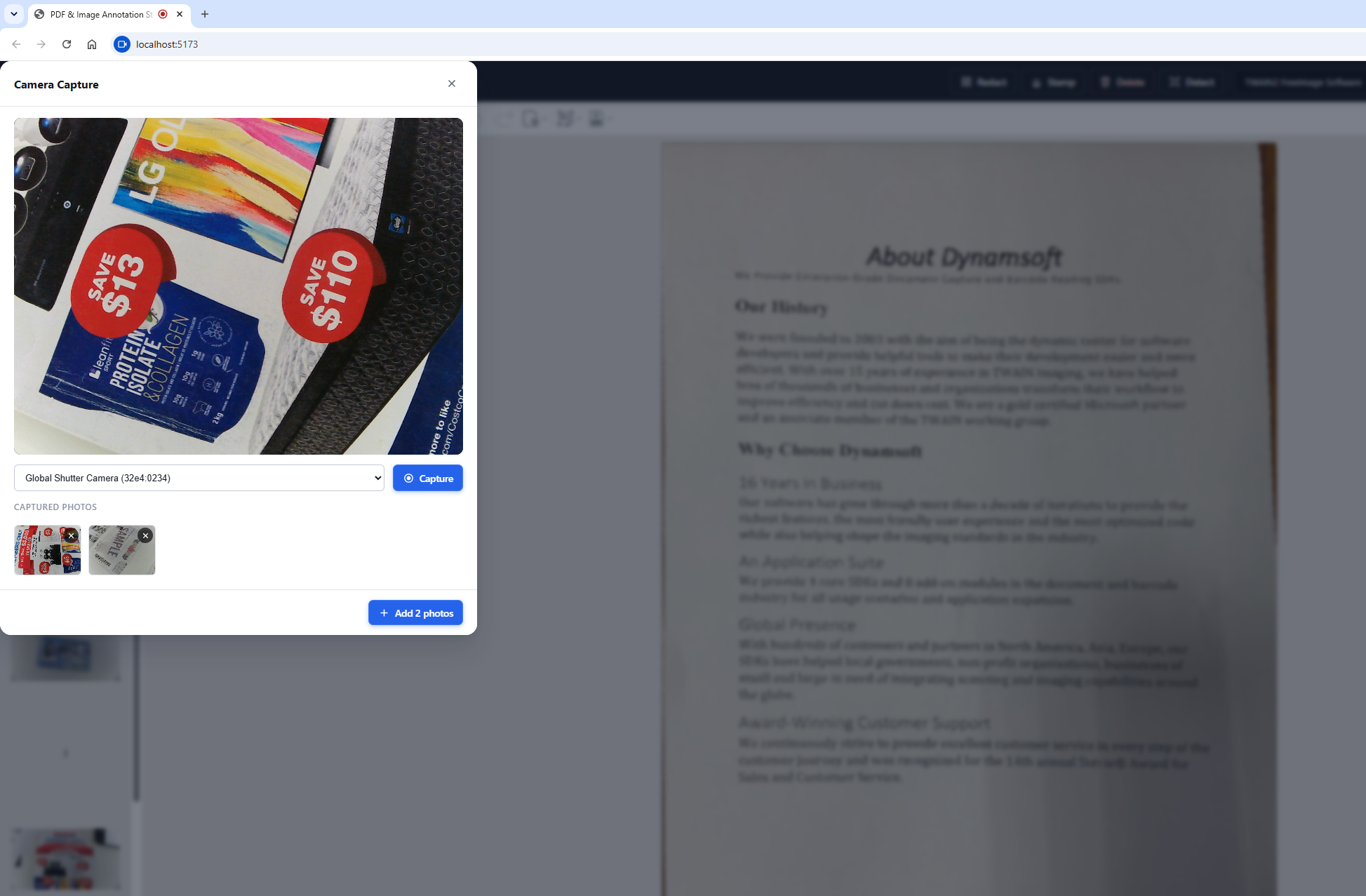
The camera capture system is split into two layers:
camera.ts— Opens a<dialog>element with a live camera stream, handles device switching, snapshots, thumbnail review, and returns an array of confirmedCapturedPhotoobjects.main.ts— Calls the camera dialog and inserts each confirmed photo into the DDV document viadoc.loadSource().
Camera Dialog Entry Point
openCameraCapture() requests a MediaStream with getUserMedia, populates a device-select dropdown, and returns a Promise that resolves with the user’s confirmed photos. Inside the promise, it wires up three button handlers — Capture, Add, and Close:
export async function openCameraCapture(): Promise<CapturedPhoto[]> {
  const photos: CapturedPhoto[] = [];

  // Request the camera (environment-facing, 1080p ideal)
  stream = await navigator.mediaDevices.getUserMedia({
    video: { facingMode: "environment", width: { ideal: 1920 }, height: { ideal: 1080 } },
    audio: false,
  });
  video.srcObject = stream;
  await video.play().catch(() => {});

  // Populate the camera device dropdown
  const devices = await navigator.mediaDevices.enumerateDevices();
  const videoDevices = devices.filter((d) => d.kind === "videoinput");
  videoDevices.forEach((d, i) => {
    deviceSelect.appendChild(new Option(d.label || `Camera ${i + 1}`, d.deviceId));
  });

  dialog.showModal();

  return new Promise<CapturedPhoto[]>((resolve) => {
    btnCapture.onclick = () => {
      captureFrame(video, (photo) => {
        photos.push(photo);
        renderThumbs(thumbStrip, photos, btnAdd);
      });
    };
    btnAdd.onclick = () => { stopStream(); dialog.close(); resolve(photos); };
    btnClose.onclick = () => { stopStream(); dialog.close(); resolve([]); };
    dialog.oncancel = () => { stopStream(); resolve([]); };
  });
}
Capturing a Single Frame
captureFrame() draws the current video frame to an off-screen canvas and converts it to a JPEG Blob via canvas.toBlob():
function captureFrame(
  video: HTMLVideoElement,
  cb: (photo: CapturedPhoto | null) => void
): void {
  const canvas = document.createElement("canvas");
  canvas.width = video.videoWidth;
  canvas.height = video.videoHeight;
  const ctx = canvas.getContext("2d")!;
  ctx.drawImage(video, 0, 0);
  canvas.toBlob(
    (blob) => {
      if (!blob) { cb(null); return; }
      cb({ blob, url: URL.createObjectURL(blob) });
    },
    "image/jpeg",
    0.92
  );
}
Switching the Active Camera
The device-select dropdown allows the user to switch between available cameras (e.g. front vs. rear on a phone). The handler stops the current stream and opens a new one with the selected device ID:
deviceSelect.onchange = async () => {
  stopStream();
  stream = await navigator.mediaDevices.getUserMedia({
    video: { deviceId: { exact: deviceSelect.value }, width: { ideal: 1920 }, height: { ideal: 1080 } },
    audio: false,
  });
  video.srcObject = stream;
  await video.play().catch(() => {});
};
Thumbnail Review with Per-Item Delete
Each captured frame is rendered as a 96 × 72 px thumbnail with a delete button. Clicking the delete button removes the photo from the array and re-renders the thumbnail strip:
function renderThumbs(
  container: HTMLElement,
  photos: CapturedPhoto[],
  btnAdd: HTMLButtonElement
): void {
  container.innerHTML = "";
  photos.forEach((photo, index) => {
    const wrapper = document.createElement("div");
    wrapper.className = "cam-thumb";

    const img = document.createElement("img");
    img.src = photo.url;
    img.alt = `Capture ${index + 1}`;

    const delBtn = document.createElement("button");
    delBtn.className = "cam-thumb-del";
    delBtn.innerHTML = '<svg viewBox="0 0 24 24" fill="none" stroke="currentColor" stroke-width="2.5"><path d="M18 6L6 18M6 6l12 12"/></svg>';
    delBtn.onclick = () => {
      URL.revokeObjectURL(photo.url);
      photos.splice(index, 1);
      renderThumbs(container, photos, btnAdd);
    };

    wrapper.appendChild(img);
    wrapper.appendChild(delBtn);
    container.appendChild(wrapper);
  });
}
Inserting Photos Into the DDV Document
Once the user clicks “Add”, main.ts iterates over the confirmed photos and loads each Blob as a new page:
async function captureFromCamera(): Promise<void> {
  if (!viewerHandle) return;
  const photos = await openCameraCapture();
  if (photos.length === 0) return;

  for (let i = 0; i < photos.length; i++) {
    await appendImageBlob(viewerHandle, photos[i].blob, `camera photo ${i + 1}`);
    URL.revokeObjectURL(photos[i].url);
  }
  showToast(`Added ${photos.length} photo${photos.length > 1 ? "s" : ""} from camera.`, "success");
}
Each Blob is loaded via doc.loadSource({ fileData: blob }), which appends the image as a new page. The DDV viewer automatically updates the thumbnail rail and page count.
Step 3: Detect Document Edges and Normalize Perspective
Edge detection is Dynamsoft Capture Vision’s document normalizer (DDN), driven through the Capture Vision Router with the DetectDocumentBoundaries_Default preset template. The engine is WebAssembly, initialized with the same license key as Document Viewer, and it answers one question: where are the page’s four corners?
Two setup details are worth getting right before the first capture: one produces a baffling error message, the other quietly costs time on every capture.
The engine resource path comes first. When the SDK is bundled (Vite, webpack, esbuild) it cannot infer its own script URL, so it requests its WebAssembly and worker files from your own origin, receives index.html back, and reports Unexpected token '<'. Point the root directory at the CDN explicitly:
import {
  CoreModule,
  LicenseManager,
  CaptureVisionRouter,
  EnumCapturedResultItemType,
  DetectedQuadResultItem,
} from "dynamsoft-capture-vision-bundle";

CoreModule.engineResourcePaths.rootDirectory = "https://cdn.jsdelivr.net/npm/";
await LicenseManager.initLicense(license);
Second, the router should be created once and reused. A fresh CaptureVisionRouter per detection reloads the engine and its models every time:
let routerPromise: Promise<CaptureVisionRouter> | null = null;

function getRouter(): Promise<CaptureVisionRouter> {
  if (!routerPromise) {
    routerPromise = (async () => {
      const router = await CaptureVisionRouter.createInstance();
      // Process at full resolution so the detected corners map straight back
      // onto the exported page, with no scaling factor in between.
      router.maxImageSideLength = Infinity;
      return router;
    })();
  }
  return routerPromise;
}
Detection itself is one call. The result arrives as a list of captured items, and the one you want is the item whose type is CRIT_DETECTED_QUAD:
interface Quad {
  tl: { x: number; y: number };
  tr: { x: number; y: number };
  br: { x: number; y: number };
  bl: { x: number; y: number };
}

const DETECT_TEMPLATE = "DetectDocumentBoundaries_Default";

async function detectQuadDCV(blob: Blob): Promise<Quad | null> {
  const router = await getRouter();
  const result = await router.capture(blob, DETECT_TEMPLATE);

  const detected = result.items.find(
    (item) => item.type === EnumCapturedResultItemType.CRIT_DETECTED_QUAD
  ) as DetectedQuadResultItem | undefined;

  const points = detected?.location?.points;
  if (!points || points.length < 4) return null;

  return orderQuadCorners(points.map((p) => ({ x: p.x, y: p.y })));
}
location.points is an unordered ring of four points. Everything downstream — the handles the user drags, the homography that follows — wants them in a fixed order, so normalize them to top-left, top-right, bottom-right, bottom-left:
function orderQuadCorners(pts: Array<{ x: number; y: number }>): Quad | null {
  if (pts.length !== 4) return null;

  let cx = 0, cy = 0;
  for (const p of pts) { cx += p.x; cy += p.y; }
  cx /= 4;
  cy /= 4;

  // Winding by centroid angle is robust to rotation, unlike a Y/X sort.
  const cw = [...pts].sort(
    (a, b) => Math.atan2(a.y - cy, a.x - cx) - Math.atan2(b.y - cy, b.x - cx)
  );

  // Start at the corner nearest the origin, then walk the ring clockwise.
  let startIdx = 0;
  let bestSum = Infinity;
  for (let i = 0; i < 4; i++) {
    const sum = cw[i].x + cw[i].y;
    if (sum < bestSum) { bestSum = sum; startIdx = i; }
  }

  return {
    tl: cw[startIdx],
    tr: cw[(startIdx + 1) % 4],
    br: cw[(startIdx + 2) % 4],
    bl: cw[(startIdx + 3) % 4],
  };
}
The entry point exports the current DDV page as a PNG Blob and runs the detector on it. If detection returns nothing — a page shot so tightly that its edges fall outside the frame, or a background with almost no contrast — the dialog opens on a default inset quad rather than giving up:
export async function detectDocumentBoundary(
  handle: EditViewerHandle
): Promise<void> {
  const doc = handle.getCurrentDoc();
  const pageIndex = handle.viewer.getCurrentPageIndex();
  const originalBlob = await doc.saveToPng(pageIndex);

  const imgEl = await blobToImage(originalBlob);
  const imgWidth = imgEl.naturalWidth;
  const imgHeight = imgEl.naturalHeight;

  const detected = await detectQuadDCV(originalBlob);
  if (!detected) {
    showToast("No document boundary was detected. Adjust manually.", "info");
  }

  const quad: Quad = detected ?? {
    tl: { x: imgWidth * 0.1, y: imgHeight * 0.1 },
    tr: { x: imgWidth * 0.9, y: imgHeight * 0.1 },
    br: { x: imgWidth * 0.9, y: imgHeight * 0.9 },
    bl: { x: imgWidth * 0.1, y: imgHeight * 0.9 },
  };

  const confirmed = await showDetectPreview(originalBlob, imgWidth, imgHeight, quad);
  // ... replace the page with the normalized result
}
In the dialog the user sees the page with the detected quadrilateral drawn over it and a draggable handle at each corner, so the model’s answer can be corrected without leaving the flow.
CaptureVisionRouter also ships a NormalizeDocument_Default template, which detects the boundary and warps the page in a single call. This sample uses DetectDocumentBoundaries_Default because it wants the four corners first — nothing is burned into the page until the user has had a chance to move them.
When the user clicks “Confirm”, the adjusted quad is used to compute a perspective-corrected image via a homography matrix — a pure pixel-level transform that runs on a temporary canvas without any library.
Step 4: Replace the Page with the Normalized Image
The normalized image replaces the original page using DDV’s doc.updatePage() API, which accepts an UpdatedSource containing the new image Blob.
const pageUid = handle.viewer.indexToUid(pageIndex);
const normalizedBlob = await dataUrlToBlob(confirmed);
await doc.updatePage(pageUid, { fileData: normalizedBlob });
This preserves the document’s page order and immediately reflects the change in the viewer canvas.
Step 5: Upload to Google Drive
Google Drive upload is handled entirely client-side. Google Identity Services provides the OAuth 2.0 token, and the Drive REST v3 multipart upload endpoint handles file creation.
First, load Google Identity Services and initialize the token client with the drive.file scope:
tokenClient = window.google.accounts.oauth2.initTokenClient({
  client_id: CLIENT_ID,
  scope: "https://www.googleapis.com/auth/drive.file",
  callback: (response: any) => {
    if (response.error) {
      reject(new Error(response.error_description || response.error));
      return;
    }
    accessToken = response.access_token;
    resolve();
  },
});
tokenClient.requestAccessToken({ prompt: "consent" });
For PDF upload, DDV’s doc.saveToPdf() produces a flattened PDF Blob that is sent to Drive via a multipart/related request:
async function uploadAsPdf(doc: any): Promise<void> {
  const blob = await doc.saveToPdf({ saveAnnotation: "flatten" });
  const fileName = `${timestampedName()}.pdf`;
  const result = await uploadFile(blob, fileName, "application/pdf");
  openInDrive(result.id);
}
The multipart upload builds a boundary-delimited body containing JSON metadata and the file bytes:
const boundary = "-------dynamsoft_upload_" + Math.random().toString(36).slice(2);

const metadataBlob = new Blob([
  `--${boundary}\r\nContent-Type: application/json; charset=UTF-8\r\n\r\n`,
  JSON.stringify(metadata),
  `\r\n--${boundary}\r\nContent-Type: ${mimeType}\r\n\r\n`,
]);
const body = new Blob([metadataBlob, blob, new Blob([`\r\n--${boundary}--`])], {
  type: `multipart/related; boundary="${boundary}"`,
});

const res = await fetch(DRIVE_UPLOAD_URL, {
  method: "POST",
  headers: {
    Authorization: `Bearer ${accessToken}`,
    "Content-Type": `multipart/related; boundary="${boundary}"`,
  },
  body,
});
For image upload, each page is exported as a PNG via doc.saveToPng(i) and uploaded individually. After a successful upload, the file is opened in a new tab via window.open().
Common Issues & Edge Cases
-
Camera access blocked: Browsers require HTTPS (or
localhost) forgetUserMedia. If the camera fails to open, check that the page is served over a secure context and that the user has granted camera permissions. -
Google Drive OAuth origin mismatch: The OAuth Client ID must list your exact origin (e.g.
http://localhost:5173for dev,https://yourapp.comfor production) under “Authorized JavaScript origins” in the Google Cloud Console. A mismatch produces aredirect_uri_mismatcherror. -
Google Drive test user restriction: While the OAuth consent screen is in “Testing” status, only accounts explicitly listed under Test users can sign in. Add each tester’s email in Google Cloud Console → APIs & Services → OAuth consent screen → Test users.
-
Document edges not detected: DDN returns a quad when it finds a page, and nothing when there is no page to find — the shot is cropped inside the paper, or the background has almost no contrast against it. When that happens the dialog opens on a default inset quad for the user to drag, rather than failing silently. Detection also needs the Capture Vision engine’s WebAssembly files, so a wrong asset path shows up as a loader error (
Unexpected token '<') instead of an empty result; if detection throws rather than returning null, check the engine resource path first.
Conclusion
This project demonstrates a complete client-side document scanning pipeline: webcam capture, TWAIN scanner acquisition, document boundary detection and perspective correction with Dynamsoft Capture Vision, in-browser annotation, and direct Google Drive upload — powered by Dynamsoft Document Viewer v5, Dynamsoft Capture Vision, and Dynamic Web TWAIN. A single Capture Vision license key covers both the viewer and the detector, and every step from parsing to export runs in WebAssembly, so the document stays on the client machine until the user uploads it. The next step is to extend the upload targets to other cloud providers (OneDrive, Dropbox). See the Dynamsoft Document Viewer docs for more on the annotation and export API.