


How to Build a Windows Desktop Document Scanner with OCR and Layout Analysis in Python
Paper documents still enter desktop workflows through scanners, but many sample apps stop at acquisition and never connect the pages to a practical OCR workflow. This project fills that gap with a Windows desktop application that scans documents through Dynamic Web TWAIN Service, runs local layout analysis, and lets users compare multiple OCR backends inside one PySide6 interface.
The current app supports three OCR options:
OneOCRfor Windows-native OCR with text boxes.PaddleOCRfor fully local OCR with returned text coordinates.Ollama (GLM-OCR)as an optional backend when you want to experiment with VLM-style OCR.
Ollama is intentionally optional here. On a CPU-only PC, it may be much slower than the other local OCR choices.
What you’ll build: A Windows PySide6 desktop app that scans paper documents, visualizes layout regions, and runs full-page or region-level OCR with Dynamic Web TWAIN Service, PP-DocLayoutV3, OneOCR, PaddleOCR, and an optional Ollama backend.
Demo Video: Windows Document Scanner and OCR App
Key Takeaways
- Dynamic Web TWAIN Service provides a REST-based bridge between physical TWAIN/WIA scanners and a pure Python desktop app, removing the need for native scanner SDK bindings.
- PP-DocLayoutV3 loaded through HuggingFace
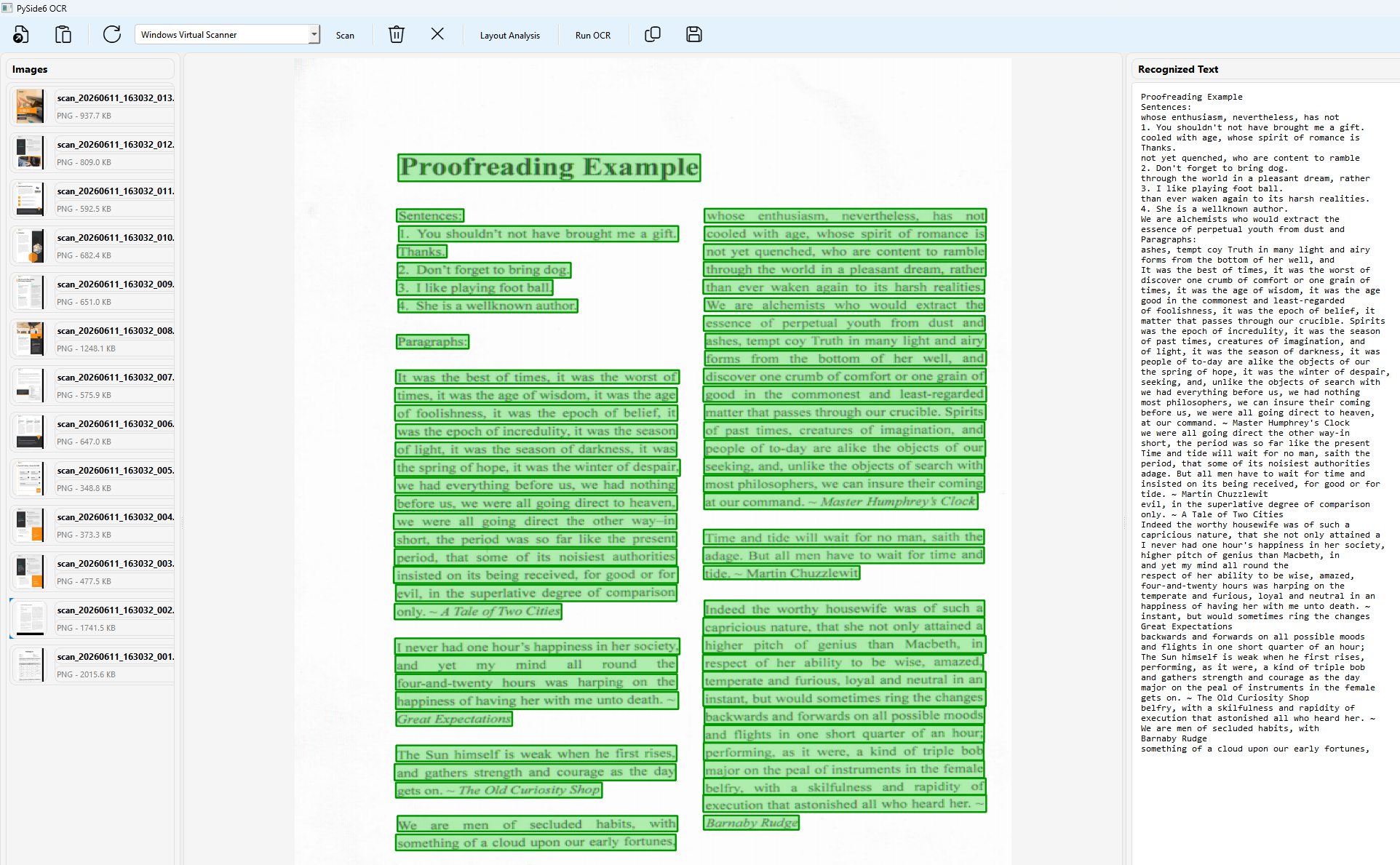
transformersgives the app a fully local layout analysis pipeline that classifies regions as text, table, formula, image, and more before any OCR runs. - OneOCR and PaddleOCR both return text bounding boxes, so the app can replace the layout overlay with OCR-native coordinates and let users copy individual regions.
- Region-level lazy OCR means a user can click a single detected block and get its text without reprocessing the entire page.
Common Developer Questions
How do I build a Windows document scanner app in Python with Dynamic Web TWAIN Service?
Use twain-wia-sane-scanner as the Python client for Dynamic Web TWAIN Service, then build the desktop UI in PySide6 so the same app can enumerate scanners, acquire pages, and display the results locally. The article’s sample keeps scanner access in pure Python instead of requiring native TWAIN bindings.
How can I compare OCR backends such as OneOCR, PaddleOCR, and optional local LLM OCR in the same Python app?
Define explicit engine keys for each OCR backend and let the PySide6 interface switch between them at runtime. Because OneOCR, PaddleOCR, and optional Ollama runs all feed results back into the same viewer, users can compare speed, text quality, and bounding-box behavior on the same scanned page.
How can I scan a page, detect layout locally, and OCR only one selected region on demand?
Run PP-DocLayoutV3 first to mark document regions, then let the user click one highlighted block and crop that area before sending it to the selected OCR engine. That lazy region workflow avoids reprocessing the whole page when the user only needs one paragraph, table, or signature block.
Prerequisites
- Windows with Python 3.11 or later.
- PySide6, Pillow, PyTorch, transformers, NumPy, and
twain-wia-sane-scanner. - Dynamic Web TWAIN Service installed and reachable at
http://127.0.0.1:18622. - A Dynamic Web TWAIN license key for scanner access.
Optional OCR backends:
OneOCRon Windows, plus its runtime files from Windows 11 Snipping Tool.PaddleOCRwith eitherpaddle_staticortransformersinference.- Ollama with
glm-ocr:latestif you want to test an LLM OCR backend.
Step 1: Install Python Dependencies and Configure the OCR Environment
Install the same packages used by the sample project.
python -m pip install -r requirements.txt
If you want the PP-DocLayoutV3 layout model to run fully offline, download it once before launching the app:
huggingface-cli download PaddlePaddle/PP-DocLayoutV3_safetensors --local-dir D:\models\PP-DocLayoutV3_safetensors

$env:LAYOUT_MODEL_DIR="D:\models\PP-DocLayoutV3_safetensors"
$env:LAYOUT_LOCAL_ONLY="1"
The current dependency set is:
PySide6>=6.5
Pillow>=9.0
torch>=2.0
transformers>=4.0
numpy>=1.20
twain-wia-sane-scanner>=2.0.3
oneocr>=1.0.12; platform_system == "Windows"
paddleocr>=3.6.0
If you want to enable the optional Ollama backend as well:
ollama pull glm-ocr:latest
Step 2: Define OCR Engine Keys and Runtime Defaults
The Python app defines explicit OCR engine keys and lets the UI switch between them.
OCR_ENGINE_OLLAMA = "ollama"
OCR_ENGINE_ONEOCR = "oneocr"
OCR_ENGINE_PADDLEOCR = "paddleocr"
OCR_ENGINE_LABELS = {
    OCR_ENGINE_OLLAMA: "Ollama (GLM-OCR)",
    OCR_ENGINE_ONEOCR: "OneOCR",
    OCR_ENGINE_PADDLEOCR: "PaddleOCR",
}


def _default_paddleocr_engine() -> str:
    if importlib.util.find_spec("paddle") is not None:
        return "paddle_static"
    return "transformers"


PADDLEOCR_ENGINE = os.environ.get("PADDLEOCR_ENGINE", _default_paddleocr_engine())
PADDLEOCR_DEVICE = os.environ.get(
    "PADDLEOCR_DEVICE",
    "gpu" if torch.cuda.is_available() else "cpu",
)
PADDLEOCR_DET_MODEL = os.environ.get("PADDLEOCR_DET_MODEL", "PP-OCRv5_mobile_det")
PADDLEOCR_REC_MODEL = os.environ.get("PADDLEOCR_REC_MODEL", "PP-OCRv5_mobile_rec")
LAYOUT_MODEL_DIR = os.environ.get("LAYOUT_MODEL_DIR", "").strip()
LAYOUT_LOCAL_ONLY = os.environ.get("LAYOUT_LOCAL_ONLY", "").strip().lower() in {
    "1", "true", "yes", "on"
}
This keeps desktop defaults practical. In particular, PaddleOCR now prefers the lighter PP-OCRv5 mobile detection and recognition models, which are much more suitable than heavier defaults on a typical PC.
For layout analysis, the same idea applies: you can either let transformers resolve PaddlePaddle/PP-DocLayoutV3_safetensors through the default endpoint or mirror you provide, or you can point the app at a pre-downloaded local directory and run without network access.
Step 3: Build a Toolbar with Separate Layout and OCR Actions
The current UI makes layout analysis a first-class action. That keeps the workflow explicit and avoids surprising users when OCR silently changes the overlay.
self.layout_action = QAction("Layout Analysis", self)
self.layout_action.setIcon(QIcon.fromTheme("insert-object"))
self.layout_action.triggered.connect(self._on_layout_clicked)
self.layout_action.setEnabled(False)
toolbar.addAction(self.layout_action)

self.ocr_action = QAction("Run OCR", self)
self.ocr_action.setIcon(QIcon.fromTheme("find"))
self.ocr_action.triggered.connect(self._on_ocr_clicked)
self.ocr_action.setEnabled(False)
toolbar.addAction(self.ocr_action)

self.ocr_engine_combo = QComboBox()
self.ocr_engine_combo.currentIndexChanged.connect(self._on_ocr_engine_changed)
toolbar.addWidget(self.ocr_engine_combo)

self.ocr_mode_label = QLabel("Mode:")
toolbar.addWidget(self.ocr_mode_label)

self.ocr_mode_combo = QComboBox()
self.ocr_mode_combo.addItems([
    "Text Recognition", "Table Recognition", "Figure Recognition",
])
toolbar.addWidget(self.ocr_mode_combo)
The Mode control is only relevant to Ollama (GLM-OCR), so the app hides it for the other engines instead of pretending every OCR backend shares the same prompt model.
Step 4: Run Layout Analysis Independently Before OCR
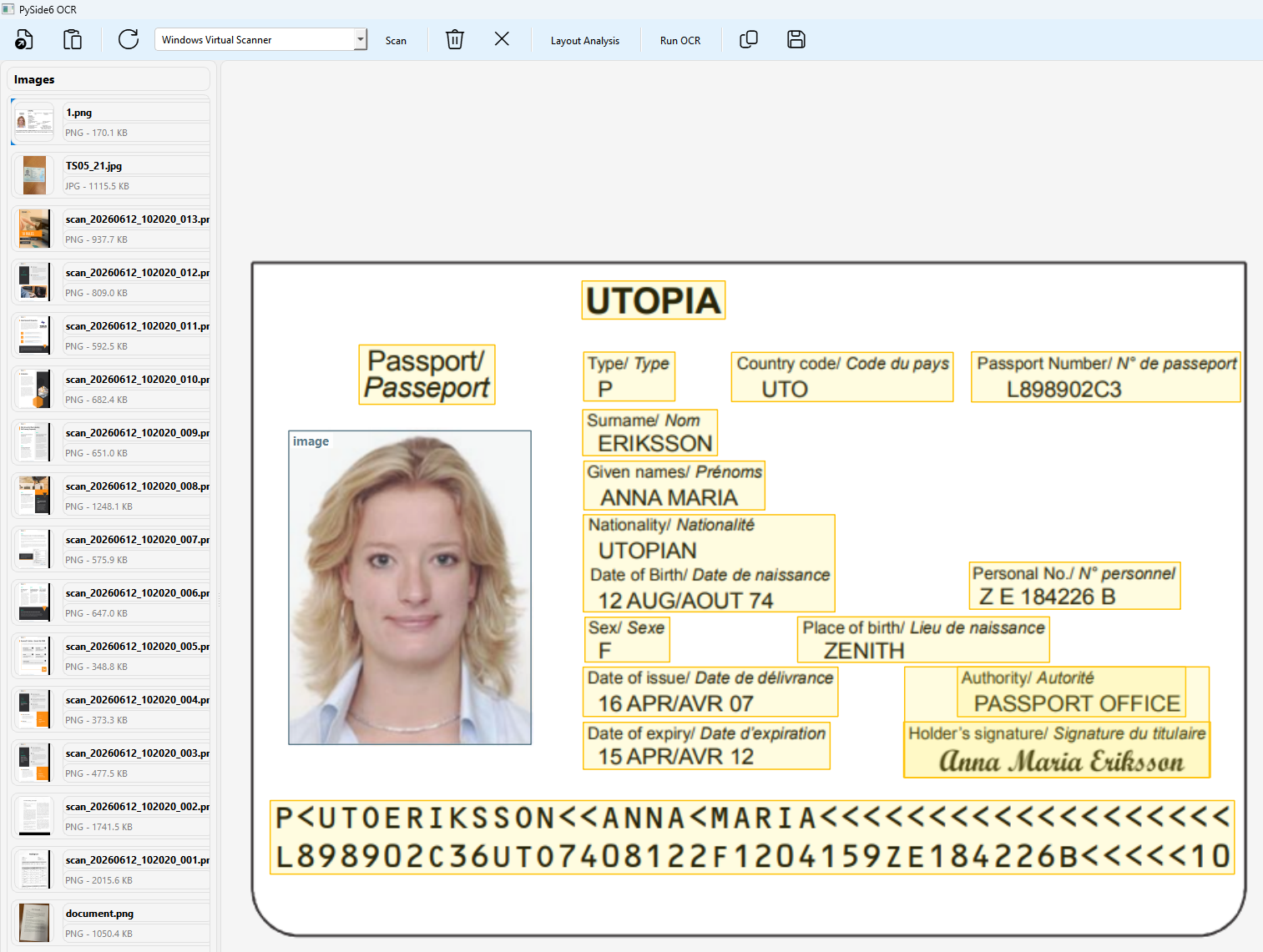
Layout Analysis runs PP-DocLayoutV3 by itself and draws an overlay of document regions without triggering any OCR pass.
class LayoutAnalysisWorker(QThread):
    layout_ready = Signal(LayoutResult)
    progress = Signal(str)
    error = Signal(str)

    def __init__(self, image_path: str, parent=None):
        super().__init__(parent)
        self.image_path = image_path

    def run(self):
        self.progress.emit("Running layout analysis...")
        OcrWorker.ensure_model_loaded()
        img = Image.open(self.image_path).convert('RGB')
        inputs = OcrWorker._processor(images=[img], return_tensors='pt')
        inputs = {key: value.to(OcrWorker._device) for key, value in inputs.items()}
        target_sizes = torch.tensor([img.size[::-1]], device=OcrWorker._device)

        with torch.no_grad():
            outputs = OcrWorker._model(**inputs)

        raw_results = OcrWorker._processor.post_process_object_detection(
            outputs, threshold=LAYOUT_THRESHOLD, target_sizes=target_sizes
        )[0]
Internally, the shared layout loader supports both cached and explicit local-directory loading:
model_source = LAYOUT_MODEL_DIR or LAYOUT_MODEL_ID
load_kwargs: Dict[str, Any] = {}
if LAYOUT_LOCAL_ONLY or LAYOUT_MODEL_DIR:
    load_kwargs["local_files_only"] = True

cls._processor = PPDocLayoutV3ImageProcessor.from_pretrained(model_source, **load_kwargs)
cls._model = PPDocLayoutV3ForObjectDetection.from_pretrained(model_source, **load_kwargs)
You can choose your own download source when preparing the model, or skip the network entirely by shipping the model folder with your deployment.
The overlay preserves more than just text targets. Text, table, and formula regions remain interactive, while non-text categories such as image stay visible with their own coloring and labels.
This matters because PP-DocLayoutV3 can tell you that a region is broadly an image block, but it does not distinguish whether that image is a portrait, logo, illustration, or seal. If you want portrait detection, you need an extra classifier or detector on top of the layout model.
Step 5: Let Coordinate-Aware OCR Replace the Layout Overlay
Some OCR engines can return text coordinates directly. In that case, the app uses OCR-native boxes instead of leaving the earlier layout overlay on screen.
def _engine_returns_text_coordinates(engine_key: str) -> bool:
    return engine_key in {OCR_ENGINE_ONEOCR, OCR_ENGINE_PADDLEOCR}
When the user clicks Run OCR, the app clears any existing layout result for coordinate-aware engines so the overlay gets rebuilt from OCR output:
def _on_ocr_clicked(self):
    if self.selected_item is None or self.worker is not None or self.layout_worker is not None:
        return

    self._set_busy(True)
    self.ocr_result = None
    self.result_text.clear()

    if self.selected_item is not None:
        self.selected_item.ocr_result = None
        if _engine_returns_text_coordinates(self.selected_ocr_engine):
            self.selected_item.layout_result = None

    self.worker = OcrWorker(
        self.selected_item.file_path,
        mode=self.ocr_mode_combo.currentText(),
        engine_key=self.selected_ocr_engine,
    )
That design gives users a predictable workflow:
Layout Analysisshows document structure.Run OCRreturns text.OneOCRandPaddleOCRcan replace the overlay with text boxes.- OCR engines without coordinates do not destroy the existing layout overlay.
Step 6: Use OneOCR and PaddleOCR as Coordinate-Aware Backends
OneOCR is Windows-only, but it returns OCR line boxes directly. The app converts those boxes into the same normalized overlay format used elsewhere.
if self.engine_key == OCR_ENGINE_ONEOCR:
    self.progress.emit("Running OneOCR...")
    engine = _ensure_oneocr_engine_loaded()
    raw_result = engine.recognize_pil(img)
    layout_result = _build_oneocr_layout_result(raw_result, img.size[0], img.size[1])
    if layout_result.has_coordinates:
        self.layout_ready.emit(layout_result)
    full_text = _clean_content(_extract_oneocr_text(raw_result))
    self.ocr_done.emit(OcrResult(
        text=full_text,
        line_count=layout_result.region_count,
        has_coordinates=layout_result.has_coordinates,
        raw_response=full_text,
    ))
    return
PaddleOCR can do the same thing. In this project, its result payload exposes rec_polys, rec_boxes, and dt_polys, so the app can build overlay boxes directly from OCR output.
if self.engine_key == OCR_ENGINE_PADDLEOCR:
    self.progress.emit("Running PaddleOCR...")
    engine = _ensure_paddleocr_engine_loaded()
    raw_result = _predict_with_paddleocr(engine, image_path=self.image_path)
    layout_result = _build_paddleocr_layout_result(raw_result, img.size[0], img.size[1])
    if layout_result.has_coordinates:
        self.layout_ready.emit(layout_result)
    full_text = _clean_content(_extract_paddleocr_text(raw_result))
    self.ocr_done.emit(OcrResult(
        text=full_text,
        line_count=layout_result.region_count,
        has_coordinates=layout_result.has_coordinates,
        raw_response=full_text,
    ))
    return
That means both engines can behave like coordinate-aware desktop OCR, not just plain text extractors.
Step 7: Keep Ollama as an Optional LLM OCR Backend
The app still supports Ollama (GLM-OCR), but it is now treated as optional. On a machine without GPU acceleration, it can be much slower than OneOCR or PaddleOCR, so it should not define the title or the main architecture.
The integration is still useful when you want prompt-controlled OCR modes such as text, table, or formula recognition.
def _backend_supports_prompt_modes(engine_key: str) -> bool:
    return engine_key == OCR_ENGINE_OLLAMA


def _ocr_generate_b64_list(image_payloads: List[bytes], prompt: str,
                           model: str = OLLAMA_MODEL) -> str:
    payload = _ollama_generate_request(prompt=prompt, image_payloads=image_payloads, model=model)
    return payload.get("response", "") or ""
If you do not need it, you can simply use OneOCR or PaddleOCR and ignore the Ollama setup entirely.
Step 8: OCR Individual Layout Regions on Demand
Instead of OCRing every region immediately, the app lets users click a single highlighted block and OCR only that crop.
class RegionOcrWorker(QThread):
    region_ocr_done = Signal(int, str)
    error = Signal(str)

    def run(self):
        try:
            cropped_image = _prepare_region_image(self.image_path, self.bbox_2d)
            content = _ocr_with_engine(
                self.engine_key,
                pil_image=cropped_image,
                task_type=self.task_type,
            )
            display_text = _clean_content(content)
            self.region_ocr_done.emit(self.region_index, display_text)
        except Exception as e:
            import traceback
            self.error.emit(f"Region OCR failed: {e}\n\n{traceback.format_exc()}")
The preview widget distinguishes between interactive OCR targets and non-text layout regions.
def _is_clickable_region(line: OcrLine) -> bool:
    return line.task_type in {"text", "table", "formula"}
Step 9: Scan Pages Through Dynamic Web TWAIN Service
On the scanner side, the project uses twain-wia-sane-scanner to talk to Dynamic Web TWAIN Service. It enumerates TWAIN and WIA devices, creates a job, streams pages, and saves them as images for the same OCR workflow.
class ScanWorker(QThread):
    page_scanned = Signal(str)
    scan_done = Signal(int)
    error = Signal(str)
    progress = Signal(str)

    def run(self):
        controller = ScannerController(timeout=120, raise_errors=True)
        job_id = ""
        page_count = 0
        job = controller.createJob(self.host, {
            "license": self.license_key,
            "device": self.device,
            "autoRun": False,
            "jobTimeout": 180,
            "scannerFailureTimeout": 90,
            "config": DWT_SCAN_CONFIG,
        })
        job_id = job.get("jobuid", "")
        timestamp = datetime.now().strftime("%Y%m%d_%H%M%S")

        while True:
            image_bytes = controller.getImageStream(self.host, job_id, imageType="image/png")
            if image_bytes is None:
                break

            page_count += 1
            image_path = self.output_dir / f"scan_{timestamp}_{page_count:03d}.png"
            image_path.write_bytes(image_bytes)
            self.page_scanned.emit(str(image_path))
The scan configuration passed to createJob disables the native scanner UI and enables the document feeder so multi-page scans flow unattended:
DWT_SCAN_CONFIG = {
    "IfShowUI": False,
    "PixelType": 2,
    "Resolution": 200,
    "IfFeederEnabled": True,
    "IfDuplexEnabled": False,
}
Step 10: Keep the UI Responsive While OCR and Scanning Run
The project also guards against a common desktop pitfall: destroying worker threads while a blocking OCR or scan request is still active.
def _has_running_worker(self) -> bool:
    return any(
        worker is not None and worker.isRunning()
        for worker in (
            self.worker,
            self.layout_worker,
            self.region_worker,
            self.scan_worker,
            self.preload_worker,
        )
    )
When the user tries to close the window, closeEvent checks this helper and shows a message box instead of letting Qt destroy live threads.
Common Issues & Edge Cases
- First PaddleOCR run feels slow: the first run may download model files into
%USERPROFILE%\.paddlex\official_models. Warm runs are faster, and the sample defaults to lighterPP-OCRv5_mobile_*models. - First layout-model run may still need a download: PP-DocLayoutV3 is loaded through
transformers. Pre-download it and setLAYOUT_MODEL_DIRplusLAYOUT_LOCAL_ONLY=1if you want fully offline startup. - OneOCR is Windows-only: it depends on Snipping Tool runtime files from Windows 11.
- Ollama is optional and can be slow on CPU: on a CPU-only PC, it may be too slow for interactive use. Use
OneOCRorPaddleOCRfor real-time workflows and keep Ollama for batch or experimental use. - PyTorch must be imported before PySide6 on Windows: the app imports
torchbefore any Qt module to avoid a known DLL loading conflict. Keep that import order if you extend the project.
Conclusion
This project demonstrates how to combine Dynamic Web TWAIN Service for scanner acquisition, PP-DocLayoutV3 for local layout detection, and three interchangeable OCR backends inside a single PySide6 desktop application. The region-level lazy OCR pattern keeps the workflow interactive even on large documents.