


Build a Python QR Code and Page Number OCR Scanner with PySide6 and Dynamsoft Capture Vision
Answer sheets, notebooks, and worksheet pages often carry two identifiers at once: a QR code for machine lookup and a printed page number for human ordering. This Python desktop app reads both from the same fixed-layout page image by combining barcode decoding and OCR inside Dynamsoft Capture Vision, then shows the results in a PySide6 desktop viewer with drag-and-drop, a file list, and auto-detection on selection. The Python implementation uses dynamsoft-capture-vision-bundle>=3.6.5000 and keeps barcode decoding plus OCR in one file-first capture flow.
What you’ll build: A PySide6 desktop app that scans a QR code and printed page number from the same page image with Dynamsoft Capture Vision and overlays both results during review.
Key Takeaways
- A single Dynamsoft Capture Vision template can decode a QR code and run OCR in a barcode-relative region on the same page image.
- File-based
capture_multi_pages(...)is the most reliable scan path for this fixed-layout Python desktop workflow. NumberCharRecognitionplus barcode-relative ROI settings keeps page-number OCR focused and stable on mixed-content pages.- The PySide6 UI is built for batch review with drag-and-drop loading, automatic detection on selection, and clean session reset.
Common Developer Questions
How do I scan a QR code and printed page number from the same image in Python?
Configure one Dynamsoft template that first reads the QR code and then performs OCR in the page-number region relative to that barcode. The PySide6 app can then display both decoded values from the same image during review.
How do I configure Dynamsoft Capture Vision OCR to read only the page number near a QR code?
Use a target ROI whose location is defined relative to the detected barcode, and set the OCR model to NumberCharRecognition so the recognizer focuses on numeric page labels. That keeps OCR constrained to the small region where the page number is expected.
Why does capture_multi_pages() work better than array capture for some fixed-layout document images?
In this fixed-layout workflow, file-based capture matches the SDK sample path more closely and has proven more stable for the test documents than manual array capture. When the file path exists, the app therefore prefers capture_multi_pages(...) for consistency.
How do I auto-run barcode and OCR detection when the selected image changes in a PySide6 list?
Trigger the detection routine immediately after _load_image_at_index() updates the current scene. That way every list selection or Prev/Next navigation automatically refreshes both the QR and OCR results without requiring a second manual click.
Demo Video: Python Page QR + OCR Scanner in Action
Step 1: Review the Prerequisites and Install the Python Dependencies
- Python 3.9 or newer
- A working desktop Python environment for PySide6
- A Dynamsoft license key for Capture Vision
- The project dependencies from
page_qr_ocr/requirements.txt
Get a 30-day free trial license at dynamsoft.com/customer/license/trialLicense
The project keeps the GUI runtime and the synthetic test-set generator in one requirements file.
PySide6>=6.5
opencv-python>=4.8
numpy>=1.24
dynamsoft-capture-vision-bundle>=3.6.5000
qrcode>=8.2
Pillow>=10.0
Step 2: Configure the Template So OCR Follows the QR Code
The key template idea is that OCR does not use a fixed page crop. Instead, TargetROIDefOptions defines an ROI relative to the detected barcode, and NumberCharRecognition keeps the OCR model numeric while the Python code avoids hard-coded page-number length heuristics.
{
  "Name": "roi-recognize-text-barcode",
  "TaskSettingNameArray": [
    "task-recognize-text"
  ],
  "Location": {
    "ReferenceObjectFilter": {
      "AtomicResultTypeArray": ["ART_BARCODE"]
    },
    "Offset": {
      "ReferenceObjectOriginIndex": 0,
      "ReferenceObjectType": "ROT_ATOMIC_OBJECT",
      "MeasuredByPercentage": 1,
      "FirstPoint": [ -300, -100 ],
      "SecondPoint": [ -100, -100 ],
      "ThirdPoint": [ -100, 0 ],
      "FourthPoint": [ -300, 0 ]
    }
  }
}
"LabelRecognizerTaskSettingOptions": [
  {
    "Name": "task-recognize-text",
    "TextLineSpecificationNameArray": [
      "tls-textlines"
    ],
    "SectionArray": [
      {
        "Section": "ST_REGION_PREDETECTION",
        "ImageParameterName": "ip-recognize-textlines"
      },
      {
        "Section": "ST_TEXT_LINE_LOCALIZATION",
        "ImageParameterName": "ip-recognize-textlines"
      },
      {
        "Section": "ST_TEXT_LINE_RECOGNITION",
        "ImageParameterName": "ip-recognize-textlines",
        "StageArray": [
          {
            "Stage": "SST_RECOGNIZE_RAW_TEXT_LINES"
          },
          {
            "Stage": "SST_ASSEMBLE_TEXT_LINES",
            "StringLengthRange": [ 1, 64 ]
          }
        ]
      }
    ]
  }
],
"TextLineSpecificationOptions": [
  {
    "Name": "tls-textlines",
    "CharacterModelName": "NumberCharRecognition",
    "OutputResults": 1,
    "StringLengthRange": [ 1, 64 ]
  }
]
Step 3: Initialize Capture Vision and Load the Template File
The scanner initializes the license, resolves the active template name from the JSON, and loads the settings into CaptureVisionRouter.
from dynamsoft_capture_vision_bundle import (
    CaptureVisionRouter,
    EnumImagePixelFormat,
    LicenseManager,
)


class CaptureVisionPageScanner:
    def __init__(self, template_path: Path) -> None:
        self._template_path = template_path
        self._init_license()
        self._template_name = self._resolve_template_name(template_path)

        self._template_router = CaptureVisionRouter()
        err, msg = self._template_router.init_settings_from_file(str(template_path))
        if err != 0:
            raise RuntimeError(f"Failed to load template file: {msg}")

    @staticmethod
    def _init_license() -> None:
        err, msg = LicenseManager.init_license(LICENSE_KEY)
        if err != 0:
            print(f"[DCV] License warning ({err}): {msg}")
Step 4: Capture the Page Once and Fan Out Barcode and OCR Results
The important runtime choice is to use file-based capture when the image path is available. After that, the code extracts barcode items and recognized text lines from the same capture result and forwards them through scanner-layer callbacks.
def detect(
    self,
    image_bgr: np.ndarray,
    image_path: Optional[Path] = None,
    on_barcodes: Optional[BarcodeResultCallback] = None,
    on_text_lines: Optional[TextResultCallback] = None,
) -> ScanResult:
    logs: List[str] = []

    captured = None
    scale = 1.0

    if image_path is not None and image_path.exists():
        logs.append(
            f"[CAPTURE] template={self._template_name}, source=file"
        )
        captured = self._capture_with_template_file(image_path, self._template_name)
    else:
        logs.append(
            f"[CAPTURE] template={self._template_name}, source=array"
        )
        captured = self._capture_with_template(image_bgr, self._template_name)

    if captured is None:
        logs.append("[CAPTURE] file/array capture returned no result, fallback=array")
        captured = self._capture_with_template(image_bgr, self._template_name)

    err_code = int(captured.get_error_code())
    err_msg = captured.get_error_string() or ""
    logs.append(f"[CAPTURE] err={err_code}, msg={err_msg}")

    variant = "oneshot/file" if image_path is not None and image_path.exists() else "oneshot/array"

    barcodes = self._extract_barcodes(captured, variant)
    for hit in barcodes:
        hit.points = self._rescale_points(hit.points, scale)
    barcodes = self._dedupe_barcodes(barcodes)

    text_lines = self._extract_text_lines(captured, variant)
    for hit in text_lines:
        hit.points = self._rescale_points(hit.points, scale)
    text_lines = self._dedupe_text_lines(text_lines)

    if on_barcodes is not None:
        on_barcodes(barcodes)
        logs.append(f"[CALLBACK] on_barcodes: {len(barcodes)}")
    if on_text_lines is not None:
        on_text_lines(text_lines)
        logs.append(f"[CALLBACK] on_text_lines: {len(text_lines)}")

    page_number = self._pick_page_number(text_lines, barcodes)
    logs.append(
        f"[SUMMARY] barcodes={len(barcodes)}, text_lines={len(text_lines)}, page_number={page_number}"
    )
    return ScanResult(barcodes=barcodes, text_lines=text_lines, page_number=page_number, logs=logs)
Step 5: Score the OCR Hits and Pick the Best Page Number
With NumberCharRecognition and the barcode-referenced ROI in the template, the recognized text lines are already page-number candidates. The Python code therefore uses the returned text directly and only scores each OCR hit against the QR code geometry and the OCR confidence.
@staticmethod
def _pick_page_number(
    text_hits: Sequence[TextHit],
    barcode_hits: Sequence[BarcodeHit],
) -> Optional[str]:
    anchor: Optional[Tuple[float, float, float, float]] = None
    if barcode_hits:
        primary = max(barcode_hits, key=lambda hit: hit.confidence)
        if primary.points:
            xs = [p[0] for p in primary.points]
            ys = [p[1] for p in primary.points]
            cx = (min(xs) + max(xs)) * 0.5
            cy = (min(ys) + max(ys)) * 0.5
            bw = max(max(xs) - min(xs), 1.0)
            bh = max(max(ys) - min(ys), 1.0)
            anchor = (cx, cy, bw, bh)

    candidates: List[Tuple[float, str]] = []
    for hit in text_hits:
        raw = hit.text.strip()
      if not raw:
            continue

        if hit.points:
            xs = [p[0] for p in hit.points]
            ys = [p[1] for p in hit.points]
            box_w = max(xs) - min(xs)
            box_h = max(ys) - min(ys)
            if box_w < 6.0 or box_h < 6.0:
                continue

        score = float(hit.confidence) * 10.0

        if anchor and hit.points:
            ax, ay, aw, ah = anchor
            hx = (min(xs) + max(xs)) * 0.5
            hy = (min(ys) + max(ys)) * 0.5
            dx = ax - hx
            dy = ay - hy

            expected_dx = 2.0 * aw
            expected_dy = 1.0 * ah
            score -= (abs(dx - expected_dx) / aw) * 8.0
            score -= (abs(dy - expected_dy) / ah) * 4.0

            if dx <= 0:
                score -= 25.0

        candidates.append((score, raw))

    if not candidates:
        return None
    candidates.sort(key=lambda item: item[0], reverse=True)
    return candidates[0][1]
Step 6: Build a Drag-and-Drop File Browser for Multi-Page Review
The current PySide6 window is not a single-image viewer anymore. It keeps a file list on the left, accepts dropped files from both the image view and the list, and exposes Prev, Next, and Clear Images in the top bar.
self._view = ImageView(self._scene, self)
self._view.files_dropped.connect(self._add_paths)

self._file_list = FileListWidget(self)
self._file_list.setAlternatingRowColors(True)
self._file_list.setSelectionMode(QAbstractItemView.SingleSelection)
self._file_list.currentRowChanged.connect(self._on_file_selected)
self._file_list.files_dropped.connect(self._add_paths)

self._prev_btn = QPushButton("< Prev")
self._prev_btn.clicked.connect(self._prev_image)
self._next_btn = QPushButton("Next >")
self._next_btn.clicked.connect(self._next_image)
def _build_ui(self) -> None:
    load_btn = QPushButton("Load Images...")
    load_btn.clicked.connect(self._on_load_images)

    clear_btn = QPushButton("Clear Images")
    clear_btn.clicked.connect(self._clear_images)

    top_bar = QHBoxLayout()
    top_bar.addWidget(load_btn)
    top_bar.addWidget(clear_btn)
    top_bar.addSpacing(12)
    top_bar.addWidget(self._prev_btn)
    top_bar.addWidget(self._nav_label)
    top_bar.addWidget(self._next_btn)
    top_bar.addSpacing(12)
    top_bar.addWidget(self._toggle_log_btn)
    top_bar.addStretch(1)
Step 7: Auto-Trigger Detection When the Selected Image Changes
The auto-detect behavior now lives in the image-loading path, not in a manual detect button. When the user selects a file from the list or navigates with Prev and Next, _load_image_at_index() loads the image, updates the status bar, redraws the scene, and immediately calls _on_detect().
def _on_file_selected(self, row: int) -> None:
    if row < 0 or row >= len(self._file_paths):
        return
    self._load_image_at_index(row)

def _load_image_at_index(self, index: int) -> None:
    if index < 0 or index >= len(self._file_paths):
        return

    image_path = self._file_paths[index]
    image_bgr = cv2.imread(str(image_path))
    if image_bgr is None:
        QMessageBox.warning(self, "Load Failed", f"Cannot open image: {image_path}")
        return

    self._current_index = index

    self._image_bgr = image_bgr
    self._image_path = image_path
    self._scan_result = None
    self._image_rect = None

    self._status_label.setText(f"Image {index + 1}/{len(self._file_paths)}: {image_path}")
    self._barcode_label.setText("Barcodes: 0")
    self._page_number_label.setText("Page number: -")
    self._log_box.setPlainText("")

    self._redraw_scene()
    self._update_navigation()
    self._on_detect()
Step 8: Render Results and Reset the Session Cleanly
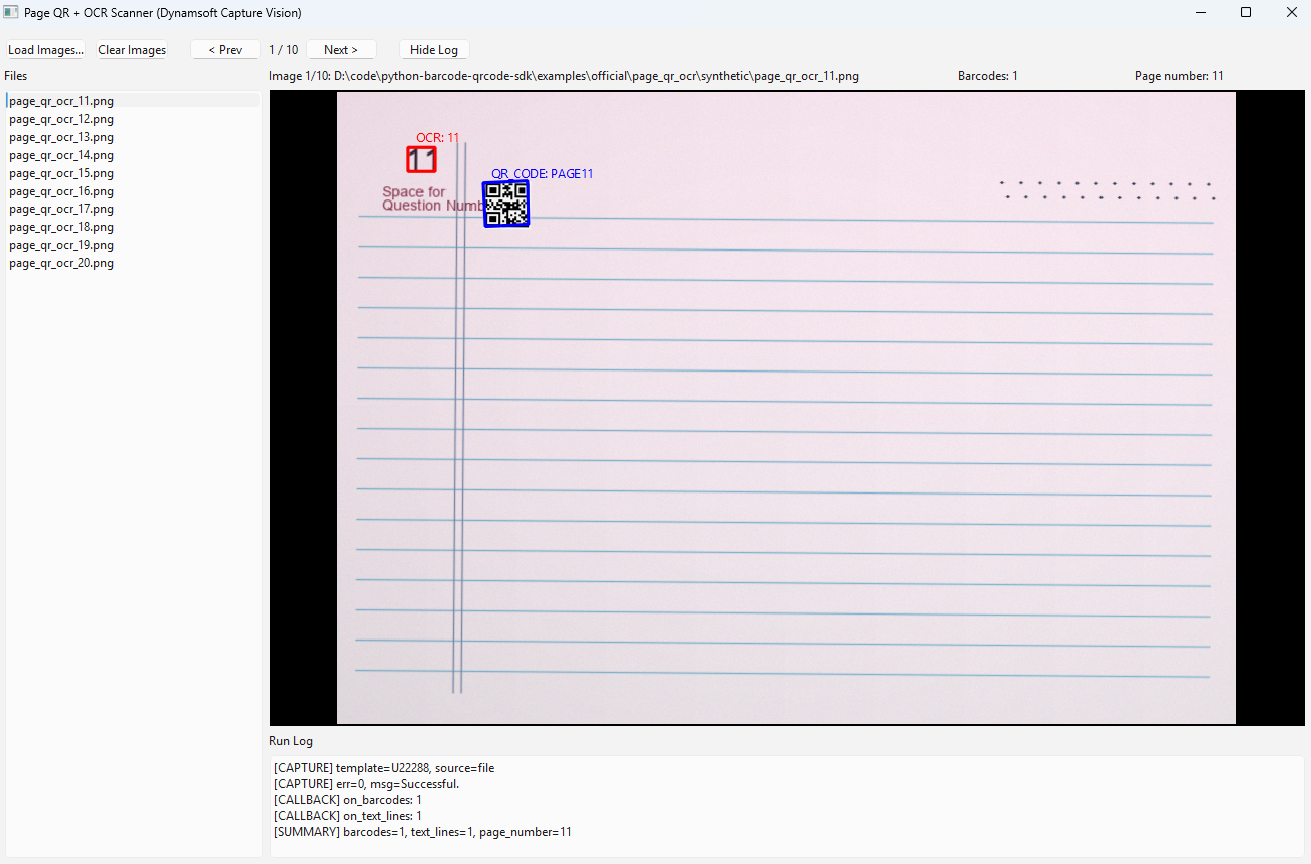
The overlay drawing is still isolated in _redraw_scene(), and the new _clear_images() method resets the entire session in one step: file list, selected image, overlays, logs, and navigation state.
def _clear_images(self) -> None:
    self._file_paths.clear()
    self._current_index = -1
    self._image_bgr = None
    self._image_path = None
    self._scan_result = None
    self._image_rect = None

    self._file_list.clear()
    self._scene.clear()
    self._scene.setSceneRect(QRectF())
    self._view.resetTransform()

    self._status_label.setText("Load images to start.")
    self._barcode_label.setText("Barcodes: 0")
    self._page_number_label.setText("Page number: -")
    self._log_box.setPlainText("")
    self._update_navigation()
def _redraw_scene(self) -> None:
    self._scene.clear()
    self._image_rect = None
    if self._image_bgr is None:
        return

    pixmap = self._to_qpixmap(self._image_bgr)
    pixmap_item = self._scene.addPixmap(pixmap)
    self._image_rect = pixmap_item.boundingRect()
    self._scene.setSceneRect(self._image_rect)

    if self._scan_result is not None:
        for hit in self._scan_result.barcodes:
            label = f"{hit.fmt}: {hit.text}"
            self._add_polygon(hit.points, Qt.blue, label)

        for hit in self._scan_result.text_lines:
            if not hit.text:
                continue
            label = f"OCR: {hit.text}"
            self._add_polygon(hit.points, Qt.red, label)

    self._view.resetTransform()
    if self._image_rect is not None and not self._image_rect.isNull():
        self._view.fitInView(self._image_rect, Qt.KeepAspectRatio)
Common Issues & Edge Cases
- File capture versus array capture: The project prefers
capture_multi_pages(...)when the file path exists because that path matches the bundled sample behavior more reliably for this page layout. - Template name mismatch: The router must call the active
CaptureVisionTemplates[].Name; loading the JSON file alone is not enough if the runtime template name does not match. - Layout drift: The OCR ROI is measured from the barcode result. If the page number moves relative to the QR code, update the ROI offset in
page_qr_ocr_template.jsonand the geometric scoring in_pick_page_number(). - Stale batch state: The desktop app now keeps multiple files in memory for navigation. Use
Clear Imageswhen you want to drop the current batch and start a new review pass.
Conclusion
This project builds a Python desktop scanner that reads a QR code and printed page number from the same page image using Dynamsoft Capture Vision and PySide6. The current version supports drag-and-drop, a file list, auto-detection on selection, keyboard navigation, and a one-click session reset, while keeping the actual capture logic in one stable scan path. A practical next step is to adjust the ROI offset for your own document layout or extend the synthetic test set in page_qr_ocr/synthetic/.