



FAQ about SourceAnywhere
General Questions
-
1. Which version of SQL Server does SourceAnywhere support?
SourceAnywhere supports Microsoft SQL Server 2000 or above and SQL Server Express 2005/2008.
-
2. Does SQL Server have to be installed on server side?
Nope. SourceAnywhere supports Microsoft SQL Server Express LocalDB. SourceAnywhere is able to install LocalDB on server. You can still run the service without installing SQL Server.
-
3. Can I import data from SourceSafe into SourceAnywhere?
Yes. SourceAnywhere provides a VSS Import tool that enables you to import data from your Visual SourceSafe (VSS) database into SourceAnywhere repository.
-
4. Is it easy to backup the system?
Yes, it is easy. All the data are stored in Microsoft SQL Server. To back up the system, you only need to back up the SourceAnywhere database in SQL Server.
-
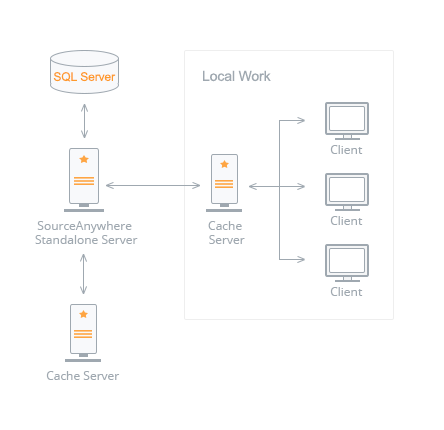
5. What is SourceAnywhere Cache Server? In what scenario do I need to install cache servers?
SourceAnywhere Cache Server is an optional caching system. It is used to cache copies of requested server files, thereby improving the client responsiveness.
When you have more than one developer working on the same project at the same remote location, you need SourceAnywhere Cache Server.
-
6. Does SourceAnywhere trial have any limited functionalities?
No. SourceAnywhere trial is a fully functional version with a 30-day trial period.
-
7. Is it necessary to reinstall SourceAnywhere after purchasing?
No. To activate the full version, you only need to:
- Delete the previous trial licenses in server manager.
- Add the new serial number of full version.
-
8. Can I run SourceAnywhere Client on Linux or Mac?
Yes. In addition to the standard Windows client, SourceAnywhere comes with a Java client and can run on any platform that SWT (Standard Widget Toolkit) supports, such as Linux, MAC and Solaris, etc.
-
9. Which IDE integrations does SourceAnywhere support?
SourceAnywhere supports IDEs including Eclipse, Dreamweaver, Visual Studio 6, Visual Studio .NET 2003, Visual Studio 2005/2008/2010/2012 and other MSSCCI compatible IDEs.
Troubleshooting
-
1. Why can't SourceAnywhere service be started?
There are several possibilities. The SourceAnywhere Server log file may give you some helpful information for the troubleshooting. Please check it first. For information about how to check the log file, please click here.
Please verify the following items:
- Verify the operating system logged in user account has administrative right to start service.
- Verify the ports of SourceAnywhere server are not occupied by other applications. You can check the ports settings in SourceAnywhere Service Configurator.
- Verify the Log On user of SourceAnywhere service is able to communicate with the SQL server. For information on how to check the Log On user of a service, please click here.
-
2. Why do I get error message "Error connecting to <IP> : <Port>" when connecting to SourceAnywhere Server?
There are four possible causes of this problem. Verify the following things:
- Make sure the network connection between the SourceAnywhere Server and Client is OK.
- Make sure the Server IP you are connecting to is correct. Please check if the IP address is listed in Server Manager ->ServerInfo ->General Settings ->Server IP.
- If you have a firewall configured on the Server or Client, please make sure the firewall does not block the port you specified in Server Manager ->ServerInfo ->General Settings.
- Please check if the Windows Firewall is enabled on the SourceAnywhere server machine. If yes, it is likely the Windows Firewall is blocking connections from SourceAnywhere Client. In this case, please add a Windows Firewall exception for SourceAnywhere service.
-
3. Why do I get error message "Socket is closed by server? Error creating local temp file" when I check in or add files?
The cause of this problem is that SourceAnywhere server does not have read/write permission of the temp folder. For information about how to make sure SourceAnywhere server has enough permission of the temp folder, please click here.
How To
-
1. How to backup the data?
You need to use a SQL Server tool to backup the data. SourceAnywhere does not have backup tool, since we feel the SQL Server backup tool is already powerful and easy to use.
-
2. How to check SourceAnywhere Server Log?
The SourceAnywhere Server log file gives you valuable information about the system. In many cases, you may need to consult the log file.
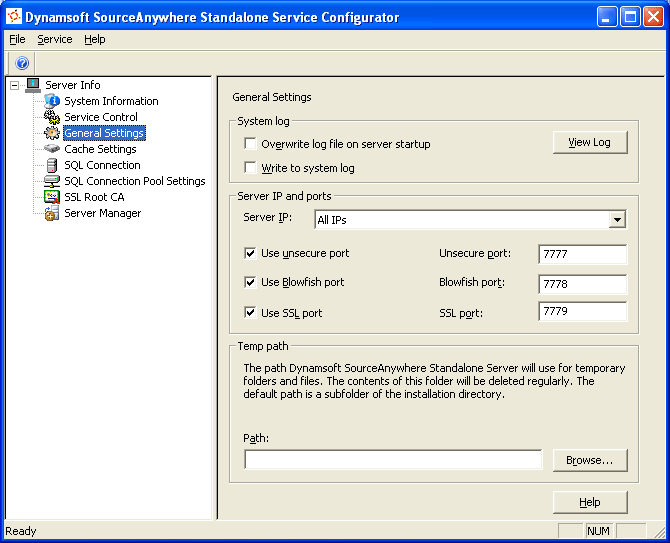
The log file can be viewed from: SourceAnywhere Service Configurator ->Server Info ->General Settings tab. More details
-
3. How to input my serial number?
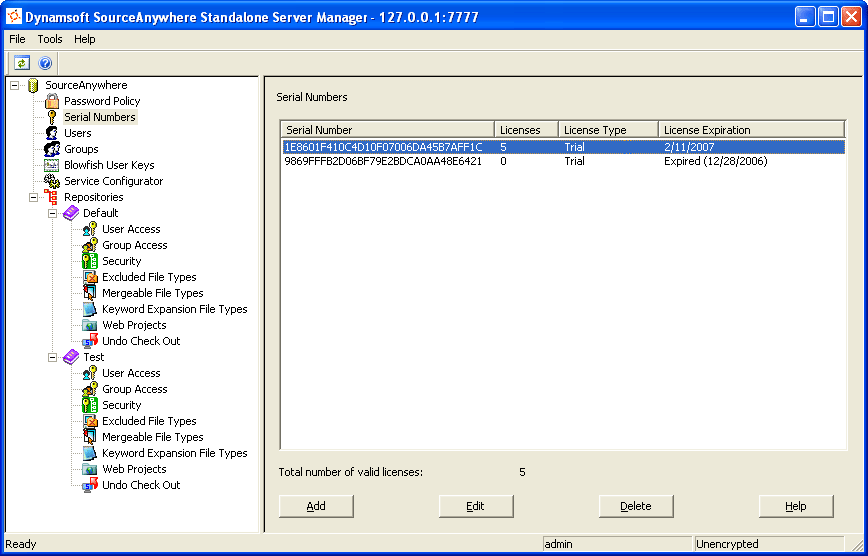
SourceAnywhere serial number can be inputted on the server-side at SourceAnywhere Server Manager ->SourceAnywhere ->Serial Numbers. More details
-
4. How to make sure SourceAnywhere server has enough permission of the temp folder?
Please follow steps below:
- Determine the temp path of SourceAnywhere server. For information about how to determine the temp path of SourceAnywhere server, please click here.
- Check the Log On user of SourceAnywhere service. For information about how to check the Log On user of SourceAnywhere service, please click here.
- Check the security setting of the temp folder. Make sure the Log on user of SourceAnywhere service has read/write permission of the temp folder. For information about how to check the security setting of a Windows folder, please click here.
-
5. How to determine the temp directory of SourceAnywhere server?
The temp directory of SourceAnywhere server can be specified in SourceAnywhere Service Configurator ->Server Info ->General Setting ->Temp Path.
If the temp directory is not specified, SourceAnywhere server will use the default temp directory. The default temporary directory of SourceAnywhere Server is the 'temp' folder under the installation directory.
-
6. How to check the Logon User of SourceAnywhere service?
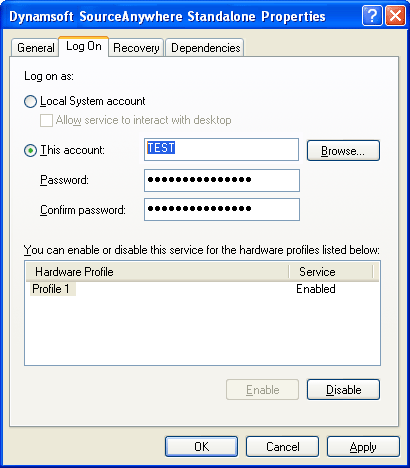
This setting is in Control Panel ->Admin Tools ->Services ->Dynamsoft SourceAnywhere ->Properties ->Logon tab.
-
7. How to check the Security setting of a Windows folder?
Please follow steps below:
- Right click the Windows folder and click Property.
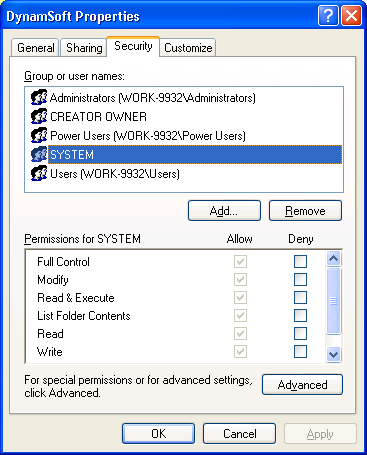
- In the Folder Properties dialog box, select the Security tab, as seen in the following figure:
-
8. How to connect to SQL Server or SQL Serve Express?
Dynamsoft SourceAnywhere will create a database named with "SourceAnywhere" on SQL Server installed on the local machine or a different machine on the network. You can choose to have Windows Authentication or SQL Server Authentication to connect to the SQL Server. If you are not sure which authentication mode your SQL Server is using, please contact your SQL Server administrator.
You can specify the SQL Server used to store Dynamsoft SourceAnywhere database during the SourceAnywhere Server installation process.
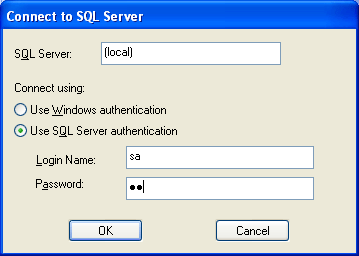
For SQL Server, you can specify the server IP or name in the Server name edit box.
For SQL Server Express, you need to use the server name or IP address, plus "\", plus the SQL Server instance name. The default instance name is "SQLEXPRESS". So for SQL Server Express, you have "ServerName\SQLEXPRESS" for the Server name edit box.
If you choose SQL Server authentication mode, you should use the "sa" account or any other accounts that can play System Administrators roles in SQL Server.
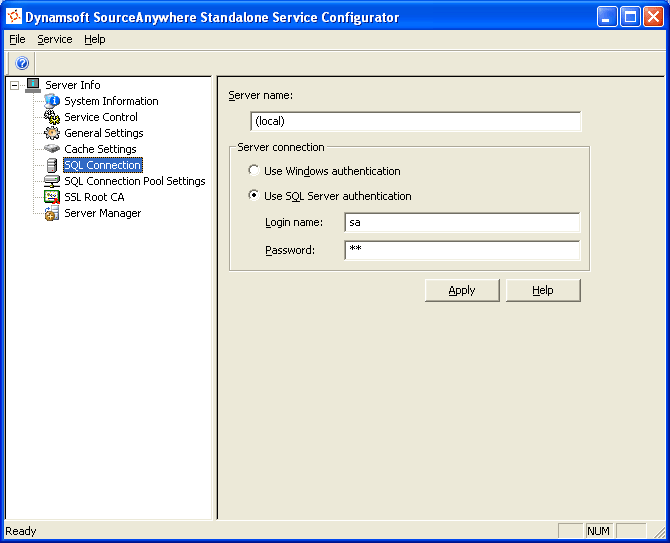
After the installation, you can change the general properties of the SQL server through SourceAnywhere Service Configurator->Server Info->SQL Connection tab. More details
IDE Integration
-
1. How to integrate SourceAnywhere with Visual Studio 2005/2008/2010/2012?
To integrate SourceAnywhere with Visual Studio 2005/2008/2010/2012:
- Start Visual Studio.
- Click menu Tools-> Options.
- Click the "Source Control" node in the left side tree.
- Choose "Dynamsoft SourceAnywhere" in the "Current source control plug-in" combo box.

-
2. How to integrate SourceAnywhere with Visual Studio 6.0/ Visual Studio .NET 2003?
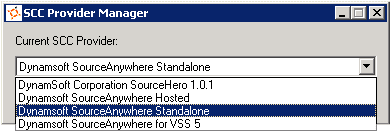
To integrate SourceAnywhere with Visual Studio 6.0/ Visual Studio .NET 2003, change the SCC provider to SourceAnywhere in SCC Provider Manager, which can be launched from the program group of SourceAnywhere Client, as seen in the following figure:
Licensing
-
1. Does SourceAnywhere server need licenses?
No. SourceAnywhere is licensed on a per user basis. The server does not take a license.
-
2. Does the cache server need licenses?
No. When you have purchased SourceAnywhere, the cache server is included and does not take a license.
-
3. What is included in the yearly subscription?
Subscription includes updates and support.
-
4. Can I install the SourceAnywhere client on several PCs?
Yes. SourceAnywhere is licensed on a per user basis. Each user may install the SourceAnywhere client on multiple machines as needed and access SourceAnywhere server from multiple clients at the same time.