


 Blog
How to Build an Offline Inventory Barcode Scanning App for Web, Android and iOS
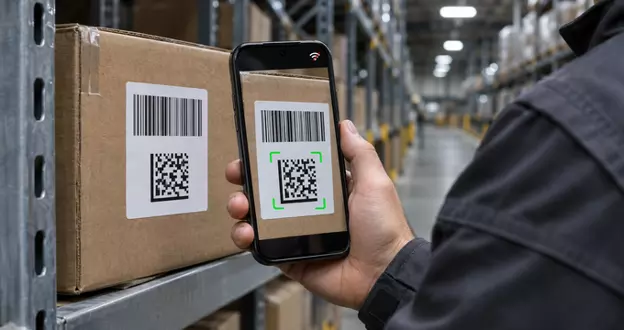
An offline inventory barcode scanning app scans barcodes on the device, stores each scan locally, and syncs them to the central inventory system when a network connection is available. Building this app requires an on-device barcode scanning SDK, a reliable local queue, and a sync process that uploads queued scans without creating duplicates.
Inventory work often occurs in areas with poor Wi-Fi, such as walk-in freezers, steel racking, basements, loading yards, and remote job sites. Apps that require a network connection to decode barcodes or save records are ineffective in these locations, forcing workers to rely on paper or memory.
This guide details how to build an offline-first inventory scanning app for the web (JavaScript), Android, and iOS. It covers architecture, the build process, managing dropped connections, and evaluating scanning SDKs.
Key Takeaways
- An offline inventory barcode scanning app scans barcodes on the device, saves each scan to local storage, and syncs to the server only when a connection is available.
- On-device decoding is essential for offline scanning because any barcode service that sends images to a cloud API will not work without a network connection.
- A web scanning app requires a service worker, a browser script that caches the app and its SDK files for offline use. In contrast, Android and iOS apps bundle the SDK within the app package.
- Each offline scan should include a client-generated unique ID and a timestamp, enabling the server to safely ignore duplicates during sync retries.
- Dynamsoft Barcode Reader decodes barcodes on the device and does not send images or extracted data to Dynamsoft. Scan data stays on the device until your app transmits it to your server.
- Dynamsoft license authorization also works offline for a defined period. Once authorized, a device can operate offline for 3 minutes to 365 days or longer, depending on the license type.
Why do inventory scanning apps need to work offline?
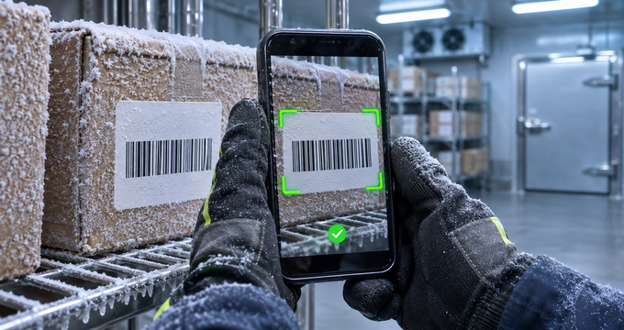
Inventory scanning apps should work offline because staff often count, receive, and pick stock in areas with poor network coverage. Metal racking, concrete walls, and cold stores can significantly weaken Wi-Fi signals. Work may also occur in yards or fields with no coverage.
A dropped connection is more disruptive than a slow interface. If the app does not save the scan, the worker must rescan or record the count manually. These workarounds can result in missed items or double counts and delays, compromising inventory accuracy and efficiency.
Why do cloud-dependent scanning apps fail offline?
Cloud-dependent scanning apps fail offline because they require a network connection for every scan. Three common design patterns contribute to this problem:
- Server-side decoding. The app uploads a camera image and waits for a cloud API to return the barcode value. With no connection, there is no result.
- Online-only web apps. A browser app loads its scripts and decoding engine from the network. If those files cannot load, the scanner never starts.
- Write-through saves. The app posts each scan directly to the inventory API. If the request fails, the scan stays in memory and may be lost if the tab closes or the app restarts.
The solution is to reverse the order of operations: decode locally, save locally, and treat the server as a destination the app accesses when possible.
What does an offline-first barcode scanning architecture look like?
An offline-first barcode scanning architecture includes four layers: on-device decoding, offline app availability, a local scan queue, and a sync process triggered by connectivity. These layers apply to web, Android, and iOS; only the platform APIs vary.
| Layer | Web (JavaScript) | Android | iOS |
|---|---|---|---|
| Barcode decoding | On-device SDK running as WebAssembly in the browser | Native SDK library inside the app | Native SDK framework inside the app |
| Offline app availability | SDK files cached by a service worker | Bundled in the app package | Bundled in the app package |
| Local scan queue | IndexedDB | Room (SQLite) | SwiftData, Core Data, or SQLite |
| Connectivity detection | Browser online and offline events | ConnectivityManager network callbacks | NWPathMonitor |
| Background sync | Background Sync API in Chromium browsers; sync on app open elsewhere | WorkManager with a network constraint | BGProcessingTaskRequest with requiresNetworkConnectivity |
In a web scanning app, barcodes are decoded by an SDK compiled to WebAssembly, the SDK files are cached by a service worker, scans are queued in IndexedDB, and the browser’s online event signals when to sync.
In Chromium-based browsers such as Chrome and Edge, the Background Sync API enables web apps to automatically retry uploading queued scans when network connectivity is restored, even after the user has closed the browser tab. This helps ensure that captured scans are uploaded without requiring users to keep the application open. However, Firefox and Safari do not support the Background Sync API. To ensure reliable cross-browser synchronization, web apps should implement fallback mechanisms that retry queued uploads when application launches, when the online events fires, and at regular intervals while the app is open.
In an Android scanning app, the app package includes the decoding library, queues scans in a Room database, and uses ConnectivityManager to report network changes. Google recommends WorkManager for persistent tasks and ensures that scheduled work runs once constraints, such as network availability, are met.
In an iOS scanning app, the app includes the decoding framework, queues scans in SwiftData, Core Data, or SQLite, and uses NWPathMonitor to report network changes. A BGProcessingTaskRequest with requiresNetworkConnectivity set to true requests iOS to run the upload in the background when a network is available, though iOS determines the exact timing.
How do you build an offline inventory barcode scanning app, step by step?
To build an offline inventory barcode scanning app, follow six steps: choose an on-device SDK, enable offline app loading, configure scanning for inventory, queue every scan locally, sync when a connection returns, and test under real failure conditions. These steps apply to JavaScript, Android, and iOS, with platform-specific notes where APIs vary.
Step 1: Choose an SDK that decodes barcodes on the device
First, choose a barcode SDK that decodes images locally, as any SDK that relies on a cloud decoding API cannot scan offline. Also, confirm how the SDK validates its license. Many commercial SDKs check licenses against a server, so ask how long an authorized device can scan without a connection.
Step 2: Make the app itself load without a network
A scanning app can work offline only if both the app and its SDK files are present on the device. Android and iOS apps meet this requirement by compiling the SDK into the app package. For web apps, use a service worker to precache the app shell and all SDK resources, such as JavaScript, WebAssembly, model, and template files. If devices may not access the public internet, self-host these files. Otherwise, the service worker can cache them from a CDN.
Step 3: Configure scanning to work without the server
To enable scanning without the server, ensure the device performs all necessary checks locally. Filter duplicate barcode reads to prevent multiple records when a worker scans the same label repeatedly. Cache the product catalog on the device to display item names and flag unknown barcodes without requiring a lookup. Provide immediate audio or haptic feedback when a scan is saved locally, so workers know it registered even if the server is unreachable. Enable only the barcode symbologies used in your stock, such as Code 128, EAN-13, or Data Matrix, to reduce on-device processing.
Step 4: Write every scan to a local queue first
Each scan should be saved to durable local storage before the app attempts any network call. A typical scan record includes:
- A client-generated unique ID (a UUID) for deduplication
- The barcode value and symbology
- Quantity, location or bin, user, and device ID
- A capture timestamp from the device
- A sync status: pending, synced, or failed
Use IndexedDB on the web, Room on Android, and SwiftData, Core Data, or SQLite on iOS. Web apps should also call navigator.storage.persist() to request that the browser protect the app data from automatic eviction.
Step 5: Sync queued scans when the connection returns
The sync process should upload pending scans in batches and mark a scan as synced only after server confirmation. Trigger sync on network-change events, app launch, and on a background schedule. Retry failures with increasing delays.
In the web app, the sync routine retrieves pending scans from IndexedDB, sends them to your inventory API in a single request, and marks them as synced only after a successful server response. If the request fails or times out, the scans remain pending for the next attempt.
On Android, implement the same logic in a WorkManager worker with a network constraint. On iOS, call this logic from an NWPathMonitor handler and a background processing task.
Step 6: Test the app under real offline conditions
Test offline behavior deliberately, as most failures occur during transitions between offline and online states. Test scenarios include enabling airplane mode mid-session, force-quitting during an upload, restarting the device with pending scans, handling weak connections that time out, and uploading the same batch twice. Chrome DevTools, Android Studio, and Xcode offer network throttling or offline simulation for these tests.
What happens to scans when the connection drops?
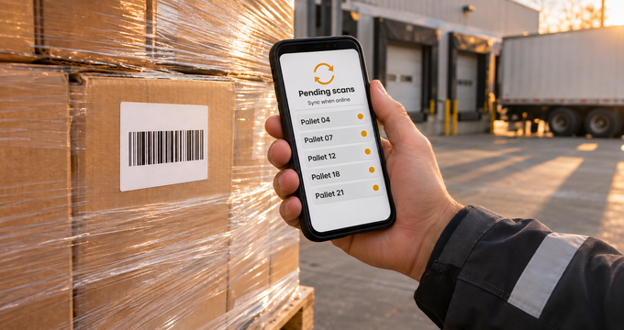
If the connection drops, an offline-first scanning app continues to work. The device decodes each barcode, stores it locally as pending, and keeps it until the server confirms receipt. Workers see only a pending-scan counter that increases.
How are offline scans stored safely?
Offline scans are stored in the device’s durable database, so they persist through closed tabs, app restarts, or reboots. Native Android and iOS apps keep this data until the app deletes it or the user uninstalls it. Web apps face an added risk: WebKit notes that Safari may clear a site’s script-writable storage, including IndexedDB, after seven days without user interaction. Home Screen web apps maintain their own usage counter. To reduce risk, sync web scans frequently and encourage iPhone and iPad users to add the app to the Home Screen.
How do offline scans sync without creating duplicates?
Offline scans avoid duplicates when the server uses each client-generated scan ID as an idempotency key. The server records each accepted scan ID and ignores any that have already been processed. Retried batches after a timeout do not increase stock counts. Four further rules keep synced data accurate:
Four further rules keep synced data accurate:
- Send events, not totals. Upload statements such as “counted 12 units in bin A3” instead of overwriting stock levels. This approach allows the server to merge scans from multiple offline devices.
- Process results per record. The server should indicate which scans it accepted or rejected and mark only accepted scans as synced.
- Flag real conflicts for review. If two workers count the same bin while offline, notify a supervisor of any mismatch rather than silently accepting the last upload.
- Treat network events as hints, not proof. A device may report a connection even if it cannot reach your server. The server’s acknowledgment is the only reliable confirmation that a scan has synced.
What should you look for in an offline barcode scanning SDK?
An offline barcode scanning SDK should decode on the device, keep scan data within your environment, operate for a defined period without a license check, support all your platforms, and be packaged efficiently for offline deployment. Each criterion below explains its importance for inventory teams.
What data leaves the device and how do you control it? Security, privacy, and data residency
Offline scanner security begins with understanding exactly what data leaves the device. Ask vendors these questions:
- Where are images and barcode values processed? On-device decoding keeps camera frames and decoded values off the vendor’s servers, simplifying privacy reviews.
- What does the SDK transmit, and how? Some license systems report usage counts. Ensure reports exclude scan content, use HTTPS, and that all transmissions are encrypted.
- Can licensing operate within your network? A self-hosted license server keeps all SDK connections within your infrastructure, which matters for data residency requirements.
- Can you bind the license to your app? Binding to an app ID, name, or domain prevents a leaked key from being reused elsewhere.
- Is the vendor independently certified? An ISO 27001 certification shows the vendor runs an audited information security program.
Your app must also protect the local queue. Devices running Android 10 or later must use file-based encryption, and iOS provides Data Protection for app files. Always send sync data over HTTPS.
Offline license window
The offline license window defines how long a device can scan after its last license check. Ensure this window matches your longest offline shift to prevent interruptions.
Platform coverage and deployment
Platform coverage means a single vendor supports web, Android, and iOS with consistent decoding. Confirm the web SDK can be fully self-hosted and that native SDKs are installed via standard package managers.
Accuracy and developer experience
Accuracy matters most offline, since there is no server-side fallback if the on-device decoder can’t read a damaged, small, or poorly lit label. Test vendors using your most challenging labels in airplane mode. For a better developer experience, review documentation on self-hosting SDK resources and look for samples demonstrating offline use, such as a PWA sample.
How can Dynamsoft solutions help with offline inventory scanning?
Dynamsoft Barcode Reader provides the on-device decoding layer for an offline inventory app, with SDKs for web browsers, Android, and iOS that process images locally. The points below correspond to the evaluation criteria above.
Does Dynamsoft Barcode Reader decode on the device for web, Android and iOS?
Dynamsoft Barcode Reader for Web is a WebAssembly-based JavaScript SDK that decodes in the browser. Dynamsoft Barcode Reader for Mobile provides native Android and iOS SDKs, with samples for React Native, Flutter, and .NET MAUI. Both editions read common inventory symbologies, including Code 128, Code 39, EAN, UPC, GS1 DataBar, QR Code, Data Matrix, and PDF417. The web SDK also includes a result filter that removes duplicate reads of the same barcode within a short interval, supporting Step 3.
How do you self-host, Dynamsoft Barcode Reader for offline-ready web use?
Dynamsoft Barcode Reader JavaScript package includes all offline resources in a dist folder. Dynamsoft’s framework guide explains how to copy this folder into your project, configure the SDK to load its resources from that local folder, and recommends pinning the SDK version to prevent mismatches with resource files:
CoreModule.engineResourcePaths.rootDirectory = “../assets/dist”;
A service worker can precache these files to complete Step 2. Dynamsoft provides a PWA sample whose service worker precaches the SDK’s JavaScript, WebAssembly, model, and template files. Samples are also available for React, Angular, Vue, and Capacitor.
What Security and data residency controls does Dynamsoft provide?
Dynamsoft SDKs never share images or extracted image data with Dynamsoft. The License Server security FAQ lists the specific controls:
- Usage-only reporting. The SDK sends condensed usage counts, such as symbology types and scan totals, and deletes local records after each report.
- Anonymized device IDs. An irreversibly encrypted UUID identifies each device, ensuring no personal information is exposed.
- Encrypted, HTTPS-ready licensing. The license server supports HTTPS and encrypts authorizations and usage reports.
- Self-hosted license server. Hosting the license server internally keeps all SDK traffic within your intranet.
- App binding and session passwords. A validation field, such as a web domain or process name, binds a license to your application.
- Certifications. Dynamsoft is ISO 27001 and O-TTPS certified.
For devices that can never connect, Dynamsoft offers a non-tracking offline license under a signed agreement.
What is Dynamsoft’s offline license window? offline license window
Once authorized, a device running Dynamsoft Barcode Reader can work offline for 3 minutes to 365 days or longer, depending on license type (License Server FAQ). The device saves usage data and sends it in a single batch the next time it connects. Per-device licenses offer offline intervals of 365, 90, 30 days, or 24 hours, while a per-barcode-scan license allows up to 3 days offline after registration.
Batch scanning for stock counts
For shelf and pallet counts, Dynamsoft Batch Barcode Scanner can scan 100 or more barcodes in a single pass. It counts items, records locations, and flags duplicate or unrecognized barcodes for quick verification to support inventory management workflows.
To evaluate decoding on your own labels, use the online demo or download 30-day free trial, which includes pre-sales technical support.
What makes an offline inventory barcode scanning app reliable?
An offline inventory barcode scanning app is reliable when it does not require a network connection at every step. The device decodes barcodes, saves each scan locally first, and syncs later. The six steps in this guide apply to JavaScript, Android, and iOS, with platform APIs varying more than the overall design.
Most teams should not build the decoding layer themselves. Choose an SDK that decodes locally, keeps scan content within your environment, and offers a license window that matches your longest offline shift. If your labels are damaged, small, densely packed, or your devices cannot access the internet, consult a Dynamsoft expert about your use case before finalizing your architecture.
Frequently asked questions about offline barcode scanning apps.
These answers cover the questions developers and IT teams ask most often about offline inventory scanning.
Can a barcode scanning app work completely offline?
A barcode scanning app can operate fully offline if it decodes barcodes on the device and stores scans locally. Native Android and iOS apps support this from the first launch because the app package includes the SDK. Web apps can do this after the first online visit, once a service worker caches the app and SDK files. Commercial SDKs may require periodic license checks, so confirm the vendor’s offline license window to maintain uninterrupted operation.
Where are barcode scans stored when an inventory app is offline?
An offline inventory app stores barcode scans in a local database on the device until synchronization. Web apps typically use IndexedDB, Android apps use Room or SQLite, and iOS apps use SwiftData, Core Data, or SQLite. Each record should include a unique ID, a timestamp, and a sync status.
How does an offline barcode app avoid duplicate counts when it syncs?
An offline barcode app prevents duplicate counts by tagging each scan with a client-generated unique ID that the server uses as an idempotency key. The server records each accepted ID and ignores any already processed IDs. Retried uploads do not create duplicate scans.
Does Dynamsoft Barcode Reader work without an internet connection?
Dynamsoft Barcode Reader decodes barcodes on the device, so scanning does not require an internet connection. The Dynamsoft License Server authorizes the license. After authorization, the device can work offline for 3 minutes to 365 days or longer, depending on the license type. Offline usage data is uploaded on the next connection.
Can Dynamsoft Barcode Reader run on devices that never connect to the public internet?
Dynamsoft Barcode Reader can operate without public internet access in two ways. Organizations can host the Dynamsoft License Server internally to license devices over their intranet. Alternatively, Dynamsoft offers a non-tracking offline license under a signed agreement.
Does Dynamsoft receive barcode images or scan data?
Dynamsoft does not receive barcode images or decoded scan data from its SDKs. The SDK reports only condensed usage information, such as symbology types and scan counts, along with an irreversibly encrypted device UUID. Scan content stays on the device until your app sends it to your server.
Does offline web barcode scanning work on iPhone and in Safari?
Offline web barcode scanning works on iPhone when the page is served over HTTPS and a service worker caches its files. Dynamsoft Barcode Reader for Web supports Safari 14.5 and later. iOS 14.3 or later is required for camera streaming in Chrome, Firefox, or WebView apps. Since Safari does not support the Background Sync API, iOS web apps should sync when the app opens or reconnects.
Should an offline inventory scanner be a web app or a native app?
A native Android or iOS app is preferable for offline inventory scanning when scanning must work from first launch and background sync is required. A web app is faster to deploy when a single codebase must run on multiple device types and workers usually sync while the app is open. Native apps also avoid browser storage-eviction rules that affect web apps.
What are the deployment requirements for an offline web barcode scanner?
An offline web barcode scanner must be served over HTTPS, as browsers permit camera access and service workers only in a secure context. The Dynamsoft license also requires this, and the SDK’s .wasm files must use the application/wasm MIME type, as specified in the system requirements. If devices cannot access the public internet, self-host the SDK files. Otherwise, the service worker can cache them from the CDN.