


How to Build a React Native Document Scanner with Auto-Detection, Crop, and PDF Export
Turning a phone camera into a reliable document scanner requires accurate edge detection, perspective correction, and clean image output — all in real time. The Dynamsoft Capture Vision React Native SDK handles the heavy lifting, letting you ship a cross-platform document scanner for Android and iOS without writing any native code yourself.
What you’ll build: A React Native app that auto-detects document edges from the live camera feed, lets users fine-tune the crop with draggable corner handles, apply color modes (full color, grayscale, binary), export the result as a PNG image or a PDF document, and hand the file straight to the system share sheet.
Demo Video: React Native Document Scanner in Action
Key Takeaways
- This tutorial demonstrates how to build a complete document scanning workflow — detect, crop, process, export, and share — in a single React Native app.
- The
dynamsoft-capture-vision-react-nativeSDK (v3.4.1000) provides camera control, real-time document boundary detection, perspective deskew, and image post-processing through a unified API. - Multi-frame cross-verification filters out false positives, ensuring only stable, high-confidence document detections trigger capture.
- Exporting to PDF needs no extra encoder:
ImageIO.saveToFile()infers the output format from the file extension, so the same code path that writes a PNG also writes a valid PDF when the path ends in.pdf. - Sharing is handled by
react-native-share, which supplies the AndroidFileProviderand one API for both platforms. Exports must be written to the app’s internal cache directory, because that is the only path the provider exposes. - This approach applies to receipt digitization, ID card capture, form processing, and any mobile workflow that replaces flatbed scanning.
Common Developer Questions
How do I detect and crop a document from the camera in React Native?
Set CameraEnhancer as the CaptureVisionRouter input, add MultiFrameResultCrossFilter cross-verification, and start PT_DETECT_AND_NORMALIZE_DOCUMENT. Trigger navigation only when cross-verification passes or the user requests manual capture.
How do I add grayscale and black-and-white modes to a mobile document scanner?
Open an editor screen with ImageEditorView, then switch color mode by assigning the deskewed image directly or converting it with convertToGray() and convertToBinaryLocal(). That keeps the crop workflow separate from post-processing while still letting users preview each mode before export.
How do I export a captured document as a PNG or PDF file on Android and iOS?
Save the current processed image with ImageIO.saveToFile(), which picks the encoder from the file extension — a .png path writes an image and a .pdf path writes a PDF, with no extra encoding step. Write to TemporaryDirectoryPath on iOS or CachesDirectoryPath on Android. The same export step works after crop adjustment, grayscale conversion, or binary conversion.
How do I share the exported document from a React Native app?
Write the file first, then pass its URI to Share.open() from react-native-share. React Native’s own Share module cannot be used for this, because its Android implementation only sends plain text. Keep the file in the app’s internal cache directory: the FileProvider that react-native-share declares only exposes that location, and getUriForFile() throws for any other path.
Prerequisites
Before starting, make sure you have:
- Node.js 18+ and npm
- React Native CLI (not Expo) with React Native 0.79+
- Android Studio with an emulator or physical device (Android)
- Xcode 15+ with CocoaPods (iOS)
- A Dynamsoft Capture Vision trial or full license key
Get a 30-day free trial license at dynamsoft.com/customer/license/trialLicense
Step 1: Create the React Native Project and Install Dependencies
Start by creating a new React Native project (or use an existing one) and installing the required packages:
npx @react-native-community/cli init ScanDocument
cd ScanDocument
npm install dynamsoft-capture-vision-react-native @react-navigation/native @react-navigation/native-stack react-native-safe-area-context react-native-screens react-native-fs react-native-share
For iOS, install the native pods:
cd ios && pod install && cd ..
The key dependency is dynamsoft-capture-vision-react-native (v3.4.1000), which bundles the camera enhancer, capture vision router, and document normalizer into a single React Native package. react-native-share only handles the final step of handing an exported file to the system share sheet.
Step 2: Initialize the License and Configure Navigation
The app entry point registers the root component in index.js:
import {AppRegistry} from 'react-native';
import App from './src/App';
import {name as appName} from './app.json';

AppRegistry.registerComponent(appName, () => App);
In App.tsx, set up a stack navigator with four screens and initialize the Dynamsoft license when the home screen mounts:
import {Quadrilateral, ImageData, LicenseManager} from 'dynamsoft-capture-vision-react-native';
import {createNativeStackNavigator, NativeStackScreenProps} from '@react-navigation/native-stack';
import {NavigationContainer} from '@react-navigation/native';

export type ScreenNames = ['Home', 'Scanner', 'Editor', 'NormalizedImage'];
export type RootStackParamList = Record<ScreenNames[number], undefined>;
export type StackNavigation = NativeStackScreenProps<RootStackParamList>;

const Stack = createNativeStackNavigator<RootStackParamList>();

function App(): React.JSX.Element {
  return (
    <SafeAreaProvider>
      <NavigationContainer>
        <Stack.Navigator initialRouteName="Home">
          <Stack.Screen name="Home" component={HomeScreen} options={{headerShown: false}} />
          <Stack.Screen name="Scanner" component={Scanner} options={{headerShown: false}} />
          <Stack.Screen name="Editor" component={Editor}
            options={{title: 'Adjust & Crop', headerStyle: {backgroundColor: '#2563EB'}, headerTintColor: '#fff'}} />
          <Stack.Screen name="NormalizedImage" component={NormalizedImage}
            options={{title: 'Review & Export', headerStyle: {backgroundColor: '#2563EB'}, headerTintColor: '#fff'}} />
        </Stack.Navigator>
      </NavigationContainer>
    </SafeAreaProvider>
  );
}
License initialization happens inside the HomeScreen component. Replace the license string with your own key:
useEffect(() => {
  LicenseManager.initLicense('LICENSE-KEY')
    .then(() => setLicenseReady(true))
    .catch(e => {
      console.error('Init license failed: ' + e.message);
      setError('License initialization failed.\n' + e.message);
      setLicenseReady(true);
    });
}, []);
Step 3: Detect and Capture Documents from the Camera Feed
The Scanner screen opens the camera, runs real-time document detection, and auto-captures when a stable document boundary is confirmed. The SDK’s CameraEnhancer, CaptureVisionRouter, and MultiFrameResultCrossFilter work together:
import {
  CameraEnhancer,
  CameraView,
  CaptureVisionRouter,
  EnumCapturedResultItemType,
  EnumCrossVerificationStatus,
  EnumPresetTemplate,
  MultiFrameResultCrossFilter,
} from 'dynamsoft-capture-vision-react-native';
Open the camera when the screen is focused and close it when it loses focus:
const cameraRef = useRef<CameraEnhancer>(CameraEnhancer.getInstance());
const cvrRef = useRef<CaptureVisionRouter>(CaptureVisionRouter.getInstance());

useFocusEffect(
  React.useCallback(() => {
    const camera = cameraRef.current;
    camera.open();
    return () => {
      camera.close();
    };
  }, []),
);
Wire the camera to the capture vision router and enable cross-frame verification to filter out false positives:
if (!sdkInitialized) {
  cvr.setInput(camera);
  const filter = new MultiFrameResultCrossFilter();
  filter.enableResultCrossVerification(EnumCapturedResultItemType.CRIT_DESKEWED_IMAGE, true);
  cvr.addFilter(filter);
  sdkInitialized = true;
}
Register a result receiver that fires when a deskewed document image is ready. The capture triggers either through cross-verification passing or a manual shutter tap:
receiverRef.current = cvr.addResultReceiver({
  onProcessedDocumentResultReceived: result => {
    if (
      result.deskewedImageResultItems &&
      result.deskewedImageResultItems.length > 0 &&
      (ifBtnClick.current || result.deskewedImageResultItems[0].crossVerificationStatus === EnumCrossVerificationStatus.CVS_PASSED)
    ) {
      ifBtnClick.current = false;
      global.originalImage = cvr.getIntermediateResultManager().getOriginalImage(result.originalImageHashId) as ImageData;
      global.deskewedImage = result.deskewedImageResultItems[0].imageData;
      global.sourceDeskewQuad = result.deskewedImageResultItems[0].sourceDeskewQuad;
      if (global.originalImage.width > 0 && global.originalImage.height > 0) {
        navigation.navigate('NormalizedImage');
      }
    }
  },
});

cvr.startCapturing(EnumPresetTemplate.PT_DETECT_AND_NORMALIZE_DOCUMENT);
Start capturing with the built-in PT_DETECT_AND_NORMALIZE_DOCUMENT template — no custom template configuration needed.
Step 4: Fine-Tune the Document Crop with Draggable Corners
The Editor screen uses ImageEditorView to display the original image with a draggable quadrilateral overlay. Users drag the corner handles to fine-tune the document boundary before confirming:
import {
  EnumDrawingLayerId,
  ImageData,
  ImageEditorView,
  ImageProcessor,
} from 'dynamsoft-capture-vision-react-native';

export function Editor({navigation}: StackNavigation) {
  const editorView = useRef<ImageEditorView>(null);

  useEffect(() => {
    if (editorView.current) {
      editorView.current.setOriginalImage(global.originalImage);
      editorView.current.setQuads([global.sourceDeskewQuad], EnumDrawingLayerId.DDN_LAYER_ID);
    }
  }, []);
When the user confirms, extract the selected quad and re-deskew the image:
const getSelectedQuadAndDeskew = async (): Promise<ImageData | null | undefined> => {
  if (!editorView.current) {
    return null;
  }
  const quad = await editorView.current.getSelectedQuad().catch(e => {
    console.error('getSelectedQuad error: ' + e.message);
    return null;
  });
  if (quad) {
    global.sourceDeskewQuad = quad;
    return new ImageProcessor().cropAndDeskewImage(global.originalImage, quad);
  } else {
    Alert.alert('No selection', 'Please select a quad to confirm.');
    return null;
  }
};
The ImageProcessor.cropAndDeskewImage() method applies perspective correction based on the four-corner quadrilateral, producing a clean, rectangular document image.
Step 5: Apply Color Modes, Then Export and Share the Document
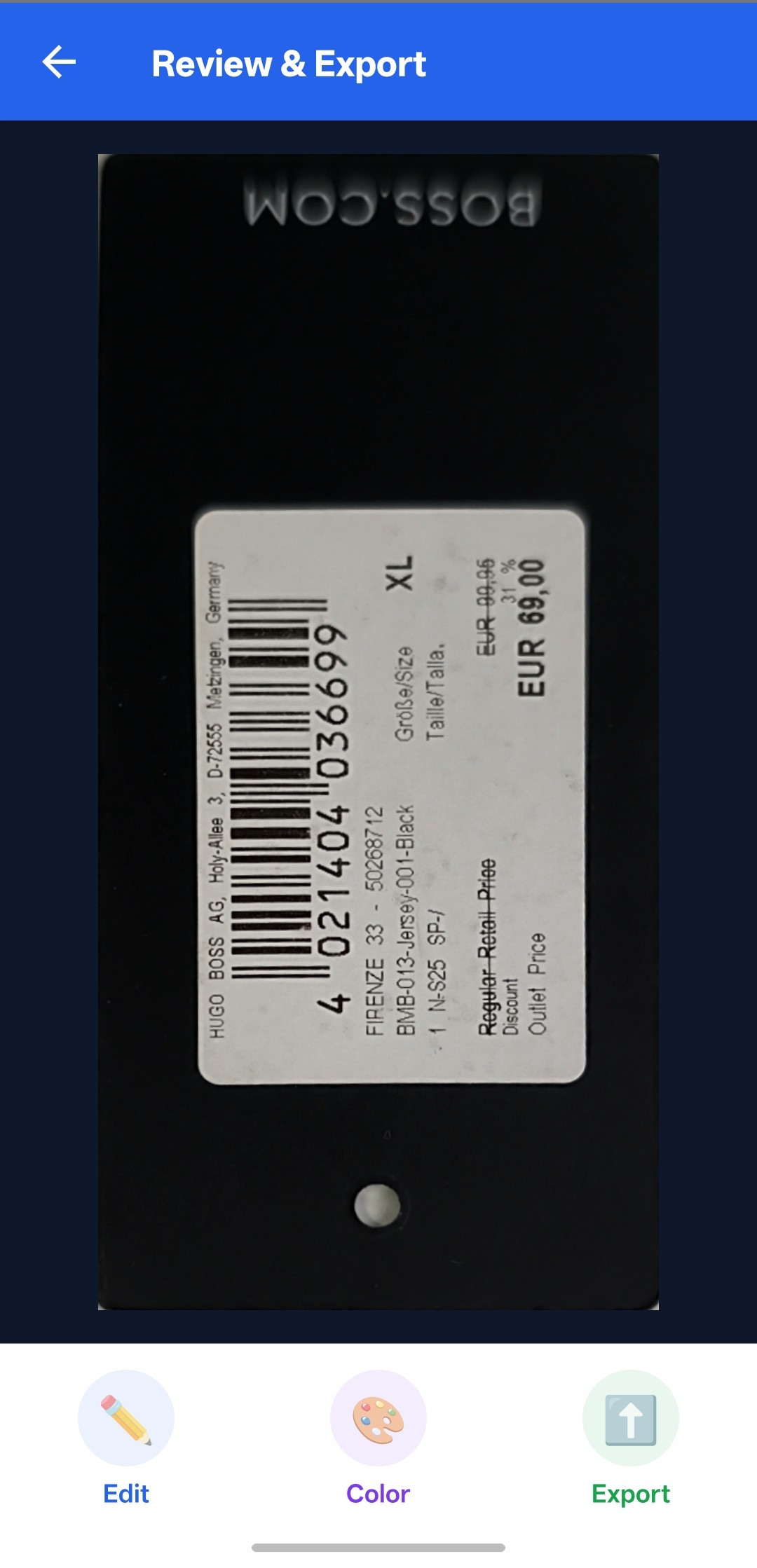
The NormalizedImage screen displays the deskewed result and provides three actions: edit (re-open the quad editor), change color mode, and export — either as a PNG image or a PDF document, ready to share.
Convert between color, grayscale, and binary outputs using ImageProcessor:
import {
  ImageIO,
  ImageProcessor,
  imageDataToBase64,
} from 'dynamsoft-capture-vision-react-native';

const changeColorMode = (mode: string) => {
  if (global.showingImage && global.showingImage !== global.deskewedImage) {
    global.showingImage.release();
  }
  switch (mode) {
    case ColorMode.color:
      global.showingImage = global.deskewedImage;
      break;
    case ColorMode.grayscale:
      global.showingImage = new ImageProcessor().convertToGray(global.deskewedImage) ?? global.deskewedImage;
      break;
    case ColorMode.binary:
      global.showingImage =
        new ImageProcessor().convertToBinaryLocal(
          global.deskewedImage,
          /*blockSize = */ 0,
          /*compensation = */ 10,
          /*invert = */ false,
        ) ?? global.deskewedImage;
      break;
  }
  setBase64(imageDataToBase64(global.showingImage) ?? '');
};
Let the user choose the export format, then encode and share in one step. Both formats go through ImageIO.saveToFile() — the file extension alone decides which encoder runs:
import {CachesDirectoryPath, exists, stat, TemporaryDirectoryPath} from 'react-native-fs';
import Share from 'react-native-share';

const ExportFormat = {
  png: {ext: 'png', label: 'PNG Image', mime: 'image/png'},
  pdf: {ext: 'pdf', label: 'PDF Document', mime: 'application/pdf'},
} as const;

type ExportFormatKey = keyof typeof ExportFormat;

const exportDocument = async (key: ExportFormatKey) => {
  const {ext, mime} = ExportFormat[key];
  // react-native-share exposes Android files through the FileProvider it declares,
  // and that provider only covers the internal cache directory.
  const directory = Platform.OS === 'ios' ? TemporaryDirectoryPath : CachesDirectoryPath;
  const filename = `document_${Date.now()}`;
  const savedPath = `${directory}/${filename}.${ext}`;

  new ImageIO().saveToFile(global.showingImage, savedPath, true);

  // saveToFile returns void and can fail silently, so confirm the file was written.
  if (!(await exists(savedPath)) || !(await stat(savedPath)).size) {
    throw new Error(`Could not write ${savedPath}`);
  }

  await Share.open({
    url: `file://${savedPath}`,
    type: mime,
    filename,
    failOnCancel: false, // dismissing the sheet is not an error
  });
};
Trigger it from the export action, so the share sheet opens as soon as the file is ready:
Alert.alert(
  'Export & Share',
  'Choose a format — the share sheet opens once the file is ready.',
  (Object.keys(ExportFormat) as ExportFormatKey[]).map(key => ({
    text: ExportFormat[key].label,
    onPress: () => exportDocument(key),
  })),
  {cancelable: true},
);
Writing a .pdf path is all it takes to produce a PDF: the SDK maps the extension to its built-in IFF_PDF encoder, so PNG and PDF reuse one code path with no extra dependency. The file is written before sharing because both Android and iOS share through a URI rather than a buffer — and writing first means nothing is lost if the user dismisses the sheet. Note that React Native’s own Share module cannot be used here: its Android implementation only sends plain text, which is why the example pulls in react-native-share.
Common Issues & Edge Cases
- License requires network access: The trial license validates online. The app will show a license error if the device has no internet connection at startup. Ensure
android.permission.INTERNETis in yourAndroidManifest.xml(it is by default). - Camera permission denied: The SDK calls
CameraEnhancer.requestCameraPermission()at runtime, but if the user denies it, the scanner screen shows an error overlay. Handle this gracefully by checking permission state before navigating to the scanner. - Memory management for image data: The code explicitly calls
.release()onImageDataobjects (showingImage,deskewedImage,originalImage) when they are no longer needed. Skipping this can cause native memory leaks, especially when repeatedly scanning documents. - The share sheet never appears on Android: The exported file must live in the app’s internal cache directory.
react-native-sharedeclares its ownFileProvider, and the paths it exposes only cover that location — pointingsaveToFile()at the external cache directory instead makesgetUriForFile()throw, so the sheet never opens. Because the library registers the provider itself, noAndroidManifest.xmlchanges are required.
Conclusion
This tutorial built a complete document scanning app in React Native using the Dynamsoft Capture Vision SDK — from live camera detection through interactive cropping to color processing, PNG and PDF export, and system share sheet integration. The same codebase runs on both Android and iOS. For more SDK capabilities like barcode reading and MRZ recognition, see the Dynamsoft Capture Vision documentation.