


How to Build a Live Document Scanner Desktop App in Java with Dynamsoft Capture Vision SDK
Document scanning software needs to handle skewed, perspective-distorted pages captured from any angle — a problem that trips up many image-processing pipelines. This tutorial walks through a Java Swing desktop application that combines the LiteCam camera library with the Dynamsoft Capture Vision SDK (DDN) v3.4.1000 to detect document borders in real time, let the user fine-tune the detected quad, and produce a clean, deskewed output image.
What you’ll build: A cross-platform Java 17 desktop app that streams a live camera feed, automatically detects document boundaries using Dynamsoft DDN, lets you interactively drag corner handles to refine the quad, and exports a perspective-corrected PNG/JPEG — all without any native OpenCV dependency.
Key Takeaways
- Demonstrates how to integrate Dynamsoft
CaptureVisionRouterinto a Java Swing desktop app for automatic document boundary detection. - Uses the
DetectDocumentBoundaries_DefaultandNormalizeDocument_Defaultbuilt-in templates from Dynamsoft Capture Vision SDK v3.4.1000 to eliminate the need for manual threshold tuning. - Runs at a ~30 FPS detection loop on a background
ExecutorServicethread, keeping the Swing EDT responsive at all times. - Applies in real-world workflows such as digitizing contracts, receipts, whiteboards, and ID documents directly from a webcam.
Common Developer Questions
How do I detect and normalize a document boundary from a live webcam using Dynamsoft in Java?
Feed each live camera frame into CaptureVisionRouter with the DetectDocumentBoundaries_Default template, then pass the confirmed quad to NormalizeDocument_Default when the user saves the result. That gives you automatic edge detection plus a perspective-corrected export image without writing your own geometry pipeline.
Why does my Swing UI freeze when running heavy image processing in the background?
Swing freezes when detection runs on the event dispatch thread instead of a worker. Keep the capture and document-detection loop on an ExecutorService, and only send repaint or label updates back to the EDT so camera processing never blocks user interaction.
How do I convert a BufferedImage to a Dynamsoft ImageData object for use with CaptureVisionRouter?
Extract the underlying pixel bytes from the BufferedImage, make sure they are in the expected BGR layout, and then populate an ImageData structure with width, height, stride, and format metadata. That ImageData object is what CaptureVisionRouter consumes for both boundary detection and normalization.
Demo Video: Java Document Scanner in Action
Prerequisites
- Java 17+ (LTS recommended)
- Maven 3.8+
- LiteCam SDK —
litecam.jar+ its native libraries placed in thelibs/directory - Dynamsoft Capture Vision SDK 3.4.1000 — downloaded automatically by Maven from
download2.dynamsoft.com/maven/jar - Get a 30-day free trial license
Step 1: Configure Maven Dependencies
The pom.xml pulls the Dynamsoft Capture Vision SDK from Dynamsoft’s Maven repository and the LiteCam SDK from the local Maven cache (installed from libs/litecam.jar during the build):
<repositories>
    <repository>
        <id>central</id>
        <url>https://repo1.maven.org/maven2</url>
    </repository>
    <repository>
        <id>dcv</id>
        <url>https://download2.dynamsoft.com/maven/jar</url>
    </repository>
</repositories>

<dependencies>
    <!-- LiteCam SDK (local JAR installed to local repository) -->
    <dependency>
        <groupId>com.example</groupId>
        <artifactId>litecam</artifactId>
        <version>1.0.0</version>
    </dependency>

    <!-- Dynamsoft Capture Vision SDK (includes CVR, DCP, DLR, DDN, DBR, etc.) -->
    <dependency>
        <groupId>com.dynamsoft</groupId>
        <artifactId>dcv</artifactId>
        <version>${dynamsoft.dcv.version}</version>
    </dependency>
</dependencies>
Build the fat JAR with:
Windows
# .\build.ps1

# Build script for LiteCam Barcode Scanner Maven Example
# PowerShell version

$ErrorActionPreference = "Stop"

# Define Maven executable path
$MavenPath = "C:\ProgramData\chocolatey\lib\maven\apache-maven-3.9.11\bin\mvn.cmd"

Write-Host "Building LiteCam Document Scanner Maven Example..." -ForegroundColor Green
Write-Host "=================================================" -ForegroundColor Green

# Check if Maven is available at the expected path
if (-not (Test-Path $MavenPath)) {
    # Try to find Maven in PATH
    if (-not (Get-Command mvn -ErrorAction SilentlyContinue)) {
        Write-Host "Error: Maven is not installed or not found" -ForegroundColor Red
        Write-Host "Expected Maven location: $MavenPath" -ForegroundColor Red
        exit 1
    } else {
        $MavenPath = "mvn"
    }
}

# Check if Java is installed
if (-not (Get-Command java -ErrorAction SilentlyContinue)) {
    Write-Host "Error: Java is not installed or not in PATH" -ForegroundColor Red
    exit 1
}

# Verify litecam.jar exists
if (-not (Test-Path "libs\litecam.jar")) {
    Write-Host "Error: litecam.jar not found in libs\ directory" -ForegroundColor Red
    Write-Host "Please copy litecam.jar to libs\ directory first" -ForegroundColor Red
    exit 1
}

Write-Host "`nJava version:" -ForegroundColor Yellow
java -version

Write-Host "`nMaven version:" -ForegroundColor Yellow
& $MavenPath -version

Write-Host "`nCleaning previous build..." -ForegroundColor Yellow
& $MavenPath clean

Write-Host "`nCompiling project..." -ForegroundColor Yellow
& $MavenPath compile

Write-Host "`nRunning tests..." -ForegroundColor Yellow
& $MavenPath test

Write-Host "`nCreating fat JAR with dependencies..." -ForegroundColor Yellow
& $MavenPath package

Write-Host "`nBuild completed successfully!" -ForegroundColor Green
Write-Host ""
Write-Host "To run the application:"
Write-Host "  Option 1: & `"$MavenPath`" exec:java -Dexec.mainClass=`"com.example.litecam.MRZScanner`""
Write-Host "  Option 2: java -jar target\litecam-mrz-scanner-1.0.0.jar"
Write-Host ""

$jarPath = "target\litecam-mrz-scanner-1.0.0.jar"
if (Test-Path $jarPath) {
    $jarSize = (Get-Item $jarPath).Length
    $jarSizeMB = [math]::Round($jarSize / 1MB, 2)
    Write-Host "JAR file created: $jarPath"
    Write-Host "JAR size: $jarSizeMB MB"
} else {
    Write-Host "Warning: JAR file not found at expected location" -ForegroundColor Yellow
}
Linux/macOS
# ./build.sh

#!/bin/bash
# Build script for LiteCam Barcode Scanner Maven Example

set -e

echo "Building LiteCam Document Scanner Maven Example..."
echo "================================================="

# Check if Maven is installed
if ! command -v mvn &> /dev/null; then
    echo "Error: Maven is not installed or not in PATH"
    exit 1
fi

# Check if Java is installed
if ! command -v java &> /dev/null; then
    echo "Error: Java is not installed or not in PATH"
    exit 1
fi

# Verify litecam.jar exists
if [ ! -f "libs/litecam.jar" ]; then
    echo "Error: litecam.jar not found in libs/ directory"
    echo "Please copy litecam.jar to libs/ directory first"
    exit 1
fi

echo "Java version:"
java -version

echo ""
echo "Maven version:"
mvn -version

echo ""
echo "Cleaning previous build..."
mvn clean

echo ""
echo "Compiling project..."
mvn compile

echo ""
echo "Running tests..."
mvn test

echo ""
echo "Creating fat JAR with dependencies..."
mvn package

echo ""
echo "Build completed successfully!"
echo ""
echo "To run the application:"
echo "  Option 1: mvn exec:java -Dexec.mainClass=\"com.example.litecam.BarcodeScanner\""
echo "  Option 2: java -jar target/litecam-barcode-scanner-1.0-SNAPSHOT-shaded.jar"
echo ""
echo "JAR file created: target/litecam-barcode-scanner-1.0-SNAPSHOT-shaded.jar"
echo "JAR size: $(du -h target/litecam-barcode-scanner-1.0-SNAPSHOT-shaded.jar 2>/dev/null | cut -f1 || echo 'Unknown')"
Step 2: Initialize the Dynamsoft License and CaptureVisionRouter
License initialization must happen before any SDK call. The main method activates the license with LicenseManager.initLicense, then creates the application window on the Swing EDT:
public static void main(String[] args) {
    int    errorCode = 0;
    String errorMsg  = "";

    // Initialize Dynamsoft license.
    // Request a free trial at https://www.dynamsoft.com/customer/license/trialLicense/?product=dcv&package=cross-platform
    try {
        LicenseError licenseError = LicenseManager.initLicense(
                "DLS2eyJoYW5kc2hha2VDb2RlIjoiMjAwMDAxLTE2NDk4Mjk3OTI2MzUiLCJvcmdhbml6YXRpb25JRCI6IjIwMDAwMSIsInNlc3Npb25QYXNzd29yZCI6IndTcGR6Vm05WDJrcEQ5YUoifQ==");
        if (licenseError.getErrorCode() != EnumErrorCode.EC_OK
                && licenseError.getErrorCode() != EnumErrorCode.EC_LICENSE_WARNING) {
            errorCode = licenseError.getErrorCode();
            errorMsg  = licenseError.getErrorString();
        }
    } catch (LicenseException e) {
        errorCode = e.getErrorCode();
        errorMsg  = e.getErrorString();
    }

    if (errorCode != EnumErrorCode.EC_OK) {
        System.err.println("License warning — ErrorCode: " + errorCode + ", ErrorString: " + errorMsg);
    }

    SwingUtilities.invokeLater(() -> {
        JFrame frame = new JFrame("Document Scanner");
        frame.setDefaultCloseOperation(JFrame.EXIT_ON_CLOSE);
        try {
            boolean fileMode = args.length > 0 && args[0].equalsIgnoreCase("--file");
            DocumentScanner scanner = fileMode ? new DocumentScanner() : new DocumentScanner(0);
            frame.setContentPane(scanner);
            frame.pack();
            frame.setLocationRelativeTo(null);
            frame.setVisible(true);
            Runtime.getRuntime().addShutdownHook(new Thread(scanner::cleanup));
        } catch (Exception e) {
The CaptureVisionRouter — the central SDK object used for all capture operations — is initialized once in initRouter():
private void initRouter() {
    try {
        cvRouter = new CaptureVisionRouter();
        logger.info("CaptureVisionRouter initialized");
    } catch (Exception e) {
        logger.error("Failed to initialize CaptureVisionRouter", e);
        throw new RuntimeException("CVR init failed", e);
    }
}
Step 3: Stream Camera Frames and Detect Document Boundaries
The detection loop runs on a dedicated daemon thread at ~30 FPS. Each frame is grabbed from LiteCam, deep-copied to avoid races with the UI thread, and passed directly to detectDocumentBoundary:
private void startDetectionWorker() {
    if (currentMode != Mode.CAMERA) return;

    detectWorker.submit(() -> {
        while (isRunning.get() && currentMode == Mode.CAMERA) {
            try {
                if (!detectPaused.get() && cam != null && cam.isOpen() && cam.grabFrame(frameBuffer)) {
                    byte[] dst = ((DataBufferByte) cameraFrame.getRaster().getDataBuffer()).getData();
                    frameBuffer.rewind();
                    frameBuffer.get(dst, 0, Math.min(dst.length, frameBuffer.remaining()));
                    frameBuffer.rewind();

                    BufferedImage snapshot = deepCopy(cameraFrame);
                    DetectedQuadResultItem[] quads = detectDocumentBoundary(snapshot);

                    synchronized (resultLock) {
                        latestSourceImage  = snapshot;
                        latestDetectedQuad = (quads != null && quads.length > 0)
                                ? quads[0].getLocation() : null;
                    }
                }
                Thread.sleep(33); // ~30 FPS cap
            } catch (InterruptedException ie) {
                Thread.currentThread().interrupt();
                break;
            } catch (Exception ex) {
                logger.debug("Detection worker error: {}", ex.getMessage());
            }
        }
    });
}
The detectDocumentBoundary method converts the frame to a Dynamsoft ImageData object and calls CaptureVisionRouter.capture with the DetectDocumentBoundaries_Default built-in template:
private static final String DETECT_TEMPLATE = "DetectDocumentBoundaries_Default";

private DetectedQuadResultItem[] detectDocumentBoundary(BufferedImage source) {
    if (source == null || cvRouter == null) return null;
    try {
        ImageData imageData = toImageData(source);
        CapturedResult result = cvRouter.capture(imageData, DETECT_TEMPLATE);
        if (result == null) return null;
        int err = result.getErrorCode();
        if (err != EnumErrorCode.EC_OK && err != EnumErrorCode.EC_UNSUPPORTED_JSON_KEY_WARNING) {
            logger.debug("DetectDocumentBoundary error {}: {}", err, result.getErrorString());
            return null;
        }
        ProcessedDocumentResult docResult = result.getProcessedDocumentResult();
        if (docResult == null) return null;
        return docResult.getDetectedQuadResultItems();
    } catch (Exception e) {
        logger.debug("detectDocumentBoundary error: {}", e.getMessage());
        return null;
    }
}
The toImageData helper converts a BufferedImage to the BGR byte array format the SDK expects:
private static ImageData toImageData(BufferedImage src) {
    BufferedImage bgr = new BufferedImage(src.getWidth(), src.getHeight(), BufferedImage.TYPE_3BYTE_BGR);
    Graphics2D g = bgr.createGraphics();
    g.drawImage(src, 0, 0, null);
    g.dispose();
    byte[] bytes = ((DataBufferByte) bgr.getRaster().getDataBuffer()).getData();
    return new ImageData(bytes, src.getWidth(), src.getHeight(), src.getWidth() * 3,
            EnumImagePixelFormat.IPF_BGR_888, 0, null);
}
Step 4: Render the Detected Quad Overlay
The CameraPanel repaints every 33 ms via a javax.swing.Timer. The drawQuadOverlay method scales the detected Quadrilateral coordinates to the panel’s display size and draws a semi-transparent fill, edge lines, and corner dots:
private void drawQuadOverlay(Graphics2D g2d, int ox, int oy, double scale) {
    if (overlayFrozen) return;
    Quadrilateral quad;
    boolean isCustom;
    synchronized (resultLock) {
        isCustom = customQuad != null;
        quad = isCustom ? customQuad : latestDetectedQuad;
    }
    if (quad == null || quad.points == null || quad.points.length < 4) return;

    int[] xs = new int[4], ys = new int[4];
    for (int i = 0; i < 4; i++) {
        xs[i] = ox + (int)(quad.points[i].getX() * scale);
        ys[i] = oy + (int)(quad.points[i].getY() * scale);
    }

    Color fillColor = isCustom ? new Color(255, 165, 0, 35) : new Color(0, 200, 255, 35);
    Color edgeColor = isCustom ? new Color(255, 165, 0, 220) : new Color(0, 200, 255, 220);
    Color dotColor  = isCustom ? Color.ORANGE : Color.CYAN;

    g2d.setColor(fillColor);
    g2d.fillPolygon(xs, ys, 4);

    g2d.setStroke(new BasicStroke(2.5f));
    g2d.setColor(edgeColor);
    for (int i = 0; i < 4; i++) {
        g2d.drawLine(xs[i], ys[i], xs[(i + 1) % 4], ys[(i + 1) % 4]);
    }

    g2d.setColor(dotColor);
    for (int i = 0; i < 4; i++) {
        g2d.fillOval(xs[i] - 5, ys[i] - 5, 10, 10);
    }
}
Detected quads are drawn in cyan; user-edited (custom) quads are drawn in orange, giving instant visual feedback on which boundary will be used for normalization.
Step 5: Edit Corners and Normalize the Document
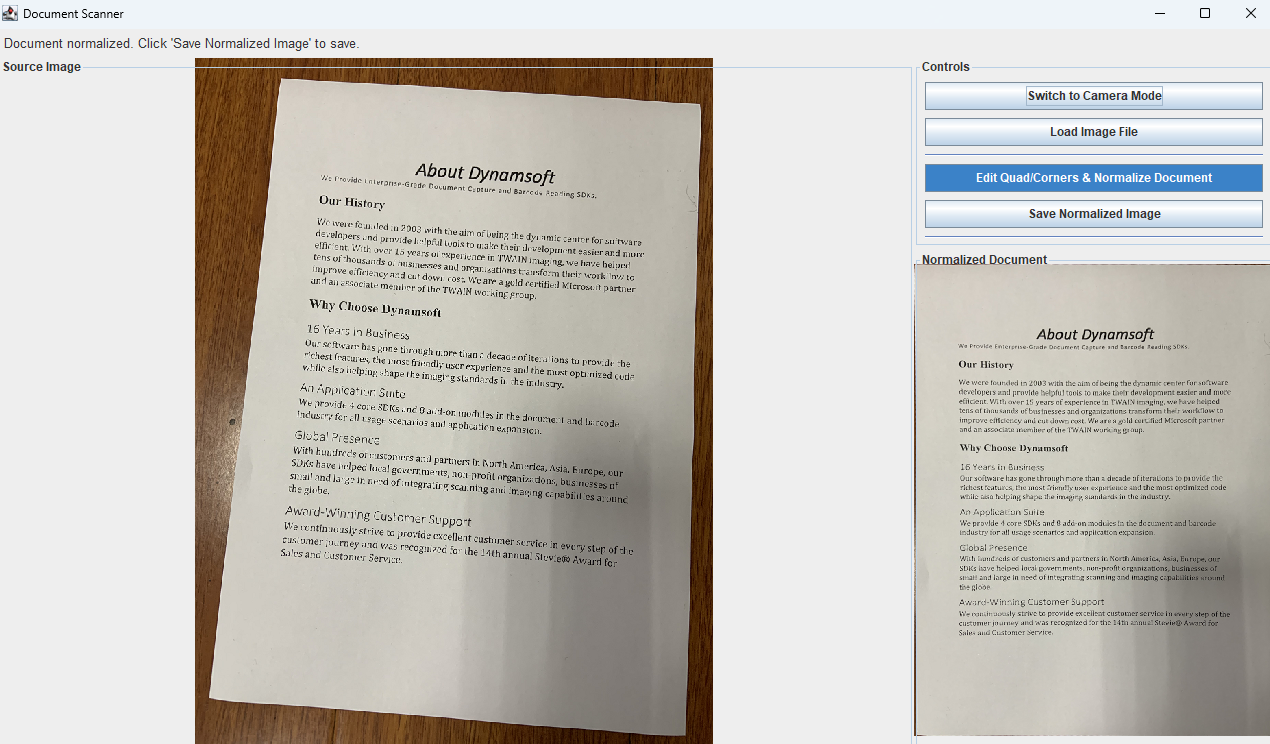
Clicking Edit Quad/Corners & Normalize Document opens a modal QuadEditDialog. The dialog pauses the detection worker so the shared CaptureVisionRouter is idle during the edit:
private void onEditQuad(ActionEvent e) {
    BufferedImage source;
    Quadrilateral quad;
    synchronized (resultLock) {
        source = latestSourceImage;
        quad   = customQuad != null ? customQuad : latestDetectedQuad;
    }

    if (currentMode == Mode.CAMERA) detectPaused.set(true);

    final BufferedImage snapshot = deepCopy(source);
    QuadEditDialog dialog = new QuadEditDialog(
            SwingUtilities.getWindowAncestor(this), snapshot, quad);
    dialog.setVisible(true);

    Quadrilateral edited = dialog.getResult();
    if (edited != null) {
        synchronized (resultLock) { customQuad = edited; }
        final Quadrilateral finalQuad = edited;
        SwingWorker<BufferedImage, Void> sw = new SwingWorker<>() {
            @Override
            protected BufferedImage doInBackground() {
                return perspectiveWarp(snapshot, finalQuad);
            }
            @Override
            protected void done() {
                // update normalizedImage and re-enable UI on EDT ...
            }
        };
        sw.execute();
    } else {
        if (currentMode == Mode.CAMERA) detectPaused.set(false);
    }
}
Normalization is performed by a pure-Java inverse-homography perspective warp. The homography matrix is solved via Gaussian elimination, then each output pixel is reverse-mapped to the source image with bilinear interpolation:
private static BufferedImage perspectiveWarp(BufferedImage src, Quadrilateral quad) {
    Point[] pts = quad.points;
    double topW  = distance(pts[0], pts[1]);
    double botW  = distance(pts[3], pts[2]);
    double leftH = distance(pts[0], pts[3]);
    double riteH = distance(pts[1], pts[2]);
    int outW = Math.max(4, (int) Math.max(topW, botW));
    int outH = Math.max(4, (int) Math.max(leftH, riteH));

    float[] srcPts = {
        (float) pts[0].getX(), (float) pts[0].getY(),
        (float) pts[1].getX(), (float) pts[1].getY(),
        (float) pts[2].getX(), (float) pts[2].getY(),
        (float) pts[3].getX(), (float) pts[3].getY()
    };
    float[] dstPts = { 0, 0, outW - 1, 0, outW - 1, outH - 1, 0, outH - 1 };

    double[] H    = computeHomography(srcPts, dstPts);
    double[] Hinv = invertHomography(H);

    BufferedImage out = new BufferedImage(outW, outH, BufferedImage.TYPE_3BYTE_BGR);
    for (int oy = 0; oy < outH; oy++) {
        for (int ox = 0; ox < outW; ox++) {
            double denom = Hinv[6] * ox + Hinv[7] * oy + Hinv[8];
            double sx    = (Hinv[0] * ox + Hinv[1] * oy + Hinv[2]) / denom;
            double sy    = (Hinv[3] * ox + Hinv[4] * oy + Hinv[5]) / denom;
            // bilinear sample from src ...
        }
    }
    return out;
}
Run the Application
After building the fat JAR (see Step 1), launch the scanner from the target/ directory:
Windows
java -jar target\document-scanner-1.0-jar-with-dependencies.jar
Linux/macOS
java -jar target/document-scanner-1.0-jar-with-dependencies.jar
Pass --file to open an image from disk instead of using the webcam:
java -jar target/document-scanner-1.0-jar-with-dependencies.jar --file
Common Issues & Edge Cases
- License initialization must precede
CaptureVisionRouterconstruction: Callingnew CaptureVisionRouter()beforeLicenseManager.initLicenseresults in an unlicensed watermark on output images. Always callinitLicenseinmainbefore creating Swing components. - Camera index out of range: If no camera is found at the requested index,
initCamerathrows anIllegalArgumentException. Use the--fileflag (java -jar ... --file) to start in file-only mode on machines without a webcam. - Detection paused flag is critical for thread safety: The
detectPausedAtomicBooleanprevents the background worker from callingcvRouter.captureconcurrently while the quad-editSwingWorkeralso uses it for normalization. Removing this guard leads to intermittentCapturedResulterrors under load.
Conclusion
This sample demonstrates how the Dynamsoft Capture Vision SDK removes all the hard parts of document scanning — boundary detection, confidence scoring, and result types — from a Java desktop application, leaving only straightforward Swing and image-conversion code to write. The same CaptureVisionRouter API works identically for static images and live video, making it easy to add file-mode support alongside the camera stream. For next steps, explore the Dynamsoft Capture Vision documentation to add barcode reading or MRZ recognition to the same pipeline.