


How to Choose a Barcode Reader for Retail Checkout Systems
Retail checkout is unforgiving: a scanner that misreads a UPC, chokes on a wrinkled GS1-128 logistics label, or stalls on a loyalty QR code slows every lane in the store. Choosing the right barcode reader means matching the symbologies, platform, and decode reliability that a point-of-sale (POS) terminal actually needs. This tutorial walks through those decision criteria and then proves them out with a desktop Python scanner built with PySide6 and the Dynamsoft Barcode Reader SDK.
What you’ll build: A desktop POS-style scanner app in Python and PySide6 that reads every retail symbology — EAN-13, UPC-A, EAN-8, Code 128, GS1-128, and QR — from a live camera or an image file, drawing live overlays and building a deduplicated receipt with the Dynamsoft Barcode Reader Bundle.
Demo Video: Scanning a Self-Checkout Frame
Open a saved checkout frame or point a webcam at the shelf — the app boxes every barcode and lists each decoded item in a receipt panel:
Key Takeaways
- Retail checkout is dominated by the EAN/UPC family (EAN-13, UPC-A, EAN-8, UPC-E); a checkout reader must also handle GS1 DataBar, Code 128 / GS1-128 for logistics, and QR for loyalty and digital coupons.
- The mainstream POS and self-checkout platform is desktop (Windows/Linux tills), so a desktop-grade SDK like the Dynamsoft Barcode Reader Bundle for Python plus a PySide6 UI is the right fit over a mobile-only library.
- One
CaptureVisionRouter.capture()call decodes every barcode in a frame and returns each code’s location, which is exactly what self-checkout overhead cameras and live preview overlays require. - Restricting decoding to retail symbologies with
barcode_format_idsimproves both speed and accuracy by skipping formats a store will never see.
Common Developer Questions
Which barcode types do retail checkout systems use?
Before writing code, evaluate a reader against four checkout-specific criteria. Choosing a retail checkout barcode reader comes down to symbology coverage, desktop platform fit, multi-code decoding, and decode reliability — and this PySide6 app demonstrates all four with the Dynamsoft Barcode Reader Bundle, reading the full EAN/UPC/Code 128/QR retail mix from a live camera or an image file.
What is the best barcode SDK for a desktop point-of-sale system?
For a desktop POS workflow, the right SDK needs strong EAN/UPC coverage, support for logistics formats like GS1-128, multi-code decoding, and a native desktop integration path. This tutorial demonstrates that combination with Dynamsoft’s Python bundle and a PySide6 checkout-style UI.
How do I build a Python desktop barcode scanner with a camera and a GUI?
Build a PySide6 window for the receipt and preview panel, capture frames with OpenCV, decode them with CaptureVisionRouter, and push the decoded items back into the GUI through a worker thread. The same decode path can also be reused for static checkout images.
How do I draw bounding boxes over decoded barcodes in a live video feed?
Use the four corner points returned for each decode, draw a polygon with cv2.polylines, and place the symbology label next to one corner with cv2.putText. That gives the live checkout preview clear overlay feedback for every barcode in the frame.
How to Choose a Barcode Reader for Retail Checkout
Before writing code, evaluate a reader against four checkout-specific criteria.
Symbology Coverage
Retail product codes are almost always EAN-13, UPC-A, EAN-8, or UPC-E. Beyond the till, you also meet GS1 DataBar (produce, coupons, pharmacy), Code 128 / GS1-128 (cases, weight/batch data), and increasingly QR codes for mobile loyalty and digital coupons. A reader that only handles QR — or only handles 1D codes — will fail somewhere in the store.
Platform Fit
POS terminals and self-checkout kiosks run on desktop operating systems, so the decoding engine has to be a native desktop/server SDK rather than a mobile-only component. Dynamsoft ships the same engine across Python, C++, .NET, Java, and JavaScript, so a PySide6 prototype on desktop maps cleanly to a production C++ or .NET till.
Multi-Code Decoding
Self-checkout cameras and “scan-as-you-bag” stations capture several items at once. The reader must return every barcode in a frame — with its location — not just the first one it finds.
Decode Reliability
Real labels are wrinkled, glare-lit, rotated, and partially occluded. Production-grade engines apply localization, deblurring, and grayscale enhancement automatically — features a hand-rolled or open-source decoder rarely matches.
The app below satisfies all four with the Dynamsoft Barcode Reader Bundle.
Prerequisites
- Python 3.8+
- Dynamsoft Barcode Reader Bundle
11.2.5000(pip install dynamsoft-barcode-reader-bundle) - PySide6, opencv-python, and numpy for the desktop UI and camera
python-barcode,qrcode, andPillowto synthesize the sample image set- A Dynamsoft license key
Get a 30-day free trial license at dynamsoft.com/customer/license/trialLicense
Install everything:
pip install dynamsoft-barcode-reader-bundle==11.2.5000 PySide6 opencv-python numpy python-barcode qrcode Pillow
Step 1: Generate a Realistic Retail Image Set
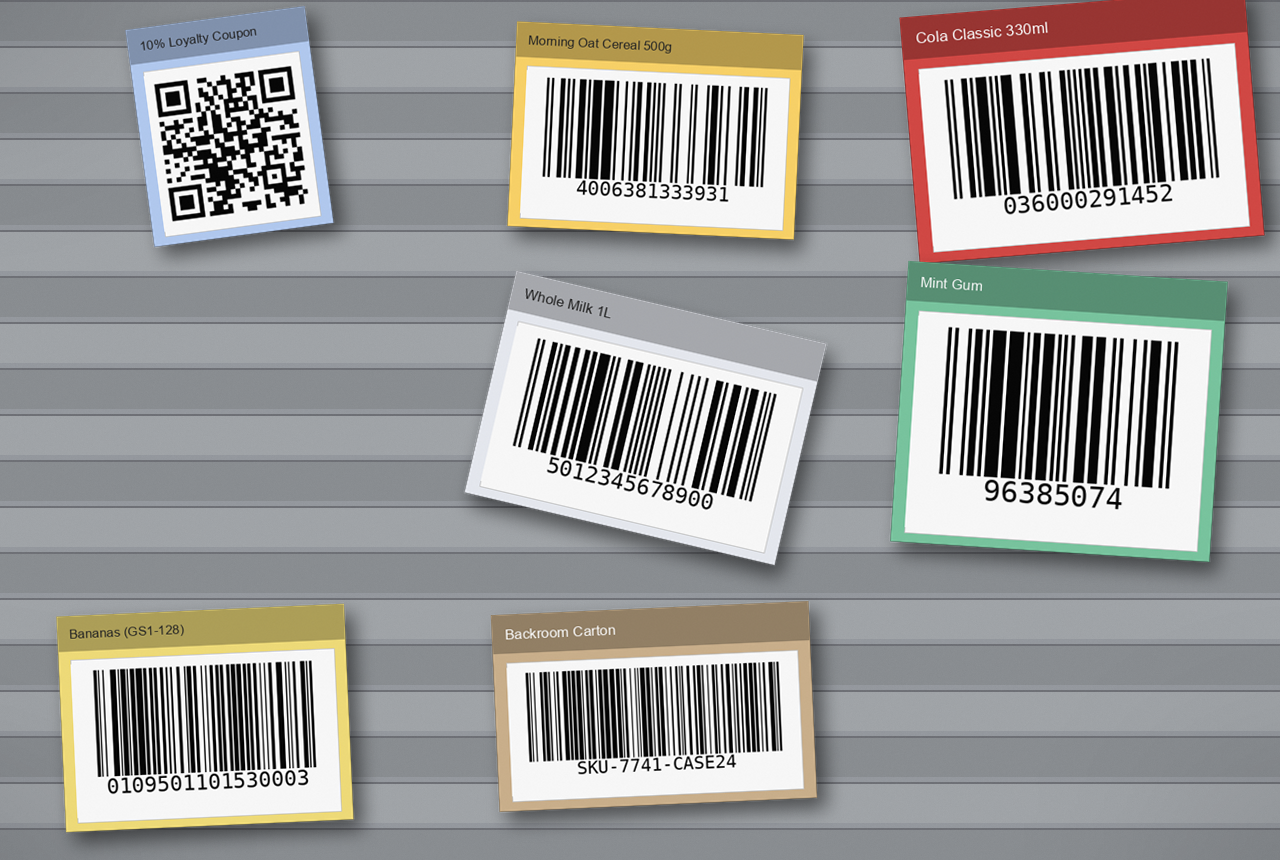
To test without a physical scanner, the project synthesizes product “packages” — a colored card with a name band and a barcode panel — and scatters them on a conveyor-belt background, the way an overhead self-checkout camera sees them. The catalog mixes every symbology a checkout meets:
# (filename, product label, symbology, value, card color)
CATALOG = [
    ("cereal_box", "Morning Oat Cereal 500g", "ean13", "4006381333931", (255, 214, 102)),
    ("soda_can", "Cola Classic 330ml", "upca", "036000291452", (214, 69, 65)),
    ("gum_pack", "Mint Gum", "ean8", "96385074", (120, 200, 160)),
    ("milk_carton", "Whole Milk 1L", "ean13", "5012345678900", (235, 238, 245)),
    ("shipping_label", "Backroom Carton", "code128", "SKU-7741-CASE24", (206, 178, 140)),
    ("weighed_produce", "Bananas (GS1-128)", "gs1_128", "0109501101530003", (245, 224, 120)),
]
Run it to produce images/products/*.png and images/checkout-belt.png:
python generate_retail_images.py
Step 2: Configure the SDK for Retail Symbologies
The decoding engine lives in a small RetailBarcodeEngine class. It initializes the license once, then restricts decoding to retail formats so the reader skips irrelevant work and avoids false reads. Setting expected_barcodes_count = 0 tells it to return every code in a frame:
RETAIL_FORMATS = (
    EnumBarcodeFormat.BF_ONED
    | EnumBarcodeFormat.BF_GS1_DATABAR
    | EnumBarcodeFormat.BF_QR_CODE
)

class RetailBarcodeEngine:
    """Wraps a CaptureVisionRouter configured for retail symbologies."""

    def __init__(self, license_key):
        err_code, err_str = LicenseManager.init_license(license_key)
        if err_code != EnumErrorCode.EC_OK and err_code != EnumErrorCode.EC_LICENSE_WARNING:
            raise RuntimeError(f"License initialization failed: {err_str}")
        self.cvr = CaptureVisionRouter()
        err_code, err_str, settings = self.cvr.get_simplified_settings(
            EnumPresetTemplate.PT_READ_BARCODES)
        settings.barcode_settings.barcode_format_ids = RETAIL_FORMATS
        settings.barcode_settings.expected_barcodes_count = 0
        self.cvr.update_settings(EnumPresetTemplate.PT_READ_BARCODES, settings)
Step 3: Decode a Frame and Capture Barcode Locations
A POS UI needs both the text and the position of every code so it can draw overlays. decode_bgr accepts an OpenCV frame, wraps it in an ImageData, and returns the format, text, and corner points for each barcode:
def decode_bgr(self, frame):
    """Decode a BGR numpy frame; return a list of {format, text, points}."""
    frame = np.ascontiguousarray(frame)
    image_data = ImageData(
        frame.tobytes(), frame.shape[1], frame.shape[0],
        frame.strides[0], EnumImagePixelFormat.IPF_RGB_888,
    )
    result = self.cvr.capture(image_data, EnumPresetTemplate.PT_READ_BARCODES)
    barcode_result = result.get_decoded_barcodes_result()
    items = []
    if barcode_result is not None:
        for item in barcode_result.get_items():
            location = item.get_location()
            points = [(p.x, p.y) for p in location.points]
            items.append({
                "format": item.get_format_string(),
                "text": item.get_text(),
                "points": points,
            })
    return items
The same decode_bgr powers both the image-file mode and the live camera, so there is a single decode path to maintain.
Step 4: Draw Live Overlays Over Each Barcode
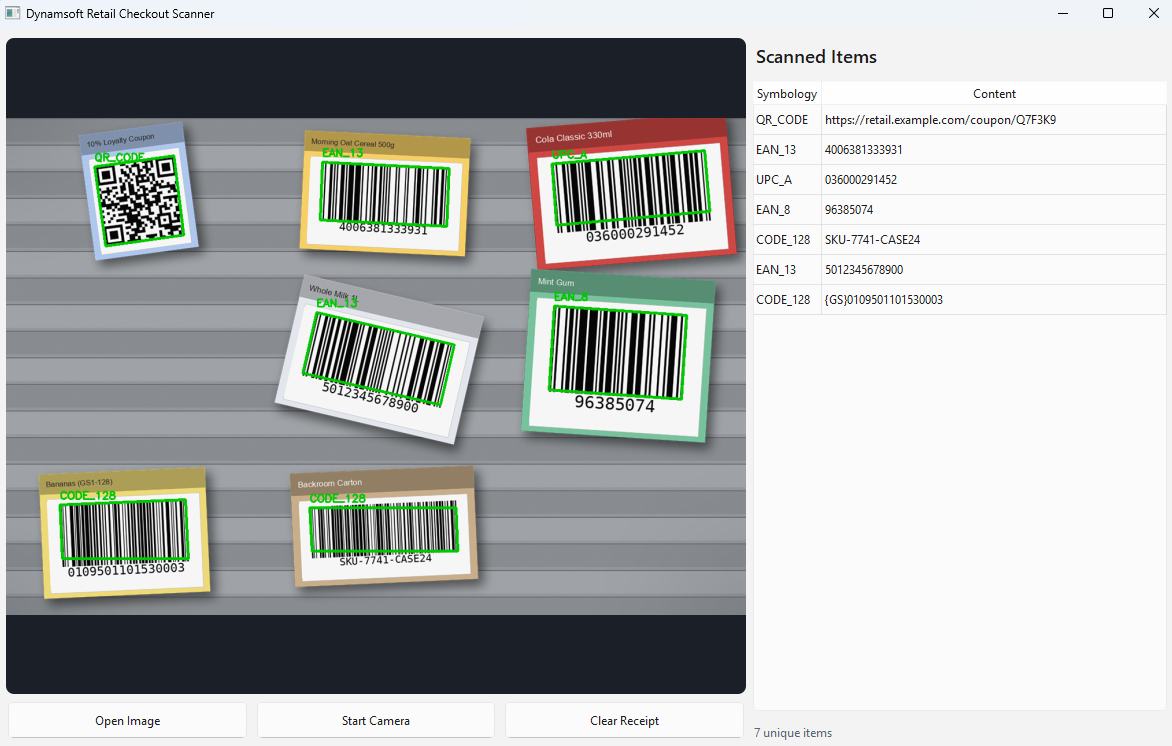
With the corner points in hand, drawing a bounding box and a symbology label is a few lines of OpenCV:
def draw_overlays(frame, items):
    """Draw green quadrilaterals and labels over each decoded barcode."""
    annotated = frame.copy()
    for item in items:
        pts = np.array(item["points"], dtype=np.int32)
        cv2.polylines(annotated, [pts], True, (0, 200, 0), 3)
        x, y = pts[0]
        cv2.putText(annotated, item["format"], (int(x), int(y) - 10),
                    cv2.FONT_HERSHEY_SIMPLEX, 0.6, (0, 200, 0), 2)
    return annotated
Step 5: Stream the Camera on a Background Thread
Decoding every frame on the UI thread would freeze the window, so a QThread grabs frames, decodes them, and emits the annotated image plus the results back to the GUI:
class CameraWorker(QThread):
    """Grabs camera frames, decodes each one, and emits annotated results."""

    frame_ready = Signal(QImage, list)

    def __init__(self, engine, cam_index=0):
        super().__init__()
        self.engine = engine
        self.cam_index = cam_index
        self._running = False

    def run(self):
        cap = cv2.VideoCapture(self.cam_index)
        if not cap.isOpened():
            return
        self._running = True
        while self._running:
            ok, frame = cap.read()
            if not ok:
                break
            items = self.engine.decode_bgr(frame)
            annotated = draw_overlays(frame, items)
            self.frame_ready.emit(bgr_to_qimage(annotated), items)
        cap.release()

    def stop(self):
        self._running = False
        self.wait()
Step 6: Build the POS Receipt and Wire Up the UI
The main window shows the live preview on the left and an accumulating, deduplicated “receipt” table on the right. Both Open Image and Start Camera feed the same add_to_receipt method:
def add_to_receipt(self, item):
    key = (item["format"], item["text"])
    if key in self.seen:
        return
    self.seen.add(key)
    row = self.table.rowCount()
    self.table.insertRow(row)
    fmt_item = QTableWidgetItem(item["format"])
    fmt_item.setForeground(QColor("#1d8a4a"))
    self.table.setItem(row, 0, fmt_item)
    self.table.setItem(row, 1, QTableWidgetItem(item["text"]))
    self.count_label.setText(f"{len(self.seen)} unique items")
Run the app:
python retail_scanner_gui.py
Click Open Image and choose images/checkout-belt.png to decode all seven barcodes in one frame, or click Start Camera to scan real products live. Each unique code lands in the receipt exactly once.
Common Issues & Edge Cases
- GS1-128 reports as
CODE_128with a{GS}separator: GS1-128 is a Code 128 variant, so the engine returns it asCODE_128; the{GS}marker is the GS1 group separator (FNC1). Parse the application identifiers downstream rather than treating it as plain text. - Camera frames are BGR, not RGB: OpenCV delivers frames in BGR order. Decoding is channel-order tolerant, but convert with
cv2.cvtColor(frame, cv2.COLOR_BGR2RGB)before building theQImage, or the preview colors will look wrong. - Network-dependent trial license: The public trial key validates over the network. For an offline till, request an offline/device-bound license from the Dynamsoft customer portal.
- Missed reads on low-resolution frames: EAN-8 and dense 1D codes need enough pixels per module. If a code is missed, raise the camera resolution or move closer instead of loosening the format list.
Frequently Asked Questions
Which barcode symbologies do retail checkout systems use?
Retail products are labeled with the EAN/UPC family — EAN-13, UPC-A, EAN-8, and UPC-E. Stores also rely on GS1 DataBar for produce and coupons, Code 128 / GS1-128 for logistics and weight/batch data, and QR codes for loyalty and digital coupons.
Is desktop or mobile the right platform for a checkout scanner?
POS terminals and self-checkout kiosks run on desktop operating systems, so a native desktop/server SDK is the right choice. The Dynamsoft Barcode Reader Bundle ships the same engine across Python, C++, .NET, and Java, so a desktop prototype ports cleanly to a production till.
Can one call decode multiple barcodes from a single image?
Yes. CaptureVisionRouter.capture() returns every barcode it finds in a frame, each with its text, format, and corner location — ideal for self-checkout cameras and live overlays.
Conclusion
Choosing a retail checkout barcode reader comes down to symbology coverage, desktop platform fit, multi-code decoding, and decode reliability — and this PySide6 app demonstrates all four with the Dynamsoft Barcode Reader Bundle, reading the full EAN/UPC/Code 128/QR retail mix from a live camera or an image file. From here, port the same engine to C++ or .NET for a production till, or read the Dynamsoft Barcode Reader documentation for the full API.