


How to Create a Document Scanning Web Part for SharePoint
SharePoint is a web-based collaboration and document management platform developed by Microsoft. It is commonly used by organizations to create internal websites (often called “intranets”), store and share files, and manage content and business processes. SharePoint pages are made up of Web Parts — reusable components you can add without coding (like document libraries, calendars, news feeds, or custom forms). Developers can also build custom web parts using frameworks like SPFx (SharePoint Framework).
In this article, we are going to create a SharePoint Web Part to use Dynamic Web TWAIN to access physical document scanners.
What you’ll build: A SharePoint web part that hosts a document scanning page in an iframe and uses Dynamic Web TWAIN to acquire, edit, and upload scanned images from physical scanners.
Key Takeaways
- SharePoint’s restricted page environment is easier to work with when the scanner UI is hosted in a separate web page and embedded through an iframe.
- Dynamic Web TWAIN can still provide scanner acquisition, simple image editing, and upload features inside that embedded page.
- SPFx is used for the SharePoint shell, while the actual scanner logic remains plain JavaScript in the hosted page.
- Upload and image-processing actions can be exposed through simple buttons without requiring SharePoint-specific scanner APIs.
Common Developer Questions
How do I add document scanning to a SharePoint page?
Build a custom SPFx web part and embed a separate scanner page inside it with an iframe. This tutorial uses that approach because SharePoint does not make it practical to load the full scanner stack directly as arbitrary page code.
Why is an iframe used instead of loading Dynamic Web TWAIN directly inside the SharePoint web part?
SharePoint pages run inside a more restricted environment, so isolating the scanner UI in its own page avoids many script-loading and integration limitations. That embedded page can then initialize Dynamic Web TWAIN normally and expose scanning controls to the user.
How do I scan and upload pages from a SharePoint scanner web part?
Initialize Dynamic Web TWAIN in the hosted page, let the user select a scanner and acquire images, and then call the SDK upload API to send the current buffer to a server endpoint. The sample also adds rotate and binarize actions before upload so the captured page can be cleaned up first.
Prerequisites
- A SharePoint environment. If you don’t have one, you can apply the Microsoft 365 developer plan to have your own SharePoint online environment: https://developer.microsoft.com/en-us/microsoft-365/
- Node.js (22 LTS is used when the blog is written)
-
Toolchain installed with the following command:
npm install @rushstack/heft yo @microsoft/generator-sharepoint --global
Create a New Web Part Project
Let’s follow the official guide: Build your first SharePoint client-side web part (Hello World part 1)
-
Create a new project by running the Yeoman SharePoint Generator from within the new directory you created:
yo @microsoft/sharepointConsole output:
_-----_ ╭──────────────────────────╮ | | │ Welcome to the Microsoft │ |--(o)--| │ 365 SPFx Yeoman │ `---------´ │ Generator@1.22.2 │ ( _´U`_ ) ╰──────────────────────────╯ /___A___\ / | ~ | __'.___.'__ ´ ` |° ´ Y ` See https://aka.ms/spfx-yeoman-info for more information on how to use this generator. Let's create a new Microsoft 365 solution. √ What is your solution name? dynamic-web-twain `list` prompt is deprecated. Use `select` prompt instead. √ Which type of client-side component to create? WebPart Add new Web part to solution dynamic-web-twain. √ What is your Web part name? DynamicWebTWAIN `list` prompt is deprecated. Use `select` prompt instead. √ Which template would you like to use? No framework -
Start the project and view it in your SharePoint:
heft start
Write a Document Scanning Page
Since SharePoint is a restricted environment, we can not load arbitrary libraries in it. We need to create a web page first and then embed it with iframe.
<!DOCTYPE html>
<html lang="en">
<head>
  <meta charset="UTF-8">
  <meta name="viewport" content="width=device-width, initial-scale=1.0">
  <title>Dynamic Web TWAIN Scanner</title>
  <style>
    * { box-sizing: border-box; margin: 0; padding: 0; }
    body {
      font-family: "Segoe UI", "Segoe UI Web (West European)", -apple-system, BlinkMacSystemFont, Roboto, "Helvetica Neue", sans-serif;
      overflow: hidden;
      padding: 1em;
      background: #fff;
      color: #323130;
    }
    .controls {
      margin-bottom: 10px;
      display: flex;
      flex-wrap: wrap;
      gap: 8px;
    }
    .btn {
      padding: 6px 14px;
      border: 1px solid #edebe9;
      background: #fff;
      color: #323130;
      cursor: pointer;
      font-size: 14px;
      border-radius: 2px;
      font-family: inherit;
    }
    .btn:hover:not(:disabled) {
      background: #f3f2f1;
    }
    .btn:disabled {
      opacity: 0.5;
      cursor: not-allowed;
    }
    .status {
      margin-bottom: 8px;
      font-size: 13px;
      color: #605e5c;
      min-height: 18px;
    }
    .container {
      width: 100%;
      height: calc(100vh - 80px);
      min-height: 400px;
    }
  </style>
</head>
<body>
  <div class="status" id="status">Initializing scanner...</div>
  <div class="controls">
    <button class="btn" id="scanBtn" disabled>Scan</button>
    <button class="btn" id="uploadBtn" disabled>Upload</button>
    <button class="btn" id="binarizeBtn" disabled>Convert to binary image</button>
    <button class="btn" id="rotateCWBtn" disabled>Rotate clockwise</button>
    <button class="btn" id="rotateCCWBtn" disabled>Rotate counter-clockwise</button>
  </div>
  <div id="dwtContainer" class="container"></div>

  <script src="https://cdn.jsdelivr.net/npm/dwt/dist/dynamsoft.webtwain.min.js"></script>
  <script>
    (function () {
      var DWTObject = null;
      var dwtReady = false;
      var containerId = 'dwtContainer';
      var statusEl = document.getElementById('status');
      var buttons = ['scanBtn', 'uploadBtn', 'binarizeBtn', 'rotateCWBtn', 'rotateCCWBtn'];

      function setButtonsEnabled(enabled) {
        buttons.forEach(function (id) {
          document.getElementById(id).disabled = !enabled;
        });
      }

      function setStatus(msg) {
        statusEl.textContent = msg;
      }

      function initDWT() {
        Dynamsoft.DWT.AutoLoad = false;
        Dynamsoft.DWT.IfCheckCssFiles = false;
        Dynamsoft.DWT.Containers = [{
          ContainerId: containerId,
          Width: '100%',
          Height: '100%'
        }];
        Dynamsoft.DWT.ProductKey = 'DLS2eyJvcmdhbml6YXRpb25JRCI6IjIwMDAwMSJ9'; //one-day trial
        Dynamsoft.DWT.ResourcesPath = 'https://cdn.jsdelivr.net/npm/dwt/dist';
        Dynamsoft.DWT.ServiceInstallerLocation = 'https://unpkg.com/dwt/dist/dist/';

        Dynamsoft.DWT.RegisterEvent('OnWebTwainReady', function () {
          DWTObject = Dynamsoft.DWT.GetWebTwain(containerId);
          dwtReady = true;
          setButtonsEnabled(true);
          setStatus('Scanner ready.');
        });

        Dynamsoft.DWT.Load();
      }

      function acquireImage() {
        if (!DWTObject) return;
        DWTObject.SelectSourceAsync()
          .then(function () {
            return DWTObject.AcquireImageAsync({
              IfCloseSourceAfterAcquire: true,
              IfShowUI: false,
              PixelType: Dynamsoft.DWT.EnumDWT_PixelType.TWPT_GRAY,
              Resolution: 150
            });
          })
          .catch(function (exp) {
            alert(exp.message);
          });
      }

      function upload() {
        if (!DWTObject || DWTObject.HowManyImagesInBuffer === 0) {
          alert('There is no image in buffer.');
          return;
        }
        // Replace with your own upload endpoint; configure CORS and authentication there.
        var strUrl = 'https://YOUR_UPLOAD_SERVER/api/documents';
        var imgAry = [DWTObject.CurrentImageIndexInBuffer];
        DWTObject.HTTPUpload(
          strUrl,
          imgAry,
          Dynamsoft.DWT.EnumDWT_ImageType.IT_PNG,
          Dynamsoft.DWT.EnumDWT_UploadDataFormat.Binary,
          'WebTWAINImage.png',
          function () { alert('Upload successful'); },
          function (_errorCode, errorString, sHttpResponse) {
            alert(sHttpResponse.length > 0 ? sHttpResponse : errorString);
          }
        );
      }

      function binarizeImage() {
        if (DWTObject) {
          DWTObject.ConvertToBW(DWTObject.CurrentImageIndexInBuffer);
        }
      }

      function rotateCW() {
        if (DWTObject) {
          DWTObject.RotateRight(DWTObject.CurrentImageIndexInBuffer);
        }
      }

      function rotateCCW() {
        if (DWTObject) {
          DWTObject.RotateLeft(DWTObject.CurrentImageIndexInBuffer);
        }
      }

      // Check if Dynamsoft is already loaded, if not wait for script onload
      function bootstrap() {
        if (window.Dynamsoft && Dynamsoft.DWT) {
          initDWT();
        } else {
          setTimeout(bootstrap, 100);
        }
      }

      document.getElementById('scanBtn').addEventListener('click', acquireImage);
      document.getElementById('uploadBtn').addEventListener('click', upload);
      document.getElementById('binarizeBtn').addEventListener('click', binarizeImage);
      document.getElementById('rotateCWBtn').addEventListener('click', rotateCW);
      document.getElementById('rotateCCWBtn').addEventListener('click', rotateCCW);

      if (document.readyState === 'loading') {
        document.addEventListener('DOMContentLoaded', bootstrap);
      } else {
        bootstrap();
      }
    })();
  </script>
</body>
</html>
Put the file under src\webparts\dynamicWebTwain\assets\dwt-scanner.html.
Use the Document Scanning Page with iframe in Web Part
-
Add a property to specify the URL of the document scanning page.
export interface IDynamicWebTwainWebPartProps { description: string; scannerPageUrl: string; } protected getPropertyPaneConfiguration(): IPropertyPaneConfiguration { return { pages: [ { header: { description: strings.PropertyPaneDescription }, groups: [ { groupName: strings.BasicGroupName, groupFields: [ PropertyPaneTextField('description', { label: strings.DescriptionFieldLabel }), PropertyPaneTextField('scannerPageUrl', { label: 'Scanner Page URL', description: 'URL of the scanner HTML page. Defaults to local dev URL when running locally.' }) ] } ] } ] }; } -
Add a function to resolve the URL for the
iframeto use.private get _resolvedScannerPageUrl(): string { if (this.properties.scannerPageUrl) { return this.properties.scannerPageUrl; } const manifest = this.context.manifest as any; const baseUrls: string[] | undefined = manifest?.loaderConfig?.internalModuleBaseUrls; if (baseUrls && baseUrls.length > 0) { const distUrl = baseUrls[0].replace(/\/+$/, ''); const libUrl = distUrl.replace(/\/dist$/, '') + '/lib'; return libUrl + '/webparts/dynamicWebTwain/assets/dwt-scanner.html'; } if (this.context.isServedFromLocalhost) { return 'https://localhost:4321/lib/webparts/dynamicWebTwain/assets/dwt-scanner.html'; } return ''; } -
Modify
renderfunction to useiframe. Here, we need to addallowattributes for local network access.public render(): void { const scannerUrl = this._resolvedScannerPageUrl; if (!scannerUrl) { this.domElement.innerHTML = ` <section class="${styles.dynamicWebTwain}"> <div class="${styles.placeholder}"> Please configure the <strong>Scanner Page URL</strong> in the web part property pane. </div> </section>`; return; } this.domElement.innerHTML = ` <section class="${styles.dynamicWebTwain} ${!!this.context.sdks.microsoftTeams ? styles.teams : ''}"> <iframe src="${this._escapeHtml(scannerUrl)}" class="${styles.iframe}" allow="loopback-network *; local-network *; local-network-access *" title="Dynamic Web TWAIN Scanner"> </iframe> </section>`; } private _escapeHtml(str: string): string { return str.replace(/&/g, '&').replace(/"/g, '"').replace(/</g, '<').replace(/>/g, '>'); } -
Run
heft startand you can debug the web part in your SharePoint environment.-
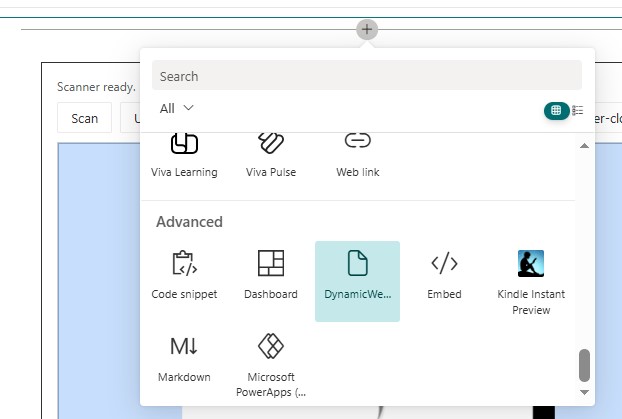
Select the web part to add.
-
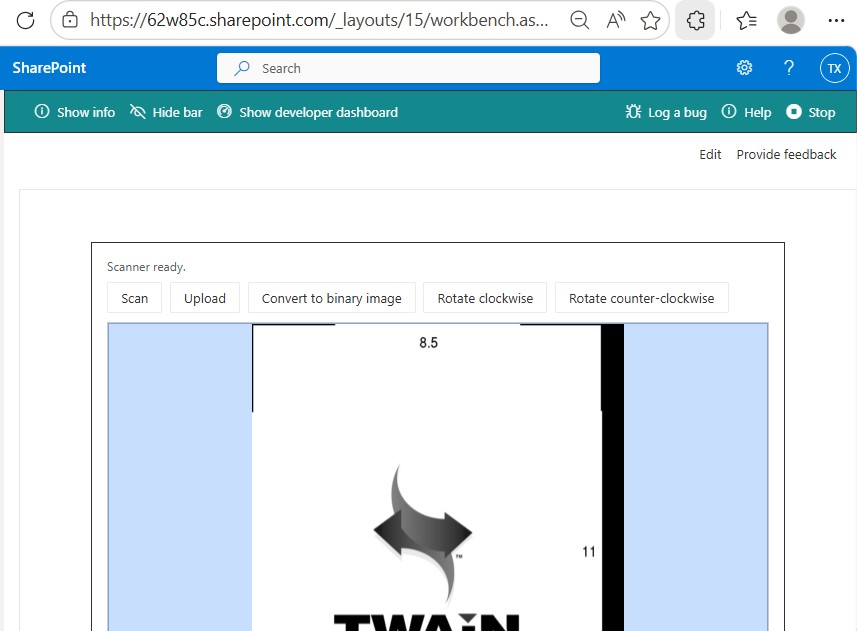
Scanner.
-
All right, we’ve covered the basic parts of using Dynamic Web TWAIN in SharePoint’s Web Part.