


How to Build a Barcode Reader Parameter Tuning Tool with Dynamsoft in Python
When working with barcode detection in real-world applications, developers often encounter scenarios where standard settings fall short. Images with poor lighting, low quality, skewed angles, or complex backgrounds can make accurate detection extremely challenging. Dynamsoft Barcode Reader offers a robust set of parameters that can be fine-tuned to optimize performance across different conditions.
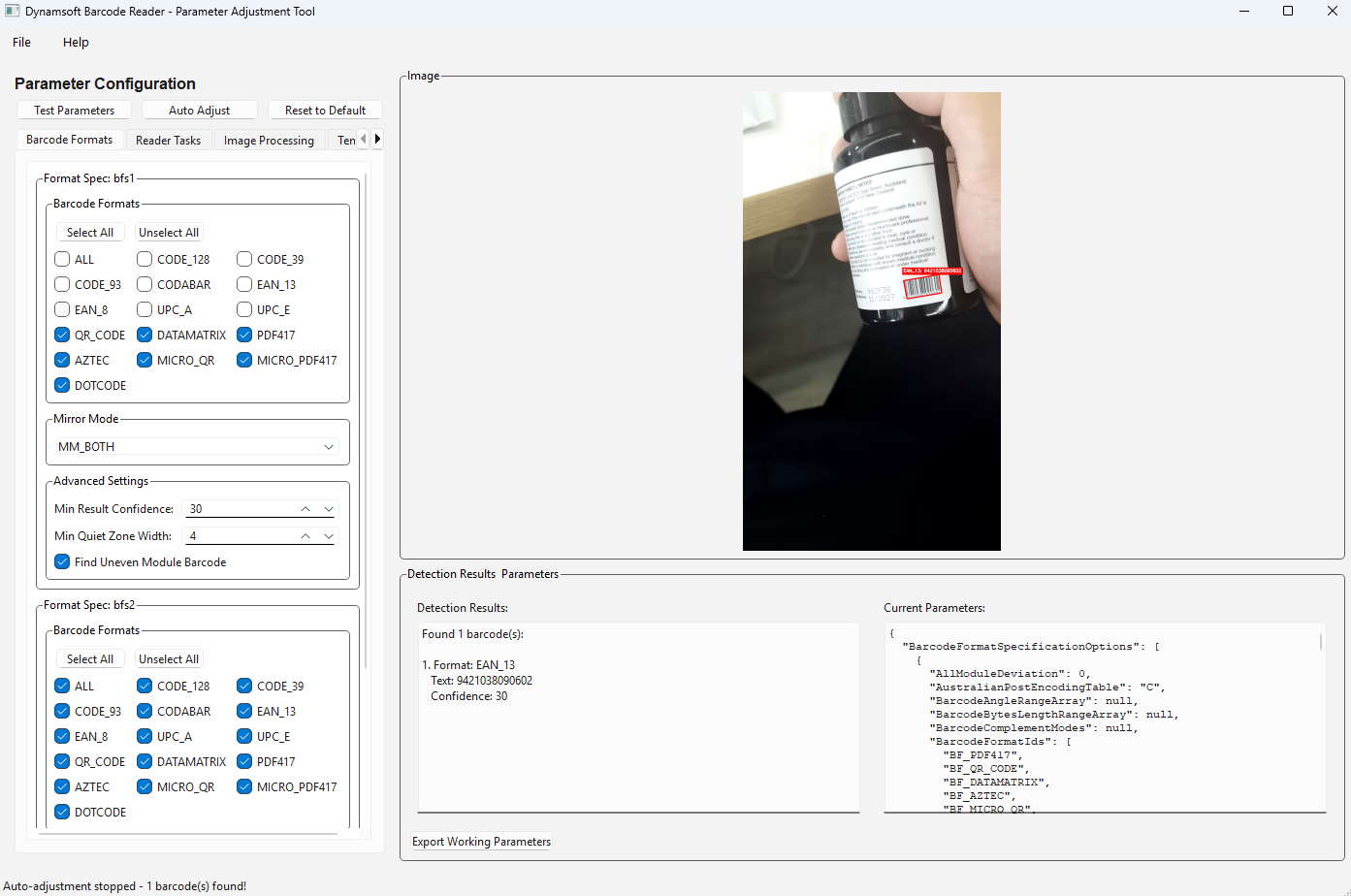
This article demonstrates how to build a GUI tool that visualizes these parameters, turning the complex and time-consuming process of parameter tuning into an efficient, interactive experience. Instead of manually editing JSON configuration files, developers can adjust parameters in real time and immediately see the results.
What you’ll build: A Python desktop GUI application (PySide6 + Dynamsoft Barcode Reader) that exposes the full JSON template parameter hierarchy as interactive controls, runs live barcode detection on test images, and auto-adjusts parameter combinations until a successful read is achieved.
Key Takeaways
- Dynamsoft Barcode Reader’s JSON template system exposes over 50 tunable parameters — a GUI tool makes iterating over them practical and fast.
- The application uses a multi-threaded architecture (PySide6
QThread) so detection never blocks the UI. - Auto-adjustment mode systematically tests up to 100 parameter combinations and stops the moment a barcode is decoded.
- This approach is directly applicable when standard preset templates fail on low-quality, skewed, or complex-background barcode images.
Common Developer Questions
How do I configure Dynamsoft Barcode Reader template parameters to improve detection on difficult images?
Load the runtime JSON settings, surface the important task, format, localization, and binarization options as GUI controls, and rerun detection after each adjustment on the same difficult sample image. That shortens the feedback loop dramatically compared with hand-editing template files.
How do I build a Python GUI tool to tune Dynamsoft barcode JSON templates in real time?
Use PySide6 to map widgets to the JSON template tree, keep the current settings object in memory, and trigger detection work in a background thread whenever the user applies changes. The result is a live parameter-tuning workstation rather than a static config editor.
Why is Dynamsoft Barcode Reader not detecting barcodes, and which parameters should I adjust first?
Start with the parameters that most directly affect difficult images: barcode format restrictions, localization modes, grayscale transformation, binarization settings, and expected barcode count. The tool’s auto-adjustment mode explores those combinations systematically until a working configuration is found.
Demo: Tune Parameters for Difficult Barcode Images
Prerequisites
- Get a 30-day trial license key for Dynamsoft Barcode Reader
- Python 3.8+
-
Python dependencies:
pip install PySide6 opencv-python dynamsoft-barcode-reader-bundle numpy
Why Barcode Detection Is Hard to Tune
Barcode detection is not a one-size-fits-all solution. Different scenarios demand different approaches:
- Lighting Conditions: Poor lighting requires specialized binarization and preprocessing.
- Image Quality: Low-resolution images benefit from scaling and enhancement.
- Barcode Types: Different symbologies (QR, DataMatrix, PDF417, etc.) have unique optimization needs.
- Orientation: Rotated or skewed barcodes call for angle detection and correction.
- Background Complexity: Busy or noisy backgrounds require region detection and filtering.
Why Manual JSON Parameter Tuning Is Painful
Before this tool, developers faced several obstacles:
- Manual JSON Editing: Editing configuration files by hand was tedious and error-prone.
- Blind Testing: No visual feedback on parameter changes made iteration inefficient.
- Limited Understanding: The relationship between parameters and detection results was hard to grasp.
- No Automation: Parameter combinations had to be tested manually, slowing down experimentation.
What the Parameter Tuning Tool Can Do
This tool streamlines parameter tuning with the following capabilities:
- Visual Parameter Tuning: Interactive controls for all barcode detection parameters.
- Real-time Testing: Instant feedback on parameter changes with live detection.
- Auto-adjustment: Intelligent optimization that automatically evaluates parameter combinations.
- Multiple Barcode Format Support: Comprehensive compatibility with 1D/2D barcode symbologies.
- Template Management: Save and load parameter configurations for reuse.
How to Build It: Technical Implementation
Step 1: Set Up the Multi-Threaded Architecture
The application uses a multi-threaded architecture designed for both performance and responsiveness:
class ParameterAdjustmentTool(QMainWindow):
    """Main application orchestrator"""

class BarcodeDetectionWorker(QThread):
    """Threaded barcode detection to prevent UI blocking"""

class ImagePanel(QLabel):
    """Custom image display with overlay rendering"""

class CustomIterationsDialog(QDialog):
    """Popup interface for auto-adjustment configuration"""
Step 2: Map UI Controls to JSON Template Parameters
The tool organizes a large parameter hierarchy through a control–mapping mechanism.
JSON Structure Management
def get_default_settings(self) -> Dict:
    """Get default settings from SDK"""
    try:
        cvr_instance = CaptureVisionRouter()
        error_code, settings, error_str = cvr_instance.output_settings(EnumPresetTemplate.PT_READ_BARCODES.value, True)
        if error_code == EnumErrorCode.EC_OK and settings:
            actual_settings = json.loads(settings)
            if 'BarcodeReaderTaskSettingOptions' in actual_settings:
                for i, task in enumerate(actual_settings['BarcodeReaderTaskSettingOptions']):
                    if 'BarcodeFormatIds' in task:
                        if 'BF_ALL' not in task['BarcodeFormatIds']:
                            task['BarcodeFormatIds'].append('BF_ALL')
            return actual_settings
        else:
            return self.get_fallback_settings()
    except Exception as e:
        return self.get_fallback_settings()


def update_ui_from_settings(self):
    """Update UI controls to reflect current settings values"""
    try:
        if 'BarcodeReaderTaskSettingOptions' in self.current_settings:
            for i, task in enumerate(self.current_settings['BarcodeReaderTaskSettingOptions']):
                if 'ExpectedBarcodesCount' in task:
                    control_key = f'expected_count_task_{i}'
                    if control_key in self.ui_controls:
                        control, prop_type, _ = self.ui_controls[control_key]
                        expected_count = task['ExpectedBarcodesCount']
                        control.setValue(expected_count)

        if 'ImageParameterOptions' in self.current_settings:
            for i, param in enumerate(self.current_settings['ImageParameterOptions']):
                if 'ApplicableStages' in param:
                    for j, stage in enumerate(param['ApplicableStages']):
                        if 'BinarizationModes' in stage:
                            for k, bin_mode in enumerate(stage['BinarizationModes']):
                                if 'Mode' in bin_mode and bin_mode['Mode'] == 'BM_LOCAL_BLOCK':
                                    if 'BlockSizeX' in bin_mode:
                                        control_key = f'block_size_x_param_{i}_stage_{j}_mode_{k}'
                                        if control_key in self.ui_controls:
                                            control, prop_type, _ = self.ui_controls[control_key]
                                            block_x = bin_mode['BlockSizeX']
                                            control.setValue(block_x)

                                    if 'BlockSizeY' in bin_mode:
                                        control_key = f'block_size_y_param_{i}_stage_{j}_mode_{k}'
                                        if control_key in self.ui_controls:
                                            control, prop_type, _ = self.ui_controls[control_key]
                                            block_y = bin_mode['BlockSizeY']
                                            control.setValue(block_y)

    except Exception as e:
        print(f"Error updating UI controls from settings: {e}")
UI Control Mapping
The application maintains a mapping between UI widgets and parameter values:
self.ui_controls = {
    'expected_count_task_0': (spinbox_widget, 'value', default_value),
    'barcode_format_BF_QR': (checkbox_widget, 'checked', True),
    'localization_mode_LM_CONNECTED_BLOCKS': (combo_widget, 'currentText', 'Auto'),
    # ... 50+ parameter mappings
}
Step 3: Generate and Test Parameter Combinations Automatically
Parameter Combination Generation
The auto-adjustment system intelligently generates parameter combinations for different detection modes:
def prepare_auto_adjustment_params(self):
    """Prepare different parameter combinations for auto-adjustment based on selected mode"""

    mode_text = self.auto_adjust_mode.currentText()
    if "Quick" in mode_text:
        max_combinations = 20
        mode_name = "Quick"
    elif "Standard" in mode_text:
        max_combinations = 40
        mode_name = "Standard"
    elif "Comprehensive" in mode_text:
        max_combinations = 60
        mode_name = "Comprehensive"
    elif "Deep" in mode_text:
        max_combinations = 100
        mode_name = "Deep Scan"
    elif "Custom" in mode_text:
        max_combinations = self.custom_iterations_value
        mode_name = f"Custom ({max_combinations})"
    else:
        max_combinations = 40
        mode_name = "Standard"

    self.auto_adjustment_params = []

    localization_modes = [
        [{"Mode": "LM_CONNECTED_BLOCKS", "ConfidenceThreshold": 60, "ModuleSize": 0, "ScanStride": 0}],
        [{"Mode": "LM_SCAN_DIRECTLY", "ConfidenceThreshold": 60, "ModuleSize": 0, "ScanStride": 0}],
        [{"Mode": "LM_STATISTICS", "ConfidenceThreshold": 60, "ModuleSize": 0, "ScanStride": 0}],
        [{"Mode": "LM_LINES", "ConfidenceThreshold": 60, "ModuleSize": 0, "ScanStride": 0}],

        [{"Mode": "LM_CONNECTED_BLOCKS", "ConfidenceThreshold": 60, "ModuleSize": 0, "ScanStride": 0},
            {"Mode": "LM_SCAN_DIRECTLY", "ConfidenceThreshold": 60, "ModuleSize": 0, "ScanStride": 0}],
        [{"Mode": "LM_CONNECTED_BLOCKS", "ConfidenceThreshold": 60, "ModuleSize": 3, "ScanStride": 0},
            {"Mode": "LM_STATISTICS", "ConfidenceThreshold": 50, "ModuleSize": 0, "ScanStride": 0}],
        [{"Mode": "LM_SCAN_DIRECTLY", "ConfidenceThreshold": 40, "ModuleSize": 0, "ScanStride": 4},
            {"Mode": "LM_LINES", "ConfidenceThreshold": 60, "ModuleSize": 0, "ScanStride": 0}],

        [{"Mode": "LM_CONNECTED_BLOCKS", "ConfidenceThreshold": 60, "ModuleSize": 0, "ScanStride": 0},
            {"Mode": "LM_SCAN_DIRECTLY", "ConfidenceThreshold": 60, "ModuleSize": 0, "ScanStride": 0},
            {"Mode": "LM_STATISTICS", "ConfidenceThreshold": 60, "ModuleSize": 0, "ScanStride": 0}],
    ]

    binarization_configs = [
        {"BlockSizeX": 0, "BlockSizeY": 0, "Mode": "BM_LOCAL_BLOCK", "ThresholdCompensation": 10},
        {"BlockSizeX": 71, "BlockSizeY": 71, "Mode": "BM_LOCAL_BLOCK", "ThresholdCompensation": 10},
        {"BlockSizeX": 51, "BlockSizeY": 51, "Mode": "BM_LOCAL_BLOCK", "ThresholdCompensation": 15},
        {"BlockSizeX": 31, "BlockSizeY": 31, "Mode": "BM_LOCAL_BLOCK", "ThresholdCompensation": 20},
        {"BlockSizeX": 0, "BlockSizeY": 0, "Mode": "BM_AUTO", "ThresholdCompensation": 10},
        {"BlockSizeX": 101, "BlockSizeY": 101, "Mode": "BM_LOCAL_BLOCK", "ThresholdCompensation": 5},
    ]

    region_predetection_configs = [
        {"Mode": "RPM_GENERAL", "Sensitivity": 1, "MinImageDimension": 262144},
        {"Mode": "RPM_GENERAL", "Sensitivity": 3, "MinImageDimension": 131072},
        {"Mode": "RPM_GENERAL", "Sensitivity": 5, "MinImageDimension": 65536},
        {"Mode": "RPM_GENERAL", "Sensitivity": 7, "MinImageDimension": 32768},
    ]

    deformation_configs = [
        {"Level": 1, "Mode": "DRM_SKIP"},
        {"Level": 3, "Mode": "DRM_AUTO"},
        {"Level": 5, "Mode": "DRM_AUTO"},
        {"Level": 7, "Mode": "DRM_AUTO"},
    ]

    scale_configs = [
        {"Mode": "BSM_SKIP"},
        {"Mode": "BSM_AUTO", "AcuteAngleWithXThreshold": -1, "ModuleSizeThreshold": 0, "TargetModuleSize": 0},
        {"Mode": "BSM_AUTO", "AcuteAngleWithXThreshold": 20, "ModuleSizeThreshold": 2, "TargetModuleSize": 6},
        {"Mode": "BSM_AUTO", "AcuteAngleWithXThreshold": 45, "ModuleSizeThreshold": 4, "TargetModuleSize": 8},
    ]

    text_order_configs = [
        [{"Mode": "TROM_CONFIDENCE"}],
        [{"Mode": "TROM_CONFIDENCE"}, {"Mode": "TROM_POSITION"}],
        [{"Mode": "TROM_POSITION"}, {"Mode": "TROM_CONFIDENCE"}],
    ]

    expected_counts = [0, 1, 3, 5]

    combination_count = 0

    essential_combinations = []
    for expected_count in [0, 1]:
        for loc_modes in localization_modes[:2]:
            for bin_config in binarization_configs[:2]:
                essential_combinations.append({
                    'expected_count': expected_count,
                    'localization_modes': loc_modes,
                    'binarization_config': bin_config,
                    'region_predetection': region_predetection_configs[0],
                    'deformation_config': deformation_configs[0],
                    'scale_config': scale_configs[0],
                    'text_order': text_order_configs[0]
                })

    ...
Step 4: Report Progress and Stop on First Successful Read
Context-Aware Status Updates
The tool provides detailed progress information with contextual feedback:
def on_progress_update(self, message: str):
    """Handle progress updates from worker thread"""
    if self.auto_adjusting and hasattr(self, 'auto_adjustment_index') and hasattr(self, 'auto_adjustment_params'):
        progress_info = f"Test {self.auto_adjustment_index}/{len(self.auto_adjustment_params)}"
        if "Detecting barcodes" in message:
            self.status_bar.showMessage(f"{progress_info}: Detecting barcodes...")
        elif "Applying settings" in message:
            self.status_bar.showMessage(f"{progress_info}: Applying parameter settings...")
        else:
            self.status_bar.showMessage(f"{progress_info}: {message}")
    else:
        self.status_bar.showMessage(message)
Success Detection and Early Termination
The system automatically halts auto-adjustment once successful detection occurs:
def on_detection_result(self, results: List[Dict], error_message: str):
    """Handle barcode detection results"""
    self.test_btn.setEnabled(True)
    self.progress_bar.setVisible(False)

    if error_message:
        self.result_text.setPlainText(f"Error: {error_message}")
        self.image_panel.set_barcode_results([])
        return

    if results:
        result_text = f"Found {len(results)} barcode(s):\n\n"
        for i, result in enumerate(results, 1):
            result_text += f"{i}. Format: {result['format']}\n"
            result_text += f"   Text: {result['text']}\n"
            result_text += f"   Confidence: {result['confidence']}\n\n"

        self.result_text.setPlainText(result_text)

        if self.auto_adjusting:
            test_number = getattr(self, 'auto_adjustment_index', 0)
            total_tests = len(getattr(self, 'auto_adjustment_params', []))
            self.toggle_auto_adjustment()
            self.status_bar.showMessage(f"Success! Test {test_number}/{total_tests} found {len(results)} barcode(s) - auto-adjustment stopped")
        else:
            self.status_bar.showMessage(f"Detection complete - found {len(results)} barcode(s)")
    else:
        self.result_text.setPlainText("No barcodes detected")
        if not self.auto_adjusting:
            self.status_bar.showMessage("Detection complete - no barcodes found")

    self.image_panel.set_barcode_results(results)
Common Issues & Edge Cases
- No barcodes detected even after auto-adjustment: The test image may be too low-resolution for the chosen module size threshold. Try lowering
ModuleSizeThresholdto0in the binarization config, or enableBSM_AUTOscale mode to let the SDK upscale the image before decoding. output_settingsreturns an empty string or error: Ensure the license key is valid and activated before callingCaptureVisionRouter. An expired or missing license silently disables the SDK’s output methods.- UI freezes during detection: Barcode detection must always run inside the
BarcodeDetectionWorkerQThread— never callcaptureordecodeon the main thread. Check that all post-detection UI updates are emitted via Qt signals and not called directly from the worker.