


How to Build a Passport Scanner Desktop App with Electron and MRZ Recognition
Electron is a framework for building desktop applications using JavaScript, HTML, and CSS. As web technologies have emerged as the best choice for building user interfaces, more and more developers are adopting Electron to build their applications.
In this article, we are going to create an Electron desktop app to scan passports with Dynamsoft Label Recognizer to showcase the technologies.
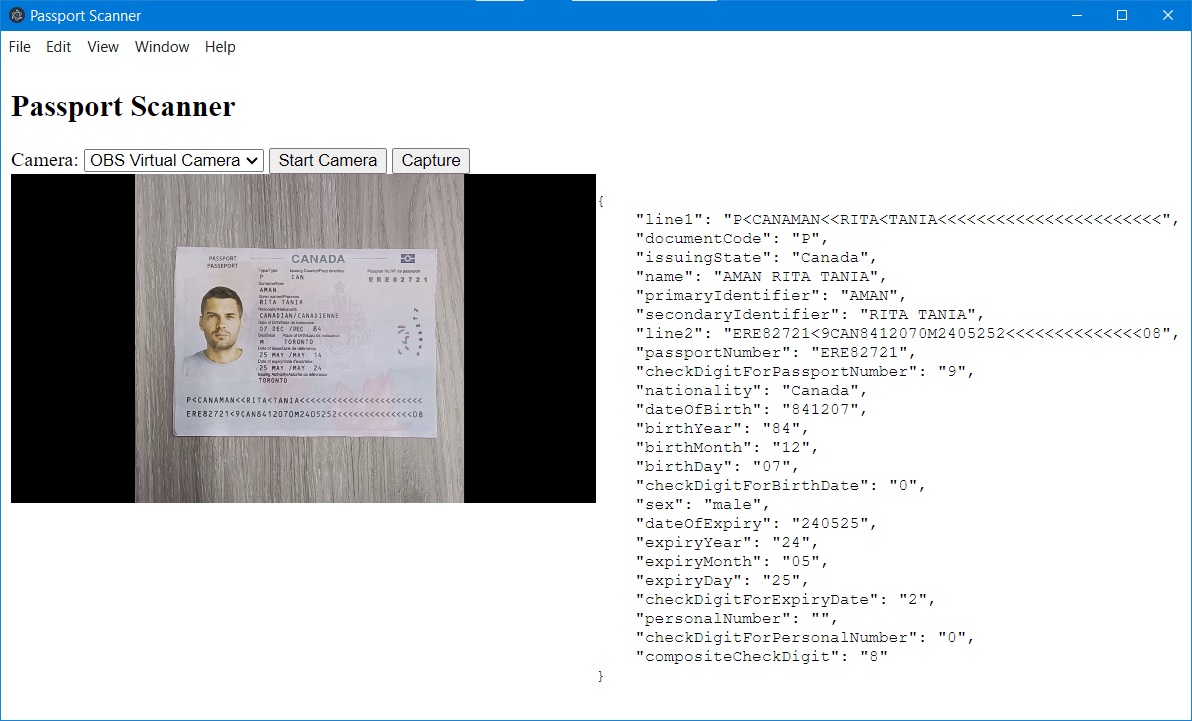
We can see the MRZ (machine-readable zone) is recognized and the owner’s info like name and nationality is extracted.
What you’ll build: A cross-platform Electron desktop app that opens a live camera stream, captures passport frames, and uses Dynamsoft Label Recognizer (Node.js) to parse MRZ fields such as name, nationality, and document number — all running locally without a server.
Key Takeaways
- Electron’s IPC architecture (ipcMain / ipcRenderer) lets you run the Dynamsoft Node.js SDK in the main process while keeping the camera UI in the renderer.
- Dynamsoft Label Recognizer recognizes MRTD TD1, TD2, and TD3 (passport) MRZ formats from a single
captureAsynccall. - All processing happens locally on-device — no cloud API or network round-trip required.
- The approach works on Windows, macOS, and Linux wherever Electron and Node.js run.
Common Developer Questions
How do I build a passport scanner desktop app with Electron and JavaScript?
Use Electron for the desktop shell, open the camera in the renderer process, and send captured frames to the main process through IPC so the Node.js MRZ SDK can decode them. That architecture keeps the UI responsive while the heavier passport parsing work stays in the privileged process.
How do I recognize MRZ text from a live camera feed in an Electron app?
Start a webcam stream with getUserMedia, draw frames to a canvas or export snapshots, and hand those image buffers to Dynamsoft’s Node.js recognition API for MRZ parsing. The decoded fields can then be pushed back into the renderer and shown alongside the preview.
How do I pass image data from the Electron renderer process to the main process for OCR?
Serialize the captured image in the renderer, send it over an ipcRenderer channel, and handle it in ipcMain where the Node.js SDK is available. This is the standard Electron pattern when OCR libraries need filesystem or native-process access that the renderer should not own.
Prerequisites
Get your trial key to activate Dynamsoft Label Recognizer.
Step 1: Create a New Electron Project
-
Create a new project.
npm init -
Install Electron.
npm install electron --save-dev -
Create an
index.htmlfile:<!DOCTYPE html> <html> <head> <meta charset="UTF-8" /> <!-- https://developer.mozilla.org/en-US/docs/Web/HTTP/CSP --> <meta http-equiv="Content-Security-Policy" content="default-src 'self'; script-src 'self'" /> <meta http-equiv="X-Content-Security-Policy" content="default-src 'self'; script-src 'self'" /> <title>Passport Scanner</title> </head> <body> <h1>Passport Scanner</h1> </body> </html> -
Create a
main.jsfile as the entry of the project to start the Electron application.const { app, BrowserWindow } = require('electron/main') const createWindow = () => { const win = new BrowserWindow({ width: 800, height: 600 }) win.loadFile('index.html') } app.whenReady().then(() => { createWindow() app.on('activate', () => { if (BrowserWindow.getAllWindows().length === 0) { createWindow() } }) }) app.on('window-all-closed', () => { if (process.platform !== 'darwin') { app.quit() } }) -
Run
npx electron .to start the program.
Step 2: Install Dynamsoft MRZ Dependencies
Install the node package of Dynamsoft to add the ability to recognize the MRZ text from the passport image.
npm install dynamsoft-capture-vision-for-node dynamsoft-capture-vision-for-node-charactermodel
Step 3: Set Up the Live Camera Stream
Next, open the connected camera using getUserMedia.
-
Add elements in the HTML file.
<div> <label> Camera: <select id="select-camera"></select> </label> <button id="button-start">Start Camera</button> </div> <div class="camera-container"> <video id="camera" autoplay playsinline></video> </div> -
Ask for camera permission.
async function askForPermissions(){ var stream; try { var constraints = {video: true, audio: false}; //ask for camera permission stream = await navigator.mediaDevices.getUserMedia(constraints); } catch (error) { console.log(error); } closeStream(stream); } function closeStream(stream){ try{ if (stream){ stream.getTracks().forEach(track => track.stop()); } } catch (e){ alert(e.message); } } -
List camera devices.
async function listDevices(){ devices = await getCameraDevices() for (let index = 0; index < devices.length; index++) { const device = devices[index]; camSelect.appendChild(new Option(device.label ?? "Camera "+index,device.deviceId)); } } async function getCameraDevices(){ await askForPermissions(); var allDevices = await navigator.mediaDevices.enumerateDevices(); var cameraDevices = []; for (var i=0;i<allDevices.length;i++){ var device = allDevices[i]; if (device.kind == 'videoinput'){ cameraDevices.push(device); } } return cameraDevices; } -
Start the selected camera.
function startCamera(){
  var video = document.getElementById("camera");
  var selectedCamera = camSelect.selectedOptions[0].value;
  var constraints = {
    audio:false,
    video:true
  }
  if (selectedCamera) {
    constraints = {
      video: {deviceId: selectedCamera},
      audio: false
    }
  }
  navigator.mediaDevices.getUserMedia(constraints).then(function(camera) {
    video.srcObject = camera;
  }).catch(function(error) {
    alert('Unable to capture your camera. Please check console logs.');
    console.error(error);
  });
}
Step 4: Capture a Frame as DataURL
Use Canvas to capture a frame as DataURL, which will later be used for MRZ recognition.
HTML:
<div class="result-container">
  <canvas id="captured"></canvas>
</div>
JavaScript:
function capture(){
  var video = document.getElementById("camera");
  var canvas = document.getElementById("captured");
  var context = canvas.getContext("2d");
  canvas.width = video.videoWidth;
  canvas.height = video.videoHeight;
  context.drawImage(video, 0, 0, canvas.width, canvas.height);
  var dataurl = canvas.toDataURL("image/jpeg");
}
Step 5: Recognize the MRZ via IPC
Inter-process communication (IPC) is a key part of building feature-rich desktop applications in Electron. In Electron, processes communicate by passing messages through developer-defined “channels” with the ipcMain and ipcRenderer modules.
The node edition of the Dynamsoft SDK works in the main process. We have to pass the DataURL from the renderer to the main and then pass the recognized result from the main to the renderer.
Let’s add functions to main.js first.
-
Initialize the license of the Dynamsoft SDK.
function initLicense(){ LicenseManager.initLicense('LICENSE-KEY'); } -
Update the runtime settings for MRZ recognition.
function initSettings(){ let mrzTemplate = `{ "CaptureVisionTemplates": [ { "Name": "ReadPassportAndId", "OutputOriginalImage": 1, "ImageROIProcessingNameArray": ["roi-passport-and-id"], "SemanticProcessingNameArray": ["sp-passport-and-id"], "Timeout": 2000 }, { "Name": "ReadPassport", "OutputOriginalImage": 1, "ImageROIProcessingNameArray": ["roi-passport"], "SemanticProcessingNameArray": ["sp-passport"], "Timeout": 2000 }, { "Name": "ReadId", "OutputOriginalImage": 1, "ImageROIProcessingNameArray": ["roi-id"], "SemanticProcessingNameArray": ["sp-id"], "Timeout": 2000 } ], "TargetROIDefOptions": [ { "Name": "roi-passport-and-id", "TaskSettingNameArray": ["task-passport-and-id"] }, { "Name": "roi-passport", "TaskSettingNameArray": ["task-passport"] }, { "Name": "roi-id", "TaskSettingNameArray": ["task-id"] } ], "TextLineSpecificationOptions": [ { "Name": "tls_mrz_passport", "BaseTextLineSpecificationName": "tls_base", "StringLengthRange": [44, 44], "OutputResults": 1, "ExpectedGroupsCount": 1, "ConcatResults": 1, "ConcatSeparator": "\\n", "SubGroups": [ { "StringRegExPattern": "(P[A-Z<][A-Z<]{3}[A-Z<]{39}){(44)}", "StringLengthRange": [44, 44], "BaseTextLineSpecificationName": "tls_base" }, { "StringRegExPattern": "([A-Z0-9<]{9}[0-9][A-Z<]{3}[0-9]{2}[0-9<]{4}[0-9][MF<][0-9]{2}[(01-12)][(01-31)][0-9][A-Z0-9<]{14}[0-9<][0-9]){(44)}", "StringLengthRange": [44, 44], "BaseTextLineSpecificationName": "tls_base" } ] }, { "Name": "tls_mrz_id_td2", "BaseTextLineSpecificationName": "tls_base", "StringLengthRange": [36, 36], "OutputResults": 1, "ExpectedGroupsCount": 1, "ConcatResults": 1, "ConcatSeparator": "\\n", "SubGroups": [ { "StringRegExPattern": "([ACI][A-Z<][A-Z<]{3}[A-Z<]{31}){(36)}", "StringLengthRange": [36, 36], "BaseTextLineSpecificationName": "tls_base" }, { "StringRegExPattern": "([A-Z0-9<]{9}[0-9][A-Z<]{3}[0-9]{2}[0-9<]{4}[0-9][MF<][0-9]{2}[(01-12)][(01-31)][0-9][A-Z0-9<]{8}){(36)}", "StringLengthRange": [36, 36], "BaseTextLineSpecificationName": "tls_base" } ] }, { "Name": "tls_mrz_id_td1", "BaseTextLineSpecificationName": "tls_base", "StringLengthRange": [30, 30], "OutputResults": 1, "ExpectedGroupsCount": 1, "ConcatResults": 1, "ConcatSeparator": "\\n", "SubGroups": [ { "StringRegExPattern": "([ACI][A-Z<][A-Z<]{3}[A-Z0-9<]{9}[0-9<][A-Z0-9<]{15}){(30)}", "StringLengthRange": [30, 30], "BaseTextLineSpecificationName": "tls_base" }, { "StringRegExPattern": "([0-9]{2}[(01-12)][(01-31)][0-9][MF<][0-9]{2}[0-9<]{4}[0-9][A-Z<]{3}[A-Z0-9<]{11}[0-9]){(30)}", "StringLengthRange": [30, 30], "BaseTextLineSpecificationName": "tls_base" }, { "StringRegExPattern": "([A-Z<]{30}){(30)}", "StringLengthRange": [30, 30], "BaseTextLineSpecificationName": "tls_base" } ] }, { "Name": "tls_base", "CharacterModelName": "MRZ", "CharHeightRange": [5, 1000, 1], "BinarizationModes": [ { "BlockSizeX": 30, "BlockSizeY": 30, "Mode": "BM_LOCAL_BLOCK", "EnableFillBinaryVacancy": 0, "ThresholdCompensation": 15 } ], "ConfusableCharactersCorrection": { "ConfusableCharacters": [ ["0", "O"], ["1", "I"], ["5", "S"] ], "FontNameArray": ["OCR_B"] } } ], "LabelRecognizerTaskSettingOptions": [ { "Name": "task-passport", "ConfusableCharactersPath": "ConfusableChars.data", "TextLineSpecificationNameArray": ["tls_mrz_passport"], "SectionImageParameterArray": [ { "Section": "ST_REGION_PREDETECTION", "ImageParameterName": "ip-mrz" }, { "Section": "ST_TEXT_LINE_LOCALIZATION", "ImageParameterName": "ip-mrz" }, { "Section": "ST_TEXT_LINE_RECOGNITION", "ImageParameterName": "ip-mrz" } ] }, { "Name": "task-id", "ConfusableCharactersPath": "ConfusableChars.data", "TextLineSpecificationNameArray": ["tls_mrz_id_td1", "tls_mrz_id_td2"], "SectionImageParameterArray": [ { "Section": "ST_REGION_PREDETECTION", "ImageParameterName": "ip-mrz" }, { "Section": "ST_TEXT_LINE_LOCALIZATION", "ImageParameterName": "ip-mrz" }, { "Section": "ST_TEXT_LINE_RECOGNITION", "ImageParameterName": "ip-mrz" } ] }, { "Name": "task-passport-and-id", "ConfusableCharactersPath": "ConfusableChars.data", "TextLineSpecificationNameArray": ["tls_mrz_passport", "tls_mrz_id_td1", "tls_mrz_id_td2"], "SectionImageParameterArray": [ { "Section": "ST_REGION_PREDETECTION", "ImageParameterName": "ip-mrz" }, { "Section": "ST_TEXT_LINE_LOCALIZATION", "ImageParameterName": "ip-mrz" }, { "Section": "ST_TEXT_LINE_RECOGNITION", "ImageParameterName": "ip-mrz" } ] } ], "CharacterModelOptions": [ { "Name": "MRZ" } ], "ImageParameterOptions": [ { "Name": "ip-mrz", "TextureDetectionModes": [ { "Mode": "TDM_GENERAL_WIDTH_CONCENTRATION", "Sensitivity": 8 } ], "BinarizationModes": [ { "EnableFillBinaryVacancy": 0, "ThresholdCompensation": 21, "Mode": "BM_LOCAL_BLOCK" } ], "TextDetectionMode": { "Mode": "TTDM_LINE", "CharHeightRange": [5, 1000, 1], "Direction": "HORIZONTAL", "Sensitivity": 7 } } ], "SemanticProcessingOptions": [ { "Name": "sp-passport-and-id", "ReferenceObjectFilter": { "ReferenceTargetROIDefNameArray": ["roi-passport-and-id"] }, "TaskSettingNameArray": ["dcp-passport-and-id"] }, { "Name": "sp-passport", "ReferenceObjectFilter": { "ReferenceTargetROIDefNameArray": ["roi-passport"] }, "TaskSettingNameArray": ["dcp-passport"] }, { "Name": "sp-id", "ReferenceObjectFilter": { "ReferenceTargetROIDefNameArray": ["roi-id"] }, "TaskSettingNameArray": ["dcp-id"] } ], "CodeParserTaskSettingOptions": [ { "Name": "dcp-passport", "CodeSpecifications": ["MRTD_TD3_PASSPORT"] }, { "Name": "dcp-id", "CodeSpecifications": ["MRTD_TD1_ID", "MRTD_TD2_ID"] }, { "Name": "dcp-passport-and-id", "CodeSpecifications": ["MRTD_TD3_PASSPORT", "MRTD_TD1_ID", "MRTD_TD2_ID"] } ] }`; CaptureVisionRouter.initSettings(mrzTemplate); } -
Add a function to recognize the MRZ from the image encoded as DataURL.
async function capture(dataurl){ let response = await fetch(dataurl); let bytes = await response.bytes(); let result = await CaptureVisionRouter.captureAsync(bytes, "ReadPassport"); let jsonStr = ""; if (result.parsedResultItems.length > 0) { let parsedResultItem = result.parsedResultItems[0]; jsonStr = JSON.stringify(parsedResultItem.parsed); } return jsonStr; } -
Receive the DataURL message from the renderer and send the parsed result back to it.
const createWindow = () => {
  const win = new BrowserWindow({
    width: 800,
    height: 600,
    webPreferences: {
      devTools: true,
      preload: path.join(__dirname, 'preload.js')
    }
  })
  ipcMain.on('capture', async (event, dataurl) => {
    const webContents = event.sender
    const result = await capture(dataurl);
    webContents.send('update-result', result);
  })
  win.loadFile('index.html')
}
In preload.js, define the functions.
const { contextBridge, ipcRenderer } = require('electron')

contextBridge.exposeInMainWorld('Dynamsoft', {
  onCaptured: (callback) => ipcRenderer.on('update-result', (_event, value) => callback(value)),
  capture: (dataurl) => ipcRenderer.send('capture', dataurl)
})
In index.js (the renderer process), use the following function to send the DataURL message:
window.Dynamsoft.capture(dataurl);
Then, receive the parsed result with the following function:
window.Dynamsoft.onCaptured((value) => {
  let fields = {};
  let parsed = JSON.parse(value);
})
All right, we’ve covered the key parts of the demo.
Common Issues & Edge Cases
- Camera permission denied on macOS/Windows: Electron’s
BrowserWindowdoes not inherit system camera permissions automatically. Callnavigator.mediaDevices.getUserMediaand handle theNotAllowedError— prompt the user to grant camera access in OS settings. - MRZ not detected under poor lighting: Dynamsoft Label Recognizer uses local-block binarization. If recognition fails consistently, ensure the passport is well-lit and held flat; oblique angles or strong reflections on the laminate surface reduce accuracy.
captureAsyncreturns empty results for non-passport documents: The template used in this demo targets TD3 (passport) format by default. Switch toReadIdorReadPassportAndIdtemplate name to handle national ID cards in TD1/TD2 format.
Frequently Asked Questions
How do I build a passport scanner desktop app with Electron?
Use Electron’s main/renderer IPC pattern: run the Dynamsoft Label Recognizer Node.js SDK in the main process, capture a canvas frame in the renderer, send it over ipcRenderer, and return the parsed MRZ JSON via webContents.send.
How accurate is Dynamsoft Label Recognizer for MRZ reading?
Dynamsoft Label Recognizer applies OCR-B font modeling and confusable-character correction (e.g., 0/O, 1/I, 5/S) specifically tuned for ICAO MRTD documents, yielding high accuracy on standard travel documents under typical office lighting.
Can I use this Electron MRZ scanner on Linux?
Yes. The dynamsoft-capture-vision-for-node package ships native binaries for Windows, macOS, and Linux (x64/arm64), and Electron runs on all three platforms.
Source Code
The full source code for this Electron passport scanner is available on GitHub: Get the complete sample project source code on GitHub