


How to Build a Flutter Document Scanner App for Android and iOS That Scans, Edits, and Saves PDFs
A mobile document scanner app typically includes features such as document capture, editing, and saving as PDF files. Since we’ve already created a web application with similar functionality using HTML5, JavaScript, and the Dynamsoft Document Viewer SDK,we can integrate that web app into an Android/iOS WebView to quickly develop mobile document scanner apps. In this tutorial, we’ll walk you through the process of creating such a hybrid mobile app using Flutter and HTML5.
What you’ll build: A Flutter hybrid mobile app for Android and iOS that embeds an HTML5 document scanner in a WebView, captures documents with the device camera, and saves them as PDF files to local storage — powered by the Dynamsoft Document Viewer SDK.
Key Takeaways
- You can embed an existing HTML5/JavaScript document scanner into a Flutter app via WebView without rebuilding the scanning UI natively.
- Dart–JavaScript interop through
JavaScriptChannelpasses PDF bytes from the browser context directly to the Flutter file system. - Android WebView requires an HTTP localhost server (
shelf) to expose both front and back cameras; loading fromfile://restrictsmediaDevicesto the front camera only. - The finished app runs on both Android and iOS, storing PDFs locally with share, open, and delete actions available in a history view.
Common Developer Questions
How do I build a Flutter document scanner app for Android and iOS that saves PDFs?
Embed the existing HTML5 scanner inside webview_flutter, expose a JavaScript channel for file saving, and let the WebView-based document UI handle capture, editing, and PDF generation. Flutter mainly provides the mobile shell, permissions, and local file storage layer.
How do I pass data from JavaScript (WebView) to Dart in Flutter?
Register a JavaScriptChannel on the WebViewController, send serialized byte data from JavaScript, and decode that payload in Dart before writing it to local storage. This is the bridge used here to move generated PDF bytes out of the browser context.
Why can’t my Flutter Android WebView access the back camera?
When the page is loaded from file://, Android WebView does not treat it as a secure context, so camera enumeration is restricted and the back camera may disappear. Serving the assets over a local http://localhost server restores normal mediaDevices behavior.
Demo: Scan Document and Save PDF with Flutter Mobile App
Prerequisites
- 30-day Trial License: Get a license key to activate the Dynamsoft Document Viewer.
- Dynamsoft Document Viewer: Download the sample code to learn how to scan, capture, edit, and save documents as PDFs. The project will be loaded by the Flutter WebView.
Step 1: Install Flutter Dependencies
Add the following dependencies to your pubspec.yaml file:
dependencies:
  ...

  webview_flutter: ^4.13.0
  webview_flutter_android: ^4.7.0
  webview_flutter_wkwebview: ^3.22.0
  image_picker: ^1.1.2
  permission_handler: ^12.0.0+1
  shelf: ^1.4.2
  path: ^1.9.1
  shelf_static: ^1.1.3
  path_provider: ^2.1.5
  fluttertoast: ^8.2.12
  share_plus: ^11.0.0
  open_file: ^3.5.10
Explanation
webview_flutter: Displays web content inside the Flutter app.webview_flutter_android: Android-specific WebView implementation forwebview_flutter.webview_flutter_wkwebview: iOS WebKit-based WebView implementation forwebview_flutter.image_picker: Selects images from the gallery or camera.permission_handler: Manages runtime permissions.shelf: Serves as a web server for Dart applications.path: Provides utilities for handling file paths.shelf_static: Serves static assets using Shelf.path_provider: Locates commonly used storage paths.fluttertoast: Shows native toast messages.share_plus: Shares files and text using the platform’s share interface.open_file: Opens files with the system’s default app (e.g., PDF viewer).
Step 2: Load Local Web Assets into Flutter WebView
- Create an
assets/webdirectory at the root of your project and place your HTML, JavaScript, and CSS files there. -
In
pubspec.yaml, register the assets:assets: - assets/web/ -
Load the HTML file in your Flutter code using the
loadFlutterAssetmethod:WebViewController _controller = WebViewController() ..setJavaScriptMode(JavaScriptMode.unrestricted) ..enableZoom(true) ..setBackgroundColor(Colors.transparent) ..setNavigationDelegate(NavigationDelegate()) ..platform.setOnPlatformPermissionRequest((request) { debugPrint( 'Permission requested by web content: ${request.types}', ); request.grant(); }) ..loadFlutterAsset('assets/web/index.html');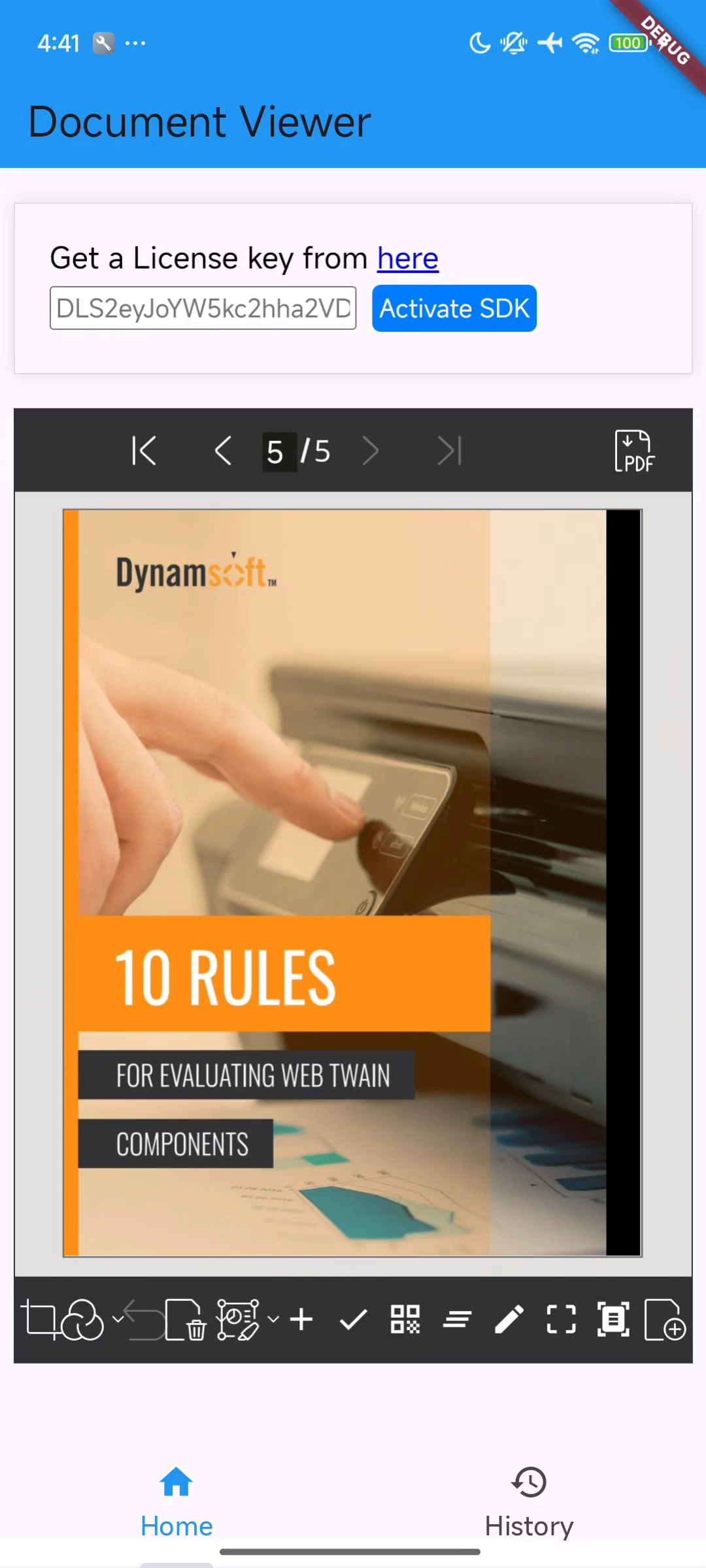
Step 3: Set Up Dart–JavaScript Interop to Save PDFs
To save a PDF file from JavaScript memory to the local file system, add a JavaScript channel named SaveFile to the WebViewController, which listens for messages:
_controller =
          WebViewController()
            ...
            ..addJavaScriptChannel(
              'SaveFile',
              onMessageReceived: (JavaScriptMessage message) async {
                List<dynamic> byteList = jsonDecode(message.message);
                Uint8List pdfBytes = Uint8List.fromList(byteList.cast<int>());

                String filename = await saveFile(pdfBytes);
                Fluttertoast.showToast(
                  msg: "File saved as: $filename",
                  toastLength: Toast.LENGTH_LONG,
                );
              },
            )
            ...
In main.js, convert the blob to a byte array and send it to Dart using SaveFile.postMessage():
savePDFButton.addEventListener('click', async () => {
    const fileName = document.getElementById('fileName').value;
    const password = document.getElementById('password').value;
    const annotationType = document.getElementById('annotationType').value;

    try {
        const pdfSettings = {
            password: password,
            saveAnnotation: annotationType,
        };

        let blob = await editViewer.currentDocument.saveToPdf(pdfSettings);

        sendBlobToDart(blob, fileName + `.pdf`);
    } catch (error) {
        console.log(error);
    }

    document.getElementById("save-pdf").style.display = "none";
});

function sendBlobToDart(blob) {
    const reader = new FileReader();

    reader.onload = function () {
        const arrayBuffer = reader.result;
        const byteArray = new Uint8Array(arrayBuffer);
        SaveFile.postMessage(JSON.stringify(Array.from(byteArray)));
    };

    reader.onerror = function (error) {
        console.error("Error reading blob:", error);
    };

    reader.readAsArrayBuffer(blob);
}
When a message is received on the Dart side:
- Decode the JSON message into a list of dynamic values.
- Convert the list to a
Uint8Listrepresenting PDF bytes. -
Call
saveFile()to save the bytes and return thefilename.Future<String> saveFile(Uint8List pdfBytes) async { final directory = await getApplicationDocumentsDirectory(); String filename = getFileName(); final filePath = '${directory.path}/$filename'; await File(filePath).writeAsBytes(pdfBytes); return filePath; } String getFileName() { DateTime now = DateTime.now(); String timestamp = '${now.year}${now.month}${now.day}_${now.hour}${now.minute}${now.second}'; String name = '$timestamp.pdf'; return name; } - Display a toast message showing the saved
filenameusingFluttertoast.
Step 4: Handle File Selection on Android WebView
By default, <input type="file"> does not work in Android WebView. Use the following code to handle file selection:
if (_controller.platform is AndroidWebViewController) {
      AndroidWebViewController.enableDebugging(true);
      (_controller.platform as AndroidWebViewController)
          .setMediaPlaybackRequiresUserGesture(false);
      (_controller.platform as AndroidWebViewController).setOnShowFileSelector((
        params,
      ) async {
        final XFile? image = await _picker.pickImage(
          source: ImageSource.gallery,
        );
        if (image != null) {
          return ['file://${image.path}'];
        }
        return [""];
      });
    }
Explanation
setOnShowFileSelectoris a method that sets a callback function to handle file selection requests from theWebView.- Inside the callback, it uses the
ImagePickerinstance_pickerto open the device’s image gallery and let the user select an image. - If the user selects an image successfully, it returns an array containing the file
URIof the selected image. - If the user cancels the selection, it returns an array containing an empty string.
Step 5: Grant Camera Access Permission
To enable camera access:
-
Add permissions in platform-specific files:
android/app/src/main/AndroidManifest.xml
<uses-permission android:name="android.permission.CAMERA"/>ios/Runner/Info.plist
<key>NSCameraUsageDescription</key> <string>This app needs camera access to allow the webpage to use your camera for video input.</string> -
Request the camera permission at runtime in Flutter:
 Future<void> requestCameraPermission() async {
   final status = await Permission.camera.request();
   if (status == PermissionStatus.granted) {
   } else if (status == PermissionStatus.denied) {
   } else if (status == PermissionStatus.permanentlyDenied) {
   }
 }

 @override
 void initState() {
     super.initState();
     ...
     requestCameraPermission();
 }
On Android, navigator.mediaDevices.enumerateDevices() returns only the front camera due to WebView security restrictions. This is because loading with file:// lacks a secure context.
Workaround: Serve Assets via HTTP to Enable Full Camera Access on Android
To enable full camera access:
-
Serve assets via
http://localhost.void main() async { WidgetsFlutterBinding.ensureInitialized(); if (Platform.isAndroid) { final dir = await getTemporaryDirectory(); final path = p.join(dir.path, 'web'); final webDir = Directory(path)..createSync(recursive: true); final files = ['index.html', 'full.json', 'main.css', 'main.js']; for (var filename in files) { final ByteData data = await rootBundle.load('assets/web/$filename'); final file = File(p.join(webDir.path, filename)); await file.writeAsBytes(data.buffer.asUint8List()); } final handler = createStaticHandler( webDir.path, defaultDocument: 'index.html', serveFilesOutsidePath: true, ); try { final server = await shelf_io.serve(handler, 'localhost', 8080); print('Serving at http://${server.address.host}:${server.port}'); } catch (e) { print('Failed to start server: $e'); } } runApp(const MyApp()); }Explanation
- Get the temporary directory and creates a web subdirectory.
- Copy web files (HTML, JSON, CSS, JS) from assets to this directory.
- Create a static file handler to serve these files.
- Start a local HTTP server on port 8080 to serve the content.
-
Load the web page using
..loadRequest(Uri.parse('http://localhost:8080/index.html')):if (Platform.isAndroid) { _controller = WebViewController() ..setJavaScriptMode(JavaScriptMode.unrestricted) ..enableZoom(true) ..setBackgroundColor(Colors.transparent) ..setNavigationDelegate(NavigationDelegate()) ..addJavaScriptChannel( 'SaveFile', onMessageReceived: (JavaScriptMessage message) async { List<dynamic> byteList = jsonDecode(message.message); Uint8List pdfBytes = Uint8List.fromList(byteList.cast<int>()); String filename = await saveFile(pdfBytes); Fluttertoast.showToast( msg: "File saved as: $filename", toastLength: Toast.LENGTH_LONG, ); }, ) ..platform.setOnPlatformPermissionRequest((request) { debugPrint( 'Permission requested by web content: ${request.types}', ); request.grant(); }) ..loadRequest(Uri.parse('http://localhost:8080/index.html')); }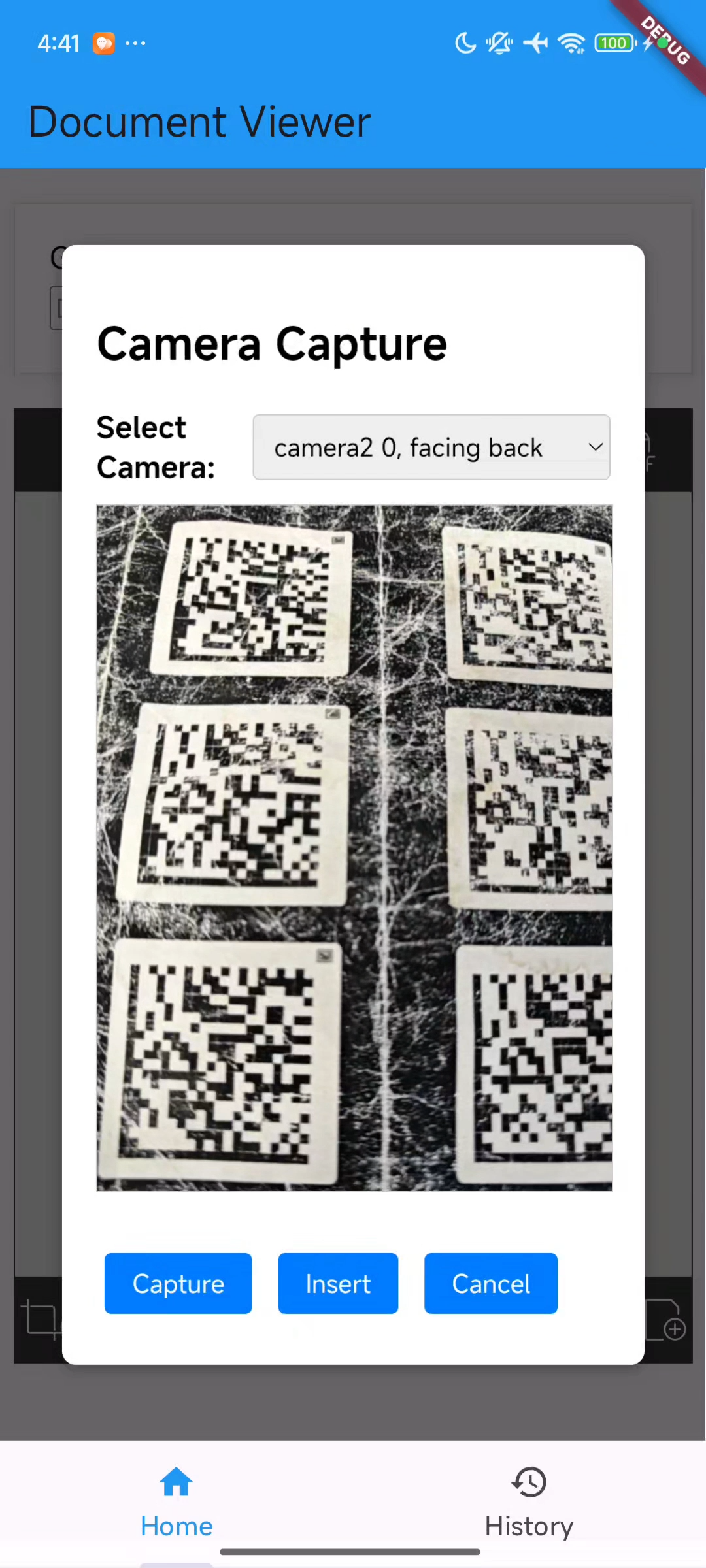
Step 6: Build a PDF History Page for Saved Documents
To view, share, and delete saved PDFs, add a second tab:
-
In
main.dart, construct the UI with aTabBarViewthat has two tabs:HomeandHistory.@override Widget build(BuildContext context) { return Scaffold( body: TabBarView( controller: _tabController, physics: const NeverScrollableScrollPhysics(), children: [ HomeView(title: 'Document Viewer', controller: _controller), const HistoryView(title: 'History'), ], ), bottomNavigationBar: TabBar( labelColor: Colors.blue, controller: _tabController, tabs: const [ Tab(icon: Icon(Icons.home), text: 'Home'), Tab(icon: Icon(Icons.history_sharp), text: 'History'), ], ), ); } -
Create
home_view.dartto show theWebViewWidget:import 'package:flutter/material.dart'; import 'package:webview_flutter/webview_flutter.dart'; class HomeView extends StatefulWidget { final WebViewController controller; final String title; const HomeView({super.key, required this.title, required this.controller}); @override State<HomeView> createState() => _HomeViewState(); } class _HomeViewState extends State<HomeView> with SingleTickerProviderStateMixin { @override void initState() { super.initState(); } @override Widget build(BuildContext context) { return Scaffold( appBar: AppBar(title: Text(widget.title)), body: WebViewWidget(controller: widget.controller), ); } } -
Create
history_view.dartto display the saved PDF documents:import 'package:flutter/material.dart'; import 'package:open_file/open_file.dart'; import 'package:share_plus/share_plus.dart'; import 'utils.dart'; class HistoryView extends StatefulWidget { const HistoryView({super.key, required this.title}); final String title; @override State<HistoryView> createState() => _HistoryViewState(); } class _HistoryViewState extends State<HistoryView> { List<String> _results = []; int selectedValue = -1; @override void initState() { super.initState(); getFiles().then((value) { setState(() { _results = value; }); }); } Widget createListView(BuildContext context, List<String> results) { return ListView.builder( itemCount: results.length, itemBuilder: (context, index) { return RadioListTile<int>( value: index, groupValue: selectedValue, title: Text(results[index]), onChanged: (int? value) { setState(() { selectedValue = value!; }); }, ); }, ); } @override Widget build(BuildContext context) { return Scaffold( appBar: AppBar( title: Text(widget.title), actions: [ IconButton( icon: const Icon(Icons.info), onPressed: () async { if (selectedValue == -1) { return; } await OpenFile.open(_results[selectedValue]); }, ), IconButton( icon: const Icon(Icons.share), onPressed: () async { if (selectedValue == -1) { return; } await SharePlus.instance.share( ShareParams( text: 'Check out this image!', files: [XFile(_results[selectedValue])], ), ); }, ), IconButton( icon: const Icon(Icons.delete), onPressed: () async { if (selectedValue == -1) { return; } bool isDeleted = await deleteFile(_results[selectedValue]); if (isDeleted) { setState(() { _results.removeAt(selectedValue); selectedValue = -1; }); } }, ), ], ), body: Center( child: Stack( children: [ SizedBox(height: MediaQuery.of(context).size.height), if (_results.isNotEmpty) SizedBox( width: MediaQuery.of(context).size.width, height: MediaQuery.of(context).size.height - 200 - MediaQuery.of(context).padding.top, child: createListView(context, _results), ), ], ), ), ); } }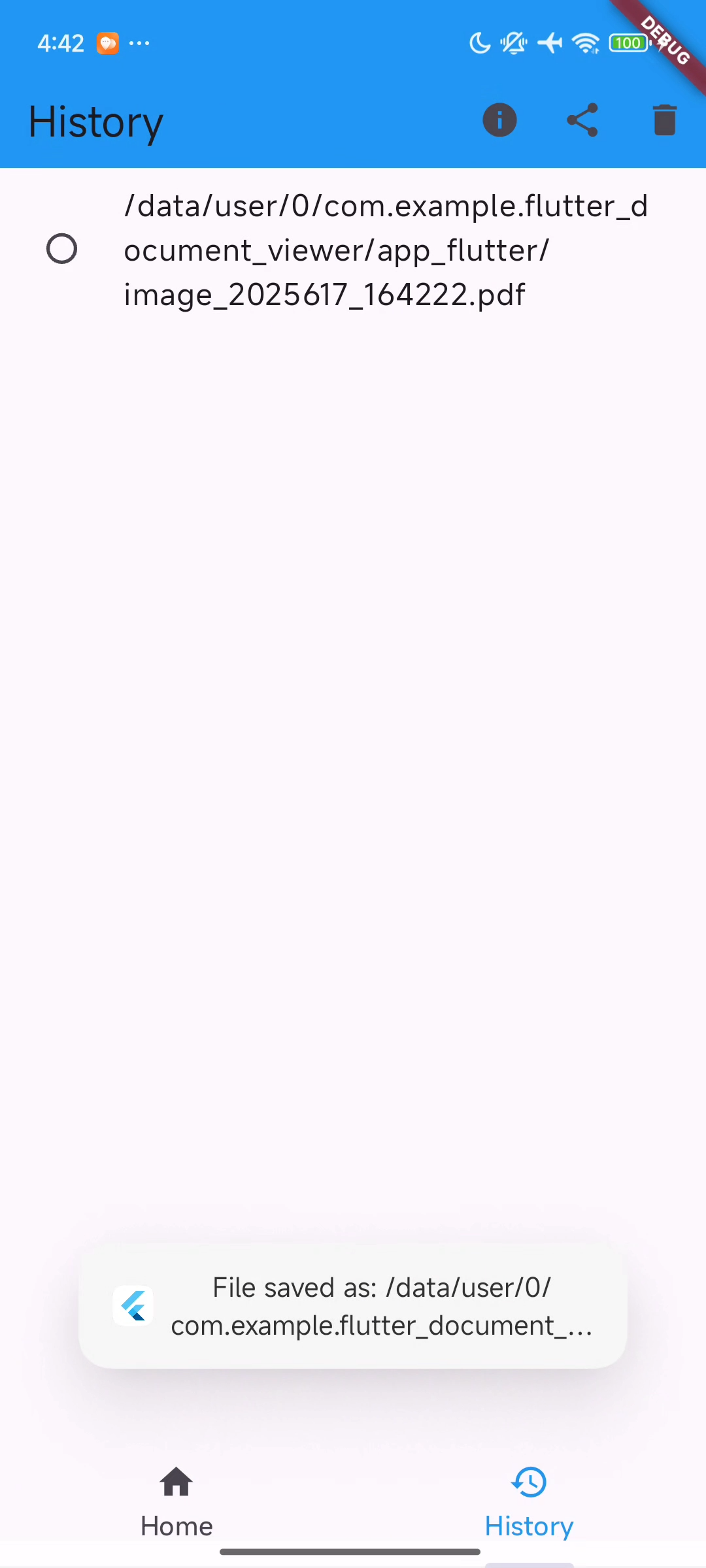
Common Issues & Edge Cases
- Android back camera not accessible in WebView: Loading the HTML page via
file://disables the secure context, which restrictsnavigator.mediaDevices.enumerateDevices()to returning only the front camera. Fix: serve assets from a local HTTP server usingshelf_staticand load the page viahttp://localhost:8080instead. <input type="file">does nothing on Android WebView: The default Android WebView does not route<input type="file">clicks to the system file picker. Fix: usesetOnShowFileSelectorinAndroidWebViewControllerand open the device gallery viaImagePicker.- Toast not showing after save on iOS:
fluttertoastrelies on native bridges that may not fire if the widget is no longer mounted. Verify the widget is still active before callingFluttertoast.showToast, or use aSnackBaras a fallback.