


How to Integrate a Client-Side Document Scanner in a Nuxt.js App
Nuxt is a free and open-source framework with an intuitive and extendable way to create type-safe, performant and production-grade full-stack web applications and websites with Vue.js.
In this article, we are going to build a document scanner using Nuxt.js and Dynamic Web TWAIN. It can scan documents via scanners using protocols like TWAIN, WIA, ESCL, SANE, and ICA.
What you’ll build: A full-stack Nuxt.js web application that lets users acquire scanned pages from a physical document scanner (TWAIN/WIA/ESCL/SANE/ICA) and save them as a PDF — with the Dynamsoft SDK safely loaded client-side to avoid SSR errors.
Key Takeaways
- Dynamic Web TWAIN integrates with Nuxt.js by wrapping the scanner component in
<ClientOnly>to prevent server-side rendering errors. - The SDK supports TWAIN, WIA, ESCL, SANE, and ICA scanner protocols through a unified JavaScript API.
- Scanned pages can be exported as a multi-page PDF directly from the browser with a single API call.
- This pattern applies to any Nuxt.js app that needs to embed a hardware-dependent, DOM-dependent client-side library.
Common Developer Questions
How do I integrate a client-side document scanner SDK in a Nuxt.js app without SSR errors?
Render the scanner component inside ClientOnly and initialize Dynamic Web TWAIN in onMounted(). Keep all SDK imports and setup in client-side execution paths so Nuxt never tries to run scanner code during server rendering.
How do I use Dynamic Web TWAIN with Vue 3 and the Composition API?
Capture the WebTwain object from the OnWebTwainReady callback, store it in component scope, and invoke scan methods from Composition API event handlers. That lets your Nuxt page keep scanner state reactive without mixing browser-only setup into SSR code.
How do I save scanned documents as a PDF in a Nuxt.js app?
Once pages are in the buffer, call the SDK’s PDF save API on the active WebTwain object from your button handler. The article uses the same client-side object for scanner acquisition and export, so no backend PDF merge step is required.
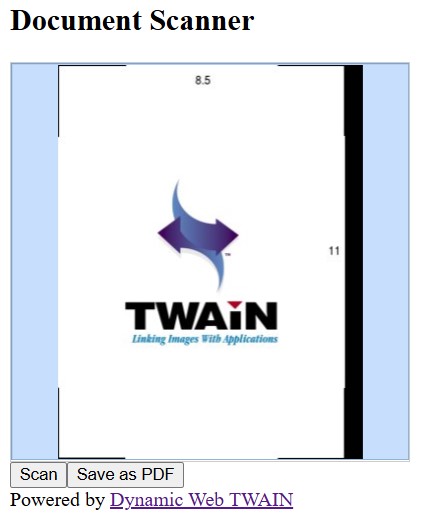
Demo screenshot:
Prerequisites & Nuxt SSR Setup Note
Important for Nuxt.js / SSR: Dynamic Web TWAIN accesses hardware and modifies the DOM directly, so it must run entirely on the client. Wrap the scanner component in
<ClientOnly>(shown in the steps below) to prevent server-side rendering errors. Do not import the SDK in server-only code paths.
Get your trial key.
Step 1: Create a New Nuxt.js Project
Create a new Nuxt.js project named document-scanner:
npx nuxi@latest init document-scanner
Step 2: Install Dependencies
-
Install Dynamic Web TWAIN.
npm install dwt -
Copy the resources of Dynamic Web TWAIN to the public folder.
-
Install
ncp.npm install ncp --save-dev -
Modify
package.jsonto add the following scripts:"build": "ncp node_modules/dwt/dist public/assets/dwt-resources && nuxt build", "dev": "ncp node_modules/dwt/dist public/assets/dwt-resources && nuxt dev",Remember to create the
assets/dwt-resourcesfolder beforehand.
-
Step 3: Build the Document Scanner Vue Component
Next, let’s create a document scanner component under components/DocumentScanner.vue.
In the template, add a div as the container of the viewer of Dynamic Web TWAIN.
<template>
  <div ref='viewer' id='dwtcontrolContainer'></div>
</template>
When the component is mounted, load Dynamic Web TWAIN and register the OnWebTwainReady event. When Web TWAIN is ready, a document viewer will appear in the container. The Web TWAIN object for further actions is emitted using the onWebTWAINReady event.
<script setup lang='ts'>
import { onMounted, ref, watch } from 'vue';
import Dynamsoft from 'dwt';
import { WebTwain } from 'dwt/dist/types/WebTwain';

const emit = defineEmits(['onWebTWAINReady']);
const viewer = ref(null);
const ContainerId = 'dwtcontrolContainer';
let DWObject:WebTwain|undefined;

const initDWT = () => {
  Dynamsoft.DWT.RegisterEvent('OnWebTwainReady', () => {
    DWObject = Dynamsoft.DWT.GetWebTwain(ContainerId);
    emit('onWebTWAINReady',DWObject);
  });

  Dynamsoft.DWT.ResourcesPath = 'assets/dwt-resources';
  Dynamsoft.DWT.Containers = [{
      WebTwainId: 'dwtObject',
      ContainerId: ContainerId
  }];
  Dynamsoft.DWT.Load();
}

onMounted(async () => {
  initDWT();
});
</script>
In addition, we can make the viewer occupy the entire container with the following steps:
-
Set the style for the container.
<style lang="css" scoped> #dwtcontrolContainer { width: 100%; height: 100%; } </style> -
Modify the viewer’s size.
DWObject.Viewer.width = "100%";
DWObject.Viewer.height = "100%";
Step 4: Use the Scanner Component in Your Nuxt.js App
Switch to app.vue. Let’s use the scanner component in the app.
-
Import the scanner component. Since the SDK has to modify the DOM, we need to wrap the scanner with
ClientOnly.<template> <div> <h2>Document Scanner</h2> <div id="viewer"> <ClientOnly> <DocumentScanner @onWebTWAINReady="onWebTWAINReady"></DocumentScanner> </ClientOnly> </div> </div> </template> <script setup lang="ts"> import { WebTwain } from 'dwt/dist/types/WebTwain'; let DWTObject:WebTwain|undefined; const onWebTWAINReady = (dwt:WebTwain) => { DWTObject = dwt; }; </script> <style lang="css" scoped> #viewer { width: 320px; height: 320px; } </style> -
Add a button to trigger scanning.
<template> <button @click="scan">Scan</button> </template> <script setup lang="ts"> const scan = ()=> { if (DWTObject) { DWTObject.SelectSourceAsync() .then(function () { return DWTObject!.AcquireImageAsync({ IfCloseSourceAfterAcquire: true, }); }) .catch(function (exp) { alert(exp.message); }); } } </script> -
Add a button to save the scanned document pages as a PDF file.
<template>
  <button @click="save">Save</button>
</template>
<script setup lang="ts">
const save = ()=> {
  if (DWTObject) {
    DWTObject.SaveAllAsPDF("Scanned.pdf",
    function(){
      console.log("success")
    },
    function(errorCode:number,errorString:string){
      console.log(errorString)
    });
  }
}
</script>
All right, we’ve now finished the document scanner with Nuxt.js. You can check out the online demo to have a try.
Common Issues & Edge Cases
- SDK fails to load in SSR mode: If you see errors like
document is not definedorwindow is not definedat build time, you have not wrapped the component in<ClientOnly>. All Dynamic Web TWAIN initialization must happen insideonMountedor within a<ClientOnly>boundary. - Resources path 404: The
ResourcesPathmust point to the public folder where you copied the DWT dist files (e.g.,assets/dwt-resources). If the path is wrong, the viewer will render blank. Verify thencpcopy step ran beforenuxt dev. - Scanner does not appear in source list: On Windows, TWAIN and WIA drivers must be installed for the physical scanner. On macOS, ICA is used automatically. The
SelectSourceAsync()method lists all available drivers — if the list is empty, the driver is missing or the Dynamsoft Service is not running.
Source Code
The complete project is available on GitHub: Get the complete sample project source code on GitHub