


Build a Web Barcode Reader with Python FastAPI: Read Barcodes from Uploaded Images
FastAPI is a modern, async-ready Python web framework for building APIs. It wraps low-level ASGI (Asynchronous Server Gateway Interface) interfaces and is built on top of Starlette and Pydantic. The combination of FastAPI and Uvicorn is ideal for creating high-performance web applications. In this article, you’ll learn how to build a web-based barcode reader using FastAPI, Uvicorn, Dynamsoft Barcode Reader SDK and HTML5.
What you’ll build: A Python web application that accepts image uploads via a FastAPI endpoint, decodes barcodes and QR codes using Dynamsoft Barcode Reader SDK, and returns each barcode’s type, content, and pixel location as JSON — visualized on an HTML5 Canvas overlay without a page reload.
Key Takeaways
- FastAPI with Uvicorn is an ASGI-based stack that handles image upload endpoints asynchronously, making it 2–3× faster than Flask or Django for this workload.
- Dynamsoft Capture Vision Bundle’s
CaptureVisionRouter.capture()decodes multiple barcode formats (QR Code, Code 128, PDF417, Data Matrix, and more) from raw image bytes in a single call. - The HTML5 Canvas overlay draws barcode bounding boxes directly on the uploaded image on the client side — no server-side image rendering required.
- This architecture applies to server-side barcode validation pipelines, document digitization workflows, and inventory management web portals.
Common Developer Questions
How do I read barcodes from uploaded images using Python FastAPI?
The FastAPI app posts image files to the /scan endpoint, reads the uploaded bytes, and decodes them with CaptureVisionRouter using the read-barcodes preset. The API returns JSON containing barcode count plus each item’s format, text, and four-corner location points.
Which Python barcode library has the best accuracy for decoding QR codes and Code 128 barcodes?
No head-to-head benchmark is included here, so this tutorial does not claim a measured winner across all Python barcode libraries. It demonstrates Dynamsoft Capture Vision as the decoding engine and focuses on a production-style FastAPI integration with structured JSON results and overlay coordinates.
How do I draw barcode location overlays on an uploaded image in a web browser without reloading the page?
The frontend uses fetch with FormData to call /scan asynchronously, so detection results are rendered without a full page refresh. After image load, the canvas is sized to the image’s natural dimensions and polygon paths are drawn from the returned corner coordinates to align overlays correctly.
Web Barcode Reader Demo
Prerequisites
- Python 3.8 or higher
- A Dynamsoft Barcode Reader license key — Get a 30-day free trial license to follow along.
Why FastAPI? Comparing FastAPI, Flask, and Django for Barcode APIs
Before diving into the code, let’s briefly compare FastAPI with other popular Python web frameworks: Flask and Django.
| Feature / Aspect | FastAPI | Flask | Django |
|---|---|---|---|
| Performance (raw speed) | ⭐ High Built on ASGI + Starlette ~2–3x faster than Flask |
Medium WSGI-based |
Low to Medium WSGI-based |
| Async Support | ✅ Native async/await from the ground up | ❌ Not native, needs workarounds | ❌ Partial (via channels or async views) |
| Auto-generated Docs | ✅ Swagger & ReDoc built-in | ❌ None by default | ❌ None by default |
| Deployment | ASGI (e.g., Uvicorn, Hypercorn) | WSGI (e.g., Gunicorn) | WSGI (e.g., Gunicorn) |
Project Structure: How the Application Is Organized
The project structure is as follows:
Project
├── templates
│   └── index.html
├── static
│   ├── script.js
│   └── style.css
└── backend.py
Explanation
- templates: Contains HTML templates.
- static: Contains JavaScript and CSS files.
- backend.py: The main FastAPI application file that handles the backend logic.
What the Barcode Reader Application Can Do
The web barcode reader application is capable of:
- Upload images containing barcodes.
- Detect and decode barcodes using the Dynamsoft Capture Vision Bundle.
- Display barcode details, including type and content.
- Visualize barcode locations on the uploaded image.
How to Build the Web Barcode Reader Step by Step
In the following sections, we will walk through the steps to build the web barcode reader application using FastAPI and HTML5.
Step 1: Install Required Python Packages
Install the required packages using pip:
fastapi uvicorn dynamsoft-capture-vision-bundle python-multipart
Step 2: Set Up the FastAPI Server with Uvicorn
-
Import required libraries:
from fastapi import FastAPI, File, UploadFile from fastapi.responses import JSONResponse from fastapi.staticfiles import StaticFiles from fastapi.middleware.cors import CORSMiddleware from fastapi.templating import Jinja2Templates from fastapi.requests import Request from dynamsoft_capture_vision_bundle import * -
Create the FastAPI application and configure CORS and static files:
app = FastAPI() app.add_middleware(CORSMiddleware, allow_origins=["*"], allow_methods=["*"], allow_headers=["*"],) app.mount("/static", StaticFiles(directory="static"), name="static") templates = Jinja2Templates(directory="templates") -
Initialize the Dynamsoft Barcode Reader SDK:
license_key = "YOUR_LICENSE_KEY" LicenseManager.init_license(license_key) cvr_instance = CaptureVisionRouter() -
Define the FastAPI routes:
 @app.get("/")
 async def upload_page(request: Request):
     return templates.TemplateResponse("index.html", {"request": request})

 @app.post("/scan")
 async def scan_barcode(file: UploadFile = File(...)):
     try:
         image_data = await file.read()
         result = cvr_instance.capture(image_data, EnumPresetTemplate.PT_READ_BARCODES.value)

         if result.get_error_code() != EnumErrorCode.EC_OK:
             return JSONResponse({"success": False, "error": "No barcode detected"}, status_code=400)

         items = result.get_items()
         return_items = []
         for item in items:
             location = item.get_location()
             return_items.append({
                 "format": item.get_format_string(),
                 "text": item.get_text(),
                 "location": {
                     "x1": location.points[0].x, "y1": location.points[0].y,
                     "x2": location.points[1].x, "y2": location.points[1].y,
                     "x3": location.points[2].x, "y3": location.points[2].y,
                     "x4": location.points[3].x, "y4": location.points[3].y,
                 }
             })

         return {"success": True, "count": len(items), "items": return_items}
     except Exception as e:
         return JSONResponse({"success": False, "error": str(e)}, status_code=500)
Explanation
- The
/route serves the HTML page for uploading images. - The
/scanroute handles the image upload and barcode scanning. It reads the uploaded image, processes it using the Dynamsoft Barcode Reader SDK, and returns the barcode results in JSON format.
- The
-
Import
uvicornand run the FastAPI application in the main block:if __name__ == "__main__": import uvicorn uvicorn.run(app, host="0.0.0.0", port=8000)
Step 3: Build the HTML Frontend for Image Upload
The index.html file includes a file input for uploading images and triggering the barcode scanning, an img element to preview the uploaded image, a canvas element for drawing the barcode locations, and a section to display the results.
<!DOCTYPE html>
<html>

<head>
    <title>Barcode Scanner</title>
    <link rel="stylesheet" href="/static/style.css">
</head>

<body>
    <div class="container">
        <h1>Upload Barcode Image</h1>
        <input type="file" id="fileInput" accept="image/*" capture="camera">
        <div id="imageview">
            <img id="preview">
            <canvas id="overlay"></canvas>
        </div>
        <div class="progress" id="progress">Processing...</div>
        <div id="result"></div>
    </div>


    <script src="/static/script.js"></script>
</body>

</html>
The style.css file contains the CSS styles for the web page, including styles for the container, image preview and canvas overlay.
.container {
    max-width: 600px;
    margin: 2rem auto;
    padding: 2rem;
}

#imageview {
    position: relative;
    display: block;
    width: 100%;
    max-width: 80%;
}

#imageview img {
    width: 100%;
    height: auto;
    object-fit: contain;
    display: block;
}

#overlay {
    position: absolute;
    top: 0;
    left: 0;
    pointer-events: none;
    width: 100%;
    height: 100%;
}
The script.js file contains the JavaScript code that handles image uploads, receives barcode results, and draws the barcode locations on the canvas.
const fileInput = document.getElementById('fileInput');
const preview = document.getElementById('preview');
const overlay = document.getElementById('overlay');
const progress = document.getElementById('progress');
const resultDiv = document.getElementById('result');

fileInput.addEventListener('change', async (e) => {
    const file = e.target.files[0];
    if (!file) return;

    const imageURL = URL.createObjectURL(file);
    preview.src = imageURL;

    preview.onload = async () => {
        overlay.width = preview.naturalWidth;
        overlay.height = preview.naturalHeight;

        const formData = new FormData();
        formData.append('file', file);

        progress.style.display = 'block';
        resultDiv.innerHTML = '';
        const ctx = overlay.getContext('2d');
        ctx.clearRect(0, 0, overlay.width, overlay.height);

        try {
            const response = await fetch('/scan', {
                method: 'POST',
                body: formData
            });

            const data = await response.json();
            if (data.success) {
                let resultHTML = `<h3>Found ${data.count} barcode(s)</h3><div class="results-container">`;

                data.items.forEach((item, index) => {
                    const loc = item.location;

                    const x1 = loc.x1;
                    const y1 = loc.y1;
                    const x2 = loc.x2;
                    const y2 = loc.y2;
                    const x3 = loc.x3;
                    const y3 = loc.y3;
                    const x4 = loc.x4;
                    const y4 = loc.y4;

                    ctx.beginPath();
                    ctx.moveTo(x1, y1);
                    ctx.lineTo(x2, y2);
                    ctx.lineTo(x3, y3);
                    ctx.lineTo(x4, y4);
                    ctx.closePath();
                    ctx.lineWidth = 2;
                    ctx.strokeStyle = 'red';
                    ctx.stroke();

                    ctx.font = '16px Arial';
                    ctx.fillStyle = 'blue';
                    ctx.fillText(item.text, x1 + 5, y1 - 5);

                    resultHTML += `
                        <div class="barcode-result">
                            <h4>Barcode #${index + 1}</h4>
                            <p><strong>Type:</strong> ${item.format}</p>
                            <p><strong>Content:</strong> ${item.text}</p>
                        </div>
                    `;
                });

                resultHTML += `</div>`;
                resultDiv.innerHTML = resultHTML;
            } else {
                resultDiv.innerHTML = `Error: ${data.error}`;
            }
        } catch (err) {
            resultDiv.innerHTML = 'Request failed';
        } finally {
            progress.style.display = 'none';
        }
    };
});
Step 4: Run and Test the Barcode Scanner Application
-
In your terminal, navigate to the project directory and run:
python backend.py -
Open your browser and visit
http://localhost:8000.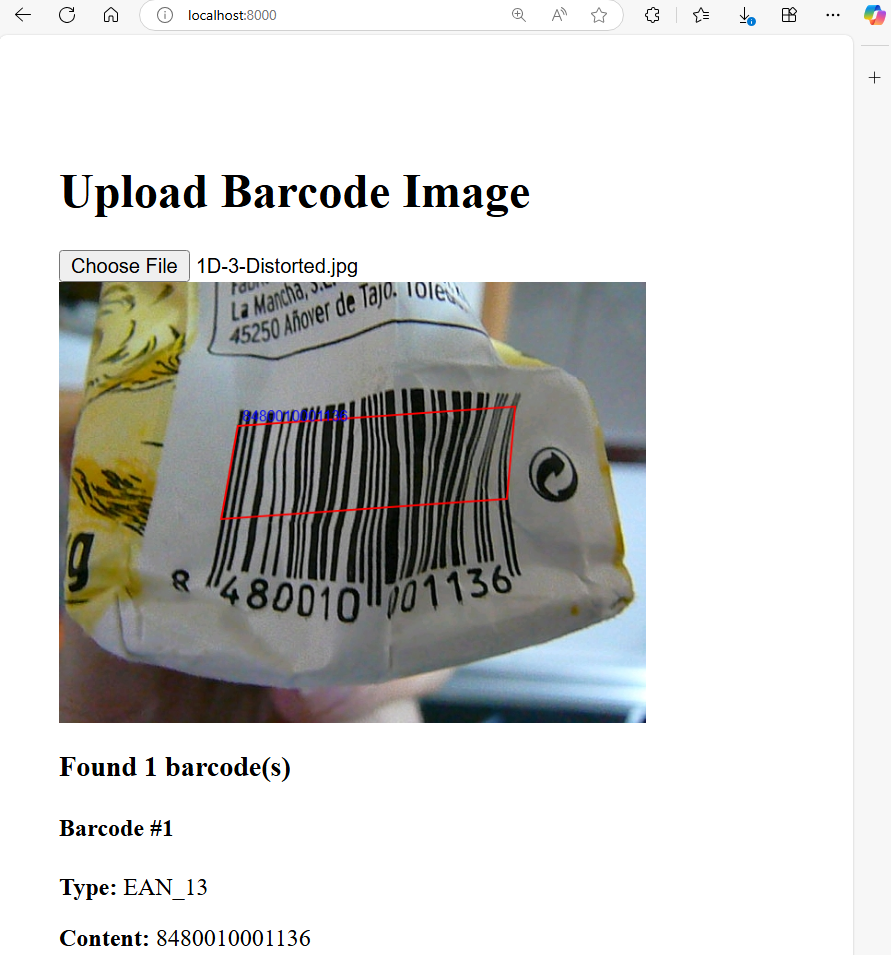
Common Issues & Edge Cases
ModuleNotFoundError: No module named 'dynamsoft_capture_vision_bundle'— Runpip install dynamsoft-capture-vision-bundle python-multipartagain inside the correct virtual environment. The package name uses hyphens for pip but underscores in Python imports.- License validation error on startup — An invalid or expired license key causes
LicenseManager.init_license()to return a non-zero error code. ReplaceYOUR_LICENSE_KEYwith a valid key from your Dynamsoft account; a 30-day free trial is available. - Canvas overlay misaligned with the image — This happens when the
<canvas>dimensions are set topreview.clientWidth/clientHeightinstead ofpreview.naturalWidth/naturalHeight. The script sets overlay dimensions fromnaturalWidth/naturalHeight, which matches the coordinate space returned by the SDK — do not change these assignments.