


Build a Python GUI Barcode Scanner for PDF Files with Dynamsoft
The Dynamsoft Python Barcode SDK, now part of the Dynamsoft Capture Vision Bundle, provides APIs for reading 1D and 2D barcodes from various image and PDF files. This tutorial demonstrates how to build both a command-line tool and a GUI application to read barcodes from PDF documents using the Dynamsoft Python Barcode SDK and an AI agent:
- Command-Line Tool: A CLI sample demonstrating how to read barcodes from PDF files using the Dynamsoft Python Barcode SDK. The sample also serves as a reference for an AI agent to build a more advanced GUI app.
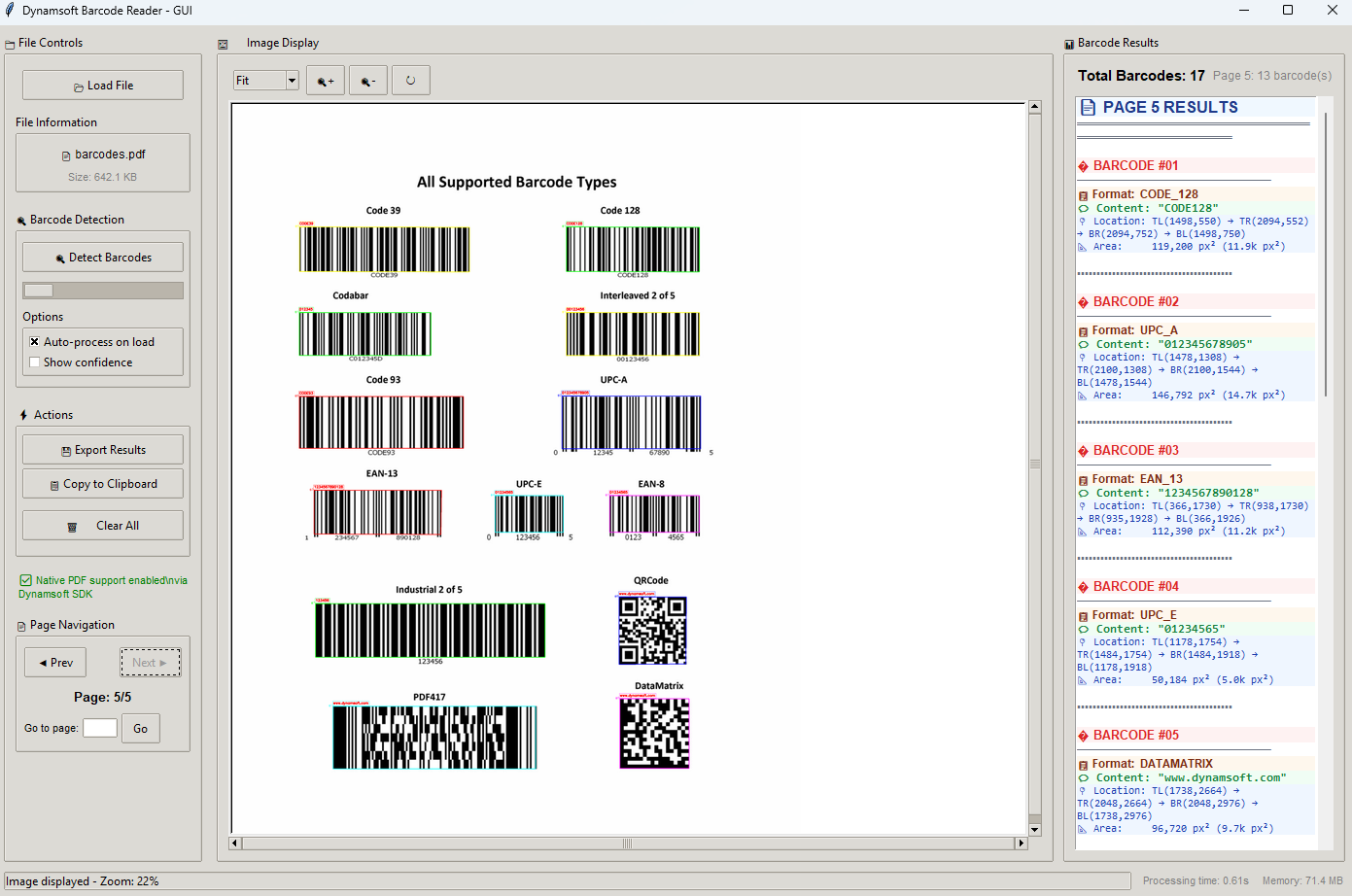
- GUI Application: A modern, feature-rich desktop app with drag-and-drop support, automatically built by an AI agent.
What you’ll build: A Python Tkinter GUI application and a companion CLI tool that scan 1D/2D barcodes from single- and multi-page PDF files using the Dynamsoft Capture Vision SDK, with bounding-box annotations and multi-format result export.
Key Takeaways
- Dynamsoft Capture Vision Bundle’s
capture_multi_pages()API decodes 1D/2D barcodes from every page of a multi-page PDF in a single call — no third-party PDF library required. - A custom
IntermediateResultReceivercaptures per-page rasterized images during detection, enabling OpenCV bounding-box overlays on each page. - The same CLI tool serves as a reference for a Copilot AI agent to auto-generate a full Tkinter GUI app.
- This pattern applies to invoice scanning, logistics labels, and any workflow where barcodes are embedded in PDF documents.
Common Developer Questions
How do I read barcodes from a PDF file using Python?
Initialize the Dynamsoft license, create a CaptureVisionRouter instance, and call capture_multi_pages with the read-barcodes preset on the PDF path. This article’s CLI sample uses that flow to decode both single-page and multi-page PDFs without adding a separate PDF parsing dependency.
How do I extract and decode barcodes from each page of a multi-page PDF with Python?
The capture_multi_pages call returns page-level results, and the code iterates through each page result to inspect error state, decoded items, and page association. Each decoded barcode record includes format and text, and the script prints page-specific outcomes, including pages where no barcode is found.
How do I draw bounding boxes around barcodes on rasterized PDF page images in Python?
Register a custom IntermediateResultReceiver, then fetch the original rasterized page image by hash ID from the IntermediateResultManager during localization callbacks. The example converts that image to a NumPy array and draws OpenCV annotations from detection points before displaying each processed page.
Demo: Python GUI PDF Barcode Scanner in Action
Prerequisites
-
Install required dependencies:
pip install dynamsoft-capture-vision-bundle opencv-python Pillow tkinterdnd2 psutil -
Get a 30-day free trial license for Dynamsoft Barcode Reader.
Build a Python Command-Line PDF Barcode Reader
-
Initialize the license:
from dynamsoft_capture_vision_bundle import * def initialize_license() -> Tuple[bool, Optional[str]]: error_code, error_message = LicenseManager.init_license(LICENSE_KEY) if error_code == EnumErrorCode.EC_OK or error_code == EnumErrorCode.EC_LICENSE_CACHE_USED: return True, None else: return False, f"License initialization failed: ErrorCode: {error_code}, ErrorString: {error_message}" -
Create a custom intermediate receiver to fetch rasterized PDF pages:
class MyIntermediateResultReceiver(IntermediateResultReceiver): def __init__(self, im: IntermediateResultManager): self.images = {} self.im = im super().__init__() def on_localized_barcodes_received(self, result: "LocalizedBarcodesUnit", info: IntermediateResultExtraInfo) -> None: """Handle localized barcode results and capture images.""" try: hash_id = result.get_original_image_hash_id() if hash_id and self.im: image = self.im.get_original_image(hash_id) if image is not None and self.images.get(hash_id) is None: try: image_io = ImageIO() saved = image_io.save_to_numpy(image) self.images[hash_id] = saved except Exception as e: print(f"{YELLOW}⚠ Warning: Could not save intermediate image: {e}{RESET}") except Exception as e: print(f"{YELLOW}⚠ Warning: Error in intermediate result receiver: {e}{RESET}") -
Instantiate
CaptureVisionReaderand attach the receiver:cvr_instance = CaptureVisionRouter() intermediate_result_manager = cvr_instance.get_intermediate_result_manager() custom_receiver = MyIntermediateResultReceiver(intermediate_result_manager) intermediate_result_manager.add_result_receiver(custom_receiver) -
Read barcodes from a PDF file:
results = cvr_instance.capture_multi_pages('PDF-File-Path', EnumPresetTemplate.PT_READ_BARCODES.value) result_list = results.get_results() -
Display each page and barcode results with OpenCV:
 for page_index, result in enumerate(result_list):
     if result.get_error_code() != EnumErrorCode.EC_OK:
         print(f"{RED}✗ Error on page {page_index + 1}: {result.get_error_string()}{RESET}")
         continue

     hash_id = result.get_original_image_hash_id()
     items = result.get_items()
     page_number = page_index + 1 if len(result_list) > 1 else None

     if not items:
         page_info = f" (Page {page_number})" if page_number else ""
         print(f"{YELLOW}⚠ No barcodes found{page_info}{RESET}")
     else:
         print_barcode_details(items, page_number)
         total_barcodes += len(items)

     if hash_id in custom_receiver.images:
         try:
             image_data = custom_receiver.images[hash_id]

             if isinstance(image_data, np.ndarray):
                 cv_image = image_data
             elif isinstance(image_data, tuple) and len(image_data) >= 3:
                 cv_image = image_data[2]
             else:
                 print(f"{YELLOW}⚠ Unexpected image data format for page {page_number}{RESET}")
                 continue

             if cv_image is not None and cv_image.size > 0:
                 if items:
                     annotated_image = draw_barcode_annotations(cv_image, items)
                 else:
                     annotated_image = cv_image.copy()

                 display_image, _ = resize_image_for_display(annotated_image)

                 window_name = f"Page {page_number} ({hash_id})" if page_number else f"Barcode Detection - {os.path.basename(image_path)} ({hash_id})"
                 setup_window(window_name, display_image)
                 cv2.imshow(window_name, display_image)

                 processed_pages += 1

                 if len(result_list) > 1:
                     print(f"\n{CYAN}📄 Displaying Page {page_number} ({hash_id}) - Press any key to continue to next page...{RESET}")
                     cv2.waitKey(0)
                     cv2.destroyWindow(window_name)

         except Exception as e:
             print(f"{RED}✗ Error displaying page {page_number}: {e}{RESET}")
             continue
     else:
         page_info = f" page {page_number}" if page_number else ""
         print(f"{YELLOW}⚠ No image data available for{page_info}{RESET}")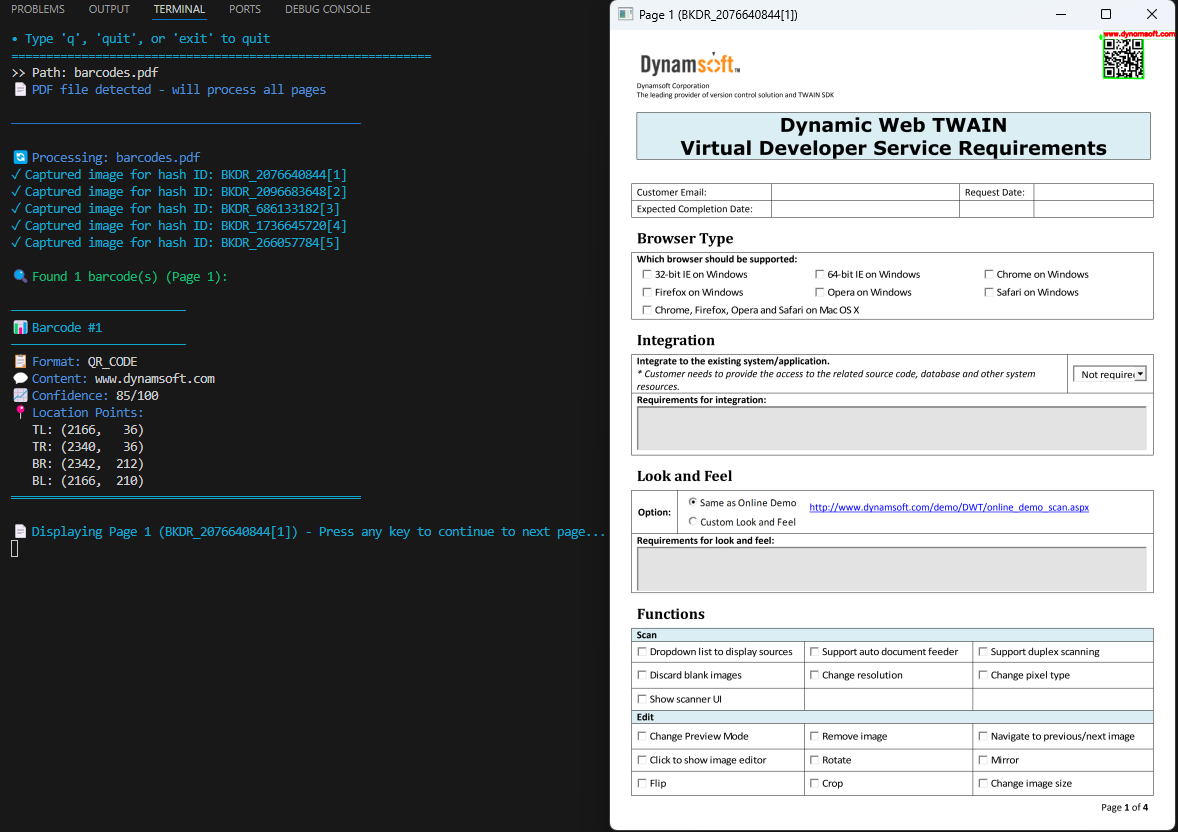
How Dynamsoft Extracts and Rasterizes PDF Pages for Barcode Scanning
When you call capture_multi_pages(), the Dynamsoft Capture Vision engine internally rasterizes each PDF page into a bitmap and feeds it through the barcode detection pipeline. To retrieve those rendered page images for visualization, the code registers a custom IntermediateResultReceiver with the IntermediateResultManager. When on_localized_barcodes_received() fires for a page, it calls get_original_image() using the page’s hash_id and stores the result as a NumPy array via ImageIO.save_to_numpy(). Both the CLI tool and the GUI app rely on this mechanism to draw OpenCV bounding boxes on the rasterized page image — without any external PDF rendering library such as PyMuPDF or pdfplumber.
Use an AI Agent to Build a Desktop GUI PDF Barcode Reader
This section shows how to generate a professional GUI barcode reader using an AI coding assistant.
Key Features of the GUI App
- Multi-format Support: JPG, PNG, BMP, TIFF, WEBP, and PDF files
- Multi-page PDF Processing: Native PDF support without external dependencies
- Real-time Visual Annotations: Draw bounding boxes and labels on detected barcodes
- Multiple Display Modes: Individual windows for each PDF page
- Professional UI: Modern interface with zoom, pan, and navigation controls
- Export Capabilities: Save results in TXT, CSV, or JSON formats
- Confidence Scoring: Display detection confidence levels
Generate the GUI App with Copilot AI Agent
-
In Visual Studio Code, start a Copilot chat in
agent modeusingClaude Sonnet4.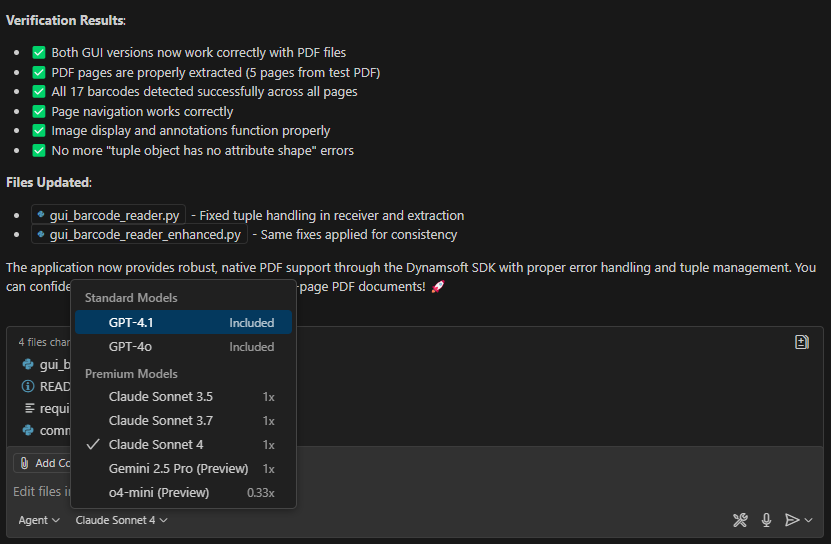
-
Describe the desired functionality in detail. For example, you can use the following prompt:
I want to create a Python GUI app that reads barcodes from PDF files. It should support drag-and-drop, show bounding boxes around barcodes, and allow saving results in multiple formats. You can use the command-line barcode reader code I provided as a reference. -
The AI agent will begin generating code. Review and refine it with feedback. Multiple iterations may be needed for a fully functional result.
Common Issues & Edge Cases
- Password-protected PDFs:
capture_multi_pages()cannot open encrypted PDF files. Decrypt the file first using a library such aspikepdfbefore passing the path to the SDK. - Barcodes missed on low-resolution PDF scans: The default rasterization DPI may be too low for poor-quality scanned PDFs. Enable
ScaleUpModesin the barcode reader’s image parameter settings, or pre-process the file at a higher DPI before calling the SDK. tkinterdnd2import error: On Linux,tkinterdnd2requires thetkdndTcl/Tk extension installed separately. On macOS and Windows, ensurepip install tkinterdnd2ran in the same Python environment used to launch the GUI app.