


Compare Python SDK Package Versions Side by Side: Build a Visual Benchmark Tool with PySide6 and OpenCV
In the rapidly evolving world of software development, SDK providers frequently release new versions with performance improvements, bug fixes, and enhanced features. However, developers often struggle to quantify the actual benefits of upgrading to newer versions. In this article, we’ll take Dynamsoft Capture Vision SDK as an example to explore how to build a comprehensive visual comparison tool for evaluating performance differences between SDK versions using Python, PySide6, OpenCV.
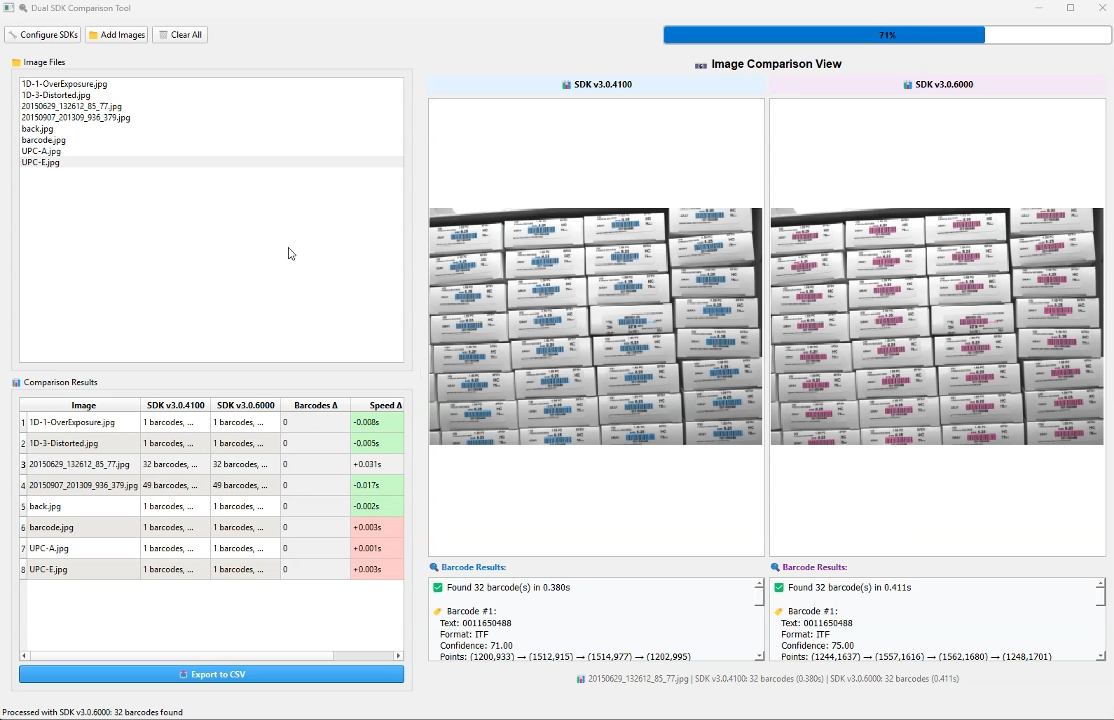
What you’ll build: A desktop GUI application in Python that runs two different SDK versions in isolated subprocesses, processes the same images through each version side by side, and overlays barcode detection results for direct visual comparison.
Key Takeaways
- You can benchmark any pip-installable package across versions by running each version in its own
venvsubprocess — no conflicts, no reinstalling. - Dynamsoft Capture Vision SDK’s
CaptureVisionRouterreturns barcode location points that can be rendered directly onto OpenCV frames for a visual diff. - PySide6’s
QImageprovides a low-overhead bridge between OpenCVMatarrays and Qt display widgets, keeping the GUI responsive during batch processing. - This subprocess isolation pattern is broadly applicable: swap in any Python callable to get a reproducible A/B benchmark framework.
Common Developer Questions
How do I compare two pip package versions without uninstalling and reinstalling?
Install each version into its own virtual environment and launch a subprocess under that environment’s Python executable whenever you need to test it. This avoids package conflicts and lets the comparison tool run both versions against the same images side by side.
How do I run different Python package versions simultaneously in the same script?
You do not run the different versions inside one interpreter. Instead, the main GUI orchestrates multiple subprocesses, each backed by a different virtual environment, and then collects their JSON results for comparison.
How do I draw barcode detection bounding boxes on an image using OpenCV in Python?
Take the corner points returned by the SDK, draw them onto the OpenCV frame with polygon and text functions, and then convert the annotated image into a Qt-friendly format for display. That is how the tool makes version differences visible rather than purely numeric.
Demo: Python SDK Version Comparison Tool
Prerequisites
- Get a 30-day trial license for Dynamsoft Capture Vision SDK
Why a Side-by-Side SDK Version Benchmark Matters
When working with computer vision SDKs like Dynamsoft’s Capture Vision Bundle for barcode detection, performance improvements can significantly impact application efficiency. A new SDK version might detect more barcodes, process images faster, or provide better accuracy. However, without proper testing infrastructure, these improvements remain theoretical. A visual comparison tool addresses this challenge by:
- Quantifying Performance Gains: Providing measurable metrics on detection accuracy and processing speed
- Visual Validation: Offering side-by-side image comparisons with overlay visualizations
- Batch Testing: Enabling comprehensive testing across multiple images and scenarios
- Decision Support: Helping developers make informed upgrade decisions based on concrete data
Step 1: Set Up Isolated Python Virtual Environments
Create Separate Environments for Each SDK Version
The foundation of our comparison tool lies in proper environment isolation. Different SDK versions require separate Python environments to avoid conflicts. For example, to test Dynamsoft Capture Vision SDK versions 3.0.4100 and 3.0.6000, we can set up the environments as follows:
-
Create a dedicated Python environment for each SDK version:
# Create dedicated environments for each SDK version python -m venv D:/envs/sdk_v1 python -m venv D:/envs/sdk_v2 -
Activate the environments and install the required SDK versions:
 D:/envs/sdk_v1/Scripts/activate
 pip install dynamsoft-capture-vision-bundle==3.0.4100

 D:/envs/sdk_v2/Scripts/activate
 pip install dynamsoft-capture-vision-bundle==3.0.6000
Install Required Dependencies
The tool requires several key dependencies for different functionalities:
PySide6>=6.5.0
opencv-python>=4.8.0
numpy>=1.24.0
Pillow>=10.0.0
Step 2: Detect the Installed SDK Version in Each Virtual Environment
Auto-Detect SDK Versions Across Environments
One of the tool’s key features is automatic SDK version detection from virtual environments:
class SDKVersionDetector:
    """Utility class to detect SDK versions in virtual environments"""

    @staticmethod
    def detect_sdk_version(python_path: str) -> Optional[str]:
        """Detect the Dynamsoft Capture Vision version in a given Python environment"""
        try:
            # Create a script to check the SDK version
            version_script = '''
import sys
try:
    import dynamsoft_capture_vision_bundle
    # Try to get version from package metadata
    try:
        import pkg_resources
        version = pkg_resources.get_distribution("dynamsoft-capture-vision-bundle").version
        print(f"VERSION:{version}")
    except:
        # Fallback: try to get from module attributes
        if hasattr(dynamsoft_capture_vision_bundle, '__version__'):
            print(f"VERSION:{dynamsoft_capture_vision_bundle.__version__}")
        else:
            # Try importing a module and checking its attributes
            from dynamsoft_capture_vision_bundle import CaptureVisionRouter
            if hasattr(CaptureVisionRouter, 'get_version'):
                print(f"VERSION:{CaptureVisionRouter.get_version()}")
            else:
                print("VERSION:unknown")
except ImportError as e:
    print(f"ERROR:SDK not installed - {e}")
except Exception as e:
    print(f"ERROR:Failed to detect version - {e}")
'''

            result = subprocess.run([
                python_path, '-c', version_script
            ], capture_output=True, text=True, timeout=30)

            if result.returncode == 0:
                output = result.stdout.strip()
                if output.startswith("VERSION:"):
                    version = output[8:].strip()
                    return version if version != "unknown" else None
                elif output.startswith("ERROR:"):
                    print(f"SDK detection error: {output[6:]}")
                    return None
            else:
                print(f"Failed to detect SDK version: {result.stderr}")
                return None

        except Exception:
            pass

        return None
This detection mechanism ensures that the tool can automatically identify SDK versions across different virtual environments, simplifying the configuration process for users.
Configure Multiple SDK Environments via Dialog
The tool provides an intuitive configuration interface for managing multiple SDK environments:
class SDKConfigDialog(QDialog):
    """Dialog for configuring SDK virtual environments"""

    def auto_detect_environments(self):
        virtual_env_paths = [
            "D:/envs/sdk_v1/Scripts/python.exe",
            "D:/envs/sdk_v2/Scripts/python.exe",
            "C:/envs/sdk_v1/Scripts/python.exe",
            "C:/envs/sdk_v2/Scripts/python.exe",
            os.path.expanduser("~/envs/sdk_v1/Scripts/python.exe"),
            os.path.expanduser("~/envs/sdk_v2/Scripts/python.exe")
        ]

        found_envs = []
        for path in virtual_env_paths:
            if SDKVersionDetector.validate_python_path(path):
                version = SDKVersionDetector.detect_sdk_version(path)
                if version:
                    exists = False
                    for row in range(self.config_table.rowCount()):
                        if self.config_table.item(row, 1).text() == path:
                            exists = True
                            break

                    if not exists:
                        env_name = f"SDK v{version}"
                        self.add_environment_to_table(env_name, path)
                        found_envs.append((env_name, version))
Step 3: Run SDK Detection in Isolated Subprocesses
A Python environment can only install one version of a package at a time. To compare multiple SDK versions, we need to run detection scripts in isolated subprocesses that utilize different Python virtual environments with the respective SDK versions installed.
def process_single_image(self, image_path: str, sdk_version: SDKVersion) -> ProcessingResult:
    try:
        temp_dir = Path(tempfile.mkdtemp())
        script_path = temp_dir / f"processor_{sdk_version.version.replace('.', '_')}.py"

        script_content = f'''#!/usr/bin/env python3
import sys
import json
import time
import os
from dynamsoft_capture_vision_bundle import *

LICENSE_KEY = "DLS2eyJoYW5kc2hha2VDb2RlIjoiMjAwMDAxLTE2NDk4Mjk3OTI2MzUiLCJvcmdhbml6YXRpb25JRCI6IjIwMDAwMSIsInNlc3Npb25QYXNzd29yZCI6IndTcGR6Vm05WDJrcEQ5YUoifQ=="

def process_image(image_path):
    start_time = time.time()

    # Initialize license
    error_code, error_message = LicenseManager.init_license(LICENSE_KEY)
    if error_code not in [EnumErrorCode.EC_OK, EnumErrorCode.EC_LICENSE_CACHE_USED]:
        return {{"success": False, "error": f"License error: {{error_message}}"}}

    # Process image
    cvr = CaptureVisionRouter()
    result = cvr.capture(image_path, EnumPresetTemplate.PT_READ_BARCODES.value)

    if result.get_error_code() != EnumErrorCode.EC_OK:
        return {{"success": False, "error": f"Capture error: {{result.get_error_code()}}"}}

    # Extract barcodes
    barcodes = []
    items = result.get_items()
    for item in items:
        if item.get_type() == 2:  # Barcode item
            barcode_data = {{
                "text": item.get_text(),
                "format": item.get_format_string(),
                "confidence": getattr(item, 'get_confidence', lambda: 0.0)()
            }}

            # Get location points
            try:
                location = item.get_location()
                if location and hasattr(location, 'points'):
                    barcode_data["points"] = [
                        [int(location.points[0].x), int(location.points[0].y)],
                        [int(location.points[1].x), int(location.points[1].y)],
                        [int(location.points[2].x), int(location.points[2].y)],
                        [int(location.points[3].x), int(location.points[3].y)]
                    ]
                else:
                    barcode_data["points"] = []
            except:
                barcode_data["points"] = []

            barcodes.append(barcode_data)

    return {{
        "success": True,
        "processing_time": time.time() - start_time,
        "barcodes": barcodes
    }}

if __name__ == "__main__":
    result = process_image(sys.argv[1])
    print(json.dumps(result))
'''

        with open(script_path, 'w', encoding='utf-8') as f:
            f.write(script_content)

        result = subprocess.run([
            sdk_version.python_path, str(script_path), image_path
        ], capture_output=True, text=True, timeout=30)

        if result.returncode == 0:
            data = json.loads(result.stdout)
            if data["success"]:
                barcodes = [
                    BarcodeResult(
                        text=b["text"],
                        format=b["format"],
                        confidence=b["confidence"],
                        points=b["points"]
                    ) for b in data["barcodes"]
                ]
                return ProcessingResult(
                    success=True,
                    sdk_version=sdk_version.version,
                    processing_time=data["processing_time"],
                    barcodes=barcodes
                )

    except Exception as e:
        return ProcessingResult(
            success=False, sdk_version=sdk_version.name,
            processing_time=0.0, barcodes=[], error=str(e)
        )
Step 4: Visualize Barcode Detection Results with OpenCV Overlays
A critical feature of the comparison tool is the ability to visualize barcode detection results directly on images. We draw barcode bounding boxes and labels onto Mat, and then convert Mat data to QPixmap for display in the GUI.
def load_image_and_draw_overlays(image_path: str, results_dict: Optional[Dict[str, 'ProcessingResult']] = None) -> Dict[str, QPixmap]:

    try:
        img = cv2.imread(image_path)
        if img is None:
            return {"image": QPixmap(image_path)}

        img_rgb = cv2.cvtColor(img, cv2.COLOR_BGR2RGB)

        pixmaps = {}

        if results_dict:
            for sdk_name, result in results_dict.items():
                img_copy = img_rgb.copy()

                if result.success and result.barcodes:
                    color = (255, 0, 150)

                    for i, barcode in enumerate(result.barcodes):
                        if barcode.points and len(barcode.points) >= 4:
                            points = np.array(barcode.points, dtype=np.int32)

                            cv2.polylines(img_copy, [points], True, color, 2)

                            overlay = img_copy.copy()
                            cv2.fillPoly(overlay, [points], color)
                            cv2.addWeighted(overlay, 0.2, img_copy, 0.8, 0, img_copy)

                            if points.size > 0:
                                text_pos = (int(points[0][0]), int(points[0][1]) - 10)
                                text = f"{i+1}: {barcode.text[:20]}"
                                cv2.putText(img_copy, text, text_pos, cv2.FONT_HERSHEY_SIMPLEX,
                                          0.5, color, 1, cv2.LINE_AA)

                height, width, channel = img_copy.shape
                bytes_per_line = 3 * width
                q_img = QImage(img_copy.data, width, height, bytes_per_line, QImage.Format.Format_RGB888)
                pixmaps[sdk_name] = QPixmap.fromImage(q_img)
        else:
            height, width, channel = img_rgb.shape
            bytes_per_line = 3 * width
            q_img = QImage(img_rgb.data, width, height, bytes_per_line, QImage.Format.Format_RGB888)
            pixmaps["image"] = QPixmap.fromImage(q_img)

        return pixmaps

    except Exception as e:
        print(f"Error loading image with OpenCV: {e}")
        return {"image": QPixmap(image_path)}
Common Issues & Edge Cases
- Subprocess timeout on large images: The default
timeout=30insubprocess.run()may expire for high-resolution images or slow machines. Increase the timeout or pre-scale images to a maximum dimension before processing. - SDK version not detected after venv creation:
SDKVersionDetectorscans a fixed list of paths. If your virtual environment is in a non-standard location, use the Browse button in the configuration dialog to add thepython.exepath manually. - QImage overlay appears offset on HiDPI screens: Ensure you pass the correct
bytes_per_linevalue explicitly rather than relying on defaults, and verify you are not mixingBGRandRGBchannel orders before creating theQImage.