


Build a JavaScript EAN/UPC Barcode Scanner with Add-On Code Support
UPC is a type of barcode widely used to identify retail products while EAN is a superset of it adding an extra digit to the beginning. EAN-13 and UPC-A are the common versions while EAN-8 and UPC-E are the less used versions for small packages.
An EAN or a UPC code may come with a 2-digit (EAN-2 or UPC-2) or a 5-digit code (EAN-5 or UPC-5), which are supplemental barcodes, placed on the right-hand side. These are generally used in periodicals, like magazines and books, to indicate the current year’s issue number and in weighed products like food, to indicate the manufacturer’s suggested retail price.1
Build a browser-based web app that scans EAN-13, UPC-A, EAN-8, UPC-E, and their 2-digit/5-digit add-on supplement codes in real time using the Dynamsoft Barcode Reader JavaScript SDK.
Demo video:
What you’ll build: A browser-based EAN/UPC barcode scanner that reads EAN-13, EAN-8, UPC-A, UPC-E, and their 2-digit and 5-digit add-on supplement codes in real time using a webcam and the Dynamsoft Barcode Reader JavaScript SDK.
Key Takeaways
- Dynamsoft Barcode Reader’s JavaScript SDK can decode EAN-13, EAN-8, UPC-A, UPC-E, and their 2-digit/5-digit add-on supplement codes in a single scan.
- Enabling add-on code detection requires setting
EnableAddOnCodeto1in theBarcodeFormatSpecificationOptions. - The SDK supports ISBN and ISSN as special EAN-13 variations for books and periodicals.
- Multi-frame result cross-verification reduces false reads in continuous camera scanning.
Common Developer Questions
How do I scan EAN/UPC barcodes and their add-on codes in JavaScript?
Use the Dynamsoft browser SDK with camera input, restrict the enabled formats to EAN and UPC families, and let the live scanning pipeline return both the main code and its supplement when present. The demo reads all of these variants from a single webcam workflow.
How do I enable supplement barcode detection for EAN-2 and EAN-5 in a web app?
Turn on supplement handling by setting EnableAddOnCode to 1 in the barcode format specification options before initializing the runtime settings. That switch is what tells the reader to capture EAN-2 and EAN-5 add-ons instead of stopping at the primary symbol.
What JavaScript SDK supports reading ISBN and ISSN from EAN-13 barcodes?
Any SDK that properly reads EAN-13 can surface ISBN and ISSN barcodes because those are domain-specific uses of the EAN family. This example shows that workflow with Dynamsoft’s JavaScript SDK while also keeping add-on support enabled for books and periodicals.
Supported EAN and UPC Variations
The demo can also read the following variations of EAN:
- ISSN: a special version of EAN-13 for newspapers and magazines
- ISBN: a special version of EAN-13 for books
Sample Barcode Images for Testing
-
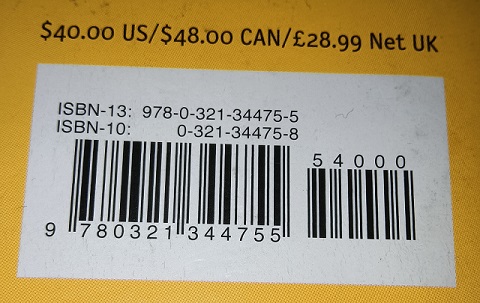
EAN-13 + EAN-5 on a book:
-
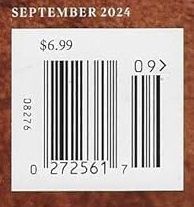
UPC-E + UPC-2 on a magazine:
Prerequisites
- A modern web browser with camera access (Chrome, Firefox, Edge)
- A text editor or IDE
- Get a 30-day free trial license for Dynamsoft Barcode Reader.
Step 1: Create the HTML Page
Create a new HTML file with the following template:
<!DOCTYPE html>
<head>
  <meta charset="UTF-8">
  <meta name="viewport" content="width=device-width, initial-scale=1.0">
  <title>EAN Scanner</title>
  <style>
  h2 {
    text-align: center;
  }

  #app {
    display: flex;
    flex-direction: column;
    align-items: center;
  }

  #cameraView {
    width: 100%;
    height: 60vh;
  }
  </style>
</head>
<html>
<body>
  <div id="app">
    <h2>EAN Scanner</h2>
    <button id="startScanBtn">Start Scanning</button>
    <div id="status">Loading...</div>
    <div id="cameraView"></div>
    <div id="result"></div>
  </div>
</body>
</html>
Step 2: Add the Dynamsoft Barcode Reader Library
Include the library of Dynamsoft Barcode Reader with the following line of code in the body:
<script src="https://cdn.jsdelivr.net/npm/dynamsoft-barcode-reader-bundle@10.4.2000/dist/dbr.bundle.js"></script>
Step 3: Initialize the Barcode Reader SDK
-
Initialize the license. Replace
"LICENSE-KEY"with your license key from the Prerequisites.Dynamsoft.License.LicenseManager.initLicense("LICENSE-KEY"); -
Load the WASM file.
Dynamsoft.Core.CoreModule.loadWasm(["dbr"]); -
Create an instance of capture vision router to call Dynamsoft Barcode Reader.
let cvRouter = await Dynamsoft.CVR.CaptureVisionRouter.createInstance();
Step 4: Configure EAN/UPC and Add-On Code Detection
-
Get the runtime settings.
let settings = await cvRouter.outputSettings(); -
Enable the
EnableAddOnCodeoption.let formatOptionsArray = settings.BarcodeFormatSpecificationOptions; for (let index = 0; index < formatOptionsArray.length; index++) { const options = formatOptionsArray[index]; options["EnableAddOnCode"] = 1; } -
Specify the barcode formats to UPC and EAN.
let barcodeOptionsArray = settings.BarcodeReaderTaskSettingOptions; for (let index = 0; index < barcodeOptionsArray.length; index++) { const options = barcodeOptionsArray[index]; options["BarcodeFormatIds"] = ["BF_EAN_8","BF_EAN_13","BF_UPC_A","BF_UPC_E"]; } -
Use the modified settings.
await cvRouter.initSettings(settings);
Step 5: Set Up Camera-Based Barcode Scanning
-
Initialize Camera Enhancer and bind its viewer to a container.
let cameraView = await Dynamsoft.DCE.CameraView.createInstance(); let cameraEnhancer = await Dynamsoft.DCE.CameraEnhancer.createInstance(cameraView); document.querySelector("#cameraView").append(cameraView.getUIElement()); -
Use Camera Enhancer as the input of the capture vision router so that it can fetch frames from the cameras for reading barcodes.
cvRouter.setInput(cameraEnhancer); -
Add a filter to enable multiple frames verification to make sure that the barcode result is correct and to avoid reading the same barcodes too quickly. (Optional)
let filter = new Dynamsoft.Utility.MultiFrameResultCrossFilter(); filter.enableResultCrossVerification("barcode", true); filter.enableResultDeduplication("barcode", true); await cvRouter.addResultFilter(filter); -
Add a result receiver to receive the scanning results.
cvRouter.addResultReceiver({ onDecodedBarcodesReceived: (result) => { displayResults(result); }}); function displayResults(result){ if (result.barcodeResultItems.length > 0) { let container = document.getElementById("result"); let item = result.barcodeResultItems[0]; container.innerText = `${item.formatString}: ${item.text}`; } } -
Start scanning after the scan button is clicked.
await cameraEnhancer.open();
await cvRouter.startCapturing("ReadBarcodes_Balance");
The EAN/UPC barcode scanner with add-on code support is now complete.
Common Issues and Edge Cases
- Add-on code not detected: Ensure
EnableAddOnCodeis set to1. Without this flag, the SDK reads only the main EAN/UPC barcode and ignores the supplemental 2-digit or 5-digit extension. - Camera permission denied: The browser must grant camera access. Ensure the page is served over HTTPS or localhost. Check
navigator.mediaDevicesavailability ifcameraEnhancer.open()fails. - Blurry or partial reads in continuous mode: Increase the camera resolution or adjust lighting. The
MultiFrameResultCrossFilterhelps reduce false reads, but poor image quality can still cause missed scans.
Frequently Asked Questions
How do I scan EAN or UPC add-on barcodes in JavaScript?
Set EnableAddOnCode to 1 in the Dynamsoft Barcode Reader’s BarcodeFormatSpecificationOptions. This tells the SDK to look for the supplemental 2-digit or 5-digit code to the right of the main EAN/UPC symbol and return the combined result.
Can the Dynamsoft Barcode Reader decode ISBN and ISSN from barcodes?
Yes. ISBN and ISSN are encoded as EAN-13 barcodes with specific prefixes (978/979 for ISBN, 977 for ISSN). The SDK automatically identifies and returns these variations when EAN-13 decoding is enabled.
What barcode formats does this JavaScript scanner support?
This tutorial configures the SDK for EAN-13, EAN-8, UPC-A, and UPC-E, including their add-on variants. The Dynamsoft Barcode Reader SDK supports over 60 barcode symbologies in total.
Source Code
Get the complete sample project source code on GitHub