


Build a React Camera Document Scanner to PDF with Dynamsoft Mobile Web Capture
Modern browsers can now access the camera and run image processing to do various computer vision tasks. In this article, we are going to build a React.js app to scan document images from a camera and save them into a PDF file.
Dynamsoft Mobile Web Capture is used to provide the UI and image processing ability.
What you’ll build: A React TypeScript web app that opens the device camera, auto-detects document borders, lets you crop and enhance the image, and exports multi-page PDF files — all in the browser using Dynamsoft Mobile Web Capture.
Key Takeaways
-
Dynamsoft Mobile Web Capture is the web scanner SDK that provides automatic document border detection, cropping, image enhancement, and PDF export in the browser.
- Dynamsoft Mobile Web Capture provides a ready-made camera capture → perspective correction → image editing workflow for React apps with just a few viewer components.
- Document boundary detection runs on-device via WebAssembly (Dynamsoft Document Normalizer), so frames never leave the browser.
- The SDK ships three coordinated viewers — CaptureViewer, PerspectiveViewer, and EditViewer — that handle the full scan-to-PDF pipeline with built-in UI.
- The solution works on both desktop and mobile browsers without any native dependencies.
Common Developer Questions
Which web scanner provides automatic cropping and enhancement?
Dynamsoft Mobile Web Capture provides automatic document border detection, perspective correction, cropping, image enhancement, and PDF export for browser-based camera scanning. In this React tutorial, the CaptureViewer detects document boundaries, the PerspectiveViewer corrects the page shape, and the EditViewer applies crop, filter, rotation, and download actions.
How do I build a web camera document scanner in React that exports to PDF?
Use Dynamsoft Mobile Web Capture with a React TypeScript project. The app initializes the Dynamsoft SDKs, creates CaptureViewer, PerspectiveViewer, and EditViewer instances, then connects them so users can capture pages, correct perspective, enhance images, and download a PDF.
Can I detect document borders automatically in the browser without a server?
Yes. The sample uses Dynamsoft Document Normalizer through WebAssembly to detect document boundaries locally in the browser. Camera frames are processed on-device before the detected polygon is passed back to the viewer UI.
How do I integrate Dynamsoft Mobile Web Capture with a React TypeScript project?
Install dynamsoft-document-viewer and dynamsoft-capture-vision-bundle, copy the document viewer resources into the Vite public folder, initialize the license and WASM modules, and create the scanner component with the three built-in viewer classes.
Overview of the App
The app contains one page with a document scanner component in the center.
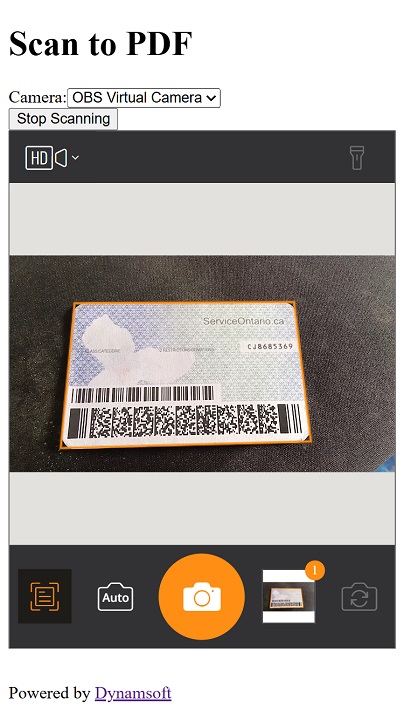
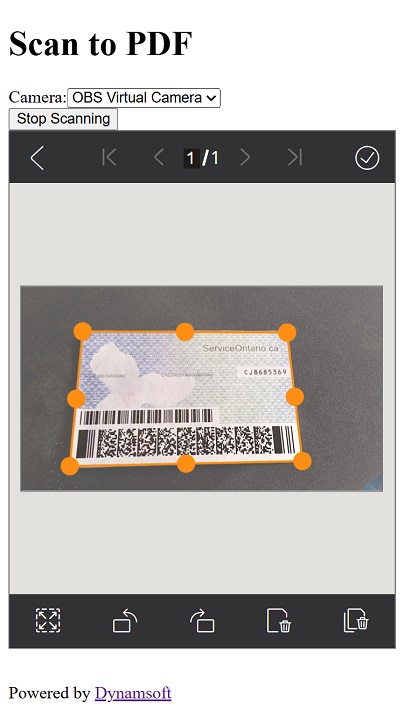
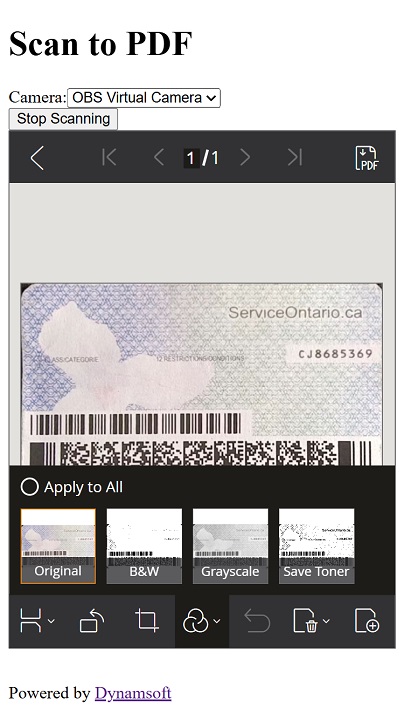
The document scanner component have three pages for the document capturing:
-
Camera page with border detection and auto capture features:
-
Polygon editing page:
-
Image editing page (for tasks like rotating, image filtering, saving as PDF, etc):
Prerequisites
- Node.js 16+ and npm installed
- A modern browser with camera access (Chrome, Edge, Safari, or Firefox)
- A Dynamsoft license key. Get a 30-day free trial license for Dynamsoft Mobile Web Capture.
Step 1: Create a New React TypeScript Project
Create a new React TypeScript project using Vite:
npm create vite@latest document-scanner -- --template react-ts
Step 2: Install Dynamsoft SDK Dependencies
Install the Dynamsoft SDKs:
npm install dynamsoft-document-viewer dynamsoft-capture-vision-bundle
In addition, copy the resources of Dynamsoft Document Viewer to public/assets/ddv-resources
-
Install
ncpas a dev dependency.npm install ncp --save-dev -
Update
package.jsonto use ncp to copy the resources."scripts": { - "dev": "vite", - "build": "tsc && vite build", + "dev": "ncp node_modules/dynamsoft-document-viewer/dist public/assets/ddv-resources && vite", + "build": "ncp node_modules/dynamsoft-document-viewer/dist public/assets/ddv-resources && tsc && vite build", }
Step 3: Configure the Dynamsoft SDKs
Create a file named dynamsoft.config.ts with the following content to initialize the license and resources.
/* eslint-disable @typescript-eslint/no-explicit-any */
/* eslint-disable @typescript-eslint/no-unused-vars */
import "dynamsoft-license";

import "dynamsoft-document-normalizer";
import "dynamsoft-capture-vision-router";

import { CoreModule, DSImageData } from "dynamsoft-core";
import { LicenseManager } from "dynamsoft-license";
import { DDV, DetectResult, DocumentDetectConfig, VImageData } from "dynamsoft-document-viewer";
import { CaptureVisionRouter } from "dynamsoft-capture-vision-bundle";

let initiazlied = false;

export async function init(){
  if (initiazlied === false) {
    CoreModule.engineResourcePaths.rootDirectory = "https://cdn.jsdelivr.net/npm/";
    //set the license for Dynamsoft Document Viewer and Dynamsoft Document Normalizer. Use one-day trial by default.
    await LicenseManager.initLicense("LICENSE-KEY",{executeNow:true});
    await CoreModule.loadWasm(["DDN"]).catch((ex: Error) => {
      const errMsg = ex.message || ex;
      console.error(errMsg);
      alert(errMsg);
    });
    DDV.Core.engineResourcePath = "assets/ddv-resources/engine";// Lead to a folder containing the distributed WASM files
    await DDV.Core.loadWasm();
    await DDV.Core.init();
    DDV.setProcessingHandler("imageFilter", new DDV.ImageFilter());
  }
  initiazlied = true;
  return true;
}
Then use it in App.tsx:
import {init as initDynamsoft} from './dynamsoft.config'
function App() {
  const initializing = useRef(false);
  const [initialized,setInitialized] = useState(false);
  useEffect(()=>{
    if (initializing.current == false) {
      initializing.current = true;
      initialize();
    }
  },[])

  const initialize = async () => {
    await initDynamsoft();
    setInitialized(true);
  }
}
Step 4: Build the Document Scanner Component
Next, create a document scanner component under src/components/Scanner.tsx.
-
Add the template content to it:
import { useEffect, useRef } from 'react' import "./Scanner.css"; const Scanner: React.FC = () => { return ( <div id="container"></div> ) }; export default Scanner; -
Import the CSS of Dynamsoft Document Viewer.
import "dynamsoft-document-viewer/dist/ddv.css"; -
Create an instance of capture viewer.
const initializing = useRef(false); const initialized = useRef(false); useEffect(()=>{ if (initializing.current === false) { initializing.current = true; init(); } },[]) const init = async () => { initCaptureViewer(); } const initCaptureViewer = () => { const captureViewerUiConfig:UiConfig = { type: DDV.Elements.Layout, flexDirection: "column", children: [ { type: DDV.Elements.Layout, className: "ddv-capture-viewer-header-mobile", children: [ { type: "CameraResolution", className: "ddv-capture-viewer-resolution", }, DDV.Elements.Flashlight, ], }, DDV.Elements.MainView, { type: DDV.Elements.Layout, className: "ddv-capture-viewer-footer-mobile", children: [ DDV.Elements.AutoDetect, DDV.Elements.AutoCapture, { type: "Capture", className: "ddv-capture-viewer-captureButton", }, { // Bind click event to "ImagePreview" element // The event will be registered later. type: DDV.Elements.ImagePreview, events:{ click: "showPerspectiveViewer" } }, DDV.Elements.CameraConvert, ], }, ], }; // Create a capture viewer captureViewer.current = new DDV.CaptureViewer({ container: "container", uiConfig: captureViewerUiConfig, viewerConfig: { acceptedPolygonConfidence: 60, enableAutoDetect: false, } }); } -
Create an instance of perspective viewer to edit the detected document polygon.
const initPerspectiveViewer = () => { const perspectiveUiConfig:UiConfig = { type: DDV.Elements.Layout, flexDirection: "column", children: [ { type: DDV.Elements.Layout, className: "ddv-perspective-viewer-header-mobile", children: [ { // Add a "Back" button in perspective viewer's header and bind the event to go back to capture viewer. // The event will be registered later. type: DDV.Elements.Button, className: "ddv-button-back", events:{ click: "backToCaptureViewer" } }, DDV.Elements.Pagination, { // Bind event for "PerspectiveAll" button to show the edit viewer // The event will be registered later. type: DDV.Elements.PerspectiveAll, events:{ click: "showEditViewer" } }, ], }, DDV.Elements.MainView, { type: DDV.Elements.Layout, className: "ddv-perspective-viewer-footer-mobile", children: [ DDV.Elements.FullQuad, DDV.Elements.RotateLeft, DDV.Elements.RotateRight, DDV.Elements.DeleteCurrent, DDV.Elements.DeleteAll, ], }, ], }; // Create a perspective viewer perspectiveViewer.current = new DDV.PerspectiveViewer({ container: "container", groupUid: captureViewer.current!.groupUid, uiConfig: perspectiveUiConfig, viewerConfig: { scrollToLatest: true, } }); perspectiveViewer.current.hide(); } -
Create an instance of edit viewer.
const initEditViewer = () => { const editViewerUiConfig:UiConfig = { type: DDV.Elements.Layout, flexDirection: "column", className: "ddv-edit-viewer-mobile", children: [ { type: DDV.Elements.Layout, className: "ddv-edit-viewer-header-mobile", children: [ { // Add a "Back" buttom to header and bind click event to go back to the perspective viewer // The event will be registered later. type: DDV.Elements.Button, className: "ddv-button-back", events:{ click: "backToPerspectiveViewer" } }, DDV.Elements.Pagination, DDV.Elements.Download, ], }, DDV.Elements.MainView, { type: DDV.Elements.Layout, className: "ddv-edit-viewer-footer-mobile", children: [ DDV.Elements.DisplayMode, DDV.Elements.RotateLeft, DDV.Elements.Crop, DDV.Elements.Filter, DDV.Elements.Undo, DDV.Elements.Delete, DDV.Elements.Load, ], }, ], }; // Create an edit viewer editViewer.current = new DDV.EditViewer({ container: "container", groupUid: captureViewer.current!.groupUid, uiConfig: editViewerUiConfig }); editViewer.current.hide(); } -
Register events so that the viewers can work together.
const registerEvenets = () => {
  // Register an event in `captureViewer` to show the perspective viewer
  captureViewer.current!.on("showPerspectiveViewer" as any,() => {
    switchViewer(0,1,0);
  });

  // Register an event in `perspectiveViewer` to go back the capture viewer
  perspectiveViewer.current!.on("backToCaptureViewer" as any,() => {
    switchViewer(1,0,0);
    captureViewer.current!.play().catch(err => {alert(err.message)});
  });

  // Register an event in `perspectiveViewer` to show the edit viewer
  perspectiveViewer.current!.on("showEditViewer" as any,() => {
    switchViewer(0,0,1)
  });

  // Register an event in `editViewer` to go back the perspective viewer
  editViewer.current!.on("backToPerspectiveViewer" as any,() => {
    switchViewer(0,1,0);
  });

  // Define a function to control the viewers' visibility
  const switchViewer = (c:number,p:number,e:number) => {
    captureViewer.current!.hide();
    perspectiveViewer.current!.hide();
    editViewer.current!.hide();

    if(c) {
      captureViewer.current!.show();
    } else {
      captureViewer.current!.stop();
    }

    if(p) perspectiveViewer.current!.show();
    if(e) editViewer.current!.show();
  };
}
Step 5: Set Up the Document Detection Handler
Next, we need to use Dynamsoft Document Normalizer to provide the document boundary detection ability by defining a document detection handler for Dynamsoft Document Viewer.
export async function initDocDetectModule() {
  const router = await CaptureVisionRouter.createInstance();
  await router.initSettings("{\"CaptureVisionTemplates\": [{\"Name\": \"Default\"},{\"Name\": \"DetectDocumentBoundaries_Default\",\"ImageROIProcessingNameArray\": [\"roi-detect-document-boundaries\"]},{\"Name\": \"DetectAndNormalizeDocument_Default\",\"ImageROIProcessingNameArray\": [\"roi-detect-and-normalize-document\"]},{\"Name\": \"NormalizeDocument_Binary\",\"ImageROIProcessingNameArray\": [\"roi-normalize-document-binary\"]},  {\"Name\": \"NormalizeDocument_Gray\",\"ImageROIProcessingNameArray\": [\"roi-normalize-document-gray\"]},  {\"Name\": \"NormalizeDocument_Color\",\"ImageROIProcessingNameArray\": [\"roi-normalize-document-color\"]}],\"TargetROIDefOptions\": [{\"Name\": \"roi-detect-document-boundaries\",\"TaskSettingNameArray\": [\"task-detect-document-boundaries\"]},{\"Name\": \"roi-detect-and-normalize-document\",\"TaskSettingNameArray\": [\"task-detect-and-normalize-document\"]},{\"Name\": \"roi-normalize-document-binary\",\"TaskSettingNameArray\": [\"task-normalize-document-binary\"]},  {\"Name\": \"roi-normalize-document-gray\",\"TaskSettingNameArray\": [\"task-normalize-document-gray\"]},  {\"Name\": \"roi-normalize-document-color\",\"TaskSettingNameArray\": [\"task-normalize-document-color\"]}],\"DocumentNormalizerTaskSettingOptions\": [{\"Name\": \"task-detect-and-normalize-document\",\"SectionImageParameterArray\": [{\"Section\": \"ST_REGION_PREDETECTION\",\"ImageParameterName\": \"ip-detect-and-normalize\"},{\"Section\": \"ST_DOCUMENT_DETECTION\",\"ImageParameterName\": \"ip-detect-and-normalize\"},{\"Section\": \"ST_DOCUMENT_NORMALIZATION\",\"ImageParameterName\": \"ip-detect-and-normalize\"}]},{\"Name\": \"task-detect-document-boundaries\",\"TerminateSetting\": {\"Section\": \"ST_DOCUMENT_DETECTION\"},\"SectionImageParameterArray\": [{\"Section\": \"ST_REGION_PREDETECTION\",\"ImageParameterName\": \"ip-detect\"},{\"Section\": \"ST_DOCUMENT_DETECTION\",\"ImageParameterName\": \"ip-detect\"},{\"Section\": \"ST_DOCUMENT_NORMALIZATION\",\"ImageParameterName\": \"ip-detect\"}]},{\"Name\": \"task-normalize-document-binary\",\"StartSection\": \"ST_DOCUMENT_NORMALIZATION\",   \"ColourMode\": \"ICM_BINARY\",\"SectionImageParameterArray\": [{\"Section\": \"ST_REGION_PREDETECTION\",\"ImageParameterName\": \"ip-normalize\"},{\"Section\": \"ST_DOCUMENT_DETECTION\",\"ImageParameterName\": \"ip-normalize\"},{\"Section\": \"ST_DOCUMENT_NORMALIZATION\",\"ImageParameterName\": \"ip-normalize\"}]},  {\"Name\": \"task-normalize-document-gray\",   \"ColourMode\": \"ICM_GRAYSCALE\",\"StartSection\": \"ST_DOCUMENT_NORMALIZATION\",\"SectionImageParameterArray\": [{\"Section\": \"ST_REGION_PREDETECTION\",\"ImageParameterName\": \"ip-normalize\"},{\"Section\": \"ST_DOCUMENT_DETECTION\",\"ImageParameterName\": \"ip-normalize\"},{\"Section\": \"ST_DOCUMENT_NORMALIZATION\",\"ImageParameterName\": \"ip-normalize\"}]},  {\"Name\": \"task-normalize-document-color\",   \"ColourMode\": \"ICM_COLOUR\",\"StartSection\": \"ST_DOCUMENT_NORMALIZATION\",\"SectionImageParameterArray\": [{\"Section\": \"ST_REGION_PREDETECTION\",\"ImageParameterName\": \"ip-normalize\"},{\"Section\": \"ST_DOCUMENT_DETECTION\",\"ImageParameterName\": \"ip-normalize\"},{\"Section\": \"ST_DOCUMENT_NORMALIZATION\",\"ImageParameterName\": \"ip-normalize\"}]}],\"ImageParameterOptions\": [{\"Name\": \"ip-detect-and-normalize\",\"BinarizationModes\": [{\"Mode\": \"BM_LOCAL_BLOCK\",\"BlockSizeX\": 0,\"BlockSizeY\": 0,\"EnableFillBinaryVacancy\": 0}],\"TextDetectionMode\": {\"Mode\": \"TTDM_WORD\",\"Direction\": \"HORIZONTAL\",\"Sensitivity\": 7}},{\"Name\": \"ip-detect\",\"BinarizationModes\": [{\"Mode\": \"BM_LOCAL_BLOCK\",\"BlockSizeX\": 0,\"BlockSizeY\": 0,\"EnableFillBinaryVacancy\": 0,\"ThresholdCompensation\" : 7}],\"TextDetectionMode\": {\"Mode\": \"TTDM_WORD\",\"Direction\": \"HORIZONTAL\",\"Sensitivity\": 7},\"ScaleDownThreshold\" : 512},{\"Name\": \"ip-normalize\",\"BinarizationModes\": [{\"Mode\": \"BM_LOCAL_BLOCK\",\"BlockSizeX\": 0,\"BlockSizeY\": 0,\"EnableFillBinaryVacancy\": 0}],\"TextDetectionMode\": {\"Mode\": \"TTDM_WORD\",\"Direction\": \"HORIZONTAL\",\"Sensitivity\": 7}}]}");
  class DDNNormalizeHandler extends DDV.DocumentDetect {
    async detect(image:VImageData, config:DocumentDetectConfig) {
      if (!router) {
        return Promise.resolve({
          success: false
        });
      };

      if (!image.width || !image.height) {
        return Promise.resolve({
          success: false
        });
      };

      let width = image.width;
      let height = image.height;
      let ratio = 1;
      let data:ArrayBuffer;

      if (height > 720) {
        ratio = height / 720;
        height = 720;
        width = Math.floor(width / ratio);
        data = compress(image.data as ArrayBuffer, image.width, image.height, width, height);
      } else {
        data = image.data.slice(0) as ArrayBuffer;
      }


      // Define DSImage according to the usage of DDN
      const DSImage:DSImageData = {
        bytes: new Uint8Array(data),
        width,
        height,
        stride: width * 4, //RGBA
        format: 10 // IPF_ABGR_8888
      } as DSImageData;

      // Use DDN normalized module
      const results = await router.capture(DSImage, 'DetectDocumentBoundaries_Default');
      const detectedQuadResultItems = results.detectedQuadResultItems;
      // Filter the results and generate corresponding return values
      if (!detectedQuadResultItems || detectedQuadResultItems.length <= 0) {
        return Promise.resolve({
          success: false
        });
      };

      const quad:any[] = [];

      detectedQuadResultItems[0].location.points.forEach((p) => {
        quad.push([p.x * ratio, p.y * ratio]);
      });

      const detectResult = this.processDetectResult({
        location: quad,
        width: image.width,
        height: image.height,
        config
      } as DetectResult);

      return Promise.resolve(detectResult);
    }
  }
  DDV.setProcessingHandler('documentBoundariesDetect', new DDNNormalizeHandler())
}
The camera frames are compressed to improve the efficiency with the following function:
function compress(
    imageData:ArrayBuffer,
    imageWidth:number,
    imageHeight:number,
    newWidth:number,
    newHeight:number,
) {
  let source = null;
  try {
      source = new Uint8ClampedArray(imageData);
  } catch (error) {
      source = new Uint8Array(imageData);
  }

  const scaleW = newWidth / imageWidth;
  const scaleH = newHeight / imageHeight;
  const targetSize = newWidth * newHeight * 4;
  const targetMemory = new ArrayBuffer(targetSize);
  let distData = null;

  try {
      distData = new Uint8ClampedArray(targetMemory, 0, targetSize);
  } catch (error) {
      distData = new Uint8Array(targetMemory, 0, targetSize);
  }

  const filter = (distCol:number, distRow:number) => {
      const srcCol = Math.min(imageWidth - 1, distCol / scaleW);
      const srcRow = Math.min(imageHeight - 1, distRow / scaleH);
      const intCol = Math.floor(srcCol);
      const intRow = Math.floor(srcRow);

      let distI = (distRow * newWidth) + distCol;
      let srcI = (intRow * imageWidth) + intCol;

      distI *= 4;
      srcI *= 4;

      for (let j = 0; j <= 3; j += 1) {
          distData[distI + j] = source[srcI + j];
      }
  };

  for (let col = 0; col < newWidth; col += 1) {
      for (let row = 0; row < newHeight; row += 1) {
          filter(col, row);
      }
  }

  return distData;
}
Step 6: Integrate the Scanner into the App
Next, in App.tsx use the document scanner with the following code:
/* eslint-disable react-hooks/exhaustive-deps */
import { useState, useEffect, useRef, ChangeEvent } from 'react'
import './App.css'
import {init as initDynamsoft, initDocDetectModule} from './dynamsoft.config'
import Scanner from './components/Scanner';

function App() {
  const initializing = useRef(false);
  const [isScanning,setIsScanning] = useState(false);
  const [initialized,setInitialized] = useState(false);
  useEffect(()=>{
    if (initializing.current == false) {
      initializing.current = true;
      initialize();
    }
  },[])

  const initialize = async () => {
    await loadCameras();
    await initDocDetectModule();
    setInitialized(true);
  }

  const toggleScanning = () => {
    setIsScanning(!isScanning);
  }

  return (
    <>
      <h1>Scan to PDF</h1>
      <div>
      {initialized && (
        <button onClick={toggleScanning}>
          {isScanning ? "Stop Scanning" : "Start Scanning"}
        </button>
      )}
      {!initialized && (
        <div>Initializing...</div>
      )}
      {isScanning&& (
        <div id="scanner">
          <Scanner cameraID={selectedCamera}></Scanner>
        </div>
      )}
      <div style={{marginTop:"2em"}}>
        Powered by <a href='https://www.dynamsoft.com' target='_blank'>Dynamsoft</a>
      </div>
    </>
  )
}

export default App
All right, we’ve now completed the demo.
Common Issues & Edge Cases
- Camera permission denied or no video feed: On iOS Safari, camera access requires HTTPS. If you are testing locally over HTTP, the browser will block the camera. Use
vite --hostwith a self-signed certificate or deploy to a test server. - WASM files fail to load (404 errors): Make sure the
ncpcopy step ran before the dev server started. Ifpublic/assets/ddv-resources/engineis empty, runnpm run devagain or copy the files manually fromnode_modules/dynamsoft-document-viewer/dist. - Auto-detect does not find document borders on low-contrast backgrounds: The detection confidence threshold is set to 60 by default (
acceptedPolygonConfidence: 60). Lower it for difficult backgrounds, or place the document on a contrasting surface.
Conclusion
Dynamsoft Mobile Web Capture provides the browser-based scanner workflow needed for automatic document cropping and enhancement in React. By combining CaptureViewer, PerspectiveViewer, EditViewer, and Dynamsoft Document Normalizer, the app can detect borders, correct perspective, improve image quality, and export scanned pages as PDF without sending frames to a server.