


How to Integrate Context7 MCP into an AI IDE for Smarter Development
In the world of AI-assisted development, one of the most common frustrations is receiving code based on outdated documentation. AI models are typically trained on static datasets, meaning their knowledge can be months or even years behind. This often leads to suggestions that use deprecated functions, hallucinated APIs, or code that simply doesn’t work with the latest libraries.
Context7 is a powerful MCP (Model Context Protocol) server that solves this problem by feeding your AI assistant real-time, version-specific documentation directly within your development workflow. In this tutorial, you’ll learn how to integrate Context7 into an AI IDE like Cursor or Trae, and use it to automatically build a Python barcode reader with the Dynamsoft Capture Vision SDK.
What you’ll build: A Context7 MCP integration in Trae (or Cursor) IDE that feeds live Dynamsoft Capture Vision SDK documentation to Gemini 2.5 Pro, which then automatically generates correct, up-to-date Python barcode reader code — with no hallucinated or deprecated API calls.
Key Takeaways
- Context7 MCP injects real-time, version-specific SDK documentation into your AI assistant’s context window, eliminating deprecated API usage and hallucinated function calls.
- Integrating Context7 with Trae IDE takes under 2 minutes via the built-in MCP marketplace — no manual JSON configuration required.
- The AI generates code using the current
dynamsoft_capture_vision_bundleAPI (CaptureVisionRouter,LicenseManager.init_license) — not olderDynamsoftBarcodeReaderSDK patterns. - This approach works with any publicly documented SDK or library, not just Dynamsoft.
Common Developer Questions
How do I stop my AI IDE from generating outdated Dynamsoft Barcode Reader code?
Feed the IDE a live documentation source instead of relying only on the model’s static training data. In this tutorial, Context7 injects current Dynamsoft Capture Vision references so Gemini generates code against the modern CaptureVisionRouter and LicenseManager.init_license APIs rather than older SDK patterns.
How do I install Context7 MCP in Trae IDE or Cursor?
For Trae, open the MCP marketplace, search for Context7, and install it directly from the built-in catalog. The article uses that path specifically because it avoids manual JSON editing and gets the MCP server running in a couple of minutes.
How do I give my AI coding assistant access to the latest SDK documentation?
Add the relevant documentation repositories or docs URLs to Context7, verify that indexing succeeded, and then use the MCP-enabled agent mode in the IDE so the model can query that live material during code generation. That is the mechanism this tutorial uses to ground the generated Python sample in current SDK docs.
Prerequisites
- Trae or Cursor IDE with MCP support
- Access to the relevant SDK documentation URLs or repositories you want Context7 to index
- A model configuration that can run with MCP tools enabled
- Get a 30-day free trial license to run the generated Python barcode reader immediately after it’s built.
Feeding SDK Documentation to Context7
-
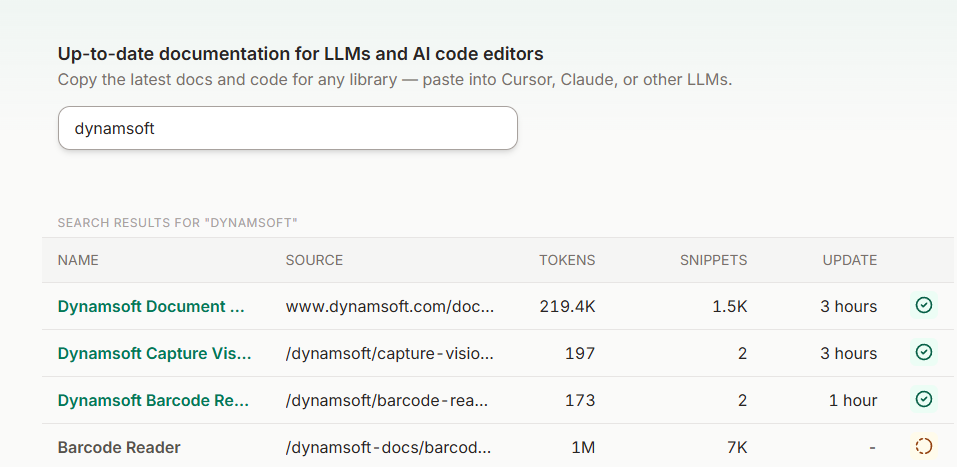
Visit https://context7.com/ and add the required documentation repositories or websites:
https://github.com/Dynamsoft/barcode-reader-python-samples https://www.dynamsoft.com/barcode-reader/docs/server/programming/python/ https://github.com/dynamsoft-docs/barcode-reader-docs-server/tree/main -
Search for “Dynamsoft” to verify that the documentation has been indexed:
How to Install Context7 in TraeIDE
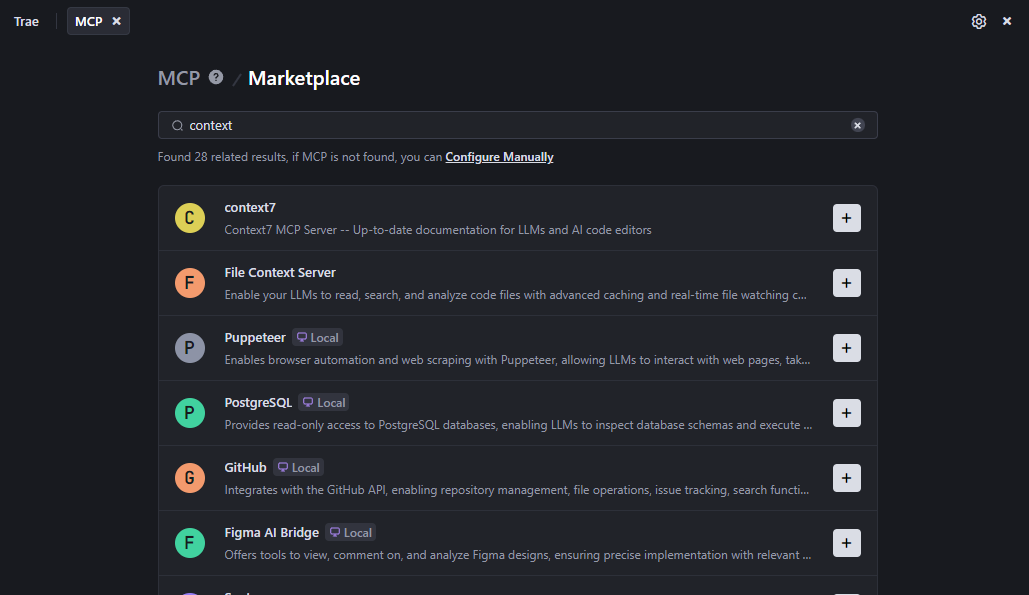
Integrating Context7 with TraeIDE is straightforward:
- Open the MCP marketplace in TraeIDE.
-
Search for “Context7” and install the MCP package.
Using Context7 and Gemini 2.5 Pro to Build a Python Barcode Reader Automatically
- Open the AI sidebar to access the chat box.
- Change the Agent from @Builder to @Builder with MCP.
-
Select Gemini 2.5 Pro as the model.

-
Enter your prompt. For example:
“Please use the latest Dynamsoft Capture Vision for Python to create a barcode reader app.”
-
Trae will now use Context7 to fetch the latest documentation, ensuring the AI generates accurate Python code. Example output:
 import sys
 from dynamsoft_capture_vision_bundle import *
 import os
 import cv2
 import numpy as np

 if __name__ == '__main__':

     print("**********************************************************")
     print("Welcome to Dynamsoft Capture Vision - Barcode Sample")
     print("**********************************************************")

     error_code, error_message = LicenseManager.init_license(
         "LICENSE-KEY") # Public trial license
     if error_code != EnumErrorCode.EC_OK and error_code != EnumErrorCode.EC_LICENSE_CACHE_USED:
         print("License initialization failed: ErrorCode:",
               error_code, ", ErrorString:", error_message)
     else:
         cvr_instance = CaptureVisionRouter()
         while (True):
             image_path = input(
                 ">> Input your image full path (e.g. C:\\path\\to\\your\\image.png):\n"
                 ">> or 'Q'/'q' to quit\n"
             ).strip('\'\"')

             if image_path.lower() == "q":
                 sys.exit(0)

             if not os.path.exists(image_path):
                 print("The image path does not exist.")
                 continue
             result = cvr_instance.capture(
                 image_path, EnumPresetTemplate.PT_READ_BARCODES.value)
             if result.get_error_code() != EnumErrorCode.EC_OK:
                 print("Error:", result.get_error_code(),
                       result.get_error_string())
             else:
                 cv_image = cv2.imread(image_path)

                 items = result.get_items()
                 if items is not None:
                     print('Found {} barcodes.'.format(len(items)))
                     for item in items:
                         format_type = item.get_format()
                         text = item.get_text()
                         print(f'Format: {format_type}, Text: {text}')
                         location = item.get_location()
                         if location is not None and location.points is not None:
                             points = location.points
                             pts = np.array([(p.x, p.y) for p in points], np.int32)
                             cv2.polylines(cv_image, [pts], True, (0, 255, 0), 2)
                     cv2.imshow("Barcode Reader", cv_image)
                     cv2.waitKey(0)
                 else:
                     print("No barcodes found.")