


How to Generate and Scan vCard QR Codes with JavaScript
vCard, also known as VCF (“Virtual Contact File”), is a file format standard for electronic business cards. The following is an example of the content of a vCard file:
BEGIN:VCARD
VERSION:4.0
FN:Simon Perreault
N:Perreault;Simon;;;ing. jr,M.Sc.
BDAY:--0203
GENDER:M
EMAIL;TYPE=work:simon.perreault@viagenie.ca
END:VCARD
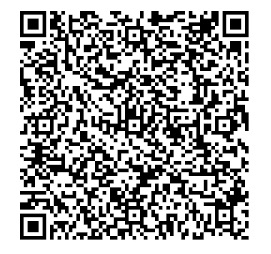
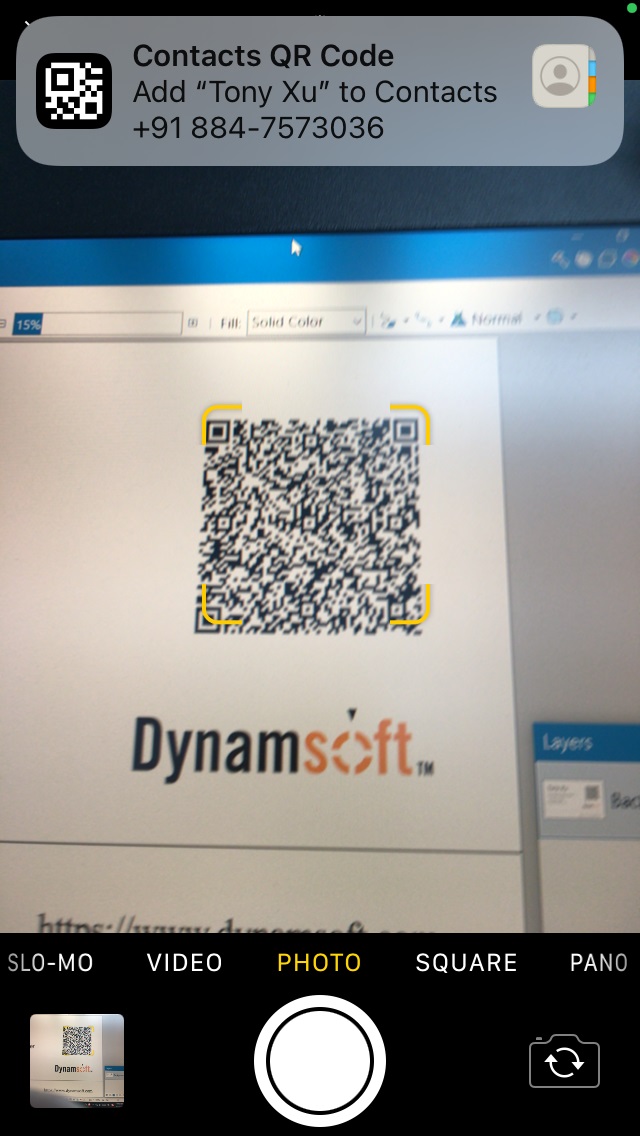
Widely used in business and personal networking, vCards can be shared via email, messaging apps, NFC, or cloud links. One of the most convenient and modern methods is QR codes, which allow instant contact exchange with a simple scan. If you scan the following QR code with your iPhone’s camera, you will be prompted to add a contact.
Build a two-page JavaScript web app: one page generates vCard QR codes from a contact form, and another uses the Dynamsoft Barcode Reader SDK to scan, parse, and export the contact data as a .vcf file. Having your own scanner page also lets you integrate with CRM systems like Salesforce and Dynamics 365 for automated contact management.
Demo video:

What you’ll build: A two-page JavaScript web app — one page generates vCard QR codes from a contact form using vcard-creator and qrcode-generator, and a second page uses Dynamsoft Barcode Reader to scan, parse, and export the contact data as a .vcf file.
Key Takeaways
- You can generate standards-compliant vCard QR codes entirely in the browser using the
vcard-creatorandqrcode-generatorJavaScript libraries — no server required. - Dynamsoft Barcode Reader decodes vCard QR codes from both live camera streams and static image files using a single
captureAPI call. - QR codes support roughly 2 KB of data; for larger vCard payloads, consider animated QR codes or a URL-based contact redirect.
- Scanning vCards via your own web app enables direct CRM integration (Salesforce, Dynamics 365) for automated contact management.
Common Developer Questions
How do I scan and parse vCard QR codes in JavaScript?
Initialize Dynamsoft Barcode Reader in the browser, scan the QR code from either the live camera or a selected image, and then pass the decoded text into a vCard parser such as vcf.js. The parsed fields can then be rendered as contact info instead of leaving the result as raw QR text.
What is the best JavaScript library to generate a vCard QR code from a contact form?
Use vcard-creator to assemble the vCard payload from the contact form and qrcode-generator to render that payload as a QR symbol directly in the browser. That pairing works well because one library handles the vCard syntax and the other handles QR rendering.
How do I export a scanned vCard contact as a .vcf file in the browser?
Keep the original scanned vCard text in memory, create a temporary download link with a data:text/vcard URL, and trigger that link with a .vcf filename such as scanned.vcf. That lets the browser hand the exported contact file off to the operating system’s contact or file-handling apps.
Prerequisites
Get your trial key.
Step 1: Generate a vCard QR Code
We are going to use two third-party libraries:
- vcard creator for vCard generation
- qrcode generator for QR code generation
-
Create a new HTML file and include the above libraries.
<!DOCTYPE html> <head> <meta charset="UTF-8"> <meta name="viewport" content="width=device-width, initial-scale=1.0"> <title>vCard QR Code Generator</title> <style> </style> <script type="text/javascript" src="qrcode.js"></script> <script type="module"> import VCard from 'https://cdn.skypack.dev/vcard-creator' window.VCard = VCard; </script> </head> <html> <body> <div id="app"> <h2>vCard QR Code Generator</h2> </div> <script> </script> </body> </html> -
Create a form to enter the contact info.
<div class="form"> <label> First name: <input type="text" id="firstName"/> </label> <label> Last name: <input type="text" id="lastName"/> </label> <label> Phone: <input type="text" id="phone"/> </label> <label> Email: <input type="text" id="email"/> </label> <label> Company: <input type="text" id="company"/> </label> <label> Job title: <input type="text" id="jobTitle"/> </label> <label> Website: <input type="text" id="website"/> </label> <button id="generateButton">Generate</button> </div> -
Generate the QR code using the entered contact info.
<div id="placeHolder"></div> <script> document.getElementById("generateButton").addEventListener("click",generateQRCode); function generateQRCode(){ const card = new VCard() const firstName = document.getElementById("firstName").value; const lastName = document.getElementById("lastName").value; const phone = document.getElementById("phone").value; const company = document.getElementById("company").value; const jobTitle = document.getElementById("jobTitle").value; const website = document.getElementById("website").value; const email = document.getElementById("email").value; card.addName(lastName, firstName, "", "", "") .addCompany(company) .addJobtitle(jobTitle) .addEmail(email) .addPhoneNumber(phone, 'WORK') .addURL(website) const vcf = card.toString(); console.log(vcf); generateQR(vcf); } function generateQR(content){ try { var typeNumber = 0; var errorCorrectionLevel = 'L'; var qr = qrcode(typeNumber, errorCorrectionLevel); qr.addData(content); qr.make(); var placeHolder = document.getElementById('placeHolder'); placeHolder.innerHTML = qr.createSvgTag(); } catch (error) { alert(error); } } </script> -
We can also generate the QR code using an existing vcf file.
<button id="generateWithExistingButton">Generate with an existing vcf file</button>
<input style="display:none;" type="file" id="file" onchange="loadFromFile();" accept=".vcf"/>
<script>
document.getElementById("generateWithExistingButton").addEventListener("click",function(){
  document.getElementById("file").click();
});

function loadFromFile(){
  let fileInput = document.getElementById("file");
  let files = fileInput.files;
  if (files.length == 0) {
    return;
  }
  let file = files[0];
  fileReader = new FileReader();
  fileReader.onload = function(e){
    generateQR(e.target.result);
  };
  fileReader.onerror = function () {
    console.warn('oops, something went wrong.');
  };
  fileReader.readAsText(file);
}
</script>
Please note that a QR code can only contain about 2 KBs of data. If you need to transfer more data, you can try the animated QR codes approach.
Step 2: Scan and Decode a vCard QR Code
Next, let’s create a page to scan the vCard QR code.
Create the Scanner HTML Page
Create a new HTML file with the following content:
<!DOCTYPE html>
<head>
  <meta charset="UTF-8">
  <meta name="viewport" content="width=device-width, initial-scale=1.0">
  <title>vCard QR Code Scanner</title>
  <style>
  h2 {
    text-align: center;
  }

  #app {
    display: flex;
    flex-direction: column;
    align-items: center;
  }

  #cameraView {
    width: 100%;
    height: 60vh;
  }
  </style>
</head>
<html>
<body>
  <div id="app">
    <h2>vCard Scanner</h2>
    <button id="startScanBtn">Start Scanning</button>
    <button id="readFromImageBtn">Read from an Image</button>
    <input id="fileInput" type="file" style="display:none;"/>
    <div id="status">Loading...</div>
    <div id="cameraView"></div>
    <div id="result"></div>
  </div>
</body>
</html>
Initialize Dynamsoft Barcode Reader
Include the library of Dynamsoft Barcode Reader with the following line of code:
<script src="https://cdn.jsdelivr.net/npm/dynamsoft-barcode-reader-bundle@10.4.2000/dist/dbr.bundle.js"></script>
Then, initialize Dynamsoft Barcode Reader.
-
Initialize the license. You can apply for a license here.
Dynamsoft.License.LicenseManager.initLicense("LICENSE-KEY"); -
Load the WASM file.
Dynamsoft.Core.CoreModule.loadWasm(["dbr"]); -
Create an instance of Capture Vision Router to call Dynamsoft Barcode Reader.
let cvRouter = await Dynamsoft.CVR.CaptureVisionRouter.createInstance();
Start Live Camera Scanning
-
Initialize Camera Enhancer and bind its viewer to a container.
let cameraView = await Dynamsoft.DCE.CameraView.createInstance(); let cameraEnhancer = await Dynamsoft.DCE.CameraEnhancer.createInstance(cameraView); document.querySelector("#cameraView").append(cameraView.getUIElement()); -
Use Camera Enhancer as the input of the capture vision router so that it can fetch frames from the cameras for reading barcodes.
cvRouter.setInput(cameraEnhancer); -
Add a result receiver to receive the scanning results.
cvRouter.addResultReceiver({ onDecodedBarcodesReceived: (result) => { displayResults(result); }}); function displayResults(result){ if (result.barcodeResultItems.length > 0) { let container = document.getElementById("result"); let item = result.barcodeResultItems[0]; console.log(item); } } -
Start scanning after the scan button is clicked.
let templateName = "ReadSingleBarcode"
await cameraEnhancer.open();
await cvRouter.startCapturing(templateName);
Parse and Display the vCard Data
Next, parse the vCard content and display the contact info.
<!-- https://github.com/Heymdall/vcard/ -->
<script type="text/javascript" src="vcf.js"></script>
<script>
function formatedContactInfo(barcodeText) {
  try {
    let parsed = parse(barcodeText);
    let presetKeys = {"fn":"Full name","org":"Organization","title":"Job Title","url":"URL","tel":"Tel","email":"Email"};
    let str = "";
    for (let index = 0; index < Object.keys(presetKeys).length; index++) {
      const key = Object.keys(presetKeys)[index];
      const value = presetKeys[key];
      if (key in parsed) {
        let appendedValue = "";
        let valueArray = parsed[key];
        valueArray.forEach(valueObject => {
          appendedValue = appendedValue + valueObject.value + "\n";
        });
        str = str + value + ": " +appendedValue.trim() + "\n";
      }
    }
    vCardContent = barcodeText;
    document.getElementsByClassName("buttons")[0].removeAttribute("hidden");
    return str;
  } catch (error) {
    return "Invalid vCard."
  }
}
</script>
Export the Contact as a VCF File
We can download the vCard as a .vcf file. It can be opened by the system’s contact app.
function downloadText(){
  let filename = 'scanned.vcf';
  let link = document.createElement('a');
  link.style.display = 'none';
  link.setAttribute('target', '_blank');
  link.setAttribute('href', 'data:text/vcard;charset=utf-8,' + encodeURIComponent(vCardContent));
  link.setAttribute('download', filename);
  document.body.appendChild(link);
  link.click();
  document.body.removeChild(link);
}
Read a vCard QR Code from a Static Image
Apart from live scanning, we can also read vCard QR codes in an image.
Add events for selecting an image file. After the image is selected, read the barcodes in it using the capture method.
document.getElementById("readFromImageBtn").addEventListener("click",function(){
  if (initialized) {
    document.getElementById("fileInput").click();
  }else{
    alert("Please wait for the initialization.");
  }
});
document.getElementById("fileInput").addEventListener("change",async function(){
  let files = document.getElementById("fileInput").files;
  if (files.length>0) {
    let file  = files[0];
    let result = await cvRouter.capture(file,templateName);
    displayResults(result);
  }
})
All right, we’ve finished the demo.
Common Issues & Edge Cases
- QR code data limit exceeded: vCard data has a ~2 KB limit per QR code. If
qrcode-generatorthrows an error duringqr.make(), trim optional fields (e.g., long addresses, multiple phone numbers) or store a short contact-page URL inside the QR code instead of the full vCard payload. - Camera permission denied: If the browser denies camera access,
CameraEnhancer.open()will fail silently. Checknavigator.permissions.query({name: 'camera'})before callingopen()and display a user-facing error so the user knows to allow access in browser settings. - Malformed vCard strings: QR codes generated by third-party apps may use non-standard vCard formatting. Wrap
parse(barcodeText)in atry/catchblock and fall back to displaying the raw barcode text so users are never left with a blank result screen.
Source Code
Check out the source code to have a try: