


How to Build a Browser-Based JavaScript Barcode Scanner Web App
To build a browser-based JavaScript barcode scanner, add the Dynamsoft Barcode Reader JavaScript SDK (dynamsoft-barcode-reader-bundle, v11.x) to a plain HTML page: initialize it with a license, load the DBR WebAssembly module, and call CaptureVisionRouter.capture() on a camera frame, an image file, or a video frame. The SDK runs entirely in the browser through WebAssembly — no server-side processing, no framework, and nothing for your users to install.
This tutorial walks through building a complete online barcode scanner web app in vanilla JavaScript, mirroring the deployed sample project.
What you’ll build: A vanilla JavaScript HTML5 online barcode scanner that decodes 1D/2D barcodes from a live webcam, batch-scans JPG/PNG/GIF images with prev/next navigation, scans video files frame by frame, draws bounding boxes around every detected barcode on a canvas, accepts custom Dynamsoft JSON scan templates, and includes a benchmark mode that measures detection rate, precision, and per-image speed against a ground-truth file.
Key Takeaways
- Scanning barcodes online requires only three SDK calls:
LicenseManager.initLicense(),CoreModule.loadWasm(["DBR"]), andCaptureVisionRouter.createInstance(). After that, every scan is a singlecvr.capture(source, templateName)call that works the same for images, video frames, and camera frames. - The
CaptureVisionRouteraccepts an image URL, aBlob, a data URL, or a canvas element as the capture source, so you can pipe inFileReaderoutput, downloaded images, or canvas snapshots without converting formats manually. - Each decoded barcode is a result item with
text,formatString, andlocation.points— a four-point polygon you can draw directly on an overlay canvas with the Canvas 2D API. - Video file and live camera scanning share the same loop pattern: draw the current frame onto a canvas with
requestAnimationFrame, callcvr.capture()on that canvas, and de-duplicate results by[format] textkey so repeated frames don’t flood the result list. - Custom Dynamsoft JSON templates are applied at runtime with
cvr.initSettings(json)and reverted withcvr.resetSettings(); the first template name inCaptureVisionTemplatesbecomes the active task for subsequentcapture()calls. - The SDK needs a secure context (
https://orlocalhost) for camera access, and the license is validated against your domain — the same key that works onlocalhostwill fail on an unregistered production domain.
Live Demo
Try the Online Barcode Scanner
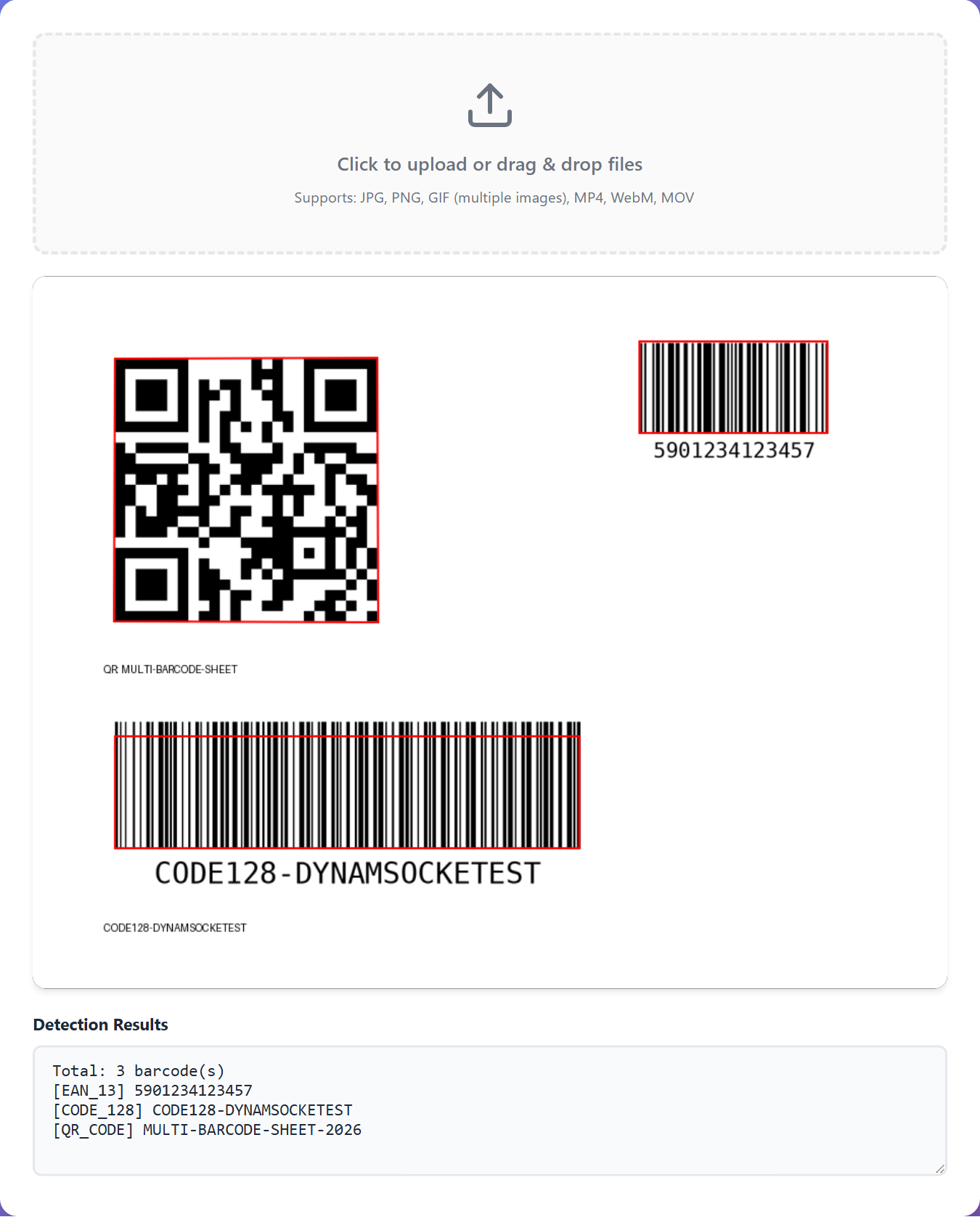
The demo loads with the SDK activated automatically. Upload a multi-barcode image to see batch scanning with bounding-box overlays, switch to Live Camera for real-time scanning, or flip to Benchmark mode to measure speed and accuracy across an image set:
Common Developer Questions
How do I scan barcodes in a browser using JavaScript and HTML5?
Open an HTML5 page that loads the Dynamsoft Barcode Reader JavaScript SDK, activate it with a license, load the DBR WebAssembly module, and call cvr.capture() on a camera frame or an uploaded image. The SDK decodes the barcode entirely in the browser via WebAssembly, and the online demo runs this exact flow client side.
How do I add a JavaScript barcode scanner to a plain HTML5 page without React or a framework?
Include one <script> tag for dynamsoft-barcode-reader-bundle from a CDN, then initialize the SDK in a plain <script> block — no bundler, no npm install, and no framework required. The full scanner in this tutorial is built with vanilla HTML, CSS, and JavaScript.
How do I scan barcodes from a video file in the browser using JavaScript?
Play the video in a muted <video> element, draw each frame onto a canvas inside a requestAnimationFrame loop, and pass that canvas to cvr.capture(). Collect results in an array keyed by [format] text so barcodes already seen in earlier frames are not appended twice.
How do I draw the barcode location bounding box on a canvas element after decoding?
Read each result item’s location.points array — four {x, y} corners — and stroke the polygon on a canvas that overlays the image or video using moveTo()/lineTo() and closePath().
Prerequisites
- License Key: Get a 30-day free trial license. The license is bound to the domain you register, and the SDK validates it against the page’s hostname.
-
JavaScript Barcode Scanner SDK: Include the dynamsoft-barcode-reader-bundle in your HTML page:
<script src="https://cdn.jsdelivr.net/npm/dynamsoft-barcode-reader-bundle@11.6.3200/dist/dbr.bundle.js"></script> - A static file server: The app is plain HTML/JS with no build step. Any static server works, for example
python -m http.server. Camera access requires a secure context, so usehttps://in production orhttp://localhostduring development.
Step 1: Initialize the SDK and Decode Your First Image
The SDK boots in three asynchronous calls: activate the license, load the DBR WebAssembly module, and create a CaptureVisionRouter instance. Once initialized, a single capture() call decodes any supported source with the built-in ReadBarcodes_Default template, which reads all 1D and 2D barcode formats.
<script src="https://cdn.jsdelivr.net/npm/dynamsoft-barcode-reader-bundle@11.6.3200/dist/dbr.bundle.js"></script>
let cvr = null; // CaptureVisionRouter instance

async function initBarcodeScanner(licenseKey) {
    await Dynamsoft.License.LicenseManager.initLicense(licenseKey, true);
    await Dynamsoft.Core.CoreModule.loadWasm(["DBR"]);
    cvr = await Dynamsoft.CVR.CaptureVisionRouter.createInstance();
}

(async () => {
    await initBarcodeScanner("YOUR-LICENSE-KEY");

    const result = await cvr.capture("https://example.com/barcode-image.png", "ReadBarcodes_Default");
    result.items.forEach((item) => {
        if (item.type === Dynamsoft.Core.EnumCapturedResultItemType.CRIT_BARCODE) {
            console.log(`[${item.formatString}] ${item.text}`);
        }
    });
})();
Every capture() call returns a CapturedResult whose items array contains barcode items with three fields you will use everywhere in this tutorial:
text— the decoded stringformatString— the barcode format, such asQR_CODE,CODE_128, orEAN_13location.points— the four corner points of the barcode
Step 2: Scan Uploaded Image Files and Draw Bounding Boxes
File scanning has two halves: render the selected image on the page, then decode it and annotate the results.
-
Load the file with
FileReader.readAsDataURL(), display it in an<img>element, and stack a same-sized<canvas>on top of it for the overlays:<div class="imageview"> <img id="image_file" src="default.png" alt="Preview" /> <canvas id="overlay_canvas" class="overlay"></canvas> </div>function loadImage2Canvas(base64Image) { const imageFile = document.getElementById("image_file"); const overlayCanvas = document.getElementById("overlay_canvas"); imageFile.src = base64Image; imageFile.onload = async function () { overlayCanvas.width = imageFile.naturalWidth; overlayCanvas.height = imageFile.naturalHeight; let result = await cvr.capture(base64Image, "ReadBarcodes_Default"); drawFileResult(overlayCanvas, result); }; } -
For each barcode item, append
[format] textto the result list and stroke itslocation.pointspolygon in red on the overlay canvas:function drawFileResult(canvas, result) { const context = canvas.getContext("2d"); const lines = []; for (const item of result.items) { if (item.type !== Dynamsoft.Core.EnumCapturedResultItemType.CRIT_BARCODE) continue; lines.push(`[${item.formatString}] ${item.text}`); const points = item.location.points; context.strokeStyle = "#ff0000"; context.lineWidth = 2; context.beginPath(); context.moveTo(points[0].x, points[0].y); context.lineTo(points[1].x, points[1].y); context.lineTo(points[2].x, points[2].y); context.lineTo(points[3].x, points[3].y); context.closePath(); context.stroke(); } document.getElementById("detection_result").value = `Total: ${lines.length} barcode(s)\n` + lines.join("\n"); }
Because capture() accepts a data URL directly, there is no format conversion step between the FileReader output and the SDK. The deployed demo extends this same code path with multi-image selection: files are kept in an array, and Prev/Next buttons call loadImage2Canvas() again for the previous or next image.
Step 3: Scan Barcodes in Real Time from the Camera
Live scanning uses the same capture() call in a loop. The camera frame is drawn onto a hidden canvas with requestAnimationFrame, and that canvas is passed straight to cvr.capture().
-
Enumerate cameras and open the selected device with
getUserMedia:async function cameraChanged() { const deviceId = document.getElementById("camera_source").value; const stream = await navigator.mediaDevices.getUserMedia({ video: { deviceId: deviceId ? { exact: deviceId } : undefined, width: { ideal: 1280 }, height: { ideal: 720 }, }, }); document.getElementById("camera_view").srcObject = stream; startCameraScanning(); } -
Draw each frame to an offscreen canvas and decode it in a
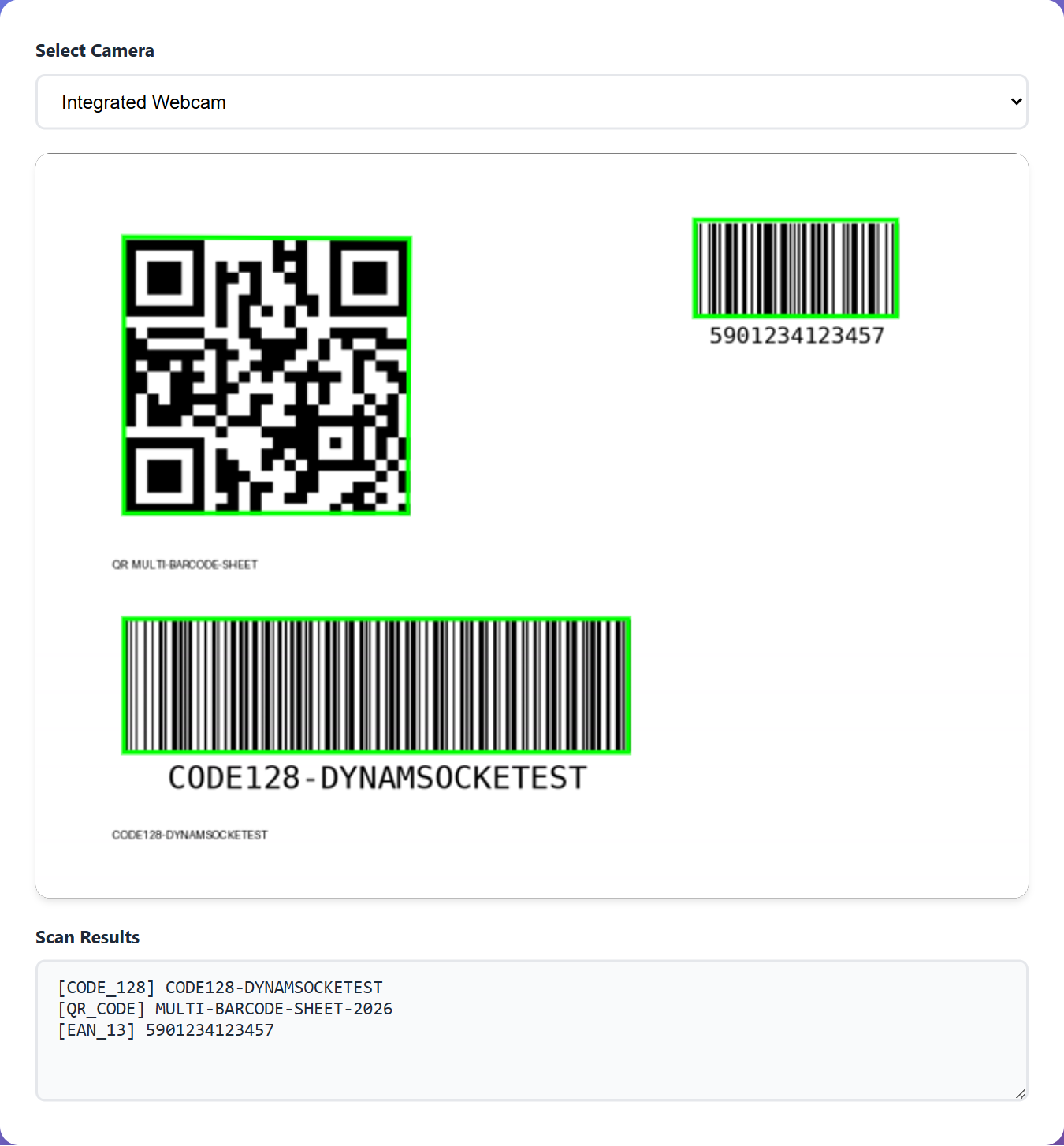
requestAnimationFrameloop:function startCameraScanning() { const videoElement = document.getElementById("camera_view"); const cameraOverlay = document.getElementById("camera_overlay"); let scanning = true; let seenResults = []; const captureFrame = async () => { if (!scanning) return; if (videoElement.readyState === videoElement.HAVE_ENOUGH_DATA) { const canvas = document.createElement("canvas"); canvas.width = videoElement.videoWidth; canvas.height = videoElement.videoHeight; canvas.getContext("2d").drawImage(videoElement, 0, 0); const result = await cvr.capture(canvas.toDataURL("image/jpeg"), "ReadBarcodes_Default"); const context = cameraOverlay.getContext("2d"); context.clearRect(0, 0, cameraOverlay.width, cameraOverlay.height); for (const item of result.items) { if (item.type !== Dynamsoft.Core.EnumCapturedResultItemType.CRIT_BARCODE) continue; const key = `[${item.formatString}] ${item.text}`; if (!seenResults.includes(key)) seenResults.push(key); const points = item.location.points; context.strokeStyle = "#00ff00"; context.lineWidth = 3; context.beginPath(); context.moveTo(points[0].x, points[0].y); context.lineTo(points[1].x, points[1].y); context.lineTo(points[2].x, points[2].y); context.lineTo(points[3].x, points[3].y); context.closePath(); context.stroke(); } } requestAnimationFrame(captureFrame); }; requestAnimationFrame(captureFrame); }
Each frame gets a fresh clearRect() so bounding boxes track the live feed, while the text results accumulate in seenResults so a barcode held in front of the camera is reported once instead of 30 times per second:
Step 4: Scan Barcodes from a Video File Frame by Frame
Video file scanning reuses the camera loop with two differences: frames come from an uploaded <video> element instead of a MediaStream, and results must survive pausing and replaying. The playback starts automatically once the metadata loads:
function loadVideoFile(file) {
    const videoFilePlayer = document.getElementById("video_file_player");
    videoFilePlayer.src = URL.createObjectURL(file);

    videoFilePlayer.onloadedmetadata = function () {
        document.getElementById("video_file_wrapper").style.display = "block";
        startFileScanning();
    };
}
Each animation frame draws the current video frame onto a temp canvas and decodes it, appending only unseen [format] text keys to the running result list:
const scanFrame = async () => {
    if (!fileScanning || videoFilePlayer.paused || videoFilePlayer.ended) return;

    if (videoFilePlayer.readyState >= 2) {
        const tempCanvas = document.createElement("canvas");
        tempCanvas.width = videoFilePlayer.videoWidth;
        tempCanvas.height = videoFilePlayer.videoHeight;
        tempCanvas.getContext("2d").drawImage(videoFilePlayer, 0, 0);

        const result = await cvr.capture(tempCanvas, "ReadBarcodes_Default");
        for (const item of result.items) {
            if (item.type !== Dynamsoft.Core.EnumCapturedResultItemType.CRIT_BARCODE) continue;

            const key = `[${item.formatString}] ${item.text}`;
            if (!fileScanResults.includes(key)) fileScanResults.push(key);
        }
        document.getElementById("detection_result").value = fileScanResults.join("\n");
    }
    requestAnimationFrame(scanFrame);
};
MP4, WebM, and MOV files all work because decoding is handled natively by the browser’s <video> element — the SDK only ever sees canvas snapshots.
Step 5: Apply a Custom Scan Template at Runtime
The built-in ReadBarcodes_Default template reads all barcode formats with default settings. For tuned scenarios — for example restricting formats, raising the read rate on dense sheets, or expecting specific upstream/downstream digits — you can load a Dynamsoft JSON template at runtime with initSettings():
async function applyTemplate(jsonContent) {
    await cvr.initSettings(jsonContent);

    // Read the first task name out of the template so later capture()
    // calls target it instead of ReadBarcodes_Default
    const parsed = JSON.parse(jsonContent);
    const templates = parsed.CaptureVisionTemplates || parsed.CaptureVisionTemplate;
    if (Array.isArray(templates) && templates.length > 0 && templates[0].Name) {
        currentTemplateName = templates[0].Name;
    }
}
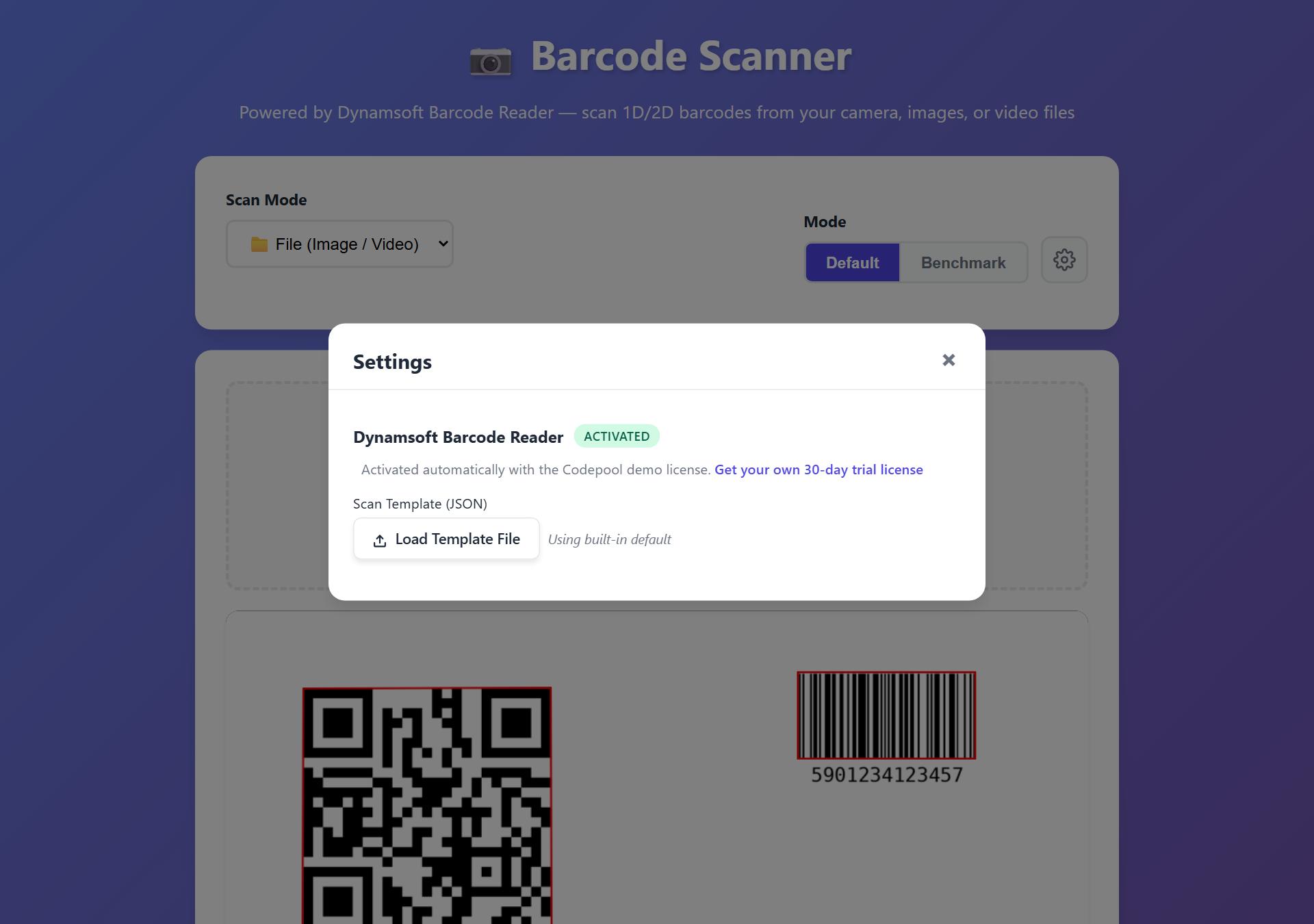
Reverting to defaults is one call: await cvr.resetSettings(). The deployed demo exposes this in its Settings dialog — load a template file, and every scan mode (image, video, camera, and benchmark) immediately uses it:
Step 6: Benchmark Speed and Accuracy Against Ground Truth
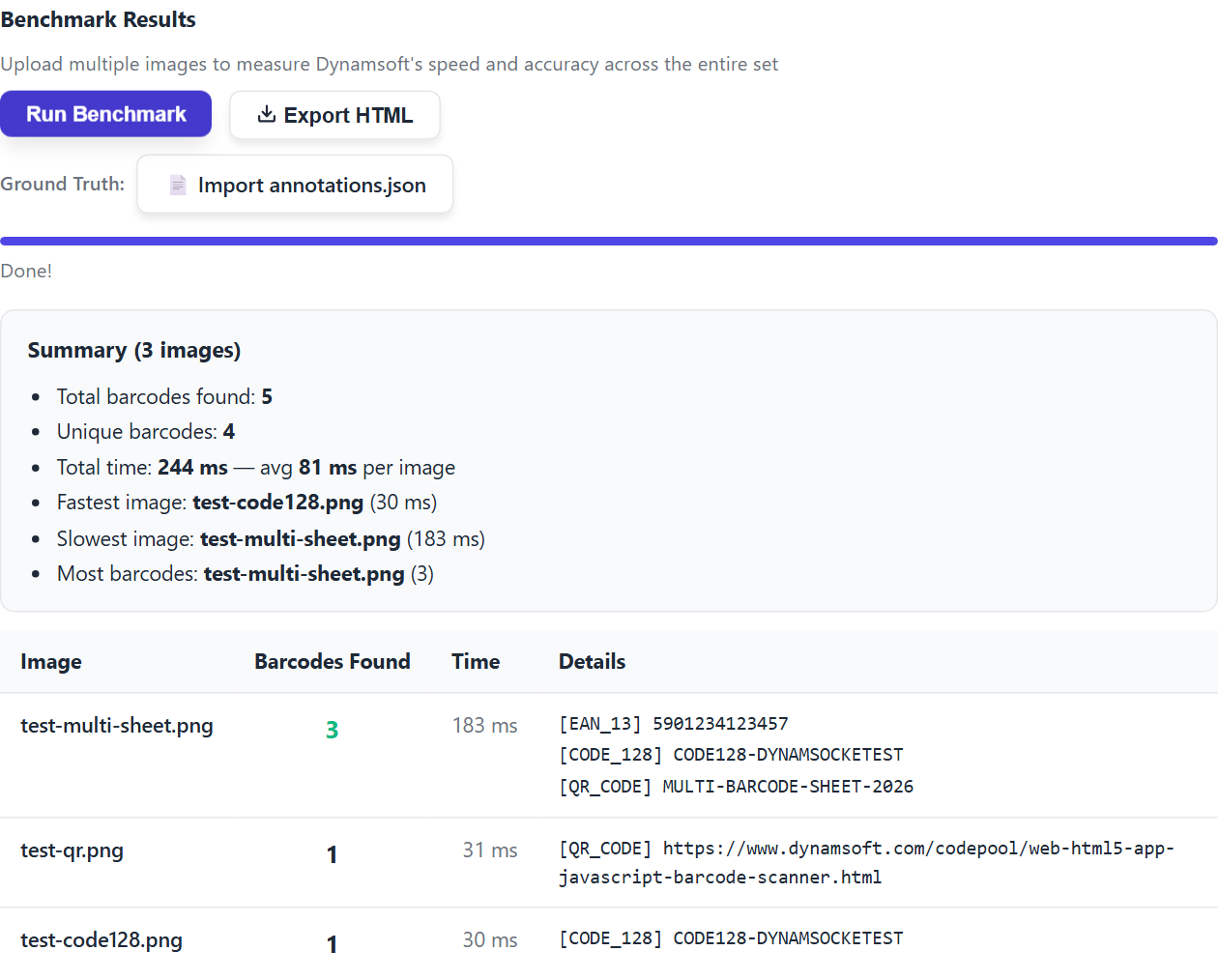
Once the scanner works, the natural next question is how fast and how accurate it is on your images. The demo’s Benchmark mode runs the same capture() call across a batch of images while measuring elapsed time per image with performance.now():
async function benchmarkSingleImage(image, imageName, groundTruth = null) {
    const barcodes = [];
    const startTime = performance.now();

    const result = await cvr.capture(image.src, currentTemplateName);
    for (const item of result.items) {
        if (item.type === Dynamsoft.Core.EnumCapturedResultItemType.CRIT_BARCODE) {
            barcodes.push({ type: item.formatString, text: item.text });
        }
    }

    return {
        imageName,
        barcodes,
        time: performance.now() - startTime,
        gtResult: groundTruth ? computeGTResult(barcodes.map((b) => b.text), groundTruth) : null,
    };
}
Accuracy scoring is optional: import an annotations.json ground-truth file that maps each image filename to its expected barcode texts, and the report adds detection rate and precision columns. A match is counted when a detected text equals the expected text, with two pragmatic tolerances — UPC-A results are treated as equivalent to their 13-digit EAN-13 form, and a detected value is accepted if it starts with the expected value plus at most two extra characters (an appended add-on or check digit):
function matchBarcodeText(detected, expected) {
    if (detected === expected) return true;
    // UPC-A (12 digits) vs EAN-13 (13 digits with leading 0) equivalence
    if (detected.length === 12 && expected.length === 13 && expected === "0" + detected) return true;
    if (detected.length === 13 && expected.length === 12 && detected === "0" + expected) return true;
    // Detected may include an appended check digit (up to 2 extra chars)
    if (detected.startsWith(expected) && detected.length <= expected.length + 2) return true;
    return false;
}
With the counts of true positives (TP), false positives (FP), and expected barcodes, detection rate is TP / expected and precision is TP / (TP + FP). The full report — per-image found/expected counts, rates, and timing — can be exported as a standalone HTML file:
For a ready-made dataset with ground truth, Dynamsoft challenging-images ships 68 difficult photos with 514 annotated barcodes whose annotations.json matches the format above out of the box.
Common Issues & Edge Cases
- Camera permission denied or no devices found:
getUserMediaonly works in a secure context —https://orhttp://localhost. Serving the page over plainhttp://on a LAN IP silently blocks the camera,enumerateDevices()returns empty labels, and the camera dropdown stays empty. Serve via HTTPS in production. - License activation fails on your domain: The license key is validated against the page’s hostname. A key registered for
www.yourdomain.comwill not activate when the page is served fromlocalhost, a staging subdomain, or an IP address — register every domain you deploy to, and keep a separate key for local development. - First scan is slow:
loadWasm()downloads and compiles the DBR WebAssembly module before the firstcapture()call. Subsequent scans are fast, so trigger initialization on page load rather than on the first user action. - Video results flood the output list: Without de-duplication, a barcode visible for several seconds appends a result every frame. Key results by
[format] textand append only unseen keys, as shown in Steps 3 and 4. - Benchmark timings vary between runs: Per-image times include WebAssembly execution on the main thread, so browser tab focus, hardware acceleration, and concurrent workloads all affect them. Run benchmarks on the same machine and browser configuration when comparing numbers, and treat absolute milliseconds as indicative rather than absolute.
Conclusion
With the Dynamsoft Barcode Reader JavaScript SDK, a complete online barcode scanner fits in a single HTML5 page: initLicense(), loadWasm(), and createInstance() to boot, then one cvr.capture() call per source — data URLs for uploaded images, canvas snapshots for video files and the live camera. Bounding-box overlays, custom JSON templates, and a ground-truth-scored benchmark mode all build on the same result items (text, formatString, location.points), without a frontend framework or any server-side barcode processing.