


Build a Browser-Based Passport MRZ Scanner with OCR and Face Detection in JavaScript
In today’s digital world, automating document processing has become essential for businesses across various industries. Whether you’re building a hotel check-in system, airport kiosk, identity verification platform, or government service portal, the ability to quickly and accurately extract information from passports and ID cards can significantly improve user experience and operational efficiency.
In this comprehensive tutorial, we’ll build a powerful web-based passport scanner that combines three technologies:
- MRZ (Machine Readable Zone) Detection - Extract structured data from passport codes
- OCR (Optical Character Recognition) - Read text from any part of the document
- Face Detection - Locate and extract facial photos
What you’ll build: A browser-based passport MRZ scanner that reads Machine Readable Zone data using Dynamsoft Capture Vision, extracts free-form text with PaddleOCR via ONNX Runtime Web, and locates the facial photo using face-api.js — all running directly in the browser with no server required.
Key Takeaways
- Dynamsoft Capture Vision SDK parses TD1 and TD3 MRZ formats from passport images with high accuracy, returning structured fields like name, nationality, and document number.
- PaddleOCR (PP-OCRv4) runs entirely in the browser via ONNX Runtime Web — no API key or external server is needed for free OCR.
- face-api.js uses SSD MobileNetV1 to detect and crop the passport photo client-side, with no server dependency.
- This hybrid approach supports offline use via a service worker and can scale to production by swapping PaddleOCR for Google Cloud Vision when higher accuracy is required.
Common Developer Questions
How do I scan a passport MRZ in a web browser using JavaScript?
Load the passport image into the browser, pass it to Dynamsoft Capture Vision with the MRZ template, and render the returned fields directly in the page. The whole MRZ pipeline runs client-side, so there is no server round-trip for passport parsing.
Can I run OCR on a passport image entirely in the browser without an API key?
Yes. PaddleOCR can be executed in the browser through ONNX Runtime Web, which means free-form text extraction happens locally without any API key, upload, or cloud dependency.
How do I extract the face photo from a passport using JavaScript?
Run face-api.js on the loaded passport image, use its SSD MobileNetV1 detector to locate the portrait region, and crop that rectangle onto a canvas for display or export. This keeps face extraction entirely in the same browser session as MRZ and OCR processing.
Watch the MRZ Scanner and Face Detection Run Live in a Browser
Online Demo
https://yushulx.me/javascript-barcode-qr-code-scanner/examples/mrz_solution/
Why Build a Browser-Based Passport Scanner?
Real-World Applications for a Browser-Based Document Scanner
- Travel & Hospitality
- Hotel check-in automation
- Airport self-service kiosks
- Rental car verification
- Cruise ship boarding
- Financial Services
- KYC (Know Your Customer) onboarding data capture
- Account opening verification
- International money transfers
- Credit applications
- Government & Immigration
- Border control stations
- Visa application processing
- Citizen services portals
- Emergency document verification
- Healthcare
- Patient registration
- Medical tourism verification
- Insurance claim processing
- E-commerce & Marketplaces
- Age verification for restricted products
- Seller identity verification
- International shipping compliance
Why a Browser-Based Approach Reduces Cost and Complexity
- No Installation Required - Works instantly in any modern browser
- Cross-Platform - Desktop, tablet, and mobile compatible
- Easy Updates - Deploy fixes and features without user action
- Offline Capability - Service workers enable offline processing
- Cost-Effective - Reduce hardware and maintenance costs
Technology Stack: Free and Paid Components
Our solution leverages a hybrid approach, combining both free and paid APIs to give users flexibility based on their needs and budget.
Free Components
- PaddleOCR (ONNX Runtime Web)
- Runs entirely in the browser
- No API costs or quotas
- Privacy-friendly (no data leaves the device)
- face-api.js
- SSD MobileNetV1 face detection
- Lightweight and fast
- Client-side processing
- Open-source and free
Paid Components
- Dynamsoft Capture Vision SDK
- Industry-leading MRZ recognition
- Supports TD1, TD2, TD3 formats
- High accuracy and speed
- Free trial available
- Google Cloud Vision API
- State-of-the-art OCR accuracy
- Supports 50+ languages
- Handles complex layouts and fonts
When to Choose a Hybrid Free and Paid Approach
The combination of free and paid options provides:
- Development Flexibility - Start with free tools, upgrade when needed
- Cost Optimization - Use local processing for non-critical text, cloud API for precision tasks
- Reliability - Fallback options if one service is unavailable
- User Choice - Let users select based on their API keys and budgets
Prerequisites
Before starting, set up the following dependencies and API keys:
- A modern web browser with WebGPU or WASM support (Chrome 113+, Edge 113+, or Firefox 116+)
- Dynamsoft Capture Vision SDK — loaded from CDN; Get a 30-day free trial license to activate MRZ recognition.
- ONNX Runtime Web — loaded from CDN; no install required
- face-api.js — loaded from CDN; no install required
- PaddleOCR model files — download
ch_PP-OCRv4_det.onnx,ch_PP-OCRv4_rec.onnx, andppocr_keys_v1.txtfrom the source repository - face-api.js model files — download the SSD MobileNetV1 weights from the source repository and place them in
assets/face-api-models/
Build the Passport Scanner: Step-by-Step Guide
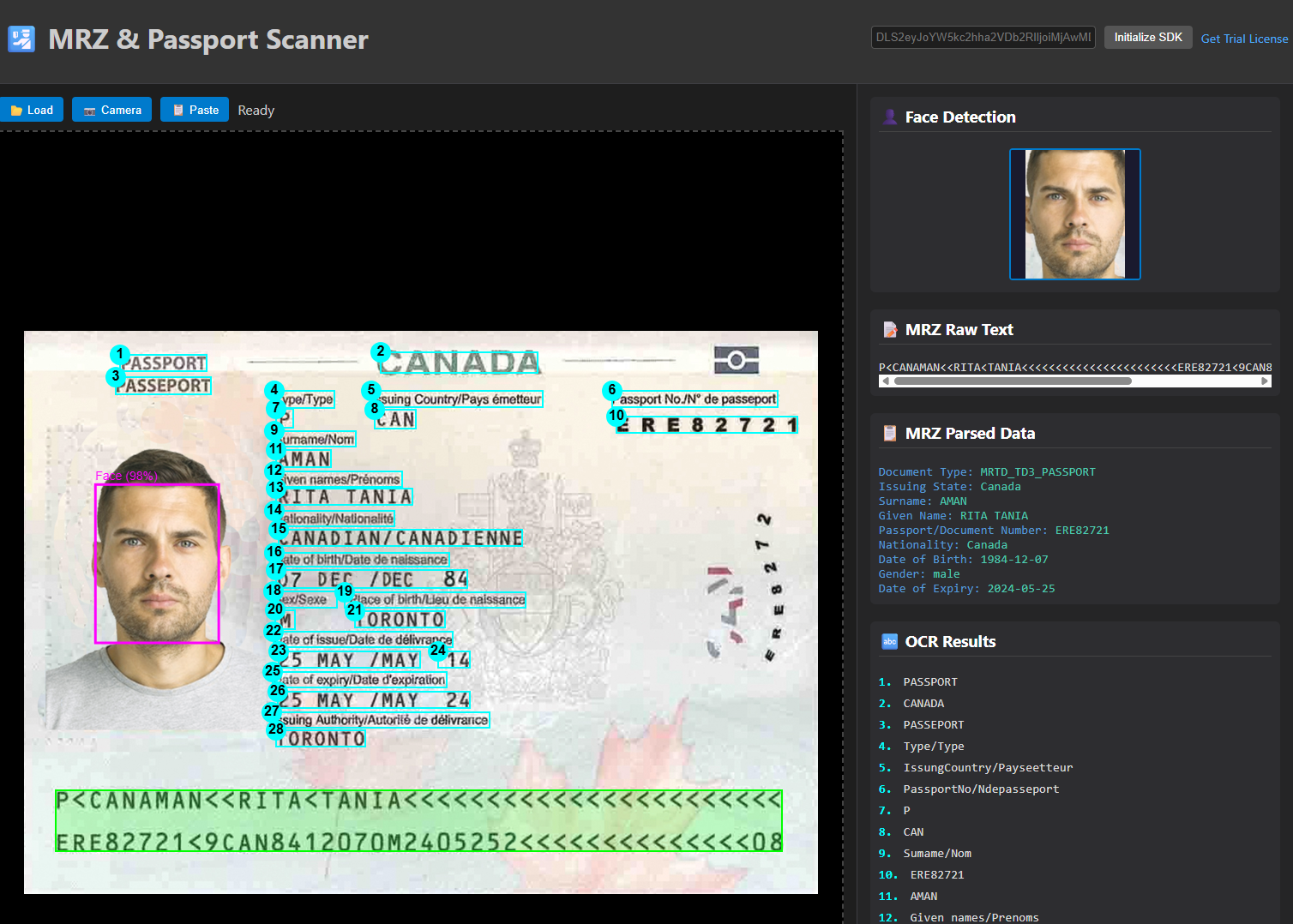
Step 1: Set Up the HTML Layout with a Dual-Panel Interface
Create index.html:
<!DOCTYPE html>
<html lang="en">
<head>
    <meta charset="UTF-8">
    <meta name="viewport" content="width=device-width, initial-scale=1.0">
    <title>AI-Powered MRZ & Passport Scanner</title>
    <link rel="stylesheet" href="style.css">

    <!-- Dynamsoft SDK for MRZ -->
    <script src="https://cdn.jsdelivr.net/npm/dynamsoft-capture-vision-bundle@3.2.4000/dist/dcv.bundle.min.js"></script>

    <!-- ONNX Runtime for local OCR -->
    <script src="https://cdn.jsdelivr.net/npm/onnxruntime-web/dist/ort.all.min.js"></script>

    <!-- face-api.js for face detection -->
    <script defer src="https://cdn.jsdelivr.net/npm/face-api.js@0.22.2/dist/face-api.min.js"></script>
</head>
<body>
    <div class="app-container">
        <header>
            <h1>🛂 MRZ & Passport Scanner</h1>

            <!-- MRZ License Configuration -->
            <div class="license-bar">
                <input type="text" id="licenseKey" placeholder="Dynamsoft License Key">
                <button id="initBtn">Initialize MRZ</button>
                <a href="https://www.dynamsoft.com/customer/license/trialLicense" target="_blank">Get Trial License</a>
            </div>

            <!-- OCR Engine Selection -->
            <div class="config-bar">
                <label>OCR Engine:</label>
                <select id="ocrEngineSelect">
                    <option value="paddle">PaddleOCR (Local - Free)</option>
                    <option value="google">Google OCR (Cloud - Paid)</option>
                </select>
                <input type="text" id="googleApiKey" placeholder="Google API Key (Optional)" style="display:none;">
            </div>
        </header>

        <main>
            <!-- Image Input Panel -->
            <section class="panel left-panel">
                <div class="toolbar">
                    <button id="btnLoad">📂 Load</button>
                    <button id="btnCamera">📷 Camera</button>
                    <button id="btnPaste">📋 Paste</button>
                    <span id="status">Ready</span>
                </div>

                <div class="viewer-container" id="dropZone">
                    <div id="cameraView" class="hidden"></div>
                    <div id="imageView" class="hidden">
                        <img id="displayImage" alt="Input">
                        <canvas id="overlayCanvas"></canvas>
                    </div>
                    <div class="placeholder-text">Drag & Drop Image Here</div>
                </div>
            </section>

            <!-- Results Panel -->
            <section class="panel right-panel">
                <div class="result-group">
                    <h3>👤 Face Detection</h3>
                    <canvas id="faceCropCanvas" width="150" height="150"></canvas>
                </div>

                <div class="result-group">
                    <h3>📝 MRZ Raw Text</h3>
                    <div id="mrzRawText" class="data-box">Waiting...</div>
                </div>

                <div class="result-group">
                    <h3>📋 MRZ Parsed Data</h3>
                    <div id="mrzResults" class="data-box">Waiting...</div>
                </div>

                <div class="result-group">
                    <h3>🔤 OCR Results</h3>
                    <div id="ocrResults" class="data-box">Waiting...</div>
                </div>
            </section>
        </main>
    </div>

    <div id="loadingSpinner" class="spinner-overlay">
        <div class="spinner"></div>
    </div>

    <script src="ocr-processor.js"></script>
    <script src="face-processor.js"></script>
    <script src="script.js"></script>
</body>
</html>
Key Features:
- Dual-panel layout for input and results
- License configuration for paid SDK
- OCR engine switcher (free vs paid)
- Multiple input methods (file, camera, clipboard, drag-drop)
Step 2: Style the Viewer and Result Panels
Create style.css:
* {
    margin: 0;
    padding: 0;
    box-sizing: border-box;
}

body {
    font-family: 'Segoe UI', Tahoma, Geneva, Verdana, sans-serif;
    background: linear-gradient(135deg, #667eea 0%, #764ba2 100%);
    min-height: 100vh;
    padding: 20px;
}

.app-container {
    max-width: 1400px;
    margin: 0 auto;
    background: white;
    border-radius: 10px;
    box-shadow: 0 10px 40px rgba(0,0,0,0.2);
    overflow: hidden;
}

header {
    background: linear-gradient(135deg, #667eea 0%, #764ba2 100%);
    color: white;
    padding: 20px;
    text-align: center;
}

.license-bar, .config-bar {
    margin-top: 10px;
    display: flex;
    gap: 10px;
    align-items: center;
    justify-content: center;
    flex-wrap: wrap;
}

main {
    display: grid;
    grid-template-columns: 1fr 1fr;
    gap: 20px;
    padding: 20px;
}

.viewer-container {
    position: relative;
    width: 100%;
    aspect-ratio: 4/3;
    background: #f0f0f0;
    border-radius: 8px;
    overflow: hidden;
}

#displayImage, #overlayCanvas {
    position: absolute;
    top: 0;
    left: 0;
    width: 100%;
    height: 100%;
    object-fit: contain;
}

.data-box {
    background: #f9f9f9;
    padding: 15px;
    border-radius: 5px;
    min-height: 60px;
    font-size: 14px;
    line-height: 1.6;
}

.spinner-overlay {
    position: fixed;
    top: 0;
    left: 0;
    width: 100%;
    height: 100%;
    background: rgba(0,0,0,0.7);
    display: none;
    justify-content: center;
    align-items: center;
    z-index: 1000;
}

.spinner-overlay.visible {
    display: flex;
}

.spinner {
    border: 4px solid #f3f3f3;
    border-top: 4px solid #667eea;
    border-radius: 50%;
    width: 50px;
    height: 50px;
    animation: spin 1s linear infinite;
}

@keyframes spin {
    0% { transform: rotate(0deg); }
    100% { transform: rotate(360deg); }
}
Step 3: Implement OCR with Dual Engine Support
Create ocr-processor.js with both PaddleOCR and Google Cloud Vision integration:
class OCRProcessor {
    constructor() {
        this.detSession = null;
        this.recSession = null;
        this.isInitialized = false;
        this.characters = null;
    }

    async init() {
        try {
            const options = {
                executionProviders: ['webgpu', 'wasm'],
                graphOptimizationLevel: 'all'
            };

            // Load PaddleOCR detection model
            this.detSession = await ort.InferenceSession.create(
                './assets/ch_PP-OCRv4_det.onnx',
                options
            );

            // Load recognition model
            this.recSession = await ort.InferenceSession.create(
                './assets/ch_PP-OCRv4_rec.onnx',
                options
            );

            // Load character dictionary
            const response = await fetch('./assets/ppocr_keys_v1.txt');
            const text = await response.text();
            this.characters = ['blank', ...text.split('\n').filter(c => c), ' '];

            this.isInitialized = true;
            console.log("✅ PaddleOCR initialized");
        } catch (e) {
            console.error("Failed to initialize OCR:", e);
        }
    }

    async run(imageElement, ocrResultsDiv, canvasOverlay, mrzZone, engine = 'paddle', apiKey = '') {
        if (engine === 'google') {
            return await this.runGoogleOCR(imageElement, ocrResultsDiv, canvasOverlay, mrzZone, apiKey);
        }

        // PaddleOCR local processing
        if (!this.isInitialized) {
            ocrResultsDiv.textContent = "OCR not initialized.";
            return [];
        }

        const boxes = await this.detectText(imageElement);
        const results = [];

        for (const box of boxes) {
            if (mrzZone && this.overlapsWithMrz(box, mrzZone)) continue;

            const text = await this.recognizeText(imageElement, box);
            if (text?.trim()) {
                results.push({ box, text });
            }
        }

        this.drawOverlays(canvasOverlay, results);
        this.displayResults(ocrResultsDiv, results);
        return results;
    }

    async runGoogleOCR(imageElement, ocrResultsDiv, canvasOverlay, mrzZone, apiKey) {
        try {
            let base64Image = imageElement.src.split(',')[1];

            const url = apiKey
                ? `https://vision.googleapis.com/v1/images:annotate?key=${apiKey}`
                : 'https://vision.googleapis.com/v1/images:annotate';

            const response = await fetch(url, {
                method: 'POST',
                headers: { 'Content-Type': 'application/json' },
                body: JSON.stringify({
                    requests: [{
                        image: { content: base64Image },
                        features: [{ type: "TEXT_DETECTION" }]
                    }]
                })
            });

            if (!response.ok) {
                const err = await response.json();
                throw new Error(err.error?.message || 'Google OCR failed');
            }

            const data = await response.json();
            const annotations = data.responses[0].textAnnotations || [];

            const results = [];
            for (let i = 1; i < annotations.length; i++) {
                const ann = annotations[i];
                const vertices = ann.boundingPoly.vertices;

                const box = {
                    x: Math.min(...vertices.map(v => v.x || 0)),
                    y: Math.min(...vertices.map(v => v.y || 0)),
                    width: Math.max(...vertices.map(v => v.x || 0)) - Math.min(...vertices.map(v => v.x || 0)),
                    height: Math.max(...vertices.map(v => v.y || 0)) - Math.min(...vertices.map(v => v.y || 0))
                };

                if (mrzZone && this.overlapsWithMrz(box, mrzZone)) continue;
                results.push({ box, text: ann.description });
            }

            this.drawOverlays(canvasOverlay, results);
            this.displayResults(ocrResultsDiv, results);
            return results;
        } catch (e) {
            console.error("Google OCR Error:", e);
            ocrResultsDiv.textContent = `Google OCR Error: ${e.message}`;
            return [];
        }
    }

    // Additional helper methods: detectText, recognizeText, overlapsWithMrz, etc.
}

const ocrProcessor = new OCRProcessor();

window.initOCR = async function() {
    await ocrProcessor.init();
};

window.runOCR = async function(imageElement, ocrResultsDiv, canvasOverlay, mrzZone, engine, apiKey) {
    return await ocrProcessor.run(imageElement, ocrResultsDiv, canvasOverlay, mrzZone, engine, apiKey);
};
Key Implementation Details:
- Free Option (PaddleOCR):
- Runs entirely in browser using ONNX Runtime Web
- No external API calls
- Privacy-friendly
- Paid Option (Google Cloud Vision):
- Higher accuracy especially for complex documents
- Supports 50+ languages out of the box
- Requires API key
- 1,000 free requests per month
Step 4: Detect and Crop the Passport Face Photo
Create face-processor.js using the free face-api.js library:
let faceDetectionReady = false;

window.initFaceDetection = async function() {
    try {
        await faceapi.nets.ssdMobilenetv1.loadFromUri('./assets/face-api-models');
        faceDetectionReady = true;
        console.log("✅ Face detection ready");
    } catch (e) {
        console.error("Face detection init failed:", e);
    }
};

window.runFaceDetection = async function(imageElement, faceCropCanvas, overlayCanvas) {
    if (!faceDetectionReady) return;

    try {
        const detection = await faceapi.detectSingleFace(imageElement);

        if (detection) {
            const box = detection.box;

            // Draw overlay on main canvas
            const ctx = overlayCanvas.getContext('2d');
            ctx.strokeStyle = '#ff0000';
            ctx.lineWidth = 3;
            ctx.strokeRect(box.x, box.y, box.width, box.height);

            // Crop and display face
            const faceCtx = faceCropCanvas.getContext('2d');
            faceCtx.drawImage(
                imageElement,
                box.x, box.y, box.width, box.height,
                0, 0, faceCropCanvas.width, faceCropCanvas.height
            );
        }
    } catch (e) {
        console.error("Face detection error:", e);
    }
};
Step 5: Initialize the Dynamsoft MRZ Detection SDK
In script.js, add Dynamsoft MRZ initialization:
let cvr = null;
let parser = null;
let isMRZReady = false;

// Initialize MRZ SDK (requires license)
document.getElementById('initBtn').addEventListener('click', async () => {
    const key = document.getElementById('licenseKey').value.trim();

    try {
        // Initialize Dynamsoft license
        await Dynamsoft.License.LicenseManager.initLicense(key, true);

        // Load WASM modules
        await Dynamsoft.Core.CoreModule.loadWasm(["DLR"]);

        // Create parser
        parser = await Dynamsoft.DCP.CodeParser.createInstance();

        // Load MRZ specifications
        await Dynamsoft.DCP.CodeParserModule.loadSpec("MRTD_TD1_ID");
        await Dynamsoft.DCP.CodeParserModule.loadSpec("MRTD_TD3_PASSPORT");

        // Create router
        cvr = await Dynamsoft.CVR.CaptureVisionRouter.createInstance();
        await cvr.initSettings("./full.json");

        isMRZReady = true;
        console.log("✅ MRZ SDK initialized");
    } catch (ex) {
        console.error("MRZ init failed:", ex);
        alert("MRZ failed. Free features (OCR/Face) still work!");
    }
});
Step 6: Combine MRZ, Face Detection, and OCR into One Pipeline
Add the main processing pipeline in script.js:
async function loadImage(base64Image) {
    const displayImage = document.getElementById('displayImage');
    displayImage.src = base64Image;

    displayImage.onload = async () => {
        document.getElementById('loadingSpinner').classList.add('visible');

        let mrzZone = null;

        // 1. Run MRZ detection (if initialized)
        if (isMRZReady && cvr) {
            const result = await cvr.capture(base64Image, "ReadMRZ");
            const mrzTexts = result.items
                .filter(item => item.type === Dynamsoft.Core.EnumCapturedResultItemType.CRIT_TEXT_LINE)
                .map(item => item.text);

            if (mrzTexts.length > 0) {
                document.getElementById('mrzRawText').textContent = mrzTexts.join('\n');

                const parsed = await parser.parse(mrzTexts.join(''));
                displayParsedMrz(parsed);

                // Calculate MRZ zone for OCR exclusion
                mrzZone = calculateMrzBounds(result.items);
            }
        }

        // 2. Run face detection (always free)
        if (window.runFaceDetection) {
            await window.runFaceDetection(
                displayImage,
                document.getElementById('faceCropCanvas'),
                document.getElementById('overlayCanvas')
            );
        }

        // 3. Run OCR (skip MRZ zone)
        if (window.runOCR) {
            const engine = document.getElementById('ocrEngineSelect').value;
            const apiKey = document.getElementById('googleApiKey').value.trim();

            await window.runOCR(
                displayImage,
                document.getElementById('ocrResults'),
                document.getElementById('overlayCanvas'),
                mrzZone,
                engine,
                apiKey
            );
        }

        document.getElementById('loadingSpinner').classList.remove('visible');
    };
}
Step 7: Cache ML Models for Offline Use with a Service Worker
Create service-worker.js to cache models for offline use:
const CACHE_NAME = 'passport-scanner-v1';
const ASSETS_TO_CACHE = [
    './assets/ch_PP-OCRv4_det.onnx',
    './assets/ch_PP-OCRv4_rec.onnx',
    './assets/ppocr_keys_v1.txt',
    './assets/version-RFB-320.onnx',
    './assets/face-api-models/ssd_mobilenetv1_model-weights_manifest.json',
    './assets/face-api-models/ssd_mobilenetv1_model-shard1',
    './assets/face-api-models/ssd_mobilenetv1_model-shard2'
];

self.addEventListener('install', (event) => {
    event.waitUntil(
        caches.open(CACHE_NAME).then((cache) => {
            return cache.addAll(ASSETS_TO_CACHE);
        })
    );
});

self.addEventListener('fetch', (event) => {
    event.respondWith(
        caches.match(event.request).then((response) => {
            return response || fetch(event.request);
        })
    );
});
Configure API Keys and SDK Licenses
Get a Dynamsoft MRZ Trial License
- Visit Dynamsoft Trial License
- Sign up for a 30-day free trial
- Copy your license key
- Paste it into the “Dynamsoft License Key” input field
- Click “Initialize MRZ”
Set Up the Google Cloud Vision API for OCR
- Go to Google Cloud Console
- Create a new project or select an existing one
- Enable the “Cloud Vision API”
- Go to “Credentials” → “Create Credentials” → “API Key”
- Copy your API key
- Select “Google OCR (Cloud)” in the dropdown
- Paste your API key
Use PaddleOCR and face-api.js Without an API Key
PaddleOCR:
- Select “PaddleOCR (Local)” from dropdown
- No API key needed
- Models load automatically
- Works offline after first load
Face Detection:
- Always free and enabled
- No configuration needed
Common Issues & Edge Cases
- MRZ detection fails on low-contrast or skewed images: Dynamsoft Capture Vision includes perspective correction, but for blurry or poorly-lit scans, pre-process the image with the Canvas API to boost contrast before calling
cvr.capture(). Ensure the full MRZ strip (the bottom two or three text lines) is visible and unclipped. - PaddleOCR returns garbled or empty results: The PP-OCRv4 model is optimized for printed text at a minimum line height of roughly 48px in the canvas. If results are poor, scale the source canvas to a minimum width of 800px before running detection.
- face-api.js detects no face: SSD MobileNetV1 requires the face region to be at least 50×50 pixels in the input image. If the photo is too small (e.g., from a distant camera shot), upscale the image before calling
faceapi.detectSingleFace().