


JavaScript PDF Text Search in the Browser: A Web Viewer Implementation Guide
In the digital age, PDFs are one of the most common formats for sharing and archiving documents. They preserve layout, fonts, and images across platforms. However, not all PDFs are created equal. While many contain actual text data, others—especially scanned documents—are essentially just images wrapped in a PDF container. This difference is critical when it comes to text search.
A searchable PDF allows you to find words instantly using the viewer’s search feature, while an image-only PDF does not. If you work with scanned contracts, reports, or forms, being able to search quickly is a major productivity boost.
Starting from v3.0, the Dynamsoft Document Viewer SDK (DDV) supports text search in searchable PDFs directly in a web application. This means you can open a PDF, hit the search icon, and instantly navigate to matching text—all without extra backend processing. And if your PDF isn’t searchable yet, you can use OCR (Optical Character Recognition) to make it so.
In this tutorial, you’ll learn:
- How to enable the DDV text search panel in your web app.
- How to integrate a free OCR library to convert image-based documents to searchable PDFs before viewing.
What you’ll build: A browser-based PDF viewer with a built-in text search panel that lets users instantly search keywords across any PDF — including scanned, image-only documents converted to searchable PDFs via OCR — using Dynamsoft Document Viewer SDK and Tesseract.js/OCR.space.
Key Takeaways
- Dynamsoft Document Viewer SDK v3.0+ includes a native
TextSearchPanelUI component that enables in-browser PDF keyword search with no backend required. - Image-only PDFs can be made searchable on the fly by piping them through an OCR library (
ocrLib.convert2searchable()) before loading into the viewer. - The
TextSearchPanelSwitchelement integrates into both desktop and mobile viewer layouts with a single line of configuration. - This approach works entirely client-side: OCR runs in the browser via Tesseract.js or via a free OCR.space API call, keeping infrastructure simple.
Common Developer Questions
How do I implement JavaScript PDF text search in a web browser viewer?
Add TextSearchPanelSwitch and TextSearchPanel to the DDV viewer layout so users can open the built-in search UI and jump through matches inside searchable PDFs. The viewer handles the search interaction once the PDF includes a real text layer.
How do I make a scanned PDF searchable in JavaScript without a backend server?
Run OCR on the image-based PDF or source images first, generate a searchable PDF that adds an invisible text layer, and then load that OCR output into the viewer. This tutorial does that with a browser-side OCR helper or the OCR.space service.
Why does TextSearchPanel show no results when I load a PDF in Dynamsoft Document Viewer?
Because the panel only works on PDFs that already contain searchable text. If the file is image-only, the viewer has nothing to index, so you need to OCR the document first and reload the searchable output.
Demo: Search Text in PDF Files
Online Demo
https://yushulx.me/web-twain-document-scan-management/examples/document_annotation/
Prerequisites
Before you start, you’ll need:
- Dynamsoft Document Viewer trial license: Get a 30-day free trial license here.
- OCR library: ocr-lib.js provides a unified API to run free OCR engines like Tesseract.js or OCR.space API and output searchable PDFs.
- Sample project: The document_annotation sample shows how to integrate DDV in a real project.
Understand What Makes a PDF Searchable
A searchable PDF is a hybrid file that contains:
- Visual layer: The scanned page image, graphics, and layout exactly as they appear.
- Hidden text layer: OCR-extracted text positioned precisely over the corresponding visual content.
When you open such a PDF:
- You can select, copy, and paste text just like a native document.
- The viewer’s search feature finds matches instantly.
- Screen readers and accessibility tools can read it.
By contrast, an image-only PDF is just pixels. The search tool finds nothing because there’s no text data.
How it’s created: OCR software analyzes the image, recognizes characters, and writes them into the PDF as invisible text. This is exactly what we’ll do programmatically for any image-based files.
Review the Project Structure
The sample project files:
document_annotation/
├── index.html              # Main HTML file with UI components
├── main.js                 # Core application logic
├── main.css                # Styling and responsive design
├── ocr-lib.js              # OCR library with multiple engine support
├── full.json               # Configuration templates
├── searchable-document.pdf # Sample searchable PDF for testing
└── README.md
Step 1: Configure the UI for Text Search
DDV offers UI components for search:
TextSearchPanelSwitch(search icon button)TextSearchPanel(search bar and results list)
We’ll add them to the desktop and mobile viewer configs in main.js.
Desktop config:
const pcEditViewerUiConfig = {
    type: Dynamsoft.DDV.Elements.Layout,
    flexDirection: "column",
    className: "ddv-edit-viewer-desktop",
    children: [
        {
            type: Dynamsoft.DDV.Elements.Layout,
            className: "ddv-edit-viewer-header-desktop",
            children: [
                {
                    type: Dynamsoft.DDV.Elements.Layout,
                    children: [
                        ...
                        Dynamsoft.DDV.Elements.TextSearchPanelSwitch
                    ],
                },
                {
                    type: Dynamsoft.DDV.Elements.Layout,
                    children: [
                        {
                            type: Dynamsoft.DDV.Elements.Pagination,
                            className: "ddv-edit-viewer-pagination-desktop",
                        },
                        downloadButton,
                    ],
                },
            ],
        },
        ...
    ],
};
Mobile config:
const mobileEditViewerUiConfig = {
    type: Dynamsoft.DDV.Elements.Layout,
    flexDirection: "column",
    className: "ddv-edit-viewer-mobile",
    children: [
        {
            type: Dynamsoft.DDV.Elements.Layout,
            className: "ddv-edit-viewer-header-mobile",
            children: [
                ...
                Dynamsoft.DDV.Elements.TextSearchPanelSwitch
            ],
        },
        {
            type: Dynamsoft.DDV.Elements.Layout,
            flexDirection: "column",
            children: [
                Dynamsoft.DDV.Elements.MainView,
                {
                    type: Dynamsoft.DDV.Elements.TextSearchPanel,
                    className: "ddv-edit-viewer-search-mobile"
                }
            ]
        },
        ...
    ],
};
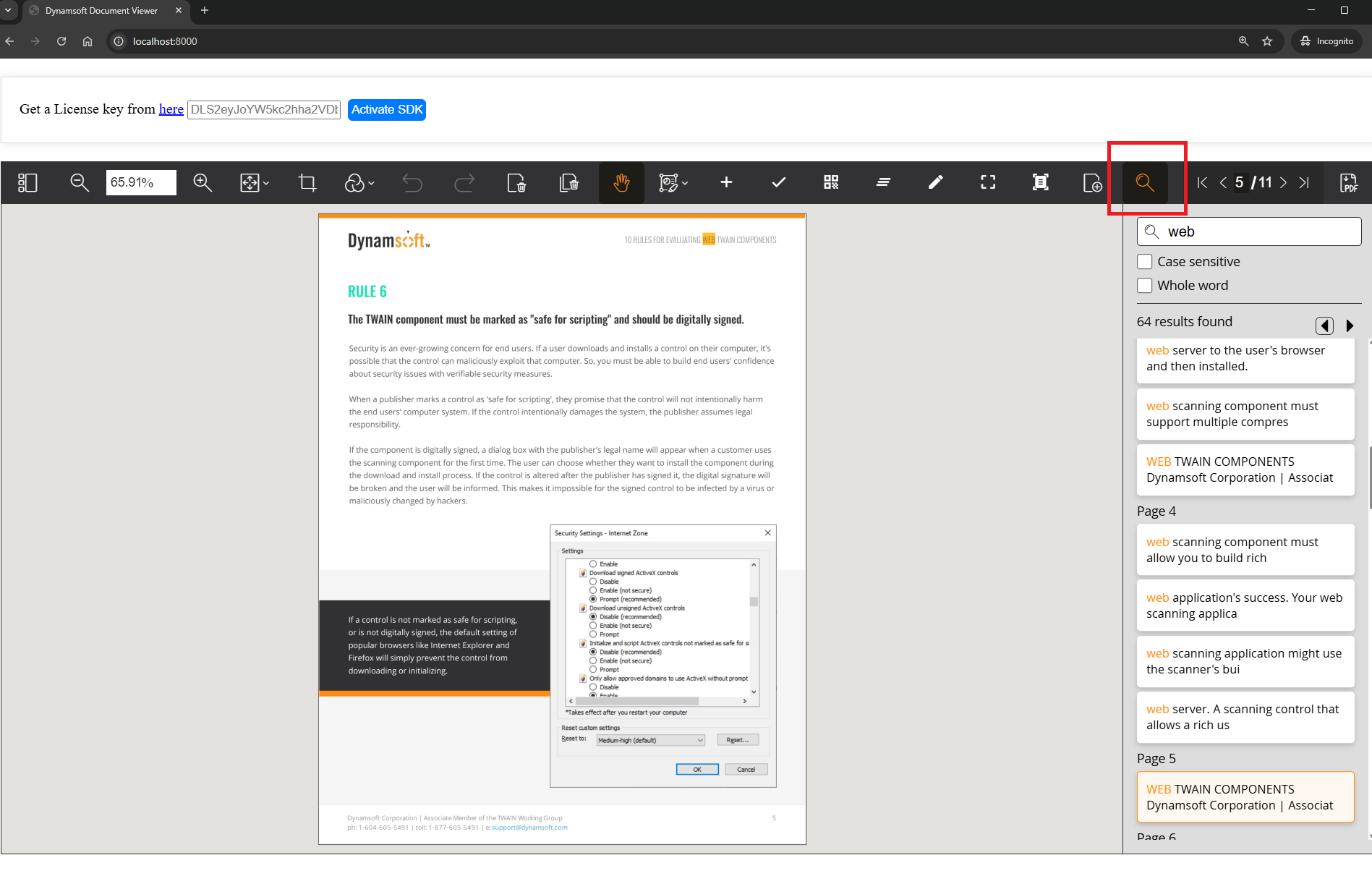
Result: When you run the app and open a searchable PDF, you’ll see a magnifier icon. Clicking it shows the search panel.
Step 2: Convert Image-Only Files to Searchable PDFs with OCR
If your users may load image-only PDFs or images (JPG, PNG, TIFF), you can make them searchable on the fly before loading into DDV.
This adds processing time—especially for large documents—but it’s a huge usability boost.
The logic is as follows:
-
Include the necessary libraries for OCR and PDF manipulation.
<script src="https://unpkg.com/tesseract.js@5.0.2/dist/tesseract.min.js"></script> <script src="https://cdnjs.cloudflare.com/ajax/libs/pdf.js/3.11.174/pdf.min.js"></script> <script src="https://cdnjs.cloudflare.com/ajax/libs/jspdf/2.5.1/jspdf.umd.min.js"></script> <script src="https://unpkg.com/utif2@4.1.0/UTIF.js"></script> <script src="ocr-lib.js"></script> -
Initialize the OCR library:
const ocrLib = new OCRLibrary(); -
In
async function load(blob, password), convert the input blob to a searchable PDF before loading into DDV:async function load(blob, password) { try { if (!currentDoc) { currentDoc = Dynamsoft.DDV.documentManager.createDocument({ name: Date.now().toString(), author: "DDV", }); } let searchablePDF = blob; searchablePDF = await ocrLib.convert2searchable( blob, { engine: 'ocr.space', language: 'eng' }, (message, percentage) => { console.log(`${message} (${percentage}%)`); } ); const source = { fileData: searchablePDF, password: password, renderOptions: { renderAnnotations: "loadAnnotations" } }; await currentDoc.loadSource([source]); editViewer.openDocument(currentDoc); editViewer.goToPage(editViewer.getPageCount() - 1); } catch (error) { console.error(error); } }
Common Issues & Edge Cases
TextSearchPanelreturns no results on a normal PDF: This happens when the PDF is image-only and has no embedded text layer. Run it throughocrLib.convert2searchable()before callingcurrentDoc.loadSource()to add the hidden text layer.- OCR takes too long on multi-page documents: Tesseract.js processes pages sequentially in-browser and can be slow for large documents. For production use, consider using OCR.space API (
engine: 'ocr.space') which offloads processing, or limit OCR to the first N pages when the document is large. - Search highlights appear misaligned on mobile: The
TextSearchPanelmust be placed inside the responsive layout container. Use theddv-edit-viewer-search-mobileCSS class and ensureTextSearchPanelis a sibling ofMainViewin the mobileflexDirection: "column"layout as shown in Step 1.