


How to Access a USB Scanner from WSL2 and Scan Documents on Windows Using SANE
SANE is an API to access document scanners, which is mainly used in UNIX systems. It has several advantages over TWAIN (another document scanning API that is mainly for Windows):
- TWAIN does not separate the user-interface from the driver of a device. This, unfortunately, makes it difficult, if not impossible, to provide network transparent access to image acquisition devices. SANE, on the other hand, can be used in a command-line environment without a problem.
- SANE has built-in support for a wide range of scanners while we have to download and install separate drivers to use TWAIN.
There were attempts to make SANE run on Windows. But most of them still require a Linux host. With Windows Subsystem for Linux (WSL), this process has been made easier.
Read on to learn about how to do this.
What you’ll build: A Windows-based document scanning setup that passes a USB scanner through to WSL2, runs SANE in Linux, and serves a browser scanning page via Dynamic Web TWAIN — with no Windows TWAIN drivers required.
Key Takeaways
- SANE runs natively in WSL2 and can access physical USB scanners passed through from Windows using
usbipd-win, eliminating the need for Windows TWAIN drivers. - Dynamic Web TWAIN’s Linux service bridges the SANE backend to a browser UI, enabling in-browser PDF scanning on any Windows machine running WSL2.
- WSL2 (version 2) is required — WSL1 does not support USB device passthrough via
usbipd. - This setup suits enterprise environments where scanner vendors only supply SANE/Linux drivers, or where headless scanning pipelines are needed.
Common Developer Questions
How do I access a local USB scanner from WSL2 on Windows?
Use usbipd-win on the Windows host to bind the USB scanner and attach it into a WSL2 distribution, then verify inside Linux with lsusb and scanimage -L. That moves the scanner into the Linux environment where SANE can manage it normally.
How do I use SANE to scan documents on Windows without native Windows drivers?
Run SANE inside WSL2 instead of on the Windows host, connect the scanner through USB/IP passthrough, and use Linux-side tools such as scanimage for the actual acquisition layer. This avoids vendor TWAIN dependencies because Windows is only hosting WSL, not driving the scanner itself.
How do I connect Dynamic Web TWAIN to a SANE backend running in WSL?
Install the Linux Dynamic Web TWAIN service inside WSL, start its background processes, and point your browser page at that local service with the configured host and installer locations. That lets a Windows browser page drive scans that are actually handled by the SANE backend inside WSL.
Prerequisites
- A Windows machine with WSL2 installed (Debian or Ubuntu distribution)
- A USB scanner physically connected to the Windows host
- Get a 30-day free trial license for Dynamic Web TWAIN to use the browser-based scanning feature
Step 1: Connect Your USB Scanner to WSL2
-
After installation of a Linux WSL distribution, set its version to 2 to use WSL 2.
PS C:\Users\admin> wsl -l -v NAME STATE VERSION Debian Running 1 PS C:\Users\admin> wsl --set-version Debian 2 - Install USBIPD on Windows. You can find its installers on GitHub.
-
Use USBIPD to connect an USB device to WSL.
PS C:\Users\admin> usbipd list # list USB devices connected to the host PS C:\Users\admin> usbipd bind --busid <busid> # share the device. You can find the bus id in the previous step PS C:\Users\admin> usbipd attach --wsl --busid <busid> # attach the device to WSL -
Run
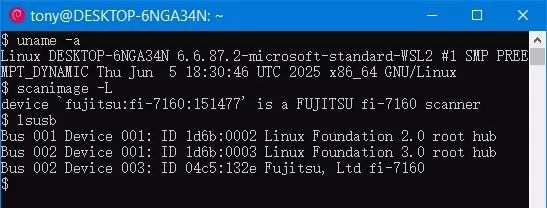
lsusbin Linux and you can find the USB device in the list.$ lsusb Bus 001 Device 001: ID 1d6b:0002 Linux Foundation 2.0 root hub Bus 002 Device 001: ID 1d6b:0003 Linux Foundation 3.0 root hub Bus 002 Device 003: ID 04c5:132e Fujitsu, Ltd fi-7160
Step 2: Install SANE and Scan Your First Document
-
Install SANE. Here, we are installing for Debian.
$ sudo apt install sane-utils -
Use the
scanimagecommand-line tool to list scanners and scan documents.$ scanimage -L device 'fujitsu:fi-7160:151477' is a FUJITSU fi-7160 scanner $ scanimage -o scanned.png # save the document to an image
Step 3: Build a Browser-Based Scanning Page with Dynamic Web TWAIN
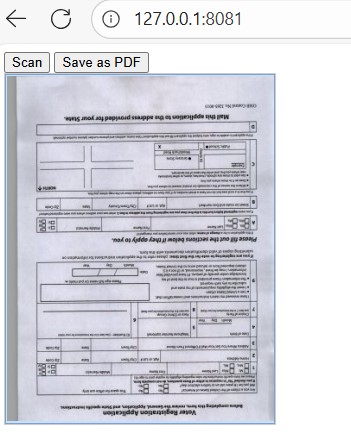
Next, we are going to use Dynamic Web TWAIN SDK to create a web page to scan documents in a browser on Windows and uses the SANE backend running in the WSL.
-
On WSL, install Dynamic Web TWAIN Service. You can find the installers on its npm package.
sudo dpkg -i DynamicWebTWAINServiceSetup.debThe service will work as an HTTP server to communicate between web pages and scanners. You can check if it is installed by visiting http://127.0.0.1:18625.
You also need to start two processes when the system boots. Here is the command to launch them:
nohup "/opt/dynamsoft/Dynamic Web TWAIN Service 19/DynamsoftScanning" gtkproxy &
nohup "/opt/dynamsoft/Dynamic Web TWAIN Service 19/DynamsoftScanningMgr" &
You can create a service to start them by yourself.
-
Write a web page to scan documents and save as PDF with the following code:
<!DOCTYPE html>
<html>
<head>
  <title>Scan via SANE on Windows</title>
  <script src="https://cdn.jsdelivr.net/npm/dwt@latest/dist/dynamsoft.webtwain.min.js"></script>
</head>
<body>
  <button onclick="AcquireImage();">Scan</button>
  <button onclick="SaveAsPDF();">Save as PDF</button>
  <div id="dwtcontrolContainer"></div>
  <script type="text/javascript">
    Dynamsoft.DWT.Host = "local.dynamsoft.com";
    Dynamsoft.DWT.ResourcesPath = "https://cdn.jsdelivr.net/npm/dwt@latest/dist";
    //You need to set the service installer location here since the installer's size exceeds jsdelivr's limit.
    //You'd better host the installers in your own environment.
    Dynamsoft.DWT.ServiceInstallerLocation = 'https://unpkg.com/dwt/dist/dist/';
    Dynamsoft.DWT.ProductKey = 'LICENSE-KEY';
    Dynamsoft.DWT.Containers = [{ ContainerId: 'dwtcontrolContainer', Width: 270, Height: 350 }];
    window.onload = function () {
      Dynamsoft.DWT.Load();
    };
    var DWTObject;
    Dynamsoft.DWT.RegisterEvent("OnWebTwainReady", function() {
      // dwtcontrolContainer is the id of the DIV to create the WebTwain instance in.
      DWTObject = Dynamsoft.DWT.GetWebTwain('dwtcontrolContainer');
    });
    function AcquireImage() {
      if (DWTObject) {
        DWTObject.SelectSourceAsync().then(function(){
          return DWTObject.AcquireImageAsync({
            PixelType: Dynamsoft.DWT.EnumDWT_PixelType.TWPT_RGB,
            Resolution: 200,
            IfCloseSourceAfterAcquire: true
          });
        }).catch(function (exp) {
          alert(exp.message);
        });
      }
    }

    function SaveAsPDF(){
      if (DWTObject) {
        DWTObject.ConvertToBlob(
          DWTObject.SelectAllImages(),
          Dynamsoft.DWT.EnumDWT_ImageType.IT_PDF,
          function (result, indices, type) {
            console.log(result.size);
            DownloadBlobAsFile(result, "scanned_document.pdf");
          },
          function (errorCode, errorString) {
            console.log(errorString);
          },
        );
      }
    }

    function DownloadBlobAsFile(blob, fileName) {
      var link = document.createElement('a');
      link.href = window.URL.createObjectURL(blob);
      link.download = fileName;
      link.click();
    }
  </script>
</body>
</html>
Now, we can use SANE to scan documents on Windows.
Common Issues & Edge Cases
- WSL version must be 2: USB device passthrough via
usbipdrequires WSL2. If your distribution is still on WSL1, convert it withwsl --set-version <distro> 2before attaching the device. Skipping this step causesusbipd attachto silently fail. - Scanner not detected by SANE: After attaching via USB/IP, run
sudo udevadm triggerinside WSL ifscanimage -Lreturns no devices. Some distributions need a manual udev event to recognize the newly attached hardware. - Dynamic Web TWAIN service unreachable at
127.0.0.1:18625: The service must be started after each WSL session. Add the twonohuplaunch commands from Step 3 to your~/.bashrcor create a systemd unit file so they start automatically on WSL boot.
Source Code
https://github.com/tony-xlh/Dynamic-Web-TWAIN-samples/tree/main/Windows-SANE