




Customize the UI
The official UI uses the .xml extension to prevent build tools or hot-reload mechanisms (such as Live Server, Five Server, or Hot Module Replacement) from processing or overwriting these files. Despite the extension, the content is HTML, not XML.
In reality, you can use any file extension, provided the browser can correctly retrieve the file’s text content.
In the bottom right corner of the VSCode graphical interface, you can click “Select Language Mode” to switch any file to HTML mode.
You can choose from legacy UI definition format or new UI definition format.
Legacy UI Definition Format
All versions of Dynamsoft Barcode Reader JS SDK 11 and Dynamsoft Capture Vision JS SDK 3 support the legacy UI definition format. However, the details of the default UI definition files vary slightly between minor versions and may not be fully compatible; please base any modifications on the UI definition file specific to the version you are using. The legacy definition format supports HTML and CSS.
Use the built-in UI
The pre-defined UI provided by Dynamsoft Barcode Reader can be found at dce.ui.xml. The main UI elements in this file are prefixed with dce- and they are dynamically bound to functions when the application initiates.
Modify the UI dynamically
To customize the UI, call cameraView.getUIElement() to access the HTMLElement that contains all UI components. Before calling cameraEnhancer.open(), you can modify the UI by editing CSS, adding or removing elements, or restructuring the HTML.
After cameraEnhancer.open(), UI adjustments are still possible via JavaScript. However, handle elements with class names prefixed with dce- carefully, as they may be tied to specific internal logic.
Define the UI in a separate HTML
For less dynamic but more structured customization, create a copy of dce.ui.xml, modify it as needed, and store it in your project. Use this customized UI with Dynamsoft.DCE.CameraView.createInstance('PATH-TO/xxxx.ui.xml').
Integrate HTML into Your Project
Alternatively, CameraView.createInstance() accepts an HTMLElement directly. This allows you to build and manage the UI within your webpage. For example, set the UI using CameraView.createInstance(document.getElementById('my-custom-ui')).
Let’s look at the following example.
Practice: Customize Based on dce.ui.xml
Start by opening dce.ui.xml in your editor to review its contents. You can copy several elements from this file as needed.
Next, create a new HTML page, starting by embedding only the video:
<div id="enhancerUIContainer" style="width:1280px;height:720px;background:#ddd;" >
  <div class="dce-video-container" style="width:100%;height:100%;"></div>
</div>
<script>
    (async () => {
      // Initializes the license for using the SDK in the application.
      Dynamsoft.License.LicenseManager.initLicense("DLS2eyJvcmdhbml6YXRpb25JRCI6IjIwMDAwMSJ9");
      // Create 'CameraView' instance and pass the element "enhancerUIContainer" as its UI.
      let cameraView = await Dynamsoft.DCE.CameraView.createInstance(document.getElementById("enhancerUIContainer"));
      let cameraEnhancer = await Dynamsoft.DCE.CameraEnhancer.createInstance(cameraView);
      await cameraEnhancer.open();
    })();
</script>
The video element will automatically be created and appended to the
dce-video-containerdiv.
Next, add the camera and resolution list. If the classes match the default ones (dce-sel-camera and dce-sel-resolution), the SDK will populate them and manage switching.
<div id="enhancerUIContainer" style="position:relative;width:1280px;height:720px;background:#ddd;" >
  <div class="dce-video-container" style="width:100%;height:100%;"></div>
  <div style="position: absolute;left: 0;top: 0;">
    <select class="dce-sel-camera" style="display: block;"></select>
  </div>
</div>
<div id="enhancerUIContainer" style="position:relative;width:1280px;height:720px;background:#ddd;" >
  <div class="dce-video-container" style="width:100%;height:100%;"></div>
  <div style="position:absolute;left:0;top:0;">
    <select class="dce-sel-camera" style="display:block;"></select>
    <select class="dce-sel-resolution" style="display:block;margin-top:5px;"></select>
  </div>
</div>
By default, only 3 hard-coded resolutions (1920 x 1080, 1280 x 720, 640 x 480) are available. You can show a customized set of options by hardcoding them.
<select class="dce-sel-resolution">
    <option class="dce-opt-gotResolution" value="got"></option>
    <option data-width="1920" data-height="1080">1920x1080</option>
    <option data-width="1280" data-height="720">1280x720</option>
    <option data-width="640" data-height="480">640x480</option>
</select>
Ensure the selected resolution is supported by the camera. If not, the closest supported resolution will be used. The
dce-opt-gotResolutionclass shows the actual resolution.
New UI Definition Format
Starting with Dynamsoft Barcode Reader JS SDK 11.4.2000 and Dynamsoft Capture Vision JS SDK 3.4.2000, we have introduced support for a new UI definition format. This format allows for the inclusion of <script> elements, moving extensive interaction logic out of the SDK’s internal code and into native JavaScript. With the complete HTML/CSS/JS stack now available, developers—or AI—can freely customize the UI/UX using familiar technologies without needing to write a large amount of code in your business logic.
In the following sections, we’ll implement business logic using modern frameworks (React, Vue, etc.) or ESM syntax, while UI definitions will use classic script tags for simplicity. This is just a demonstration pattern—you’re free to mix and match approaches as needed.
Start from built-in UI
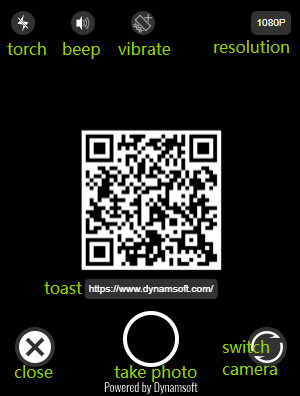
The pre-defined UI using new UI definition format can be found at dce.ui.v5.xml. Since it is HTML rather than standard XML, the browser will report a parsing error; you can save the file (Ctrl+S) to view it.
import { CameraEnhancer } from 'dynamsoft-barcode-reader-bundle';
const camera = await CameraEnhancer.createInstance('@engineResourcePath/ui/dce.ui.v5.xml');
const camera2 = await CameraEnhancer.createInstance('url/to/my/dce.ui.v5.xml');
In the current implementation,
CameraEnhancerandCameraVieware effectively the same class; this allows for the creation of a single instance, and their interfaces can be used interchangeably.
You can find an element with class dm-camera-core-container. The UI definition must contain one of this element. During UI binding, a video element and some auxiliary elements will be dynamically inserted into this element to play the camera footage.
<div class="dm-camera-core-container"></div>
Apart from dm-camera-core-container, all other elements are optional; the interaction logic for these elements can be found within the <script> tag.
Please take a look at the <script> tag; we have wrapped all the logic in a self-executing function to avoid global namespace conflicts, particularly when working with frameworks like React or Vue.
<script>
  (()=>{ // wrapper to avoid conflicts when apply many times
    const camera = document.currentScript.currentDMCamera;
  })();
</script>
The first line, const camera = document.currentScript.currentDMCamera;, allows you to access the camera object. When the camera is bound to the UI definition file, it will automatically assign the value script.currentDMCamera = camera to all script tags in the UI definition. If you wish to access other objects—such as cvRouter—you can assign camera.uiContext.cvRouter within your business logic, then get it back in UI definition.
  // in business logic

  import { CaptureVisionRouter, CameraEnhancer } from 'dynamsoft-barcode-reader-bundle';
  /* other logic */
  const cvRouter = await CaptureVisionRouter.createInstance();
  const camera = await CameraEnhancer.createInstance('url/to/my/dce.ui.v5.xml');
+ camera.uiContext = { cvRouter };
  cameraContainer.append(camera.getUIElement());
  cvRouter.setInput(camera);
  // in ui.xml

  (()=>{
    const camera = document.currentScript.currentDMCamera;
+   const cvRouter = camera.uiContext.cvRouter;
    /* other logic */
  })();
Next, let’s select a few of these optional elements and customize their interaction effects:
Enable Beep and Vibrate
When a barcode is successfully decoded, you may want to trigger a beep or vibration as a notification.
Buttons for “beep” and “vibrate” are already built into the UI definition; make them visible.
  // in ui.xml

  ...
- <div class="dm-camera-mn-beep" title="beep" style="display:none;">
+ <div class="dm-camera-mn-beep" title="beep">
  ...
- <div class="dm-camera-mn-vibrate" title="vibrate" style="display:none;">
+ <div class="dm-camera-mn-vibrate" title="vibrate">
  ...
Enable beep by default and disable vibration by default.
  // in ui.xml

  const elBeepOn = ui.querySelector('.dm-camera-mn-beep-on');
  const elBeepOff = ui.querySelector('.dm-camera-mn-beep-off')
+ let isBeepOn = true;
+ isBeepOn ? elBeepOff.style.display = 'none' : elBeepOn.style.display = 'none';
  const elVibrateOn = ui.querySelector('.dm-camera-mn-vibrate-on');
  const elVibrateOff = ui.querySelector('.dm-camera-mn-vibrate-off');
+ let isVibrateOn = false;
+ isVibrateOn ? elVibrateOff.style.display = 'none' : elVibrateOn.style.display = 'none';
Listen for button pointerdown events.
// in ui.xml

elBeepOn?.addEventListener('pointerdown', ()=>{
  isBeepOn = false;
  elBeepOn.style.display = 'none';
  elBeepOff.style.display = '';
});
elBeepOff?.addEventListener('pointerdown', ()=>{
  isBeepOn = true;
  elBeepOff.style.display = 'none';
  elBeepOn.style.display = '';
});
elVibrateOn?.addEventListener('pointerdown', ()=>{
  isVibrateOn = false;
  elVibrateOn.style.display = 'none';
  elVibrateOff.style.display = '';
});
elVibrateOff?.addEventListener('pointerdown', ()=>{
  isVibrateOn = true;
  elVibrateOff.style.display = 'none';
  elVibrateOn.style.display = '';
});
Import beep and vibrate from the business logic, listen for barcode results and trigger feedback.
// in business logic

import { CaptureVisionRouter, CameraEnhancer, beep, vibrate } from 'dynamsoft-barcode-reader-bundle';
/* other logic */
camera.uiContext = { cvRouter, beep, vibrate };
// in ui.xml

const { cvRouter, beep, vibrate } = camera.uiContext;
/* other logic */
cvRouter.addResultReceiver({ onDecodedBarcodesReceived: (result) => {
  if (result.barcodeResultItems?.length) {
    isBeepOn && beep();
    isVibrateOn && vibrate();
  }
}});
Button to Exit the Camera Interface
Make the dm-camera-mn-camera-close button visible.
  // in ui.xml

- <div class="dm-camera-mn-camera-close" style="display:none;" title="close">
+ <div class="dm-camera-mn-camera-close" title="close">
Listen for button click events.
// in ui.xml

elCameraClose.addEventListener('click', ()=>{
  camera.close();
  camera.ui.remove();
  /* other logic */
});
Make “Switch Camera” Cycle Through All Cameras
Mobile phones typically feature both front and rear cameras, and the “switch” button appears to toggle between them. Since PCs often lack this setup—yet we sometimes need to iterate through all available cameras—we can modify the switch button accordingly.
  // in ui.xml

  // show switch camera button
- if(await camera.constructor.hasFrontCamera()){
-   if(elCameraSwitch){ elCameraSwitch.style.display = ''; }
- }
+ if(elCameraSwitch){ elCameraSwitch.style.display = ''; }

  /* other logic */

+ let cameraIndex = 0;
  elCameraSwitch?.addEventListener('pointerdown', async()=>{
+   const deviceInfos = await camera.constructor.getDeviceInfos();
+   cameraIndex = (cameraIndex + 1) % deviceInfos.length;
-   await camera.requestCamera(camera.currentCamera.isFront ? 'back': 'front');
+   await camera.requestCamera(deviceInfos[cameraIndex]);
  });
Take a Photo First, then Decoding
Some scenarios, such as document detection, do not require continuous video stream decoding; aligning the shot before capturing the image may yield better results and save energy. We can implement this by adding a capture button.
-<div class="dm-camera-mn-take-photo" style="display:none;" title="take photo"></div>
+<div class="dm-camera-mn-take-photo" title="take photo"></div>
Listen for the pointerdown event on the “take photo” button.
// in ui.xml

const { cvRouter, beep, vibrate, handleBarcodeText } = camera.uiContext;

elTakePhoto.addEventListener('pointerdown', async()=>{
  let captureResult = await cvRouter.capture(camera.getFrame());
  let text = captureResult.decodedBarcodesResult?.barcodeResultItems?.[0]?.text;
  console.log(text || 'no result'); // for debug
  handleBarcodeText(text);
});
  // in business logic

  class MyComponent {
    async mounted(){
      /* other logic */
      const cvRouter = await CaptureVisionRouter.createInstance();
      const camera = await CameraEnhancer.createInstance('url/to/my/dce.ui.v5.xml');
      camera.uiContext = {
        cvRouter, beep, vibrate,
+       handleBarcodeText: handleBarcodeText.bind(this)
      };
      cameraContainer.append(camera.getUIElement());
-     cvRouter.setInput(camera);

-     await cvRouter.addResultReceiver({ onDecodedBarcodesReceived: (result) => {
-       // ...
-     }});

-     let filter = new Dynamsoft.Utility.MultiFrameResultCrossFilter();
-     filter.enableResultCrossVerification("barcode", true);
-     filter.enableResultDeduplication("barcode", true);
-     await cvRouter.addResultFilter(filter);

      await camera.open();
-     await cvRouter.startCapturing("ReadSingleBarcode");
    }
+   handleBarcodeText = (text)=>{
+     // do something
+   };
  }
Using TypeScript in UI Definition
When writing large amounts of code, you’ll likely want the capabilities of TypeScript to provide intelligent code suggestions and catch errors promptly at compile time.
The UI definition accepts external scripts and styles, so you can easily write code in TypeScript and reference the generated JavaScript after running tsc.
Since the following steps require extensive rewriting of JavaScript to TypeScript, we provide a sample for your reference. You can copy the pre-modified dce.ui.ts; we’ve also automated the
manually add the codestep.
// in dce.ui.ts

// You must use `import type`; otherwise,
// the entire 'dynamsoft-barcode-reader-bundle' package
// will be imported into the compiled output.
//
// Since the 'dynamsoft-barcode-reader-bundle' package
// has already been imported in the business logic,
// importing it again in the UI definition is unnecessary.
import type * as Types from 'dynamsoft-barcode-reader-bundle';
type CaptureVisionRouter = Types.CaptureVisionRouter;
type CameraEnhancer = Types.CameraEnhancer;

const camera = (document.currentScript as any).currentDMCamera as CameraEnhancer;

const { beep, vibrate } = (camera as any).uiContext as (typeof Types);
const { cvRouter, handleBarcodeText } = (camera as any).uiContext as {
  cvRouter: CaptureVisionRouter;
  handleBarcodeText: (text: string) => void;
};

/* other logic */
npx tsc dce.ui.ts --outDir some/where --module umd --moduleResolution node --skipLibCheck
You need to manually add the code to some/where/dce.ui.js:
  function (factory) {
    if (typeof module === "object" && typeof module.exports === "object") {
      var v = factory(require, exports);
      if (v !== undefined) module.exports = v;
    }
    else if (typeof define === "function" && define.amd) {
      define(["require", "exports"], factory);
    }
+   else {
+     factory(null, {});
+   }
  }
When TypeScript compiles to UMD format, the default wrapper only handles CommonJS and AMD module environments. If your script needs to be loaded directly in the browser via a
<script>tag (without any module loader), you must add this else branch. It ensures that the module’s initialization code still executes correctly in a plain browser global environment — otherwise, all custom camera UI functionality will be completely broken.
<link rel="stylesheet" href="style.css">
<div></div>
<script src="path/to/dce.ui.js"></script>
Relative URLs are resolved using the base URI of the document, not the location of the UI definition file. Therefore, if you want to use this UI definition file in multiple locations, you can import the JS and CSS using absolute paths, or simply inline them.
<link rel="stylesheet" href="/absolute/path/style.css">
<div></div>
<script src="/absolute/path/dce.ui.js"></script>
<!-- or -->
<style>/* inline, copy from external css */</style>
<script>/* inline, copy from dce.ui.js */</script>
When using TypeScript, you might prefer exporting JavaScript in ESM format rather than UMD. Since document.currentScript is unavailable in ESM, the following code should be used to obtain the current script.
// in dce.ui.ts

import type { CameraEnhancer, CaptureVisionRouter, beep as _beep, vibrate as _vibrate } from 'dynamsoft-barcode-reader-bundle';

function getCurrentModuleScript() {
  // Get the absolute URL of the current module file
  const moduleUrl = import.meta.url;

  // Look through all script tags on the page
  return Array.from(document.querySelectorAll('script[type="module"]') as NodeListOf<HTMLScriptElement>).find(script => {
    // 0. If script has already been retrieved, do not retrieve it again;
    //    this prevents interference caused by importing the same src script multiple times.
    if((script as any).retrievedBefore){ return false; }

    // 1. Try matching against the fully resolved absolute URL property
    if (script.src === moduleUrl){
      (script as any).retrievedBefore = true;
      return true;
    }

    // 2. Try matching the exact text written in the HTML 'src' attribute
    const srcAttr = script.getAttribute('src');
    if (srcAttr) {
      // Resolve the relative attribute against the current page's base URL
      const absoluteSrc = new URL(srcAttr, document.baseURI).href;
      return absoluteSrc === moduleUrl;
    }

    return false;
  });
}

// Due to the `retrievedBefore` constraint, `getCurrentModuleScript` can only be called once.
// You might also consider other approaches to avoid same src conflicts.
const currentScript = getCurrentModuleScript();

const camera = (currentScript as any).currentDMCamera as CameraEnhancer;

const { cvRouter, beep, vibrate, handleBarcodeText } = (camera as any).uiContext as {
  cvRouter: CaptureVisionRouter;
  beep: typeof _beep;
  vibrate: typeof _vibrate;
  handleBarcodeText: (text: string) => void;
};

/* other logic */
npx tsc dce.ui.ts --outDir some/where --module esnext --moduleResolution node --skipLibCheck
<link rel="stylesheet" href="style.css">
<div></div>
<script src="path/to/dce.ui.js" type="module"></script>
 Yes
Yes No
No