




Configure the UI Elements
| Available UI Element |
|---|
| Scan region |
| Scan Laser |
| Torch button |
| Camera toggle button |
| Close button (BarcodeScanner API only) |
BarcodeScanner provides a set of UI elements that can be easily customized.
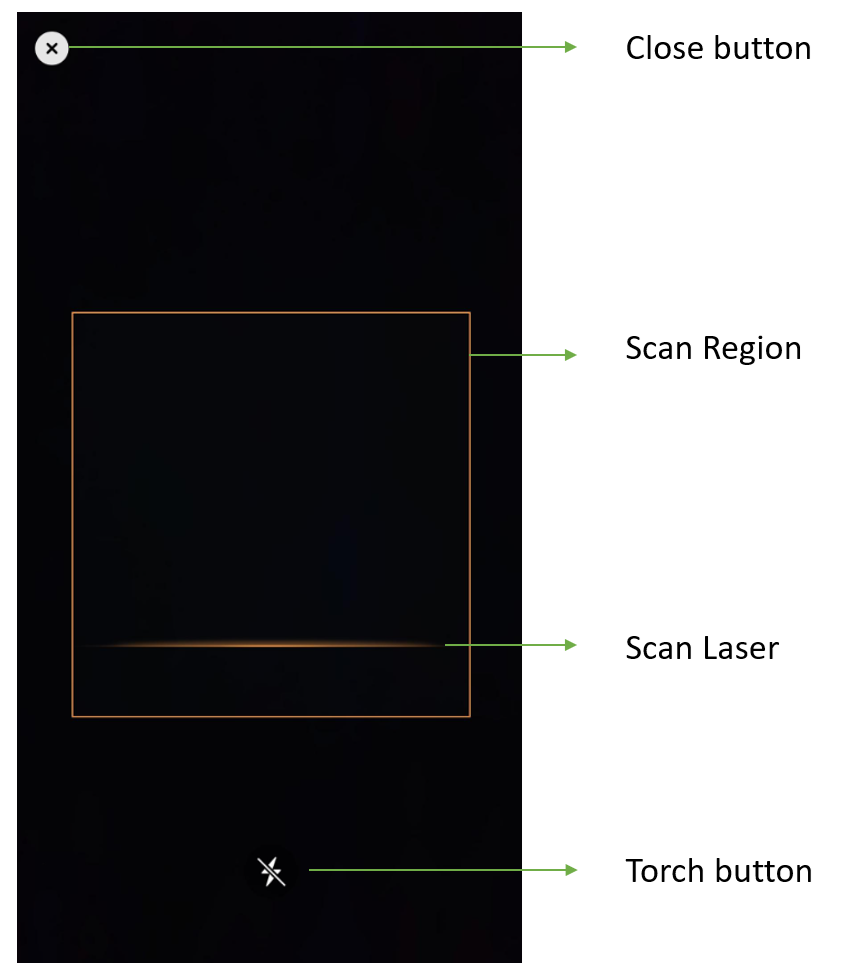
Barcode Scanner UI Components
- Close button: Stop barcode scanning and go back to the previous activity.
- Scan Region: Set a region of interest so that the algorithm focus on this region only. It can sharpenly improve the processing speed. For some special barcode types like DotCode the scan region improves the read-rate as well.
- Scan Laser: A line that moving up and down. Its moving area is limited in the scan region.
- Torch button: A clickable button that can turn on/off the torch.
Scan Region & Scan Laser
Configure with BarcodeScanner APIs
- Java
- Kotlin
BarcodeScannerConfig config = new BarcodeScannerConfig();
// Margin left 15%, margin top 30%, margin right 85%, margin bottom 70%
config.setScanRegion(new DSRect(0.15f, 0.25f, 0.85f, 0.65f, true));
config.setScanLaserVisible(true);
val config = BarcodeScannerConfig().apply { // Margin left 15%, margin top 30%, margin right 85%, margin bottom 70% scanRegion = DSRect(0.15f, 0.3f, 0.85f, 0.7f, true) scanLaserVisible = true }
Related APIs
Configure with Foundational APIs
- Java
- Kotlin
CameraView cameraView = findViewById(R.id.camera_view);
CameraEnhancer mCamera = new CameraEnhancer(cameraView, this);
try {
mCamera.setScanRegion(new DSRect(0.15f, 0.25f, 0.85f, 0.65f, true));
} catch (CameraEnhancerException e) {
throw new RuntimeException(e);
}
cameraView.setScanLaserVisible(true);
val cameraView = findViewById<CameraView>(R.id.camera_view) val mCamera = CameraEnhancer(this) mCamera.scanRegion = DSRect(0.15f, 0.25f, 0.85f, 0.65f, true) cameraView.isScanLaserVisible = true
Related APIs
Buttons
Add Buttons with BarcodeScanner APIs
- Java
- Kotlin
BarcodeScannerConfig config = new BarcodeScannerConfig();
config.setTorchButtonVisible(true);
config.setCloseButtonVisible(true);
config.setCameraToggleButtonVisible(true);
val config = BarcodeScannerConfig().apply { torchButtonVisible = true closeButtonVisible = true cameraToggleButtonVisible = true }
Related APIs
Add Buttons with Foundational APIs
- Java
- Kotlin
CameraView cameraView = findViewById(R.id.camera_view);
cameraView.setTorchButtonVisible(true);
cameraView.setCameraToggleButtonVisible(true);
val cameraView = findViewById<CameraView>(R.id.camera_view) cameraView.torchButtonVisible = true cameraView.cameraToggleButtonVisible = true
Related APIs
 Yes
Yes No
No