




MAUI User Guide for Barcode Reader Integration
Table of Contents
- MAUI User Guide for Barcode Reader Integration
System Requirements
.Net
- .NET 10.0.
Android
- Supported OS: Android 5.0 (API Level 21) or higher.
- Supported ABI: armeabi-v7a, arm64-v8a, x86 and x86_64.
- Development Environment: Visual Studio 2022 or VS Code with the .NET MAUI extension recommended.
- JDK: 1.8+
iOS
- Supported OS: iOS 13.0 or higher.
- Supported ABI: arm64 and x86_64.
- Development Environment: VS Code with the .NET MAUI extension and latest Xcode version recommended.
Installation
VS Code
After creating the project, open a terminal in the project directory and run:
dotnet add package Dynamsoft.BarcodeReaderBundle.Maui --version 11.6.2000
Visual Studio for Windows
You need to add the library via the project file and complete additional steps for the installation.
-
Add the library in the project file:
<Project Sdk="Microsoft.NET.Sdk"> ... <ItemGroup> ... <PackageReference Include="Dynamsoft.BarcodeReaderBundle.Maui" Version="11.6.2000" /> </ItemGroup> </Project> -
Open the Package Manager Console and run the following commands:
dotnet build
- Windows system has a limitation of 260 characters in the path. If you don’t use console to install the package, you will receive an error “Could not find a part of the path ‘C:\Users\admin.nuget\packages\dynamsoft.imageprocessing.ios\2.4.300\lib\net7.0-ios16.1\Dynamsoft.ImageProcessing.iOS.resources\DynamsoftImageProcessing.xcframework\ios-arm64\dSYMs\DynamsoftImageProcessing.framework.dSYM\Contents\Resources\DWARF\DynamsoftImageProcessing’”
- The library only supports Android and iOS platforms. Be sure that you remove the other platforms like Windows, maccatalyst, etc.
Build Your Barcode Scanner App
Now you will learn how to create a simple barcode scanner using Dynamsoft Barcode Reader MAUI SDK.
Set up Development Environment
If you are a beginner with MAUI, please follow the guide on the .Net MAUI official website to set up the development environment.
Initialize the Project
Visual Studio
- Open the Visual Studio and select Create a new project.
- Select .Net MAUI App and click Next.
- Name the project ScanBarcodes. Select a location for the project and click Next.
- Select .Net 10.0 and click Create.
VS Code for iOS
-
Open a terminal and run the following command to create a new .NET MAUI project:
dotnet new maui -n ScanBarcodes cd ScanBarcodes -
Open the project in VS Code:
code .
Include the Library
View the installation section on how to add the library.
Add Your Code for Barcode Scanning
-
Replace the MainPage.xaml.cs with the following code:
using Dynamsoft.BarcodeReaderBundle.Maui; namespace ScanBarcodes; public partial class MainPage : ContentPage { public MainPage() { InitializeComponent(); } private async void OnScanBarcode(object sender, EventArgs e) { // Initialize the license. // The license string here is a trial license. Note that network connection is required for this license to work. // You can request an extension via the following link: https://www.dynamsoft.com/customer/license/trialLicense?product=dbr&utm_source=samples&package=mobile var config = new BarcodeScannerConfig("DLS2eyJvcmdhbml6YXRpb25JRCI6IjIwMDAwMSJ9"); var result = await BarcodeScanner.Start(config); var message = result.ResultStatus switch { EnumResultStatus.Finished => string.Join("\n", result.Barcodes!.Select(item => item.FormatString + "\n" + item.Text)), EnumResultStatus.Canceled => "Scanning canceled", EnumResultStatus.Exception => result.ErrorString, _ => throw new ArgumentOutOfRangeException() }; label.Text = message; } } -
Replace the MainPage.xaml with the following code:
<?xml version="1.0" encoding="utf-8" ?>
<ContentPage xmlns="http://schemas.microsoft.com/dotnet/2021/maui"
             xmlns:x="http://schemas.microsoft.com/winfx/2009/xaml"
             x:Class="ScanBarcodes.MainPage">

    <Grid>
        <Grid.RowDefinitions>
            <RowDefinition Height="*" />
            <RowDefinition Height="Auto" />
            <RowDefinition Height="*" />
        </Grid.RowDefinitions>

        <Label
            Grid.Row="1"
            x:Name="label"
            Text="Click button to Scan a Barcode"
            Style="{StaticResource SubHeadline}"
            SemanticProperties.HeadingLevel="Level2"
            SemanticProperties.Description="Click button to Scan a Barcode"
            HorizontalOptions="Center"
            VerticalOptions="Center" />

        <Button
            Grid.Row="2"
            x:Name="ScanBtn"
            Text="Scan a Barcode"
            SemanticProperties.Hint="Click button to Scan a Barcode"
            Clicked="OnScanBarcode"
            HorizontalOptions="Center"
            VerticalOptions="Start"
            Margin="0,30" />
    </Grid>
</ContentPage>
Configure the Camera Permission
Open the Info.plist file under the Platforms/iOS/ folder (Open with XML Text Editor). Add the following lines inside the <dict> element to request camera permission on iOS platform:
<key>NSCameraUsageDescription</key>
<string>The sample needs to access your camera.</string>
Run the Project
Visual Studio: Select your target device in the toolbar and click Run.
VS Code: Use the .NET MAUI extension’s device picker in the status bar to select a target device, then press F5 to build and deploy. Alternatively, run from the terminal:
# Android
dotnet build -t:Run -f net10.0-android

# iOS (requires a connected device or simulator on macOS)
dotnet build -t:Run -f net10.0-ios
The library only supports the Android and iOS platforms. If you encounter build errors caused by other target frameworks, remove the unsupported platforms:
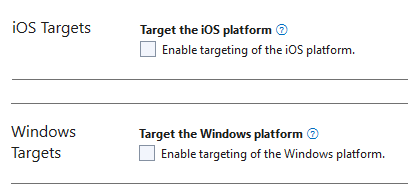
- Visual Studio: Manually exclude the iOS and Windows targets from the build configuration toolbar.
VS Code / CLI: Open the
.csprojfile and remove the platforms you do not need from the<TargetFrameworks>element, for example:<!-- Before --> <TargetFrameworks>net10.0-android;net10.0-ios;net10.0-maccatalyst;net10.0-windows10.0.19041.0</TargetFrameworks> <!-- After (Android only) --> <TargetFrameworks>net10.0-android</TargetFrameworks>
Licensing
- A one-day trial license is available by default for every new device to try Dynamsoft Barcode Reader SDK.
- You can request a 30-day trial license via the Request a Trial License link.
- Contact us to purchase a full license.
 Yes
Yes No
No