




Configure Barcode Scanner
When developing with BarcodeScanner component, you can add configurations via the BarcodeScannerConfig class. This page will guide you on how to configure the settings.
Setup a customized template file
A template file is a JSON file that includes a series of algorithm parameter settings. It is always used to customize the performance for different usage scenarios. Contact us to get a customized template for your scanner.
-
Put your JSON file in the Resources\Raw folder of your project.
-
Specify the template file via
TemplateFile
var config = new BarcodeScannerConfig("DLS2eyJvcmdhbml6YXRpb25JRCI6IjIwMDAwMSJ9");
config.TemplateFile = "CustomizedTemplate.json";
You can also use a JSON string as the template file.
Related APIs
Configure the UI Elements
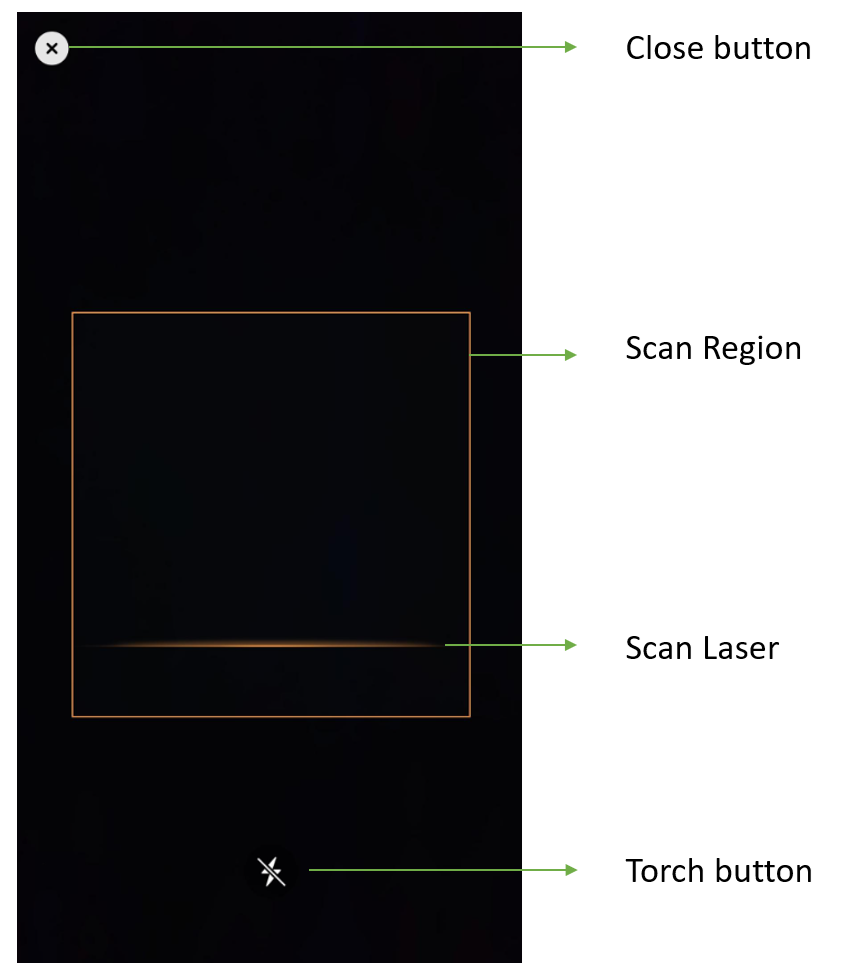
Barcode Scanner UI Components
- Close button: Stop Barcode scanning and go back to the previous activity.
- Torch button: A clickable button that can turn on/off the torch.
var config = new BarcodeScannerConfig("DLS2eyJvcmdhbml6YXRpb25JRCI6IjIwMDAwMSJ9");
config.IsTorchButtonVisible = true;
config.IsGuideFrameVisible = true;
config.IsCloseButtonVisible = true;
var scanRegion = new DMRect(0.15f, 0.35f, 0.85f, 0.55f, true);
config.ScanRegion = scanRegion;
Related APIs
Beep
Let the app to trigger a beep sound when Barcode is scanned successfully.
var config = new BarcodeScannerConfig("DLS2eyJvcmdhbml6YXRpb25JRCI6IjIwMDAwMSJ9");
config.IsBeepEnabled = true;
Related API
 Yes
Yes No
No