


 Blog
Flatbed vs. ADF Scanning: How to Support Both in a Web Scanner
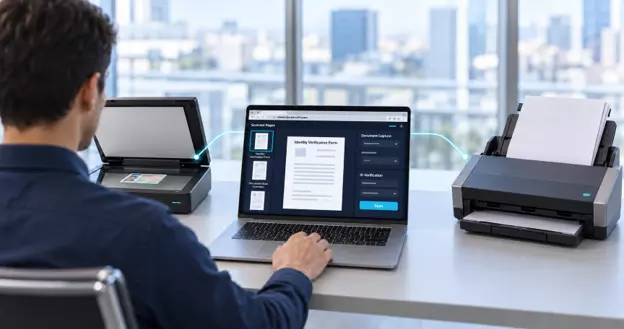
Scanners handle papers in two ways. A flatbed scans documents placed on the glass, while an automatic document feeder (ADF) pulls a stack of pages through on its own. Many devices offer both, so a web scanning application has to detect which input sources are available and set up each scan to match.
The guide covers the differences between flatbed and ADF scanning, explains when to use each method, and describes how to detect them and support both in a web application.
Key Takeaways
- An ADF automatically feeds sheets of paper through the scanner, while a flatbed scanner scans documents placed on the glass.
- Flatbed scanning suits items like ID cards, while ADF scanning works better for multi-page documents.
- Since some scanners support both input types, a web application should verify available options before each scan.
- The scanner’s ability to feed paper, duplex it, and sense the paper depends on the scanner, the driver, and the operating system.
- A web scanning SDK can determine whether the scanner has a paper sensor and whether the feeder contains paper before starting a scan.
- Dynamic Web TWAIN performs all scanning operations locally, so no document data is sent to or stored on Dynamsoft’s servers.
What is the difference between flatbed and ADF scanning?
Flatbed scanning captures one page at a time from the scanner glass, which suits items such as ID cards. ADF scanning feeds a stack of pages through the scanner automatically, which suits high-volume, multi-page jobs. The two modes also behave differently in software: an ADF can report whether paper is loaded, scan a set number of pages or the whole stack, and often supports duplex (two-sided) scanning, while a flatbed while a flatbed can capture several documents on the glass in one scan.
| Attribute | Flatbed scanning | ADF scanning |
|---|---|---|
| Best for | Single pages, bound books, IDs, photos, fragile or odd-sized items | Multi-page stacks and high-volume batch jobs |
| How it’s detected | Default when the scanner has no feeder or the feeder is disabled | The feeder must be enabled in scan settings |
| Pages per scan | One scan per placement; several small items on the glass can be captured together and cropped afterwards | One image per page, delivered as a separate transfer, until the stack is empty |
| Duplex (two-sided) | Not supported; pages must be flipped by hand | Often supported, depending on the device |
| Paper detection | Only on scanners that have a flatbed paper sensor | The scanner can report whether paper is loaded before scanning starts |
| Page control | None | In TWAIN, the app can eject a current page or return pages to the input tray |
| Page count during scanning | Known (one per scan) | May be unknown until the feeder empties |
How does the scan source change your app’s workflow?
The difference affects how you build the scanning workflow. With an ADF, your app should check that paper is loaded before scanning, process each page as it arrives, and handle a page count that isn’t known ahead of time. With a flatbed, the app may capture several documents in one scan and need to crop or straighten images afterwards. If a device supports both sources, the app needs to detect that and let the user, or the app’s own logic, choose the right one for each job.
When should a web app use flatbed vs. ADF scanning?
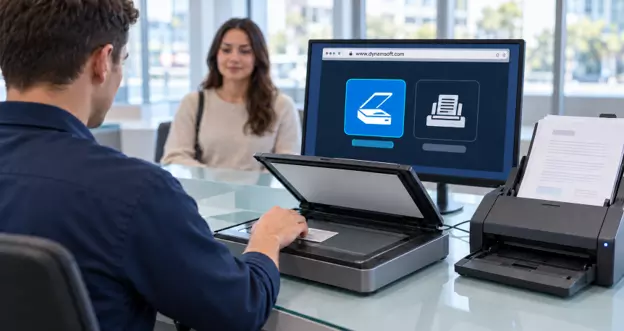
A web app should choose the input source based on the job and the device. Use the ADF by default for multi-page documents when the scanner has a feeder and paper is loaded. Switch to the flatbed for single items the feeder can’t handle safely, such as ID cards. Typical use cases include patient intake in healthcare and client onboarding in financial services. For devices with both sources, allow users to choose the source for each scan, or set a default and revert to the flatbed if no feeder is available.
Why do web apps need to detect scanner capabilities?
Detecting scanner capabilities is essential because feeder, duplex, and paper-sensing support vary by scanner, driver, and operating system. Assuming all scanners have the same features may cause inconsistent application behavior.
How do drivers and operating systems affect feeder and duplex support?
Not all scanners support duplex scanning, so confirm this feature after opening the scanner. Driver selection is important. WIA controls only basic device capabilities, while TWAIN manages all standard and custom features. Operating systems differ: Windows uses TWAIN and WIA, macOS uses TWAIN and ICA, and Linux uses SANE. eSCL is available on all three. Each driver offers different feeder and duplex controls.
How to support both flatbed and ADF scanners in a web app
A web app can support both flatbed and ADF scanners by opening the scanner, enabling the feeder, checking for loaded paper, and enabling duplex if supported. Implementation details depend on the scanning SDK.
The following examples use Dynamic Web TWAIN, a JavaScript SDK for browser-based document scanning compatible with TWAIN, WIA, ICA, SANE, and eSCL scanners.
Step 1: Enable the feeder and check for loaded paper
A web app checks for paper in the feeder by first confirming the scanner has a paper sensor, then verifying if the feeder is loaded. In Dynamic Web TWAIN, use the IfPaperDetectable and IfFeederLoaded properties for these checks.
DWTObject.SelectSource();
DWTObject.OpenSource();
DWTObject.IfFeederEnabled = true;
if(DWTObject.IfPaperDetectable)
 if(DWTObject.IfFeederLoaded)
   DWTObject.AcquireImage();
 else
   alert("There is no paper in the feeder.");
...
...
When IfFeederEnabled is set to true, the scanner prioritizes the document feeder. If no feeder is available, it defaults to the flatbed.
Step 2: Enable duplex scanning when the scanner supports it
A web application enables duplex scanning by confirming duplex support after initializing the scanner and activating duplex only if it is available. In Dynamic Web TWAIN, this requires checking the Duplex property and setting IfDuplexEnabled to true.
DWTObject.OpenSource();
if (DWTObject.Duplex != 0) { // Note: DWTObject.Duplex doesn't support Linux.
   DWTObject.IfDuplexEnabled = true;
}

DWTObject.AcquireImage(successCallback, failureCallback);

function successCallback() {
 DWTObject.CloseSource();
 console.log("successful");
}

function failureCallback(errorCode, errorString) {
 DWTObject.CloseSource();
 console.log(errorString);
}
The Duplex property indicates whether the scanner supports 1-pass duplex, 2-pass duplex, or no duplex. A 1-pass scanner captures both sides at once, while a 2-pass scanner scans each side separately. The Duplex, paper-sensing, and feeder-loaded properties are not supported on macOS ICA or Linux. The code comment above mentions only Linux, but the Duplex property is also unavailable with macOS ICA drivers. IfDuplexEnabled remains available on both platforms.
What should you look for in a web scanning SDK that supports flatbed and ADF?
A web scanning SDK for flatbed and ADF devices should offer feeder and duplex control, capability detection, broad driver support, local security controls, and enterprise deployment options. The next section explains how Dynamic Web TWAIN addresses each requirement.
How does Dynamic Web TWAIN support both flatbed and ADF scanning?
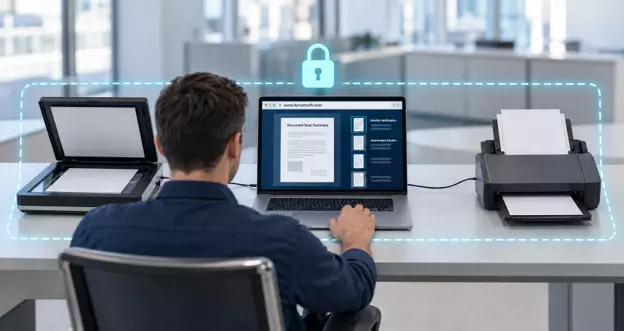
Dynamic Web TWAIN supports flatbed and ADF scanning through APIs for feeder, duplex, and paper detection, plus a lightweight local service that communicates with the scanner—the following sections detail how each requirement is addressed.
Feeder and duplex control: Setting IfFeederEnabled to true prioritizes the document feeder. If unavailable, the scanner defaults to the flatbed. IfFeederEnabled and IfDuplexEnabled are supported on Windows, macOS (TWAIN or ICA), and Linux.
Capability detection: The getCapabilities() and setCapabilities() methods are available on Windows TWAIN and WIA, macOS TWAIN, ICA, and eSCL, but not on Linux SANE.
Batch handling: The OnPostAllTransfers event triggers after all pages in the document feeder are scanned and transferred, allowing you to upload images, detect barcodes, or discard blank pages. For flatbed scans with multiple documents on the glass, Dynamsoft Document Normalizer can crop and straighten each document.
Driver and platform coverage: Dynamic Web TWAIN supports eSCL, TWAIN, and WIA on Windows; eSCL, TWAIN, and ICA on macOS; and eSCL and SANE on Linux. It is compatible with Chrome, Firefox, Edge, and Safari.
Security and data residency: Dynamic Web TWAIN processes all scans locally, ensuring no document data is sent to or stored on Dynamsoft servers. Security features include:
- built-in HTTPS with a configurable SSL certificate
- data encryption in transit and at rest
- code-signed binaries
- authorization requirements for local file access
- deletion of cached data on unexpected SDK closure
- sandbox isolation between the browser and the scanner device
What happens to cached scan data?
When a scanning instance closes, it loses its in-memory encryption key, making cache files permanently unreadable. The SDK deletes all cache files for that instance. From version 18.5, administrators can restrict the local service to respond only to specified origins. Dynamic Web TWAIN is ISO 27001- and O-TTPS-certified.
Enterprise Deployment
The service supports silent installation on Windows, macOS, and Linux. In managed environments, it can be deployed to all clients simultaneously using technologies such as Group Policy. An MSI installer is available for enterprise batch deployments.
Developer experience
Most developers create a functional proof of concept within one to two hours of downloading Dynamic Web TWAIN. The SDK includes over 60 sample projects, and initialization requires fewer than 20 lines of JavaScript. More than 10,000 companies and over 1 million users rely on Dynamic Web TWAIN, supported by a business established in 2003.
Proven Customer Results
First United Bank automated ID capture with Dynamsoft, reducing account opening time from 45 to 10 minutes. On the Suno healthcare platform, clinics save about 5 minutes per patient, or roughly one hour per clinic per day with 20 patients.
Download the 30-day free trial of Dynamic Web TWAIN to evaluate these features with your scanners.
Frequently Asked Questions
How do you support both flatbed and ADF scanners in one web app?
To support both flatbed and ADF scanners in a web app, enable the feeder when available, verify scanner features such as paper sensing and duplex, and manage multi-page transfers. Dynamic Web TWAIN offers APIs for each step on Windows, macOS, and Linux.
What is a web scanner that supports both flatbed and ADF devices?
A web scanner that supports both flatbed and ADF devices is a browser-based application that can scan from either the scanner’s glass or its document feeder, depending on the hardware and the task. Dynamic Web TWAIN is a browser-based SDK that connects web applications to flatbed, ADF, and MFP scanners. It supports TWAIN, WIA, ICA, SANE, and eSCL devices directly from the browser.
What happens if the feeder function is enabled on a scanner with no ADF?
If IfFeederEnabled is set to true on a scanner without a document feeder, Dynamic Web TWAIN defaults to the flatbed. If a feeder is available, the scanner uses it first.
Can Dynamic Web TWAIN determine if paper is in the ADF?
Dynamic Web TWAIN uses the IfFeederLoaded API to detect paper in the feeder after IfPaperDetectable confirms the scanner has a paper sensor. These properties are not supported on macOS ICA or Linux.
Does duplex scanning function on macOS and Linux?
The IfDuplexEnabled property is available on Windows, macOS with TWAIN or ICA, and Linux. The Duplex property, which reports duplex support, is not available on macOS ICA or Linux.
What is the difference between WIA and TWAIN?
TWAIN is the most widely used protocol for document scanners, and most scanners include a TWAIN driver. WIA (Windows Image Acquisition) is a Microsoft driver model built into Windows that requires no additional installation. WIA supports only basic features, while TWAIN manages all standard and custom device functions.
Does Dynamic Web TWAIN need software to be installed on the user’s computer?
Dynamic Web TWAIN uses the Dynamsoft Web TWAIN Service, a lightweight local service installed on the client machine to communicate with the scanner. Scanning does not require a server-side component.
Can Dynamic Web TWAIN be used in HIPAA-regulated environments?
Dynamic Web TWAIN is designed for regulated industries, including HIPAA-regulated environments. Data remains within the customer’s network, communication is encrypted in transit and at rest, and the product is ISO 27001- and O-TTPS-certified.
Does Dynamic Web TWAIN function on websites that use HTTP in Chrome?
When a page served over HTTP attempts to connect to Dynamic Web TWAIN’s local service, Chromium-based browsers such as Chrome and Edge may block the connection. We recommend migrating the website to HTTPS.
How is the Dynamic Web TWAIN Service deployed throughout an organization?
You can install the Dynamic Web TWAIN Service silently on Windows, macOS, and Linux. In managed environments, you can distribute it to all clients at once using technologies such as Group Policy.
Try Dynamic Web TWAIN online demo with your scanner or review the SDK documentation to get started.