


How to Implement Adaptive Thresholding in JavaScript
In the previous article, we talked about how to convert an image to black and white with a threshold. It may not work well with images having uneven lighting in tasks like barcode reading.
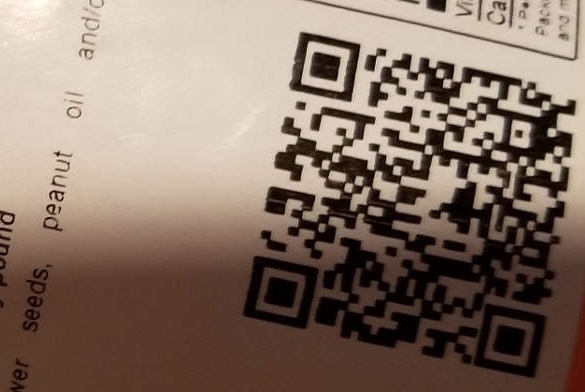
For example, if we convert the following QR code with shadow to black and white with a threshold for all the pixels, part of the QR code will get lost, making it unreadable.
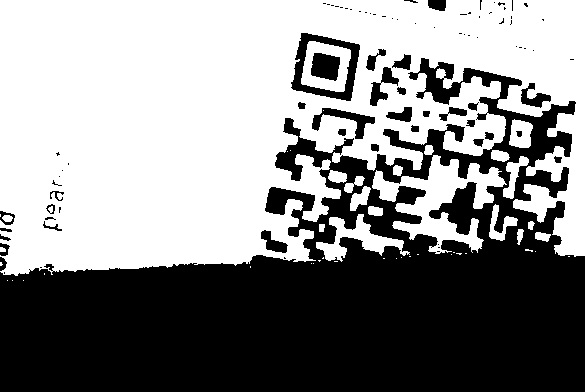
In such cases, we can use adaptive thresholding to achieve a good result. This technique calculates the threshold for each pixel based on its neighbouring pixels.
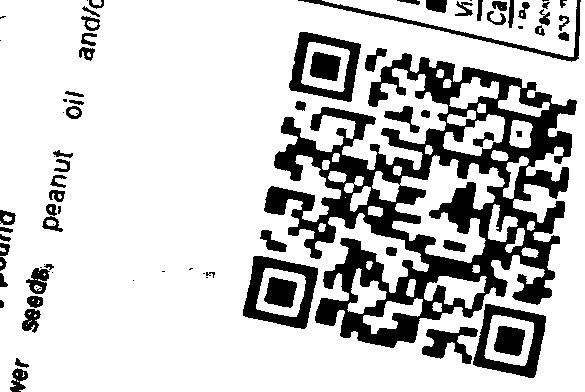
In this article, we will implement adaptive thresholding in JavaScript using HTML5’s Canvas. We will also explore how to do this using Dynamsoft Barcode Reader.
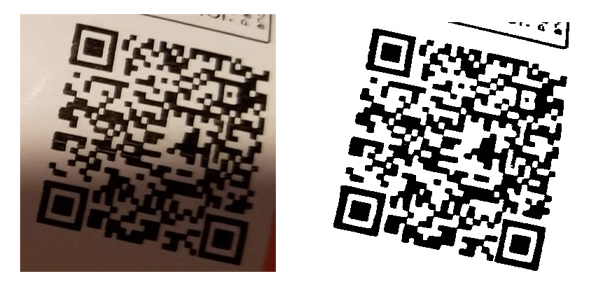
What you’ll build: A JavaScript web page that binarizes any image using adaptive thresholding — with an O(N) Integral Image optimization and a Dynamsoft Barcode Reader integration demonstrating production-quality binarization for barcode scanning.
Key Takeaways
- Adaptive thresholding calculates a per-pixel threshold from local neighbourhood averages, outperforming fixed global thresholds on images with uneven lighting or shadows.
- The naïve O(N·k²) implementation can be reduced to O(N) using an Integral Image, cutting processing time from ~2000 ms to ~8 ms on a typical photo.
- Dynamsoft Barcode Reader applies adaptive thresholding internally, with configurable
BlockSizeX,BlockSizeY, andThresholdCompensationparameters exposed via JSON template. - This technique is critical for barcode scanning applications where QR codes or 1D barcodes appear against shadowed or non-uniform backgrounds.
Common Developer Questions
How do I implement adaptive thresholding in JavaScript without OpenCV?
Load the image into an HTML5 canvas, read the pixel buffer with getImageData(), compute a local threshold for each pixel from its surrounding block, and then write the binarized result back with putImageData(). The article shows both the straightforward neighborhood-based implementation and an optimized version built on an integral image.
How can I speed up JavaScript image binarization for large images?
Replace the naïve nested-loop neighborhood scan with an integral-image implementation so each local average can be computed in constant time. In the benchmark shown here, that reduces processing from roughly seconds to single-digit milliseconds on a typical photo.
How does Dynamsoft Barcode Reader handle binarization internally, and how do I customize its parameters?
Dynamsoft Barcode Reader performs adaptive thresholding internally as part of its preprocessing pipeline and exposes the key tuning knobs through a JSON template. In this article those controls include BlockSizeX, BlockSizeY, and ThresholdCompensation, which let you adjust how aggressively the binarizer responds to local lighting changes.
Prerequisites
To follow this tutorial you need a modern browser with HTML5 Canvas support. If you want to run the Dynamsoft Barcode Reader binarization step, get a 30-day free trial license before continuing.
Step 1: Create the HTML Page
Create a new HTML file with the following content which can select a local image and display it.
<!DOCTYPE html>
<head>
  <meta charset="UTF-8">
  <meta name="viewport" content="width=device-width, initial-scale=1.0">
  <title>Adaptive Thresholding</title>
  <style>
  .imageContainer {
    overflow: auto;
    max-width: 360px;
  }

  .imageContainer img{
    width: 100%;
  }

  #imageHidden {
    display: none;
  }
  </style>
</head>
<html>
<body>
  <div id="app">
    <h2>Adaptive Thresholding</h2>
    <button id="loadFileButton">Load a File</button>
    <input style="display:none;" type="file" id="file" onchange="loadImageFromFile();" accept=".jpg,.jpeg,.png,.bmp" />
    <button id="processButton">Process</button>
    <div id="status"></div>
    <div class="imageContainer">
      <img id="image"/>
      <img id="imageHidden"/>
    </div>
    <pre id="barcodeResult"></pre>
  </div>
  <script>
  document.getElementById("loadFileButton").addEventListener("click",function(){
    document.getElementById("file").click();
  })
  function loadImageFromFile(){
    let fileInput = document.getElementById("file");
    let files = fileInput.files;
    if (files.length == 0) {
      return;
    }
    let file = files[0];
    fileReader = new FileReader();
    fileReader.onload = function(e){
      document.getElementById("image").src = e.target.result;
      document.getElementById("imageHidden").src = e.target.result;
    };
    fileReader.onerror = function () {
      console.warn('oops, something went wrong.');
    };
    fileReader.readAsDataURL(file);
  }
  </script>
</body>
</html>
Step 2: Apply Adaptive Thresholding with JavaScript
Next, let’s convert the image to black and white with adaptive thresholding.
-
Draw the image onto the canvas and get its image data.
const cvs = document.createElement("canvas"); const image = document.getElementById("imageHidden"); cvs.width = image.naturalWidth; cvs.height = image.naturalHeight; const ctx = cvs.getContext("2d"); ctx.drawImage(image, 0, 0); const imageData = ctx.getImageData(0,0,cvs.width,cvs.height) -
Iterate over the pixels to calculate their threshold based on the neighbouring pixels. It takes two extra arguments: block size and a constant C.
function adaptiveThreshold(imageData, blockSize, C) { const width = imageData.width; const height = imageData.height; const data = imageData.data; const output = new ImageData(width, height); const outputData = output.data; for (let y = 0; y < height; y++) { for (let x = 0; x < width; x++) { let sum = 0; let count = 0; //local mean for (let dy = -blockSize; dy <= blockSize; dy++) { for (let dx = -blockSize; dx <= blockSize; dx++) { const nx = x + dx; const ny = y + dy; if (nx >= 0 && nx < width && ny >= 0 && ny < height) { const idx = (ny * width + nx) * 4; sum += data[idx]; //use the red channel as the grayscale value count++; } } } const threshold = (sum / count) - C; const idx = (y * width + x) * 4; const pixelValue = data[idx]; // binarize outputData[idx] = outputData[idx + 1] = outputData[idx + 2] = pixelValue > threshold ? 255 : 0; outputData[idx + 3] = 255; // Alpha channel } } return output; } -
Put the updated image data back into the canvas and display the processed image.
let blockSize = 31;
let C = 10;
let newImageData = adaptiveThreshold(ctx.getImageData(0,0,cvs.width,cvs.height),blockSize,C);
ctx.putImageData(newImageData,0,0);
document.getElementById("image").src = cvs.toDataURL("image/jpeg");
Step 3: Optimize with Integral Image for O(N) Performance
The above implementation’s computation complexity is O(N*k*k). N stands for the number of pixels and k stands for the block size.
We can use Integral Image to reduce the complexity to O(N) with the following code:
function adaptiveThresholdWithIntegralImage(imageData, blockSize, C) {
  const width = imageData.width;
  const height = imageData.height;
  const data = imageData.data;
  const output = new ImageData(width, height);
  const outputData = output.data;

  const integral = computeIntegralImage(data, width, height);

  const halfBlock = Math.floor(blockSize / 2);

  for (let y = 0; y < height; y++) {
    for (let x = 0; x < width; x++) {
      const x1 = Math.max(x - halfBlock, 0);
      const y1 = Math.max(y - halfBlock, 0);
      const x2 = Math.min(x + halfBlock, width - 1);
      const y2 = Math.min(y + halfBlock, height - 1);

      const area = (x2 - x1 + 1) * (y2 - y1 + 1);
      const sum = getAreaSum(integral, width, x1, y1, x2, y2);
      const threshold = (sum / area) - C;

      const idx = (y * width + x) * 4;
      const pixelValue = data[idx];
      outputData[idx] = outputData[idx + 1] = outputData[idx + 2] = pixelValue > threshold ? 255 : 0;
      outputData[idx + 3] = 255; // Alpha channel
    }
  }
  return output;
}

function computeIntegralImage(data, width, height) {
  const integral = new Uint32Array(width * height);

  for (let y = 0; y < height; y++) {
    let sum = 0;
    for (let x = 0; x < width; x++) {
      const idx = (y * width + x) * 4;
      sum += data[idx];
      integral[y * width + x] = (y > 0 ? integral[(y - 1) * width + x] : 0) + sum;
    }
  }

  return integral;
}

function getAreaSum(integral, width, x1, y1, x2, y2) {
  const a = x1 > 0 && y1 > 0 ? integral[(y1 - 1) * width + (x1 - 1)] : 0;
  const b = y1 > 0 ? integral[(y1 - 1) * width + x2] : 0;
  const c = x1 > 0 ? integral[y2 * width + (x1 - 1)] : 0;
  const d = integral[y2 * width + x2];
  return d - b - c + a;
}
The time for processing the above sample image can be reduced from 2000ms to 8ms.
Use Dynamsoft Barcode Reader’s Built-In Adaptive Thresholding
Dynamsoft Barcode Reader uses adaptive thresholding to process the images for barcode reading.
Here is the code to get the binary image via its intermediate result receiver.
let router = await Dynamsoft.CVR.CaptureVisionRouter.createInstance();
const intermediateResultReceiver = new Dynamsoft.CVR.IntermediateResultReceiver();
intermediateResultReceiver.onBinaryImageUnitReceived = (result, info) => {
  displayBinarizedImage(result)
};
const intermediateResultManager = router.getIntermediateResultManager();
intermediateResultManager.addResultReceiver(intermediateResultReceiver);
const result = await router.capture(image,"ReadSingleBarcode"); //start image processing
We can modify the parameters for adaptive thresholding by updating its JSON template’s BinarizationMode section.
{
"BinarizationMode":
  {
    "BinarizationThreshold": -1,
    "BlockSizeX": 0,
    "BlockSizeY": 0,
    "EnableFillBinaryVacancy": 1,
    "GrayscaleEnhancementModesIndex": -1,
    "Mode": "BM_LOCAL_BLOCK",
    "MorphOperation": "Close",
    "MorphOperationKernelSizeX": -1,
    "MorphOperationKernelSizeY": -1,
    "MorphShape": "Rectangle",
    "ThresholdCompensation": 10
  }
}
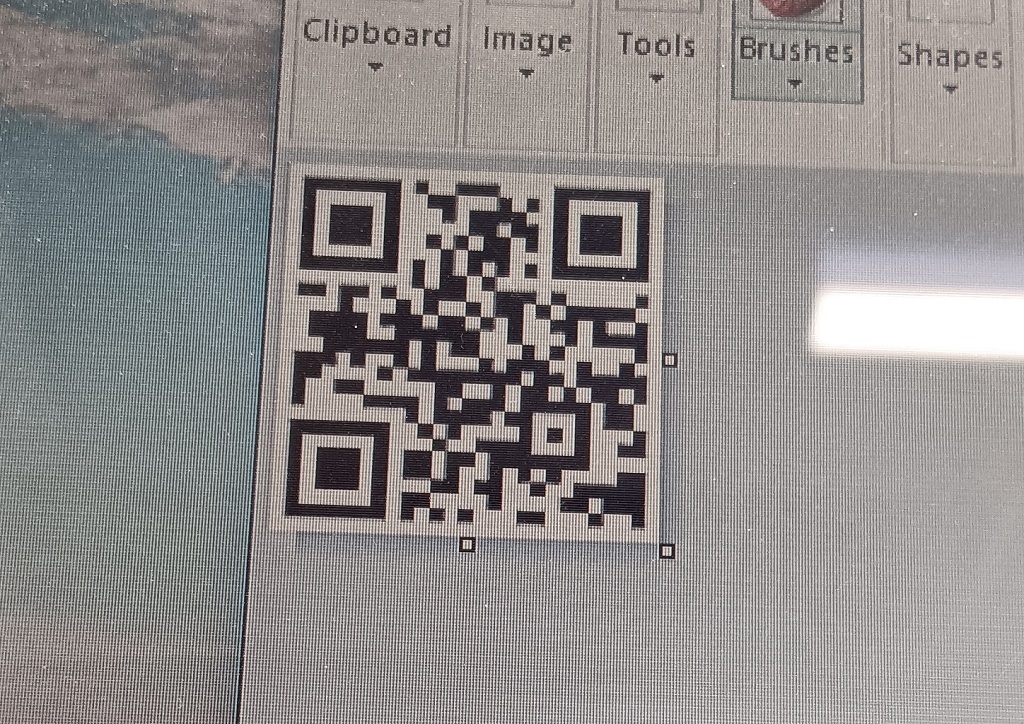
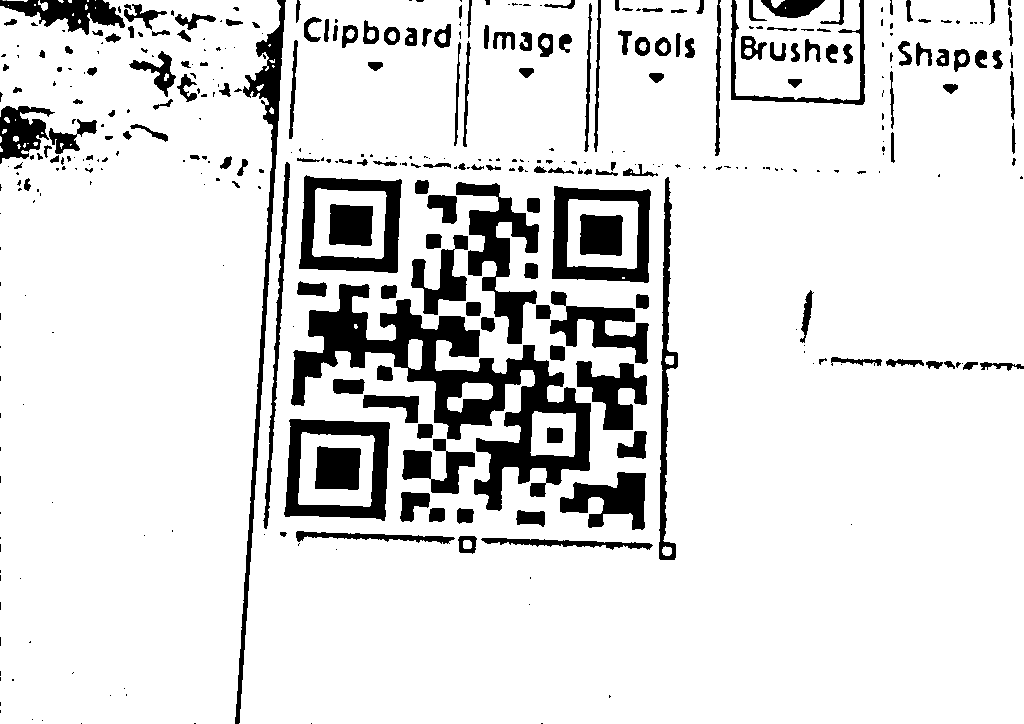
Dynamsoft Barcode Reader integrates various image processing methods. The converted black and white image is optimized for barcode reading, not just a simple thresholding. Meanwhile, its performance is also great based on WebAssembly.
Example image with texture:
Texture removed:
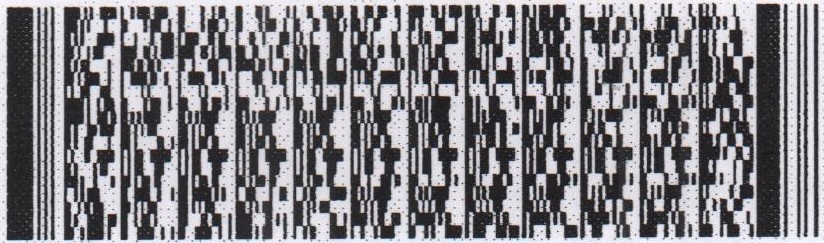
Example image with noise:
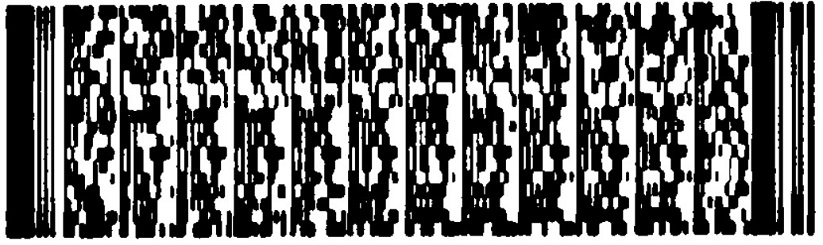
Noise removed:
Common Issues and Edge Cases
- Shadow or vignette fails with global threshold: A fixed threshold binarizes shadow regions entirely to black, destroying detail. Switch to adaptive thresholding with a
blockSizebetween 15–51 and aCconstant of 5–15 to compensate for uneven lighting. - Moiré / texture patterns persist after binarization: For custom implementations, apply a Gaussian blur or median filter before calling
adaptiveThreshold. Dynamsoft Barcode Reader handles this automatically with its built-in texture-removal pass. - Performance degrades on high-resolution images: The naïve nested-loop approach is O(N·k²). Always use
adaptiveThresholdWithIntegralImagefor images larger than 500×500 pixels to keep processing under 10 ms.