


Implementing a Flutter Barcode Scanner with Kotlin, CameraX, and Dynamsoft Barcode Reader Bundle
When considering the creation of a Flutter barcode scanner application, your first thought might be to search for an existing Flutter plugin. One option is to combine the camera plugin with a barcode scanning plugin, or to utilize a barcode scanning plugin that includes a camera preview feature. However, the camera plugin may not deliver optimal performance for image processing due to the memory copy process between native and Dart code. On the other hand, a barcode scanning plugin with a camera preview may lack the flexibility needed to access camera preview data for other purposes.
Therefore, to achieve both optimal performance and flexibility in camera-related applications, it may be preferable to incorporate native code for easy customization within a Flutter project. In this article, I will guide you through the step-by-step process of implementing a Flutter barcode scanner using Kotlin, CameraX, and the Dynamsoft Barcode Reader Bundle SDK for Android.
This article is Part 1 in a 2-Part Series.
What you’ll build: A Flutter Android app that renders a full-screen CameraX preview through a Texture widget, decodes barcodes in real time from camera frames using the Dynamsoft Barcode Reader Bundle’s CaptureVisionRouter API in Kotlin, and overlays the barcode text and quadrilateral coordinates on the preview in Dart.
Key Takeaways
- Rendering the camera preview in native Kotlin via a
SurfaceTextureand displaying it in Dart with aTexturewidget avoids the per-frame memory copies between native code and Dart that make camera plugins slow for image processing. - CameraX
ImageAnalysisframes are decoded on a background thread by wrapping the luminance plane in anImageDataobject and callingCaptureVisionRouter.capture(imageData, EnumPresetTemplate.PT_READ_BARCODES). - The legacy
com.dynamsoft:dynamsoftbarcodereader9.x artifact and itsBarcodeReader.decodeBuffer()API have been superseded bycom.dynamsoft:barcodereaderbundle(v11.x), which contains the same barcode engine as Dynamsoft Capture Vision and is initialized withLicenseManager.initLicense(). - Barcode results cross the Kotlin–Dart boundary through a
MethodChannelas a list of maps (format, coordinates,angle,barcodeBytes), and the Dart side rotates the coordinates by 90 degrees for portrait previews on Android. - The same architecture lets you swap barcode decoding for any custom image-processing algorithm while keeping the app UI in Dart.
Common Developer Questions
Why not use a Flutter camera plugin for real-time barcode scanning?
The camera plugin streams every frame to Dart through a platform channel, which copies the frame data across the native–Dart boundary on each frame and drives up memory usage and latency. Implementing the preview and the decoding in Kotlin with CameraX keeps the frames native and passes only the decoded barcode results to Dart.
Which Dynamsoft dependency should I use for Android barcode scanning?
Use com.dynamsoft:barcodereaderbundle from Dynamsoft’s Maven repository (https://download2.dynamsoft.com/maven/aar). It is the current lightweight barcode-only bundle (v11.x) that replaces the legacy com.dynamsoft:dynamsoftbarcodereader 9.x artifact and exposes the CaptureVisionRouter API used in this tutorial.
How do I decode a CameraX frame with the Capture Vision Router?
Copy the ImageProxy luminance plane into a byte array, fill an ImageData object with the bytes, width, height, stride, and EnumImagePixelFormat.IPF_NV21 format, then call router.capture(imageData, EnumPresetTemplate.PT_READ_BARCODES). The returned CapturedResult contains BarcodeResultItem entries carrying the barcode format, text, location points, angle, and raw bytes.
How do I display the native camera preview in Flutter?
Create a SurfaceTextureEntry with flutterEngine.renderer.createSurfaceTexture(), feed the surface to CameraX’s Preview.setSurfaceProvider, return the texture ID to Dart through the MethodChannel, and render it with a Texture widget wrapped in a SizedBox that preserves the preview’s aspect ratio.
Why are the barcode coordinates rotated on Android?
The camera sensor delivers landscape-oriented frames while the phone is held in portrait, so the Dart side rotates each result point by 90 degrees with rotate90barcode() before drawing the overlay on the preview.
Prerequisites
- Get a 30-day free trial license
- Flutter SDK with the Android toolchain, and an Android device (or emulator with camera support) for testing.
Step 1: Scaffolding a Flutter Project
We use the Flutter CLI to create a new Flutter project:
flutter create <app_name>
To enable camera access, update the AndroidManifest.xml file with the required permissions and features:
<manifest xmlns:android="http://schemas.android.com/apk/res/android">
    <uses-permission android:name="android.permission.CAMERA" />
    <uses-feature android:name="android.hardware.camera.any" />
    <uses-feature android:name="android.hardware.camera.autofocus" />

    <application>
        ...
    </application>
</manifest>
In this project, we will utilize CameraX for handling the camera preview and the Dynamsoft Barcode Reader Bundle for decoding barcodes. To integrate these dependencies:
-
Set up the self-hosted Maven repository for the Dynamsoft Barcode Reader Bundle in the android/build.gradle file:
allprojects { repositories { google() mavenCentral() maven { url "https://download2.dynamsoft.com/maven/aar" } } } -
Include the dependencies in the android/app/build.gradle file:
 dependencies {
     def camerax_version = "1.2.2"
     implementation "androidx.camera:camera-core:${camerax_version}"
     implementation "androidx.camera:camera-camera2:${camerax_version}"
     implementation "androidx.camera:camera-lifecycle:${camerax_version}"
     implementation "androidx.camera:camera-video:${camerax_version}"

     implementation "androidx.camera:camera-view:${camerax_version}"
     implementation "androidx.camera:camera-extensions:${camerax_version}"

     implementation 'com.dynamsoft:barcodereaderbundle:11.6.2000'
 }
Note: The legacy
com.dynamsoft:dynamsoftbarcodereader9.x artifact has been superseded bycom.dynamsoft:barcodereaderbundle(v11.x), which contains the same barcode engine as Dynamsoft Capture Vision and exposes theCaptureVisionRouterAPI.Note: The CameraX version may affect the compatibility with other dependencies. You can check the latest version on the CameraX release page.
Step2: Establishing Communication Between Dart and Kotlin
The MethodChannel class is used to facilitate interoperability between Dart and Kotlin. After instantiating the channel with a specific name in both Dart and Kotlin, messages can be sent and received between the two languages using invokeMethod and setMethodCallHandler methods.
CameraPreviewScreen.dart
class _CameraPreviewScreenState extends State<CameraPreviewScreen> {
  static const platform = MethodChannel('barcode_scan');

  @override
  void initState() {
    super.initState();
    platform.setMethodCallHandler(_handleMethod);
  }

  Future<dynamic> _handleMethod(MethodCall call) async {

  }
}
MainActivity.kt
class MainActivity : FlutterActivity(), ActivityAware {
    private val CHANNEL = "barcode_scan"
    private lateinit var channel: MethodChannel

    override fun configureFlutterEngine(flutterEngine: FlutterEngine) {
        channel = MethodChannel(flutterEngine.dartExecutor.binaryMessenger, CHANNEL)

        channel.setMethodCallHandler { call, result ->

        }
    }
}
Step 3: Integrating CameraX into Flutter Android Project
To get started with CameraX in Android, you can refer to the following sample code:
In Flutter, there are two options for displaying a camera preview: using a Texture through a TextureId or embedding native views directly using registerViewFactory with a platform view.
-
Using a TextureId
- The native code renders the camera preview (or other content) to a
SurfaceTextureallocated in Android. - The ID of this
SurfaceTextureis passed to Flutter, which uses it to create aTexturewidget. - Flutter then displays the
Texturewidget, showing whatever is rendered on the associatedSurfaceTexture.
- The native code renders the camera preview (or other content) to a
-
Using a Platform View
- Define a native view in Android, such as a
CameraViewor any custom view. - Register this view with Flutter’s platform view system by creating a
PlatformViewFactoryand linking it viaregisterViewFactory. - In Flutter, use a
PlatformView(likeAndroidVieworUiKitViewfor iOS) to directly embed the native view within the Flutter widget tree.
- Define a native view in Android, such as a
For high-performance rendering, the Texture approach is recommended for displaying the camera preview in Flutter. Below is an outline of how to render the camera preview to a Texture.
MainActivity.kt
-
Define class variables for the camera preview and image analyzer:
private val CAMERA_REQUEST_CODE = 101 private val CHANNEL = "barcode_scan" private lateinit var channel: MethodChannel private lateinit var flutterTextureEntry: SurfaceTextureEntry private lateinit var flutterEngine: FlutterEngine private var lensFacing: Int = CameraSelector.LENS_FACING_BACK private var preview: Preview? = null private var imageAnalyzer: ImageAnalysis? = null private lateinit var cameraExecutor: ExecutorService private var camera: Camera? = null private var previewWidth = 1280 private var previewHeight = 720CAMERA_REQUEST_CODE: Request code for camera permission.CHANNEL: Method channel name for communication between Dart and Kotlin.channel: Method channel instance.flutterTextureEntry: Surface texture entry for rendering the camera preview.flutterEngine: Flutter engine instance.lensFacing: Camera lens facing direction.preview: Camera preview use case.imageAnalyzer: Image analysis use case.cameraExecutor: Executor service for camera operations.camera: Camera instance.previewWidthandpreviewHeight: Camera preview resolution.
-
Request camera permission when configuring the Flutter engine:
override fun configureFlutterEngine(flutterEngine: FlutterEngine) { ... requestCameraPermission() ... } private fun requestCameraPermission() { if (ContextCompat.checkSelfPermission(this, android.Manifest.permission.CAMERA) != PackageManager.PERMISSION_GRANTED ) { ActivityCompat.requestPermissions( this, arrayOf(android.Manifest.permission.CAMERA), CAMERA_REQUEST_CODE ) } } -
Define an
ImageAnalyzerclass for processing images on a separate thread:private class ImageAnalyzer(listener: ResultListener? = null) : ImageAnalysis.Analyzer { private val listeners = ArrayList<ResultListener>().apply { listener?.let { add(it) } } private fun ByteBuffer.toByteArray(): ByteArray { rewind() val data = ByteArray(remaining()) get(data) return data } override fun analyze(image: ImageProxy) { if (listeners.isEmpty()) { image.close() return } val buffer = image.planes[0].buffer // Image Processing listeners.forEach { it() } image.close() } } -
Create a
startCamera()method to initialize the camera:override fun configureFlutterEngine(flutterEngine: FlutterEngine) { ... requestCameraPermission() channel = MethodChannel(flutterEngine.dartExecutor.binaryMessenger, CHANNEL) channel.setMethodCallHandler { call, result -> if (call.method == "startCamera") { startCamera(result) } } } private fun startCamera(result: MethodChannel.Result) { val cameraProviderFuture = ProcessCameraProvider.getInstance(this) cameraProviderFuture.addListener( { val cameraProvider: ProcessCameraProvider = cameraProviderFuture.get() bindCamera(cameraProvider, result) }, ContextCompat.getMainExecutor(this) ) } private fun bindCamera(provider: ProcessCameraProvider, result: MethodChannel.Result) { val metrics = windowManager.getCurrentWindowMetrics().bounds val screenAspectRatio = aspectRatio(metrics.width(), metrics.height()) val rotation = display!!.rotation var resolutionSize = Size(previewWidth, previewHeight) if (rotation == ROTATION_0 || rotation == Surface.ROTATION_180) { resolutionSize = Size(previewHeight, previewWidth) } val cameraProvider = provider ?: throw IllegalStateException("Camera initialization failed.") val cameraSelector = CameraSelector.Builder().requireLensFacing(lensFacing).build() flutterTextureEntry = flutterEngine.renderer.createSurfaceTexture() // Preview preview = Preview.Builder() .setTargetResolution(resolutionSize) .setTargetRotation(rotation) .build() .also { it.setSurfaceProvider { request -> val surfaceTexture = flutterTextureEntry?.surfaceTexture().apply { this?.setDefaultBufferSize(request.resolution.width, request.resolution.height) } val surface = Surface(surfaceTexture) request.provideSurface( surface, ContextCompat.getMainExecutor(this) ) {} } } imageAnalyzer = ImageAnalysis.Builder() .setTargetResolution(resolutionSize) .setTargetRotation(rotation) .build() .also { it.setAnalyzer( cameraExecutor, ImageAnalyzer { results -> } ) } if (camera != null) { removeCameraStateObservers(camera!!.cameraInfo) } try { cameraProvider.unbindAll() // Unbind use cases before rebinding camera = cameraProvider.bindToLifecycle(this, cameraSelector, preview, imageAnalyzer) observeCameraState(camera?.cameraInfo!!) result.success(flutterTextureEntry?.id()) } catch (e: Exception) { result.error("CAMERA_INIT_FAILED", "Failed to initialize camera: ${e.message}", null) } }The
previewandimageAnalyzerare created with the target resolution and rotation. ThesetSurfaceProvidermethod is used to provide the camera preview to the Flutter engine. The camera preview is displayed on the Flutter screen using theflutterTextureEntryID. -
Define methods
getPreviewWidth()andgetPreviewHeight()to fetch the camera preview resolution:private fun getPreviewWidth(): Double { return previewWidth.toDouble() } private fun getPreviewHeight(): Double { return previewHeight.toDouble() }
CameraPreviewScreen.dart
-
Initialize the camera preview:
class _CameraPreviewScreenState extends State<CameraPreviewScreen> { static const platform = MethodChannel('barcode_scan'); int? _textureId; double _previewWidth = 0.0; double _previewHeight = 0.0; bool isPortrait = false; @override void initState() { super.initState(); platform.setMethodCallHandler(_handleMethod); _initializeCamera(); } Future<void> _initializeCamera() async { try { final int textureId = await platform.invokeMethod('startCamera'); final double previewWidth = await platform.invokeMethod('getPreviewWidth'); final double previewHeight = await platform.invokeMethod('getPreviewHeight'); setState(() { _textureId = textureId; _previewWidth = previewWidth; _previewHeight = previewHeight; }); } catch (e) { print(e); } } } -
Display the camera preview using the
Texturewidget:@override Widget build(BuildContext context) { final screenWidth = MediaQuery.of(context).size.width; final screenHeight = MediaQuery.of(context).size.height; var orientation = MediaQuery.of(context).orientation; isPortrait = orientation == Orientation.portrait; return Scaffold( body: _textureId == null ? const Center(child: CircularProgressIndicator()) : SizedBox( width: screenWidth, height: screenHeight, child: FittedBox( fit: BoxFit.cover, child: Stack( children: [ SizedBox( width: isPortrait ? _previewHeight : _previewWidth, height: isPortrait ? _previewWidth : _previewHeight, child: Texture(textureId: _textureId!), ), ], ), ), ), ); }- The
Textureis wrapped in aSizedBoxto maintain the correct aspect ratio of the camera preview. Without theSizedBox, the preview might be stretched or distorted. - The
FittedBoxwidget is used to scale the camera preview to fit the screen size. - The
Stackwidget is used to overlay additional widgets on the camera preview. - The
SizedBoxwidget, set with screen width and height, is used to display the camera preview in full screen.
- The
Step 4: Integrating the Dynamsoft Barcode Reader Bundle SDK
The Dynamsoft Barcode Reader Bundle SDK offers a straightforward API for decoding barcodes from images. Its central entry point is the CaptureVisionRouter class, which reads barcodes from an ImageData object with a preset template. Just a few lines of code can equip your Flutter application with robust barcode scanning capabilities.
MainActivity.kt
-
Import the required SDK classes and activate the SDK with a valid license key:
 import com.dynamsoft.core.basic_structures.CapturedResultItem
 import com.dynamsoft.core.basic_structures.EnumCapturedResultItemType
 import com.dynamsoft.core.basic_structures.EnumImagePixelFormat
 import com.dynamsoft.core.basic_structures.ImageData
 import com.dynamsoft.cvr.CapturedResult
 import com.dynamsoft.cvr.CaptureVisionRouter
 import com.dynamsoft.cvr.EnumPresetTemplate
 import com.dynamsoft.dbr.BarcodeResultItem
 import com.dynamsoft.license.LicenseManager
fun setLicense(license: String?) { LicenseManager.initLicense(license) { isSuccessful, e -> if (isSuccessful) { // The license verification was successful. } else { // The license verification failed. e contains the error information. } } } override fun configureFlutterEngine(flutterEngine: FlutterEngine) { setLicense("LICENSE-KEY") ... } -
Create a
CaptureVisionRouterinstance in theImageAnalyzerclass:private class ImageAnalyzer(listener: ResultListener? = null) : ImageAnalysis.Analyzer { private val mRouter: CaptureVisionRouter = CaptureVisionRouter() ... } -
Decode the barcode from the image and pass the results through listeners:
 typealias ResultListener = (results: List<Map<String, Any>>) -> Unit

 private class ImageAnalyzer(listener: ResultListener? = null) : ImageAnalysis.Analyzer {
     private val mRouter: CaptureVisionRouter = CaptureVisionRouter()
     private val listeners = ArrayList<ResultListener>().apply { listener?.let { add(it) } }

     private fun ByteBuffer.toByteArray(): ByteArray {
         rewind()
         val data = ByteArray(remaining())
         get(data)
         return data
     }

     override fun analyze(image: ImageProxy) {
         if (listeners.isEmpty()) {
             image.close()
             return
         }

         // Since format in ImageAnalysis is YUV, image.planes[0] contains the luminance plane
         val buffer = image.planes[0].buffer
         val stride = image.planes[0].rowStride

         // Extract image data from callback object
         val data = buffer.toByteArray()

         // Wrap the camera frame as ImageData consumed by the Capture Vision SDK
         val imageData = ImageData()
         imageData.bytes = data
         imageData.width = image.width
         imageData.height = image.height
         imageData.stride = stride
         imageData.format = EnumImagePixelFormat.IPF_NV21

         // Read barcodes from the image data with the Capture Vision Router
         val results = mRouter.capture(imageData, EnumPresetTemplate.PT_READ_BARCODES)

         // Call all listeners with new value
         listeners.forEach { it(wrapResults(results)) }

         image.close()
     }

     private fun wrapResults(result: CapturedResult): List<Map<String, Any>> {
         val out = mutableListOf<Map<String, Any>>()
         val items: Array<CapturedResultItem> = result.items ?: return out
         for (item in items) {
             if (item.type != EnumCapturedResultItemType.CRIT_BARCODE) continue
             val barcodeItem = item as BarcodeResultItem
             val data: MutableMap<String, Any> = HashMap()
             data["format"] = barcodeItem.formatString
             val points = barcodeItem.location.points
             data["x1"] = points[0].x
             data["y1"] = points[0].y
             data["x2"] = points[1].x
             data["y2"] = points[1].y
             data["x3"] = points[2].x
             data["y3"] = points[2].y
             data["x4"] = points[3].x
             data["y4"] = points[3].y
             data["angle"] = barcodeItem.angle
             data["barcodeBytes"] = barcodeItem.bytes
             out.add(data)
         }
         return out
     }
 }
The
CaptureVisionRouter.capture()method accepts the wrappedImageDataand the preset templatePT_READ_BARCODES, and returns aCapturedResult. Because the router can also return other result types,wrapResults()filters the items byEnumCapturedResultItemType.CRIT_BARCODEand casts each one toBarcodeResultItembefore extracting the format, text, location points, angle, and raw bytes. -
Send the barcode results to the Dart side:
 imageAnalyzer =
             ImageAnalysis.Builder()
                     .setTargetResolution(resolutionSize)
                      .setTargetRotation(rotation)
                     .build()
                     .also {
                         it.setAnalyzer(
                                 cameraExecutor,
                                 ImageAnalyzer { results ->
                                     Handler(Looper.getMainLooper()).post {
                                         channel.invokeMethod("onBarcodeDetected", results)
                                     }
                                 }
                         )
                     }
Note: The callback is executed on a background thread. To update the UI, use
Handlerto switch to the main thread.
CameraPreviewScreen.dart
-
Define a
BarcodeResultclass based on flutter_barcode_sdk. -
Retrieve and construct the barcode results. Rotate the coordinates of the barcode results by 90 degrees for portrait mode on Android:
List<BarcodeResult> rotate90barcode(List<BarcodeResult> input, int height) { List<BarcodeResult> output = []; for (BarcodeResult result in input) { int x1 = result.x1; int x2 = result.x2; int x3 = result.x3; int x4 = result.x4; int y1 = result.y1; int y2 = result.y2; int y3 = result.y3; int y4 = result.y4; BarcodeResult newResult = BarcodeResult( result.format, result.text, height - y1, x1, height - y2, x2, height - y3, x3, height - y4, x4, result.angle, result.barcodeBytes); output.add(newResult); } return output; } Future<dynamic> _handleMethod(MethodCall call) async { if (call.method == "onBarcodeDetected") { barcodeResults = convertResults(List<Map<dynamic, dynamic>>.from(call.arguments)); if (Platform.isAndroid && isPortrait && barcodeResults != null) { barcodeResults = rotate90barcode(barcodeResults!, _previewHeight.toInt()); } setState(() {}); } } -
Draw the barcode results on the camera preview using the
CustomPainterclass:@override Widget build(BuildContext context) { final screenWidth = MediaQuery.of(context).size.width; final screenHeight = MediaQuery.of(context).size.height; var orientation = MediaQuery.of(context).orientation; isPortrait = orientation == Orientation.portrait; return Scaffold( body: _textureId == null ? const Center(child: CircularProgressIndicator()) : SizedBox( width: screenWidth, height: screenHeight, child: FittedBox( fit: BoxFit.cover, child: Stack( children: [ SizedBox( width: isPortrait ? _previewHeight : _previewWidth, height: isPortrait ? _previewWidth : _previewHeight, child: Texture(textureId: _textureId!), ), Positioned( left: 0, top: 0, right: 0, bottom: 0, child: createOverlay( barcodeResults, )) ], ), ), ), ); } Widget createOverlay( List<BarcodeResult>? barcodeResults, ) { return CustomPaint( painter: OverlayPainter(barcodeResults), ); } class OverlayPainter extends CustomPainter { List<BarcodeResult>? barcodeResults; OverlayPainter(this.barcodeResults); @override void paint(Canvas canvas, Size size) { final paint = Paint() ..color = Colors.blue ..strokeWidth = 5 ..style = PaintingStyle.stroke; if (barcodeResults != null) { for (var result in barcodeResults!) { double minX = result.x1.toDouble(); double minY = result.y1.toDouble(); if (result.x2 < minX) minX = result.x2.toDouble(); if (result.x3 < minX) minX = result.x3.toDouble(); if (result.x4 < minX) minX = result.x4.toDouble(); if (result.y2 < minY) minY = result.y2.toDouble(); if (result.y3 < minY) minY = result.y3.toDouble(); if (result.y4 < minY) minY = result.y4.toDouble(); canvas.drawLine(Offset(result.x1.toDouble(), result.y1.toDouble()), Offset(result.x2.toDouble(), result.y2.toDouble()), paint); canvas.drawLine(Offset(result.x2.toDouble(), result.y2.toDouble()), Offset(result.x3.toDouble(), result.y3.toDouble()), paint); canvas.drawLine(Offset(result.x3.toDouble(), result.y3.toDouble()), Offset(result.x4.toDouble(), result.y4.toDouble()), paint); canvas.drawLine(Offset(result.x4.toDouble(), result.y4.toDouble()), Offset(result.x1.toDouble(), result.y1.toDouble()), paint); TextPainter textPainter = TextPainter( text: TextSpan( text: result.text, style: const TextStyle( color: Colors.yellow, fontSize: 22.0, ), ), textAlign: TextAlign.center, textDirection: TextDirection.ltr, ); textPainter.layout(minWidth: 0, maxWidth: size.width); textPainter.paint(canvas, Offset(minX, minY)); } } } @override bool shouldRepaint(OverlayPainter oldDelegate) => true; }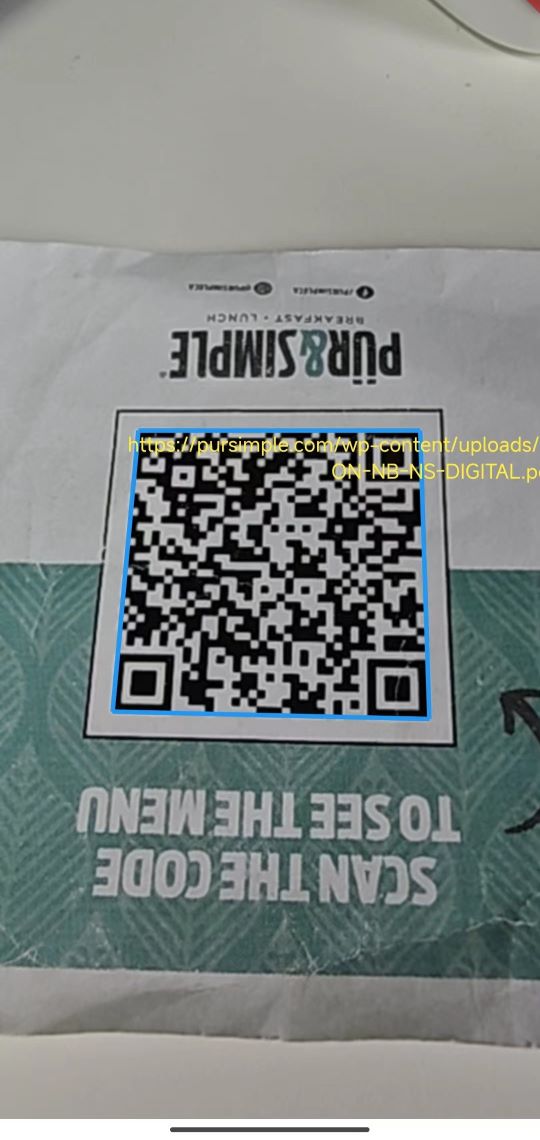
Common Issues & Edge Cases
- License verification is asynchronous.
LicenseManager.initLicense()returns immediately and verifies the license on a background thread, so frames decoded before verification completes will fail. Allow a moment after the app launches before testing barcode scanning. - Camera permission denied on first launch. The permission dialog appears the first time the app starts. If the user denies it, the preview stays blank until the permission is granted in system settings and the app is restarted.
- Stretched preview. The
Texturewidget must be wrapped in aSizedBoxsized to the preview resolution; otherwise the preview is distorted. TheFittedBoxwithBoxFit.coverthen scales it to the full screen. - Rotated barcode coordinates. Android camera sensors deliver landscape-oriented frames, so in portrait mode the Dart side must rotate each result point by 90 degrees with
rotate90barcode()or the overlay appears misaligned. - “Unsupported class file major version 65” Gradle error. The Gradle 7.5 wrapper cannot run on Java 21, which recent Flutter versions use for Gradle. Update
gradle-wrapper.propertiesto Gradle 8.12 or newer and the Android Gradle Plugin accordingly. - Only the luminance plane is decoded. Passing
image.planes[0]withEnumImagePixelFormat.IPF_NV21works because CameraX analysis frames are YUV. If you switch to a different input source, theImageDataformat and stride must match the actual pixel layout.