


Build a Web Document Scanner with Claude Code AI and Dynamic Web TWAIN (10-Minute Tutorial)
Document scanning applications are essential for modern businesses, yet building them from scratch is often time‑consuming and complex. In this tutorial, we will explore how to use Claude Sonnet 4 (Claude AI agent) to quickly and efficiently create a professional web document scanning application with the Dynamic Web TWAIN SDK. You will see how to generate the initial code with AI, manually review and refine it, debug issues, and finish with a polished, functional web app.
What you’ll build: A browser-based document scanning app that connects to any TWAIN-compatible scanner, displays scanned pages in an image viewer, and exports multi-page PDFs — generated from a single prompt using Claude Sonnet 4 and the Dynamic Web TWAIN SDK v19.2.
Key Takeaways
- Claude Sonnet 4 scaffolds a complete Dynamic Web TWAIN web app — HTML, CSS, and JavaScript — from a single natural-language prompt in under 10 minutes.
- Four manual fixes are required after AI code generation: removing a redundant
SelectSourcecall, updating the SDK CDN to v19.2, disabling theOnWebTwainPostExecutespinner event, and removing unsupported auto-deskew/auto-border properties. - Dynamic Web TWAIN v19.2 handles TWAIN scanner enumeration, multi-page PDF export, and image buffer management entirely in the browser without a backend server.
- This AI-assisted workflow significantly reduces boilerplate development time while still requiring developer domain knowledge for final debugging.
Common Developer Questions
How do I build a web document scanner with Claude Code AI in JavaScript?
Start with a single prompt that asks Claude to generate the HTML, CSS, and JavaScript scaffold, then review the generated UI and wire it to the Dynamic Web TWAIN APIs. In this tutorial, the AI-produced app becomes usable only after several manual fixes to scanner initialization, SDK versioning, and event handling.
Can Claude AI automatically generate working Dynamic Web TWAIN integration code?
It can generate a strong starting point, but you should still expect to verify the SDK integration yourself. The guide shows that the generated code needed version corrections, API cleanup, and unsupported option removal before the demo worked reliably.
What bugs does AI-generated document scanning code typically introduce?
The guide fixes four concrete problems: a redundant SelectSource call, an outdated SDK CDN version, a spinner tied to OnWebTwainPostExecute, and unsupported auto-deskew or auto-border properties. Those are good examples of the integration bugs AI can introduce when it guesses API behavior instead of following the SDK’s current contract.
Watch the Web Document Scanner in Action
Online Demo
https://yushulx.me/web-twain-document-scan-management/examples/claude-code/
Prerequisites
- Get a 30-day free trial license for Dynamic Web TWAIN SDK
- GitHub Copilot subscription with Claude Sonnet 4 enabled, or any IDE with a Claude AI agent (e.g., Cursor, Claude Code CLI)
How to Build a Web Document Scanner with Claude Code AI
Step 1: Generate the Web App Scaffold with a Single Prompt
Prompt used:
Please create a simple web document scanning app using Dynamic Web TWAIN SDK
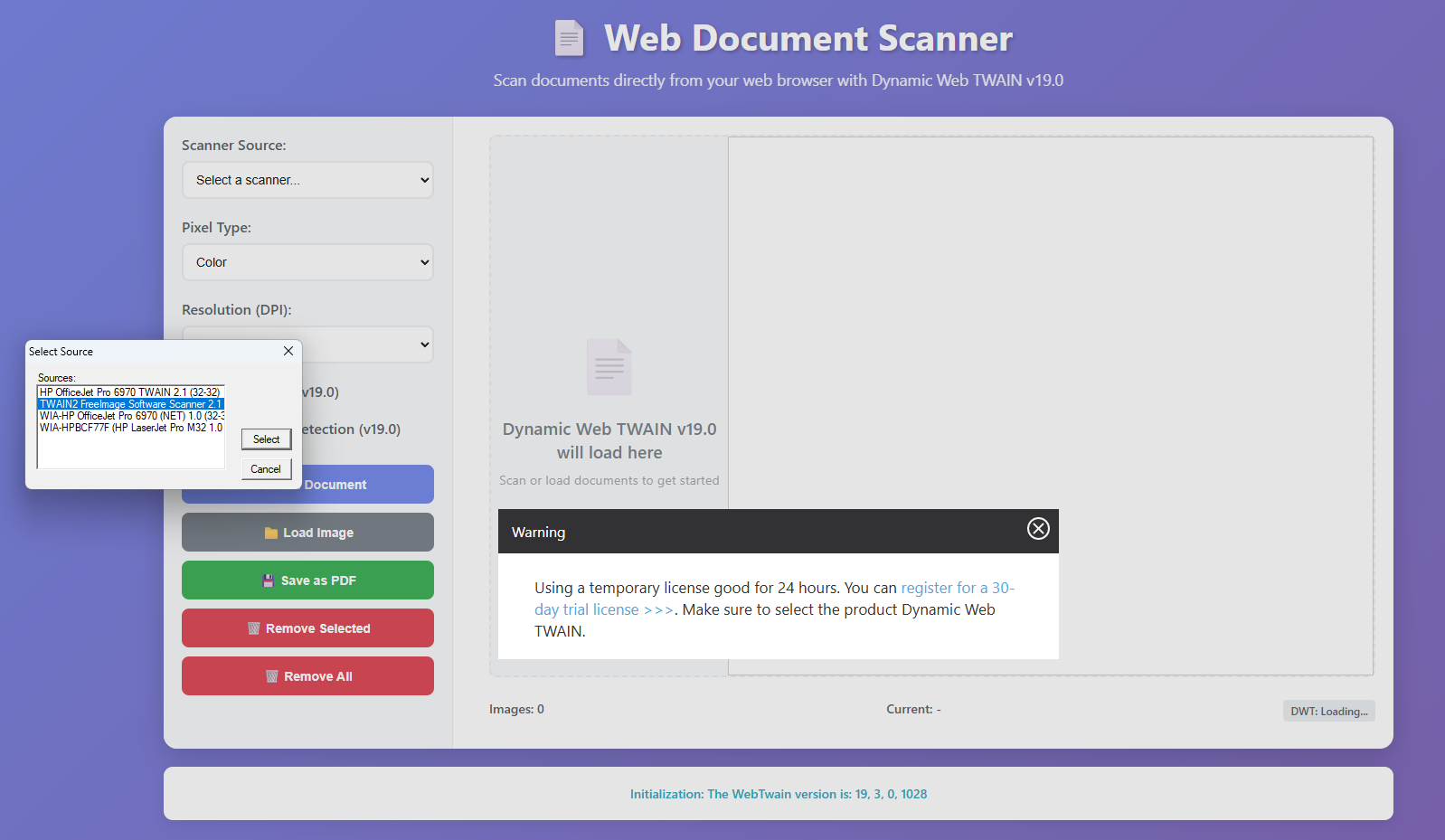
The Claude AI agent generated the initial HTML, CSS, and JavaScript to scaffold a basic document scanning interface, which is close to what you see in the demo video.
HTML code:
<!DOCTYPE html>
<html lang="en">

<head>
    <meta charset="UTF-8">
    <meta name="viewport" content="width=device-width, initial-scale=1.0">
    <title>Web Document Scanner</title>
    <link rel="stylesheet" href="style.css">
    <script src="https://unpkg.com/dwt@19.2.0/dist/dynamsoft.webtwain.min.js"></script>
</head>

<body>
    <div class="container">
        <header>
            <h1>📄 Web Document Scanner</h1>
            <p>Scan documents directly from your web browser with Dynamic Web TWAIN v19.0</p>
        </header>

        <div class="main-content">
            <div class="controls-panel">
                <div class="control-group">
                    <label for="source-select">Scanner Source:</label>
                    <select id="source-select">
                        <option value="">Select a scanner...</option>
                    </select>
                </div>

                <div class="control-group">
                    <label for="pixel-type">Pixel Type:</label>
                    <select id="pixel-type">
                        <option value="0">Black & White</option>
                        <option value="1">Gray</option>
                        <option value="2" selected>Color</option>
                    </select>
                </div>

                <div class="control-group">
                    <label for="resolution">Resolution (DPI):</label>
                    <select id="resolution">
                        <option value="100">100</option>
                        <option value="150">150</option>
                        <option value="200" selected>200</option>
                        <option value="300">300</option>
                        <option value="600">600</option>
                    </select>
                </div>

                <div class="control-group">
                    <label>
                        <input type="checkbox" id="auto-deskew" checked>
                        Auto-Deskew (v19.0)
                    </label>
                </div>

                <div class="control-group">
                    <label>
                        <input type="checkbox" id="auto-border" checked>
                        Auto-Border Detection (v19.0)
                    </label>
                </div>

                <div class="buttons-group">
                    <button id="scan-btn" class="btn btn-primary">🔍 Scan Document</button>
                    <button id="load-btn" class="btn btn-secondary">📁 Load Image</button>
                    <button id="save-btn" class="btn btn-success">💾 Save as PDF</button>
                    <button id="remove-btn" class="btn btn-danger">🗑️ Remove Selected</button>
                    <button id="remove-all-btn" class="btn btn-danger">🗑️ Remove All</button>
                </div>
            </div>

            <div class="viewer-panel">
                <div id="dwtcontrolContainer" class="dwt-container">
                    <!-- Dynamic Web TWAIN viewer will be loaded here -->
                    <div class="placeholder">
                        <div class="placeholder-icon">📄</div>
                        <div class="placeholder-text">Dynamic Web TWAIN v19.0 will load here</div>
                        <div class="placeholder-subtext">Scan or load documents to get started</div>
                    </div>
                </div>

                <div class="image-info">
                    <span id="image-count">Images: 0</span>
                    <span id="current-image">Current: -</span>
                    <span id="dwt-version">DWT: Loading...</span>
                </div>
            </div>
        </div>

        <div class="status-panel">
            <div id="status-message" class="status-message">Ready to scan documents with Dynamic Web TWAIN v19.0</div>
        </div>
    </div>

    <script src="script.js"></script>
</body>

</html>
JavaScript code:
// Dynamic Web TWAIN instance
let DWObject;

// Initialize the application when DOM is loaded
document.addEventListener('DOMContentLoaded', function () {
    initializeDWT();
    setupEventListeners();
});

/**
 * Initialize Dynamic Web TWAIN v19.0
 */
function initializeDWT() {
    // Set the license key (you'll need to get this from Dynamsoft)
    // For trial/demo purposes, you can use the trial license
    Dynamsoft.DWT.ProductKey = "LICENSE-KEY"; // Replace with your actual license key

    // Configure DWT with latest v19.0 settings
    Dynamsoft.DWT.ResourcesPath = "https://unpkg.com/dwt@19.2.0/dist";
    Dynamsoft.DWT.Containers = [{
        WebTwainId: 'dwtObject',
        ContainerId: 'dwtcontrolContainer',
        Width: '100%',
        Height: '100%'
    }];

    // Set auto load to true for better performance
    Dynamsoft.DWT.AutoLoad = true;

    // Initialize DWT
    Dynamsoft.DWT.Load();

    // Wait for DWT to be ready
    Dynamsoft.DWT.RegisterEvent('OnWebTwainReady', function () {
        DWObject = Dynamsoft.DWT.GetWebTwain('dwtcontrolContainer');

        if (DWObject) {
            updateStatus('Dynamic Web TWAIN v19.0 loaded successfully', 'success');

            // Set viewer settings for better experience
            DWObject.Viewer.bind(document.getElementById('dwtcontrolContainer'));
            DWObject.Viewer.width = '100%';
            DWObject.Viewer.height = '100%';
            DWObject.Viewer.show();

            // Hide placeholder and show version
            document.querySelector('.dwt-container').classList.add('dwt-loaded');
            document.getElementById('dwt-version').textContent = 'DWT: v19.0';
            document.getElementById('dwt-version').classList.add('loaded');

            loadScannerSources();
            setupDWTEvents();
        } else {
            updateStatus('Failed to initialize Dynamic Web TWAIN', 'error');
        }
    });

    // Handle initialization errors
    Dynamsoft.DWT.RegisterEvent('OnWebTwainInitMessage', function (message) {
        updateStatus(`Initialization: ${message}`, 'info');
    });
}

/**
 * Setup event listeners for UI elements
 */
function setupEventListeners() {
    // Scan button
    document.getElementById('scan-btn').addEventListener('click', scanDocument);

    // Load button
    document.getElementById('load-btn').addEventListener('click', loadImage);

    // Save button
    document.getElementById('save-btn').addEventListener('click', saveToPDF);

    // Remove selected button
    document.getElementById('remove-btn').addEventListener('click', removeSelected);

    // Remove all button
    document.getElementById('remove-all-btn').addEventListener('click', removeAll);

    // Source selection
    document.getElementById('source-select').addEventListener('change', function () {
        if (DWObject && this.value !== '') {
            DWObject.SelectSource(parseInt(this.value));
            updateStatus(`Scanner "${this.options[this.selectedIndex].text}" selected`, 'info');
        }
    });
}

/**
 * Setup Dynamic Web TWAIN events
 */
function setupDWTEvents() {
    if (!DWObject) return;

    // Image acquisition events
    DWObject.RegisterEvent('OnPreAllTransfers', function () {
        updateStatus('Starting scan...', 'warning');
        document.getElementById('scan-btn').disabled = true;
    });

    DWObject.RegisterEvent('OnPostAllTransfers', function () {
        updateStatus('Scan completed successfully', 'success');
        document.getElementById('scan-btn').disabled = false;
        updateImageInfo();
    });

    DWObject.RegisterEvent('OnPostTransfer', function () {
        updateImageInfo();
    });

    // Error handling
    DWObject.RegisterEvent('OnPostTransferAsync', function (info) {
        if (info.bImageCompleted) {
            updateImageInfo();
        }
    });

    // Image buffer change events
    DWObject.RegisterEvent('OnBitmapChanged', function (indexArray) {
        updateImageInfo();
    });

    DWObject.RegisterEvent('OnImageAreaSelected', function (index, left, top, right, bottom) {
        updateStatus(`Image area selected: ${Math.round(right - left)}x${Math.round(bottom - top)}px`, 'info');
    });

    DWObject.RegisterEvent('OnImageAreaDeSelected', function (index) {
        updateStatus('Image area deselected', 'info');
    });

    // Mouse events for better user feedback
    DWObject.RegisterEvent('OnMouseClick', function (index) {
        updateStatus(`Image ${index + 1} selected`, 'info');
    });

    // Scanner source events
    DWObject.RegisterEvent('OnSourceUIClose', function () {
        updateStatus('Scanner UI closed', 'info');
        document.getElementById('scan-btn').disabled = false;
    });
}

/**
 * Load available scanner sources
 */
function loadScannerSources() {
    if (!DWObject) {
        updateStatus('DWT not initialized', 'error');
        return;
    }

    const sourceSelect = document.getElementById('source-select');
    sourceSelect.innerHTML = '<option value="">Select a scanner...</option>';

    // Get source count
    const sourceCount = DWObject.SourceCount;

    if (sourceCount === 0) {
        updateStatus('No scanners found. Please ensure TWAIN drivers are installed.', 'warning');
        sourceSelect.innerHTML = '<option value="">No scanners available</option>';
        return;
    }

    // Populate scanner sources
    for (let i = 0; i < sourceCount; i++) {
        const sourceName = DWObject.GetSourceNameItems(i);
        const option = document.createElement('option');
        option.value = i;
        option.textContent = sourceName;
        sourceSelect.appendChild(option);
    }

    // Select first source by default
    if (sourceCount > 0) {
        sourceSelect.selectedIndex = 1;
        DWObject.SelectSource(0);
        updateStatus(`Found ${sourceCount} scanner(s). Default scanner selected.`, 'success');
    }
}

/**
 * Scan document from selected source
 */
function scanDocument() {
    if (!DWObject) {
        updateStatus('Scanner not initialized', 'error');
        return;
    }

    const sourceSelect = document.getElementById('source-select');
    if (!sourceSelect.value) {
        updateStatus('Please select a scanner source', 'warning');
        return;
    }

    // Set scan parameters
    const pixelType = parseInt(document.getElementById('pixel-type').value);
    const resolution = parseInt(document.getElementById('resolution').value);
    const autoDeskew = document.getElementById('auto-deskew').checked;
    const autoBorder = document.getElementById('auto-border').checked;

    DWObject.PixelType = pixelType;
    DWObject.Resolution = resolution;

    // Configure enhanced v19.0 scan settings
    DWObject.IfShowUI = false; // Set to true to show scanner UI
    DWObject.IfFeederEnabled = false;
    DWObject.IfDuplexEnabled = false;
    DWObject.IfAutomaticDeskew = autoDeskew; // v19.0 feature
    DWObject.IfAutomaticBorderDetection = autoBorder; // v19.0 feature

    updateStatus('Preparing to scan with v19.0 enhancements...', 'warning');

    // Use the improved AcquireImage method with enhanced callbacks
    DWObject.AcquireImage(
        {
            IfCloseSourceAfterAcquire: true,
            IfShowUI: false,
            PixelType: pixelType,
            Resolution: resolution
        },
        function () {
            updateStatus('Scan completed with auto-enhancements applied', 'success');
            updateImageInfo();
        },
        function (errorCode, errorString) {
            updateStatus(`Scan failed: ${errorString} (Code: ${errorCode})`, 'error');
            document.getElementById('scan-btn').disabled = false;
        }
    );
}

/**
 * Load image from local file
 */
function loadImage() {
    if (!DWObject) {
        updateStatus('DWT not initialized', 'error');
        return;
    }

    updateStatus('Opening file dialog...', 'warning');

    DWObject.LoadImageEx("", 5, function () {
        updateStatus('Image loaded successfully', 'success');
        updateImageInfo();
    }, function (errorCode, errorString) {
        updateStatus(`Failed to load image: ${errorString} (Code: ${errorCode})`, 'error');
    });
}

/**
 * Save images as PDF with v19.0 enhancements
 */
function saveToPDF() {
    if (!DWObject) {
        updateStatus('DWT not initialized', 'error');
        return;
    }

    if (DWObject.HowManyImagesInBuffer === 0) {
        updateStatus('No images to save', 'warning');
        return;
    }

    updateStatus('Saving as PDF with enhanced compression...', 'warning');

    // Use the improved SaveSelectedImagesAsMultiPagePDF method in v19.0
    const indices = [];
    for (let i = 0; i < DWObject.HowManyImagesInBuffer; i++) {
        indices.push(i);
    }

    // Enhanced PDF saving with better compression and quality
    const fileName = `ScannedDocument_${new Date().toISOString().split('T')[0]}_${Date.now()}.pdf`;

    DWObject.SaveSelectedImagesAsMultiPagePDF(
        fileName,
        indices,
        function () {
            updateStatus(`PDF saved successfully: ${fileName}`, 'success');
        },
        function (errorCode, errorString) {
            updateStatus(`Failed to save PDF: ${errorString} (Code: ${errorCode})`, 'error');
        }
    );
}

/**
 * Remove selected image
 */
function removeSelected() {
    if (!DWObject) {
        updateStatus('DWT not initialized', 'error');
        return;
    }

    if (DWObject.HowManyImagesInBuffer === 0) {
        updateStatus('No images to remove', 'warning');
        return;
    }

    const currentIndex = DWObject.CurrentImageIndexInBuffer;
    DWObject.RemoveImage(currentIndex);
    updateStatus(`Image ${currentIndex + 1} removed`, 'success');
    updateImageInfo();
}

/**
 * Remove all images
 */
function removeAll() {
    if (!DWObject) {
        updateStatus('DWT not initialized', 'error');
        return;
    }

    if (DWObject.HowManyImagesInBuffer === 0) {
        updateStatus('No images to remove', 'warning');
        return;
    }

    const imageCount = DWObject.HowManyImagesInBuffer;
    DWObject.RemoveAllImages();
    updateStatus(`All ${imageCount} images removed`, 'success');
    updateImageInfo();
}

/**
 * Update image information display
 */
function updateImageInfo() {
    if (!DWObject) return;

    const imageCount = DWObject.HowManyImagesInBuffer;
    const currentIndex = DWObject.CurrentImageIndexInBuffer;

    document.getElementById('image-count').textContent = `Images: ${imageCount}`;
    document.getElementById('current-image').textContent =
        imageCount > 0 ? `Current: ${currentIndex + 1} of ${imageCount}` : 'Current: -';

    // Update button states
    const hasImages = imageCount > 0;
    document.getElementById('save-btn').disabled = !hasImages;
    document.getElementById('remove-btn').disabled = !hasImages;
    document.getElementById('remove-all-btn').disabled = !hasImages;
}

/**
 * Update status message
 */
function updateStatus(message, type = '') {
    const statusElement = document.getElementById('status-message');
    statusElement.textContent = message;
    statusElement.className = `status-message ${type}`;

    console.log(`[${type.toUpperCase()}] ${message}`);

    // Auto-clear info messages after 5 seconds
    if (type === 'info') {
        setTimeout(() => {
            if (statusElement.textContent === message) {
                statusElement.textContent = 'Ready to scan documents with Dynamic Web TWAIN v19.0';
                statusElement.className = 'status-message';
            }
        }, 5000);
    }
}

/**
 * Handle errors globally
 */
function handleError(errorCode, errorString) {
    updateStatus(`Error ${errorCode}: ${errorString}`, 'error');
}

// Global error handler for DWT
Dynamsoft.DWT.RegisterEvent('OnWebTwainPostExecute', function () {
    // This event is fired after each DWT operation
});

// Enhanced error handling for network issues
window.addEventListener('online', function () {
    updateStatus('Network connection restored', 'success');
});

window.addEventListener('offline', function () {
    updateStatus('Network connection lost - some features may not work', 'warning');
});

// Handle page unload
window.addEventListener('beforeunload', function () {
    if (DWObject) {
        DWObject.RemoveAllImages();
    }
});

// Keyboard shortcuts
document.addEventListener('keydown', function (e) {
    if (!DWObject) return;

    // Ctrl/Cmd + S to save
    if ((e.ctrlKey || e.metaKey) && e.key === 's') {
        e.preventDefault();
        if (DWObject.HowManyImagesInBuffer > 0) {
            saveToPDF();
        }
    }

    // Delete key to remove selected image
    if (e.key === 'Delete') {
        if (DWObject.HowManyImagesInBuffer > 0) {
            removeSelected();
        }
    }

    // Spacebar to scan
    if (e.code === 'Space' && e.target.tagName !== 'INPUT' && e.target.tagName !== 'SELECT') {
        e.preventDefault();
        scanDocument();
    }
});
Step 2: Review and Fix the AI-Generated Code
Now, let’s review and fix a few issues in the generated code to ensure everything works smoothly.
Issue 1: Hide the “Select Source” dialog on page load
Since we have a dropdown menu for selecting the document source, we don’t need to display the built‑in “Select Source” dialog on page load. The following line is redundant and can be removed:
// DWObject.SelectSource(0);
Additionally, don’t call the SelectSource method again when the user picks a source from the dropdown. Instead, just update the status message to indicate which scanner was selected:
document.getElementById('source-select').addEventListener('change', function () {
        if (DWObject && this.value !== '') {
            // DWObject.SelectSource(parseInt(this.value));
            updateStatus(`Scanner "${this.options[this.selectedIndex].text}" selected`, 'info');
        }
    });
Issue 2: Use the latest version of the Dynamic Web TWAIN SDK
The generated code referenced an outdated version of the SDK. Update the script source to the latest version (v19.2):
- <script src="https://unpkg.com/dwt@18.5.1/dist/dynamsoft.webtwain.min.js"></script>
+ <script src="https://unpkg.com/dwt@19.2.0/dist/dynamsoft.webtwain.min.js"></script>
Issue 3: Disable the loading animation after the SDK is ready
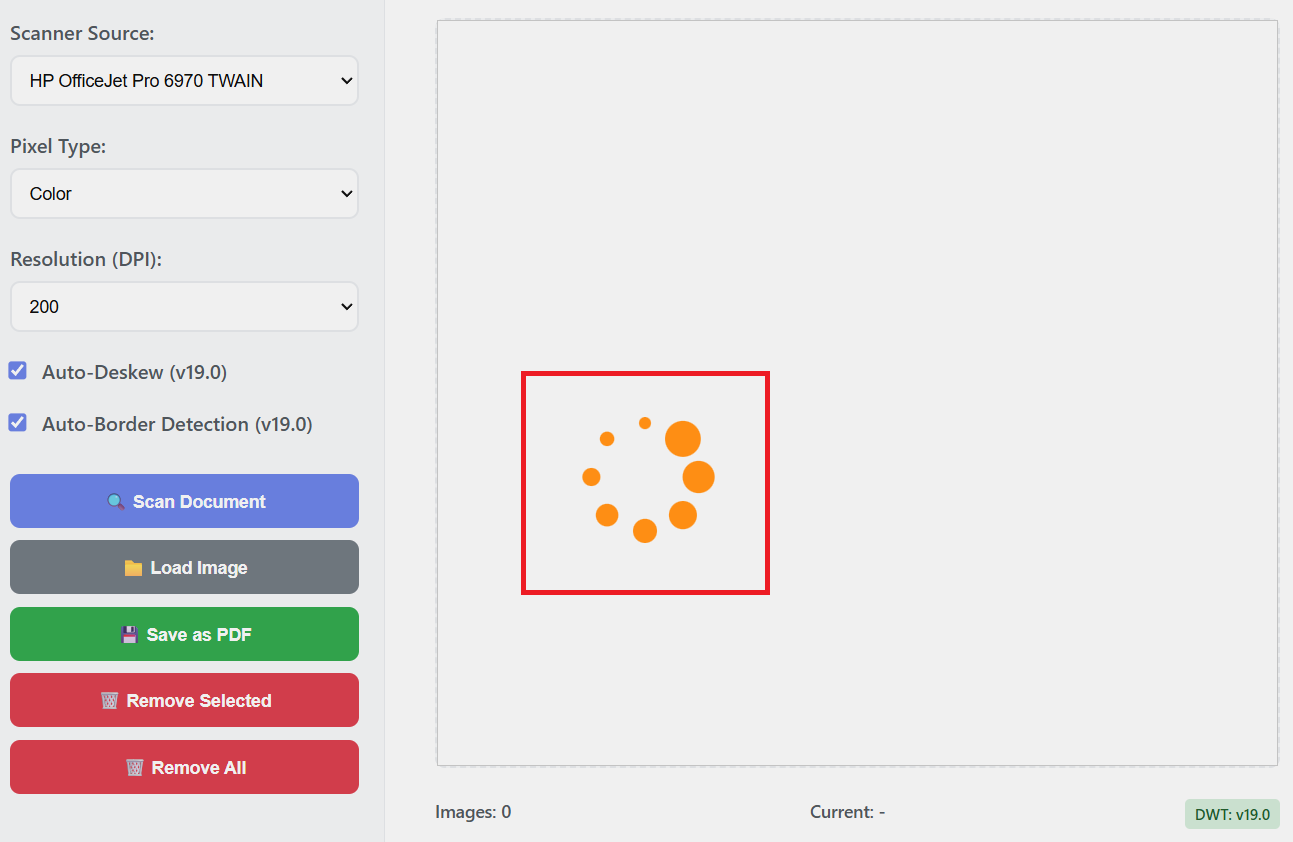
The loading animation continues spinning even after the SDK finishes loading. This behavior is caused by registering the OnWebTwainPostExecute event. Comment out the following line to stop the animation:
// Dynamsoft.DWT.RegisterEvent('OnWebTwainPostExecute', function () {
//     // This event is fired after each DWT operation
// });
Issue 4: Remove “Auto-Deskew” and “Auto-Border Detection”
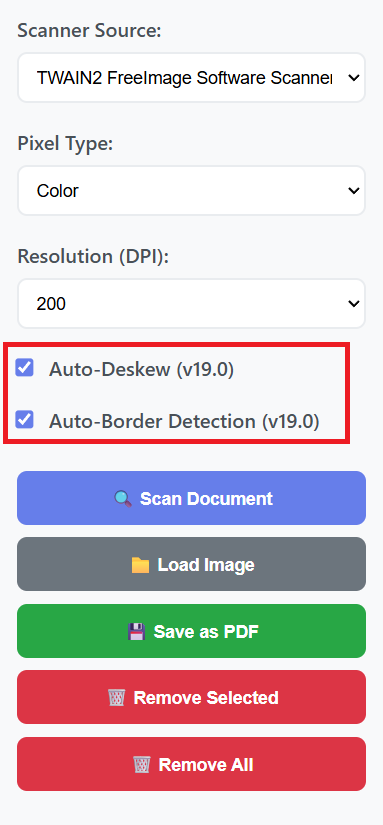
IfAutomaticDeskew and IfAutomaticBorderDetection only work if the scanner and its driver support them. They have no effect on images loaded from disk. To avoid confusion, you can remove the related checkboxes from the UI along with the corresponding code:
<!-- <div class="control-group">
    <label>
        <input type="checkbox" id="auto-deskew" checked>
        Auto-Deskew (v19.0)
    </label>
</div>

<div class="control-group">
    <label>
        <input type="checkbox" id="auto-border" checked>
        Auto-Border Detection (v19.0)
    </label>
</div> -->
// const autoDeskew = document.getElementById('auto-deskew').checked;
// const autoBorder = document.getElementById('auto-border').checked;

// DWObject.IfAutomaticDeskew = autoDeskew;
// DWObject.IfAutomaticBorderDetection = autoBorder;
Common Issues & Edge Cases
- No scanners listed in the dropdown: Dynamic Web TWAIN requires the Dynamsoft Service to be installed on the client machine. Without it,
DWObject.SourceCountreturns0. When this happens, prompt users to install the service — the SDK displays an automatic install prompt in the browser on first load. IfAutomaticDeskew/IfAutomaticBorderDetectionhave no effect: These TWAIN capabilities are hardware-dependent. If the connected scanner’s driver does not advertise support for them, the properties are silently ignored. Remove the checkboxes if your target hardware does not support these features to avoid misleading users.- Viewer appears blank or frozen after SDK loads: Calling
DWObject.Viewer.bind()on an already-bound container can leave the viewer in a broken state. Only callbindonce inside theOnWebTwainReadycallback, and verify the containerdivis present in the DOM before initialization runs.
Conclusion
In less than 10 minutes, we built a functional web document scanning application using the Claude AI agent and the Dynamic Web TWAIN SDK. This approach significantly accelerates development while still leaving room for manual debugging and customization to deliver a polished final product.